Description
- change Gallery Block grid to Auto Scroll format
- view demo – password: abc
- message me If you use Personal/Basic Plan, I will install code for you
- buy me a coffee if it is useful for you

#1. Install Code
#1.1. First you need to add Gallery Block > Choose Grid layout
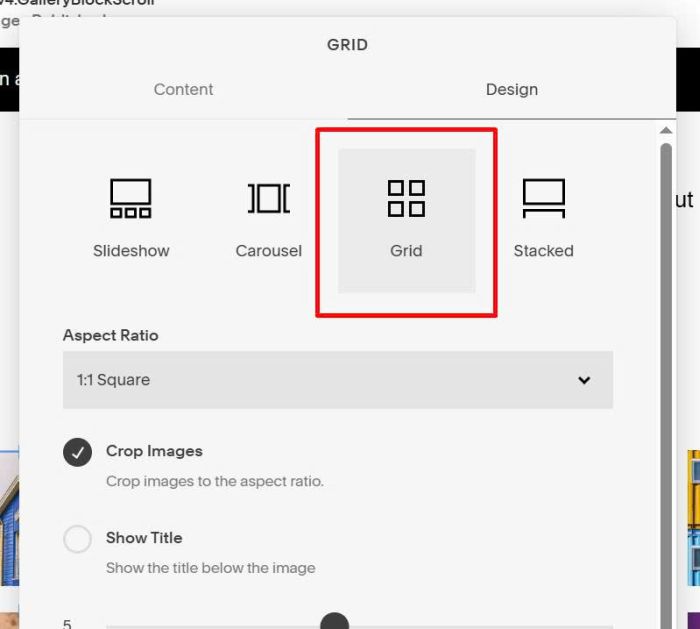
Upload your desired images

#1.2. Hover on top right of section > Click Edit Section

at Anchor Link, enter word: gb-scroll01
gb-scroll01

#1.3. Hover on page where you added Gallery Block

Next, click Advanced > Paste this code
<script src="https://ajax.googleapis.com/ajax/libs/jquery/3.7.1/jquery.min.js"></script>
<script src="https://code.beaverhero.com/galleryblock/gbautoscroll.js"></script>
<link rel="stylesheet" href="https://code.beaverhero.com/galleryblock/gbautoscroll.css"/>

#2. Customize
#2.1. If you want to apply effect to 2 sections on same page, just repeat all steps but in step #1.2, you can use gb-scroll02 for second section
gb-scroll02
and gb-scroll03, 04…if you want to apply to third, fourth section..
#2.2. To change image height, you can use this code to Custom CSS box
div.gb-scroll-slider .slide img {
    --gb-scroll-image-height: 70px !important;
    --gb-scroll-image-height-mobile: 30px !important;
}
#2.3. To remove space under Gallery Block, each case will require a different code, but if your section has Gallery Block, no other blocks, you can use this code to Custom CSS
section[id*="gb-scroll"] {
    .fluid-engine {
    row-gap: 0px !important;
    grid-template-rows: unset !important;
}
    .content-wrapper {
        padding-top: 10px !important;
        padding-bottom: 10px !important;
    }
}