Description
- Slideshow Simple (Mobile) to Reel (Desktop)
- Slideshow Simple (Desktop) to Reel (Mobile)
- view demo – password: abc
- my friend code this, send here a coffee
#1. Slideshow Simple (Mobile) to Reel (Desktop)
First, you need to add a Slideshow Simple
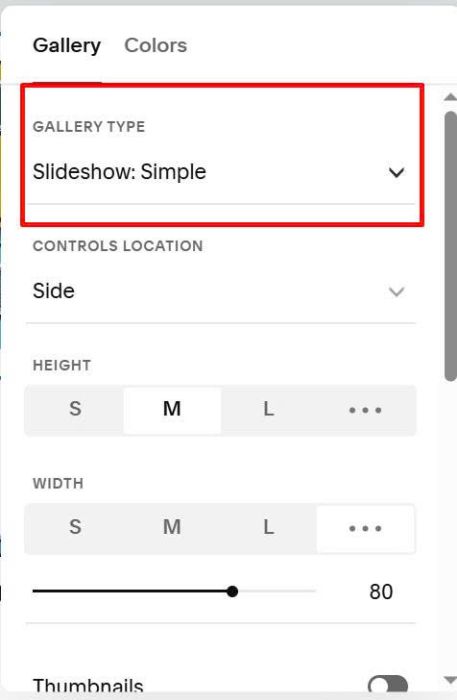
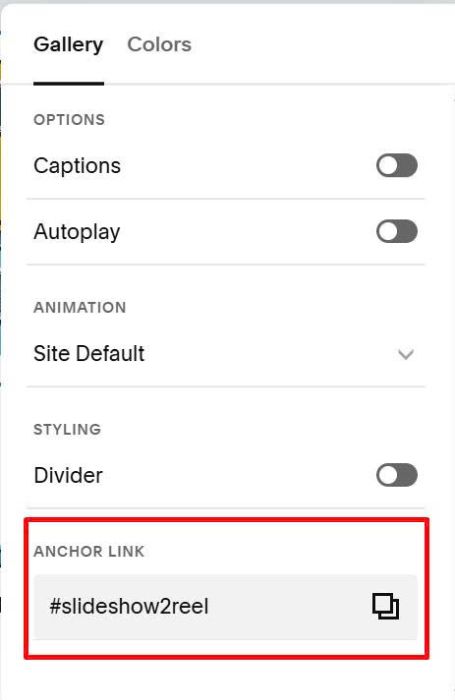
In Anchor Link, enter word: slideshow2reel
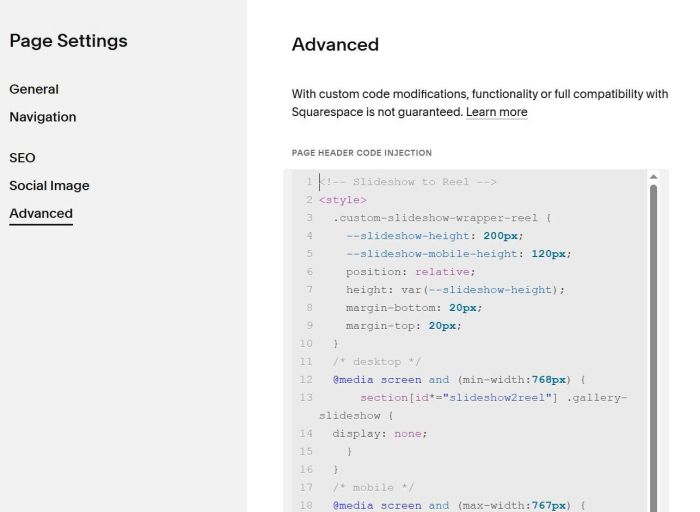
Next, use this code to Page Header Injection
<!-- Slideshow to Reel -->
<style>
  .custom-slideshow-wrapper-reel {
    --slideshow-height: 200px;
    --slideshow-mobile-height: 120px;
    position: relative;
    height: var(--slideshow-height);
    margin-bottom: 20px;
    margin-top: 20px;
  }
  /* desktop */
  @media screen and (min-width:768px) {
      section[id*="slideshow2reel"] .gallery-slideshow {
  display: none;
    }
  }
  /* mobile */
  @media screen and (max-width:767px) {
    .custom-slideshow-wrapper-reel {
  	display: none;
    }}
  .custom-horizontal-slideshow-reel{width:100%;height:100%}.custom-horizontal-slideshow-reel .swiper-slide img{width:100%;height:100%;object-fit:cover;object-position:50% 50%;display:block}.custom-horizontal-slideshow-reel .gallery-reel-control-btn{position:absolute;top:50%;transform:translateY(-50%);z-index:10;background:#fff0;border:none;cursor:pointer;padding:10px}.custom-horizontal-slideshow-reel .gallery-reel-control-btn[data-previous]{left:10px}.custom-horizontal-slideshow-reel .gallery-reel-control-btn[data-next]{right:10px}.custom-horizontal-slideshow-reel .gallery-reel-control-btn-icon{width:28;height:28px}.custom-horizontal-slideshow-reel .gallery-reel-control-btn-icon svg{width:100%;height:100%;stroke:#fff;stroke-width:2}.custom-horizontal-slideshow-reel .swiper-button-prev,.custom-horizontal-slideshow-reel .swiper-button-next{display:none}@media screen and (max-width:767px){.custom-slideshow-wrapper-reel{height:var(--slideshow-mobile-height)}}
</style>
<script>
const reelSlideshowConfig = {
  effect: 'slide',
  direction: 'horizontal',
  speed: 600,
  loop: true,
  navigation: {
    arrows: true,
  },
  slidesPerView: 4,
  spaceBetween: 10,
  centeredSlides: false,
  keyboard: true,
  breakpoints: {
    768: {
      slidesPerView: 10,
      spaceBetween: 10
    }
  }
};
</script>
<link rel="stylesheet" href="https://cdn.jsdelivr.net/npm/swiper@11/swiper-bundle.min.css" />
<script src="https://cdn.jsdelivr.net/npm/swiper@11/swiper-bundle.min.js"></script>
<script src="https://code.beaverhero.com/gallerys/slideshow2reel.js"></script>
#2. Slideshow Simple (Desktop) to Reel (Mobile)
First, you need to add a Slideshow Simple
In Anchor Link, enter word: slideshow2reel
Next, use this code to Page Header Injection
<!-- Slideshow to Reel -->
<style>
  .custom-slideshow-wrapper-reel {
    --slideshow-height: 200px;
    --slideshow-mobile-height: 120px;
    position: relative;
    height: var(--slideshow-height);
    margin-bottom: 20px;
    margin-top: 20px;
  }
  /* desktop */
  @media screen and (min-width:768px) {
    .custom-slideshow-wrapper-reel {
  	display: none;
    }
  }
  /* mobile */
  @media screen and (max-width:767px) {
          section[id*="slideshow2reel"] .gallery-slideshow {
  display: none;
    }
    }
  .custom-horizontal-slideshow-reel{width:100%;height:100%}.custom-horizontal-slideshow-reel .swiper-slide img{width:100%;height:100%;object-fit:cover;object-position:50% 50%;display:block}.custom-horizontal-slideshow-reel .gallery-reel-control-btn{position:absolute;top:50%;transform:translateY(-50%);z-index:10;background:#fff0;border:none;cursor:pointer;padding:10px}.custom-horizontal-slideshow-reel .gallery-reel-control-btn[data-previous]{left:10px}.custom-horizontal-slideshow-reel .gallery-reel-control-btn[data-next]{right:10px}.custom-horizontal-slideshow-reel .gallery-reel-control-btn-icon{width:28;height:28px}.custom-horizontal-slideshow-reel .gallery-reel-control-btn-icon svg{width:100%;height:100%;stroke:#fff;stroke-width:2}.custom-horizontal-slideshow-reel .swiper-button-prev,.custom-horizontal-slideshow-reel .swiper-button-next{display:none}@media screen and (max-width:767px){.custom-slideshow-wrapper-reel{height:var(--slideshow-mobile-height)}}
</style>
<script>
const reelSlideshowConfig = {
  effect: 'slide',
  direction: 'horizontal',
  speed: 600,
  loop: true,
  navigation: {
    arrows: true,
  },
  slidesPerView: 4,
  spaceBetween: 10,
  centeredSlides: false,
  keyboard: true,
  breakpoints: {
    768: {
      slidesPerView: 10,
      spaceBetween: 10
    }
  }
};
</script>
<link rel="stylesheet" href="https://cdn.jsdelivr.net/npm/swiper@11/swiper-bundle.min.css" />
<script src="https://cdn.jsdelivr.net/npm/swiper@11/swiper-bundle.min.js"></script>
<script src="https://code.beaverhero.com/gallerys/slideshow2reel.js"></script>
#3. Custom Reel
First, you need to add a Slideshow Simple
In Anchor Link, enter word: slideshow2reel
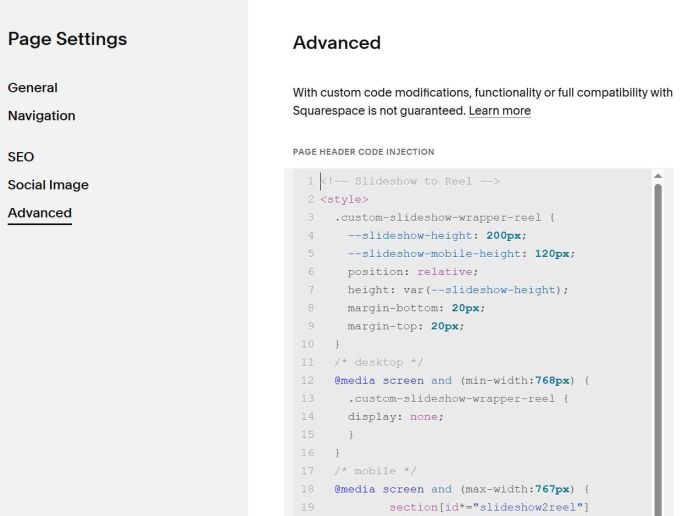
Next, use this code to Page Header Injection
<!-- Slideshow to Reel -->
<style>
  .custom-slideshow-wrapper-reel {
    --slideshow-height: 200px;
    --slideshow-mobile-height: 120px;
    position: relative;
    height: var(--slideshow-height);
    margin-bottom: 20px;
    margin-top: 20px;
  }section[id*="slideshow2reel"] .gallery-slideshow{display: none;}.custom-horizontal-slideshow-reel{width:100%;height:100%}.custom-horizontal-slideshow-reel .swiper-slide img{width:100%;height:100%;object-fit:cover;object-position:50% 50%;display:block}.custom-horizontal-slideshow-reel .gallery-reel-control-btn{position:absolute;top:50%;transform:translateY(-50%);z-index:10;background:#fff0;border:none;cursor:pointer;padding:10px}.custom-horizontal-slideshow-reel .gallery-reel-control-btn[data-previous]{left:10px}.custom-horizontal-slideshow-reel .gallery-reel-control-btn[data-next]{right:10px}.custom-horizontal-slideshow-reel .gallery-reel-control-btn-icon{width:28;height:28px}.custom-horizontal-slideshow-reel .gallery-reel-control-btn-icon svg{width:100%;height:100%;stroke:#fff;stroke-width:2}.custom-horizontal-slideshow-reel .swiper-button-prev,.custom-horizontal-slideshow-reel .swiper-button-next{display:none}@media screen and (max-width:767px){.custom-slideshow-wrapper-reel{height:var(--slideshow-mobile-height)}}
</style>
<script>
const reelSlideshowConfig = {
  effect: 'slide',
  direction: 'horizontal',
  speed: 600,
  loop: true,
  navigation: {
    arrows: true,
  },
  slidesPerView: 4,
  spaceBetween: 10,
  centeredSlides: false,
  keyboard: true,
  breakpoints: {
    768: {
      slidesPerView: 10,
      spaceBetween: 10
    }
  }
};
</script>
<link rel="stylesheet" href="https://cdn.jsdelivr.net/npm/swiper@11/swiper-bundle.min.css" />
<script src="https://cdn.jsdelivr.net/npm/swiper@11/swiper-bundle.min.js"></script>
<script src="https://code.beaverhero.com/gallerys/slideshow2reel.js"></script>
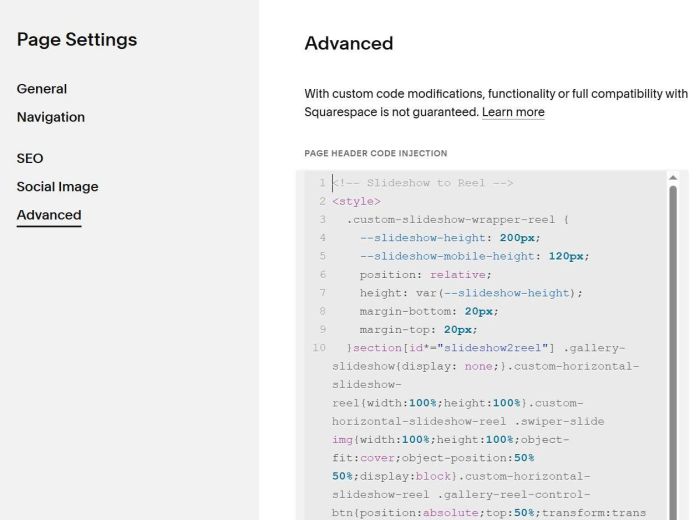
#3.1. To change Reel Image height, you can change these lines.
--slideshow-height: 200px;
   --slideshow-mobile-height: 120px;
#3.2. To make images show in original size, like this

Use this under main code
<style>
div.custom-horizontal-slideshow-reel .swiper-slide img {
    object-fit: contain !important;
}
</style>