Description
- team list carousel with same height, auto width
- view demo – password: abc
- my friend code this, you can send her coffees

#1. Install Code
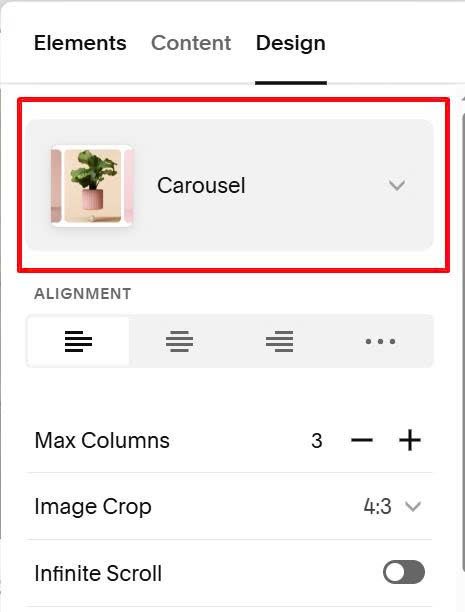
#1.1. Make sure you use Team List Section Carousel
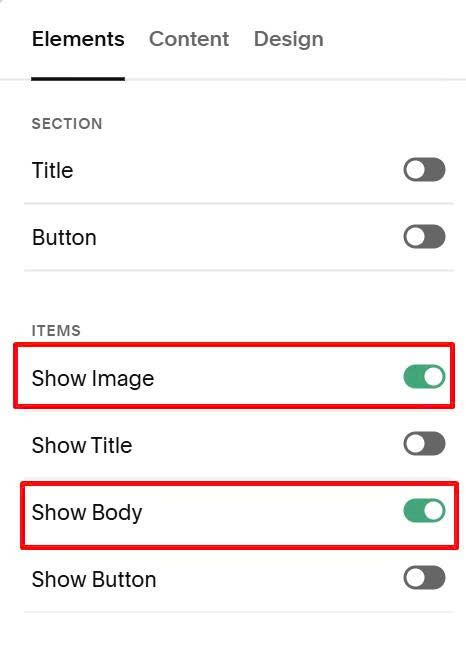
#1.2. Make sure you enabled Image + Body
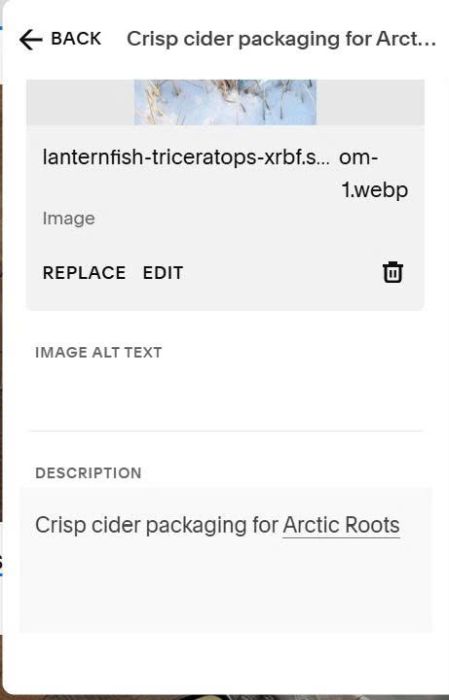
#1.3. You can add desired image/body text
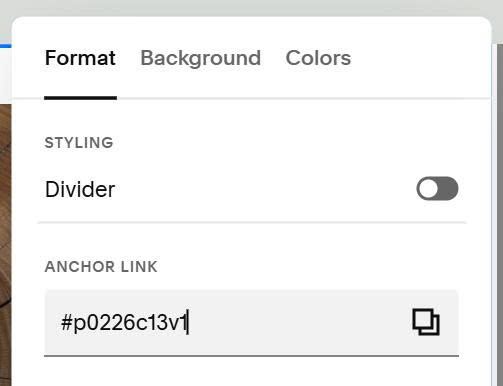
#1.4. Edit Section > at Anchor Link, enter word: p0226c13v1
p0226c13v1
#1.5. Hover on page where you added Carousel > Click Gear icon
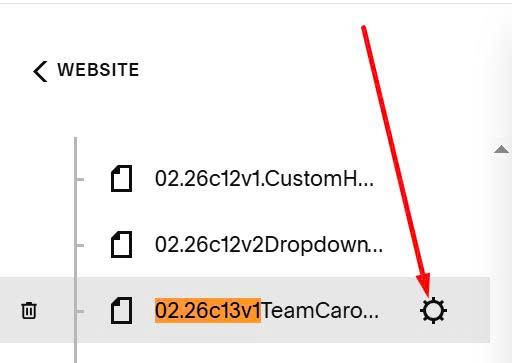
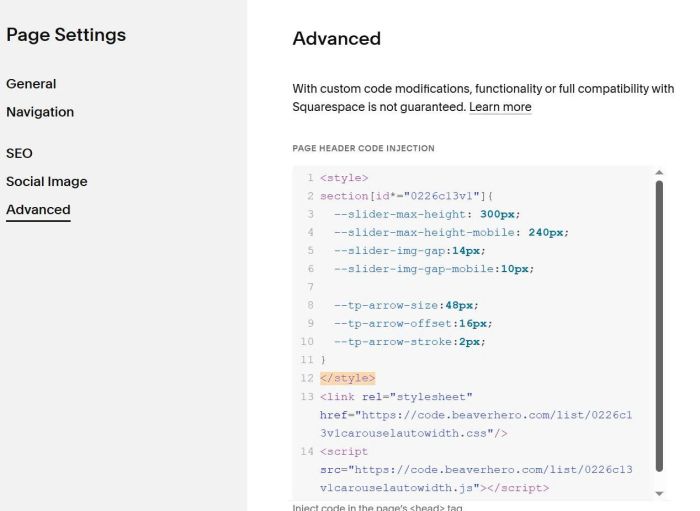
Click Advanced > Paste this code
<style>
section[id*="0226c13v1"]{
  --slider-max-height: 300px;
  --slider-max-height-mobile: 240px;
  --slider-img-gap:14px;
  --slider-img-gap-mobile:10px;

  --tp-arrow-size:48px;
  --tp-arrow-offset:16px;
  --tp-arrow-stroke:2px;
}
</style>
<link rel="stylesheet" href="https://code.beaverhero.com/list/0226c13v1carouselautowidth.css"/>
<script src="https://code.beaverhero.com/list/0226c13v1carouselautowidth.js"></script>
#2. Customize
#2.1. To make arrows appear, use this to Custom CSS
section[id*="0226c13v1"] .tp-arrows {
    visibility: visible !important;
}
section[id*="0226c13v1"] svg path {
    stroke: #fff !important;
}
#2.2. To change gap between images, change this line (line 05, line 06)
--slider-img-gap:14px;
--slider-img-gap-mobile:10px;
#2.3. To change image height, change lines 03, 04
--slider-max-height: 300px;
--slider-max-height-mobile: 240px;