Description
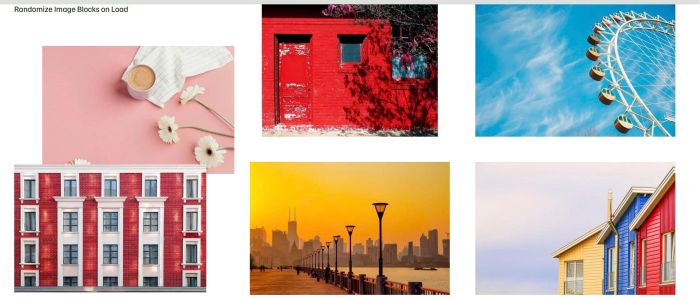
- randomize image blocks on page load
- view demo – password: abc
- my friend code this, you can send her a coffee
#1. Install Code
#1.1. Business Plan/higher
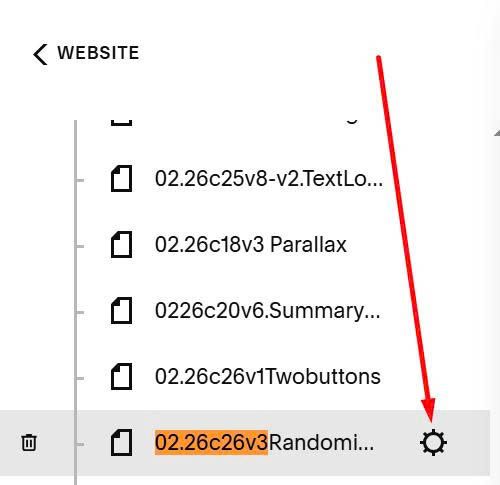
First, hover on page where you want to apply effect > Click Gear icon
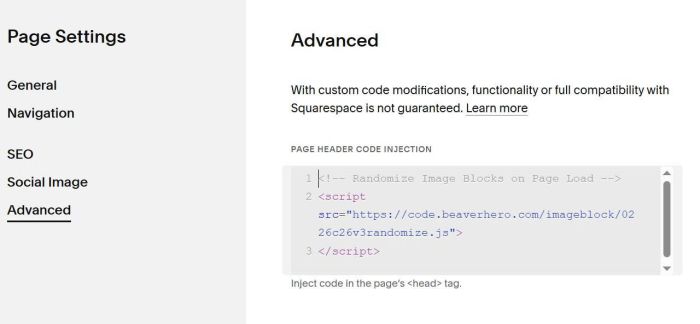
Click Advanced > Paste this code
<!-- Randomize Image Blocks on Page Load -->
<script src="https://code.beaverhero.com/imageblock/0226c26v3randomize.js">
</script>
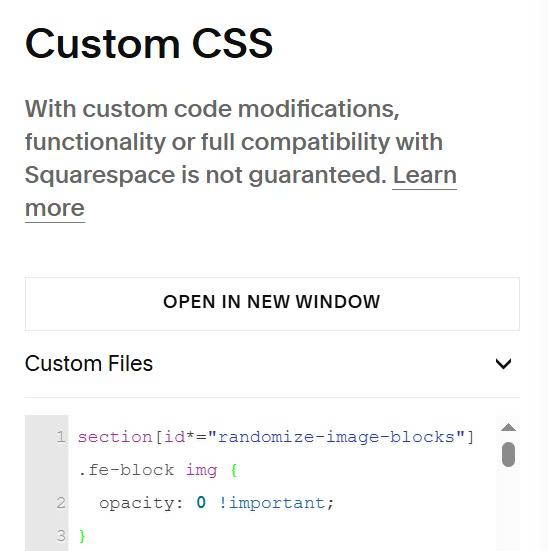
#1.4. Next, use this code to Custom CSS
section[id*="randomize-image-blocks"] .fe-block img {
  opacity: 0 !important;
}
#1.2. Personal Plan/Basic Plan
First, add a Markdown Block to current page (page where you added Image Blocks)
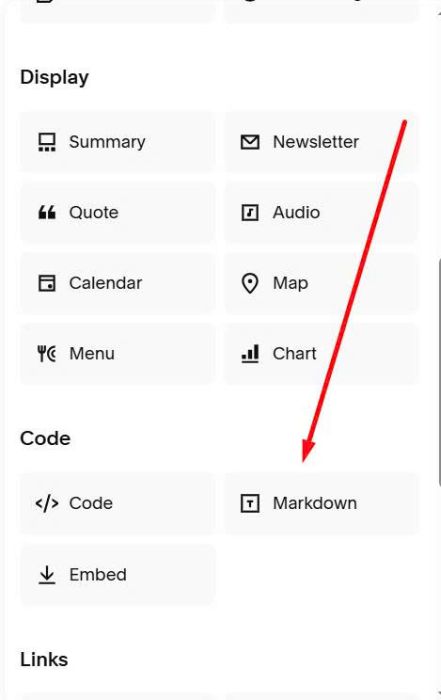
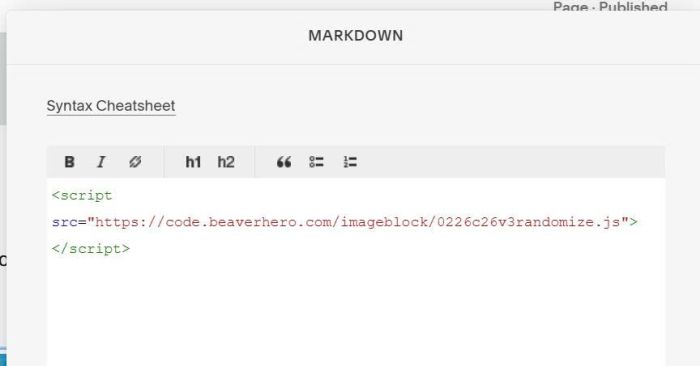
Next, paste this code into Markdown Block
<script src="https://code.beaverhero.com/imageblock/0226c26v3randomize.js"></script>
Next, add this code to Custom CSS box
section[id*="randomize-image-blocks"] .fe-block img {
  opacity: 0 !important;
}
#2. Usage
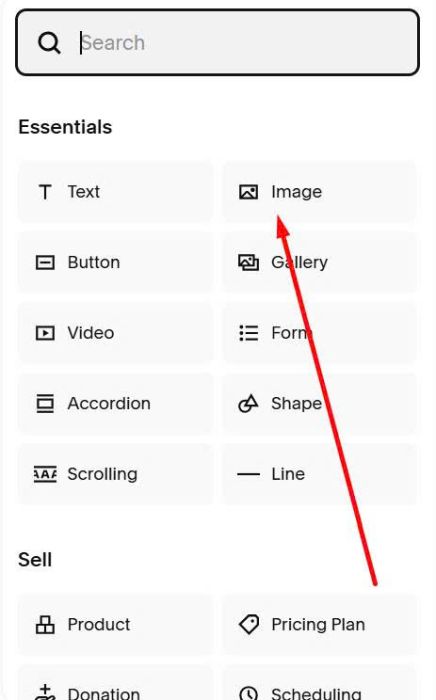
#2.1. First you need to add some Image Blocks
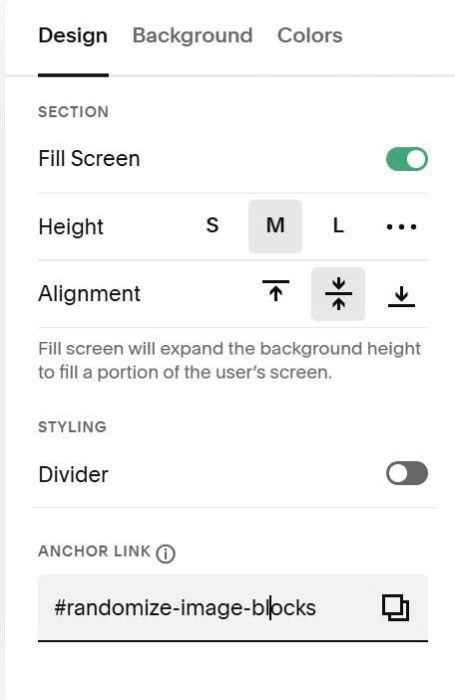
#2.2. Next, hover on top right of section > Click Edit Section
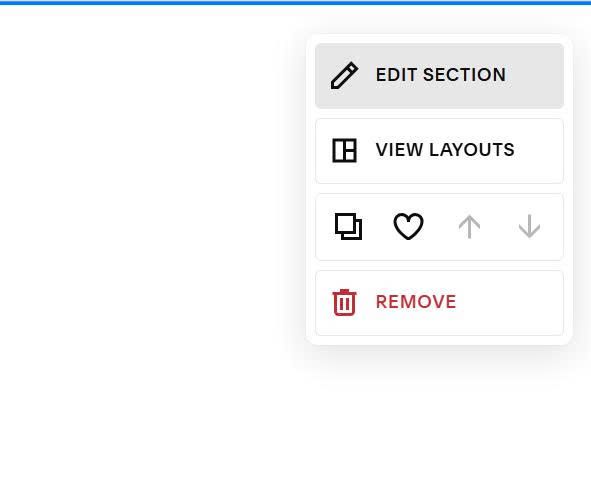
at Anchor Link, enter word: randomize-image-blocks
randomize-image-blocks
#3. Customize
#3.1. To apply this on multiple sections, you can repeat but use different anchor link, like this
randomize-image-blocks02
randomize-image-blocks03
randomize-image-blocks04
…