Description
- click Play icon in Header will play Sound
- view demo – password: abc
- buy a coffee
#1. Install Code
If you use Personal/Basic Plan and your plan doesn’t support Injection, you can see step #2.2.
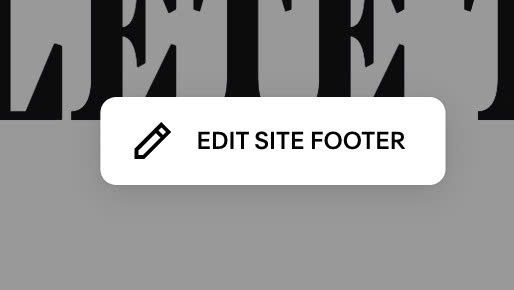
#1.1. First, edit Site Footer
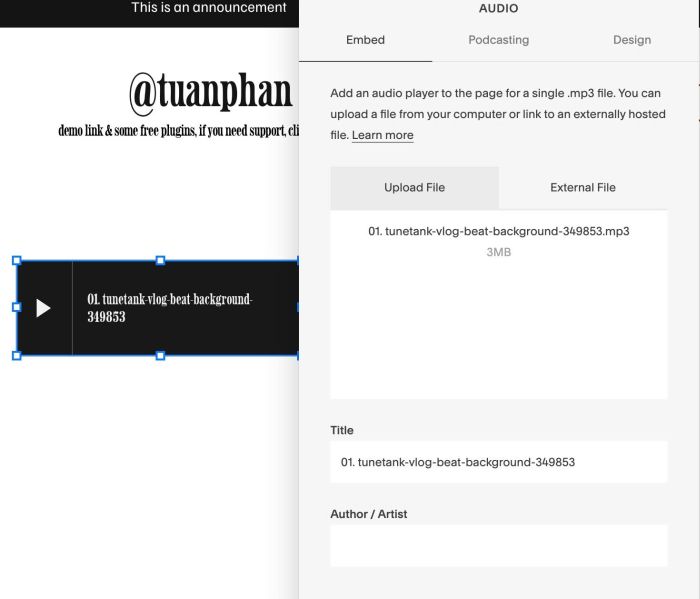
#1.2. Add an Audio Block
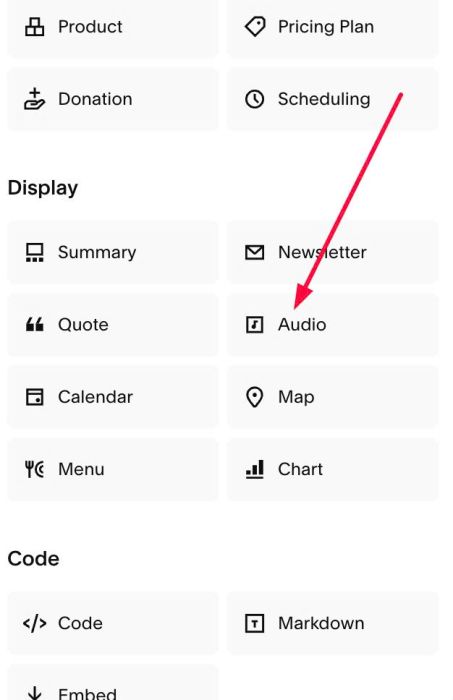
#1.3. Upload your Audio
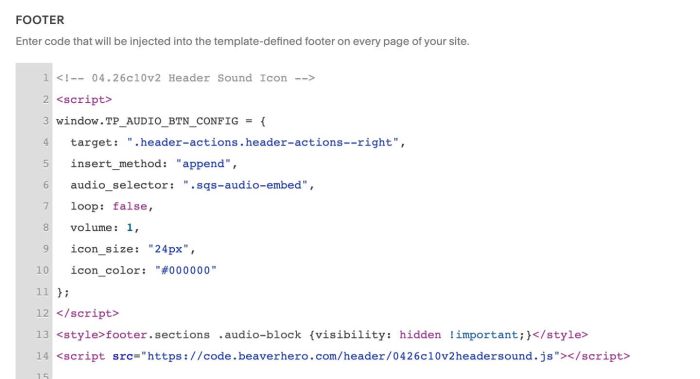
#1.4. Use this code to Code Injection > Footer
<!-- 04.26c10v2 Header Sound Icon -->
<script>
window.TP_AUDIO_BTN_CONFIG = {
  target: ".header-actions.header-actions--right",
  insert_method: "append",
  audio_selector: ".sqs-audio-embed",
  loop: false,
  volume: 1,
  icon_size: "24px",
  icon_color: "#000000"
};
</script>
<style>footer.sections .audio-block {visibility: hidden !important;}</style>
<script src="https://code.beaverhero.com/header/0426c10v2headersound.js"></script>
#2. Customize
If you need to customize more, you can message me or use this AI tool, it was designed for the Squarespace site.
#2.1. You can see all options here
<script>
window.TP_AUDIO_BTN_CONFIG = {
  target: ".header-actions.header-actions--right",
  insert_method: "append",
  audio_selector: ".sqs-audio-embed",
  loop: false,
  volume: 1,
  icon_size: "24px",
  icon_color: "#000000"
};
</script>
To enable it on mobile, use this to Custom CSS box.
div.header-display-mobile .header-actions.header-actions--right {
    display: flex !important;
    position: absolute;
    right: 10px;
}
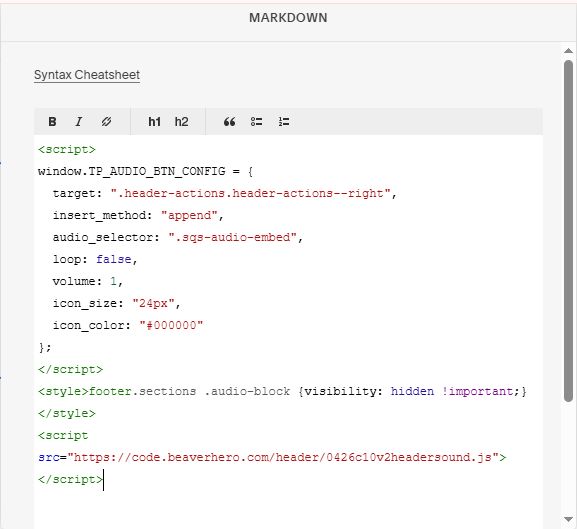
#2.2. If you use Personal/Basic Plan and your plan doesn’t support Injection. You can add a Markdown Block under Audio Block.
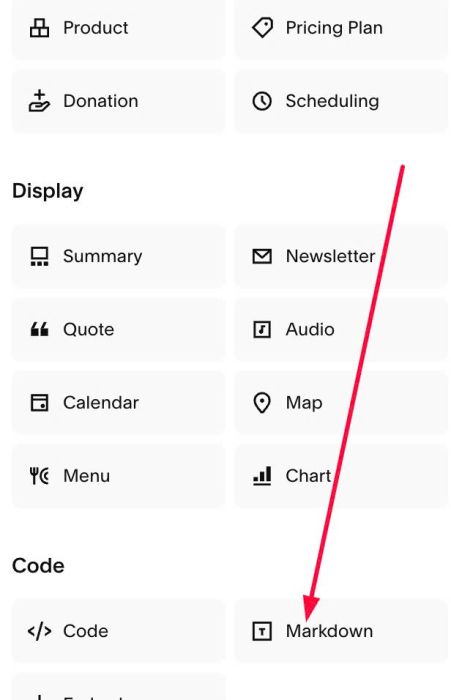
Then use this code into Markdown Block.
<script>
window.TP_AUDIO_BTN_CONFIG = {
  target: ".header-actions.header-actions--right",
  insert_method: "append",
  audio_selector: ".sqs-audio-embed",
  loop: false,
  volume: 1,
  icon_size: "24px",
  icon_color: "#000000"
};
</script>
<style>footer.sections .audio-block {visibility: hidden !important;}</style>
<script src="https://code.beaverhero.com/header/0426c10v2headersound.js"></script>