Description
- 4 columns gallery
- scroll vertical
- click gallery image will open blog post
- view demo – password: abc
- buy a coffee

#1. Install code
If you use Personal/Basic Plan and your plan doesn’t support Injection, you can see step #2.2
#1.1. First, add a Gallery Section (Choose Image > Choose section with (i) icon)
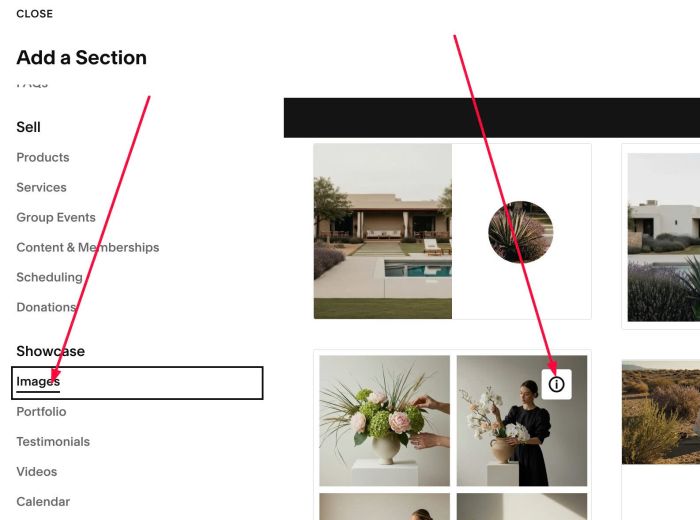
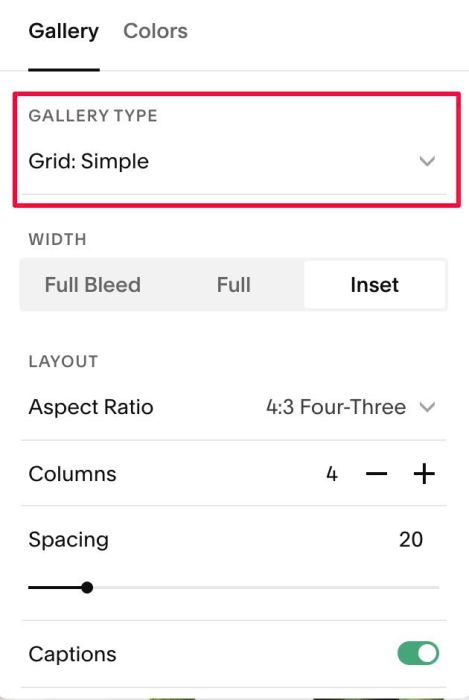
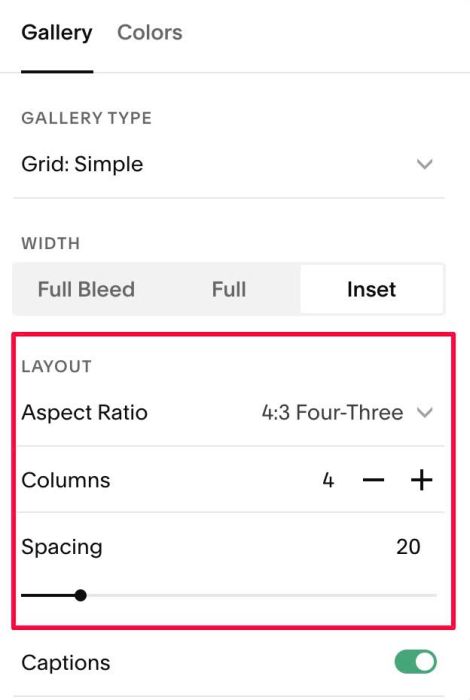
#1.2. Make sure you choose Simple Grid or Grid Simple
#1.3. Hover on top right of Gallery > Click EDIT GALLERY
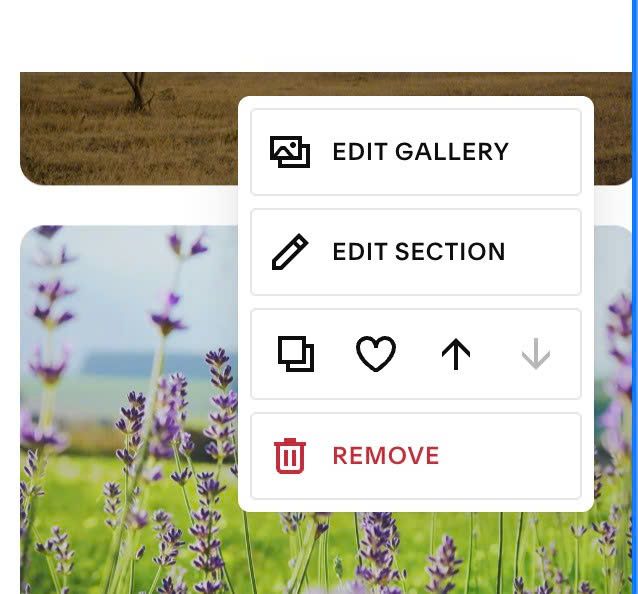
Enter Blog URL in FIRST IMAGE
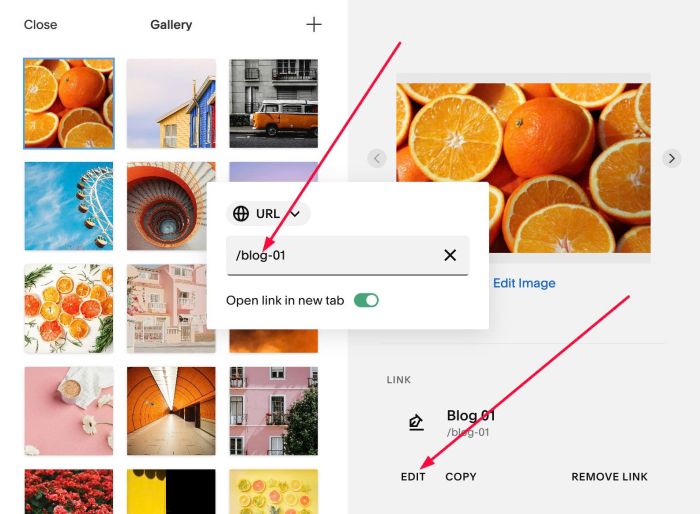
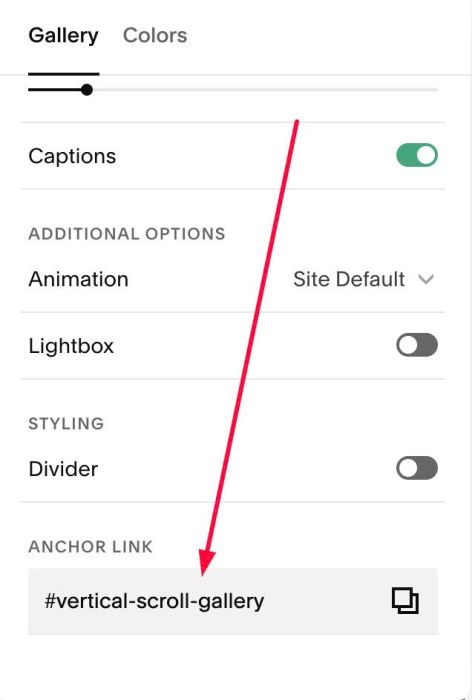
#1.4. Hover on top right of Gallery > Click EDIT SECTION
#1.5. At Anchor Link, enter text: vertical-scroll-gallery
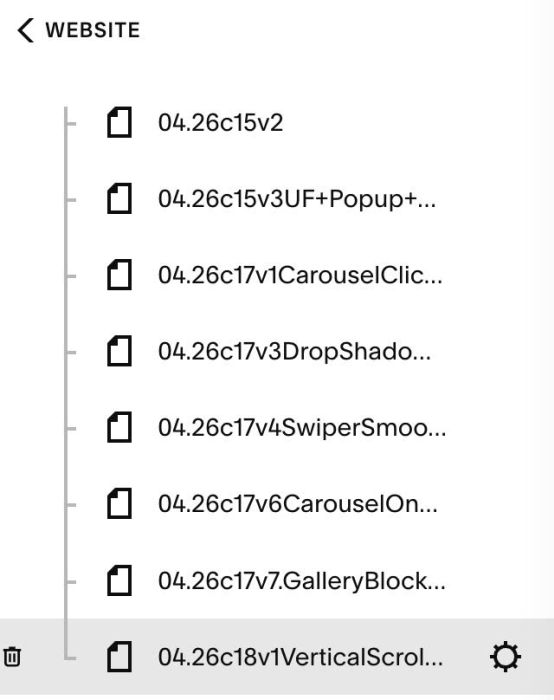
#1.6. Hover on Page where you use Gallery Grid > Click Gear icon
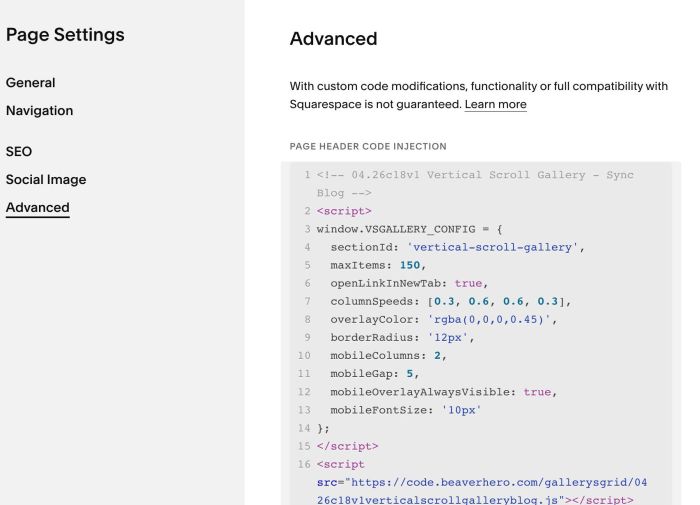
Click Advanced > Paste this code
<!-- 04.26c18v1 Vertical Scroll Gallery - Sync Blog -->
<script>
window.VSGALLERY_CONFIG = {
  sectionId: 'vertical-scroll-gallery',
  maxItems: 150,
  openLinkInNewTab: true,
  columnSpeeds: [0.3, 0.6, 0.6, 0.3],
  overlayColor: 'rgba(0,0,0,0.45)',
  borderRadius: '12px',
  mobileColumns: 2,
  mobileGap: 5,
  mobileOverlayAlwaysVisible: true,
  mobileFontSize: '10px'
};
</script>
<script src="https://code.beaverhero.com/gallerysgrid/0426c18v1verticalscrollgalleryblog.js"></script>
#2. Customize
If you need to customize more, you can message me or use this AI tool, it was designed for the Squarespace site to add simple to complex tweak.
#2.1. You can change all style options here
window.VSGALLERY_CONFIG = {
  sectionId: 'vertical-scroll-gallery',
  maxItems: 150,
  openLinkInNewTab: true,
  columnSpeeds: [0.3, 0.6, 0.6, 0.3],
  overlayColor: 'rgba(0,0,0,0.45)',
  borderRadius: '12px',
  mobileColumns: 2,
  mobileGap: 5,
  mobileOverlayAlwaysVisible: true,
  mobileFontSize: '10px'
};
Explain a bit
- maxItems: number of blog items will sync with Gallery Grid
- openLinkInNewTab: true or false, will open blog post in new tab or same tab
- columnSpeeds: speed scroll of 4 columns
- overlayColor: overlay color over image on hover
- borderRadius: round corners of image
- mobileColumns: number of columns on mobile
- mobileGap: gap between images on mobile
- mobileFontSize: text size on Mobile
- mobileOverlayAlwaysVisible: true or false, always show text/overlay on mobile or not.
To change settings in Desktop, you can change in Gallery Grid.
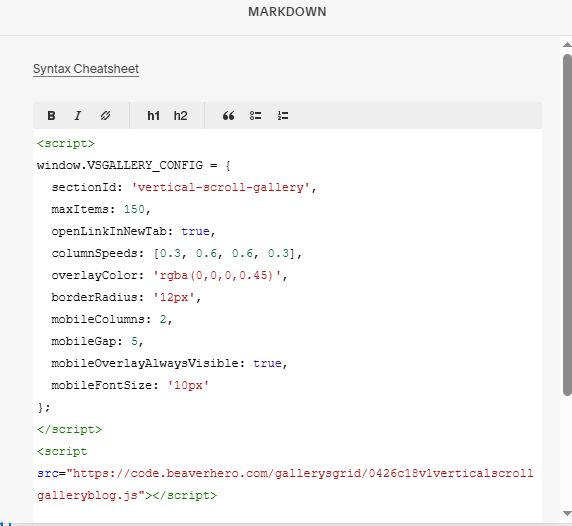
#2.2. If you use Personal/Basic Plan and your plan doesn’t support Injection, you can add a Markdown Block on current page.
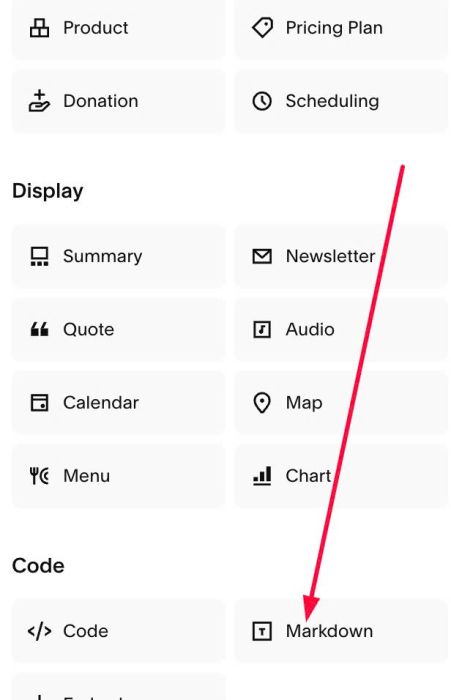
Then add this code into Markdown Block.
<script>
window.VSGALLERY_CONFIG = {
  sectionId: 'vertical-scroll-gallery',
  maxItems: 150,
  openLinkInNewTab: true,
  columnSpeeds: [0.3, 0.6, 0.6, 0.3],
  overlayColor: 'rgba(0,0,0,0.45)',
  borderRadius: '12px',
  mobileColumns: 2,
  mobileGap: 5,
  mobileOverlayAlwaysVisible: true,
  mobileFontSize: '10px'
};
</script>
<script src="https://code.beaverhero.com/gallerysgrid/0426c18v1verticalscrollgalleryblog.js"></script>