Description
- view demo – password: abc
- buy a coffee
- add an Enquire to Gallery Images
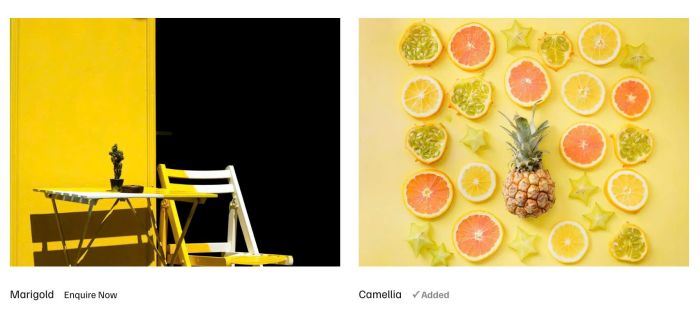
- Click Enquire will add Gallery to List
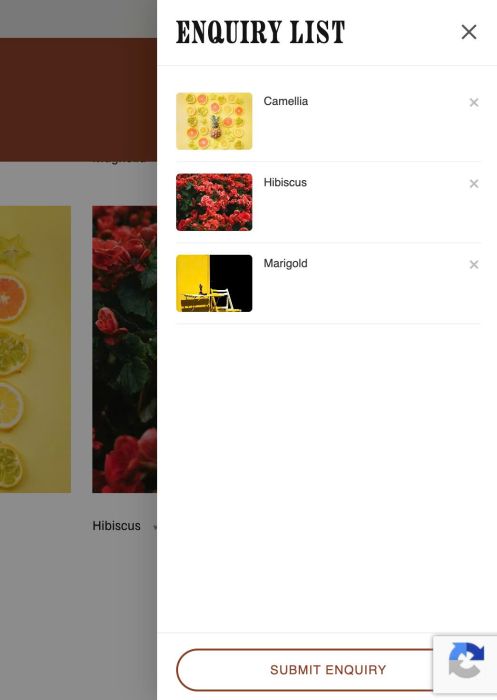
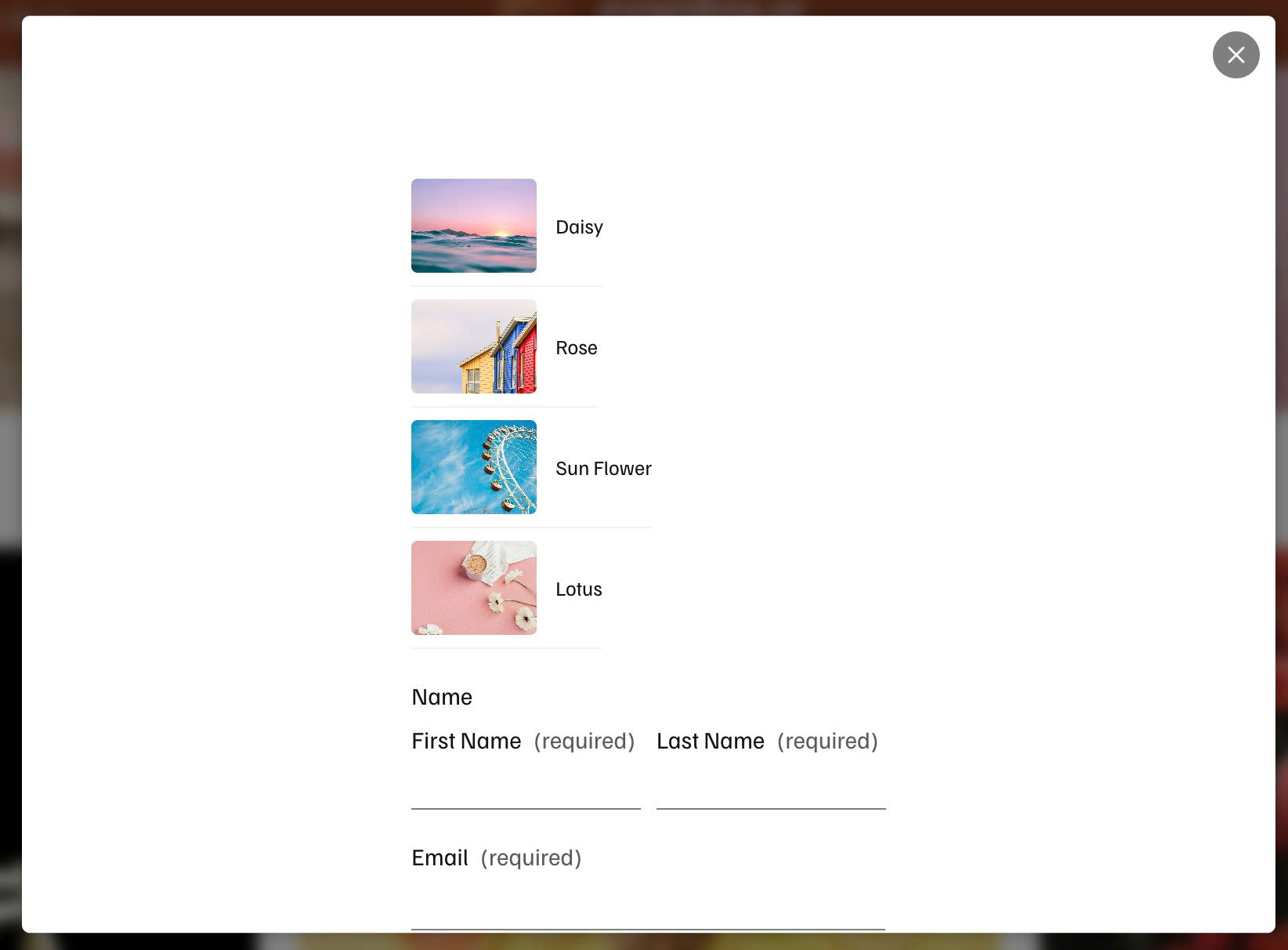
- users can submit enquiry and enter info in a Form
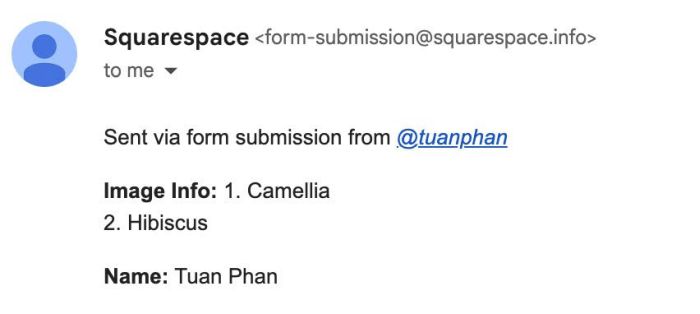
- submission with gallery image info will be sent to your email
This is update version on Thu 30 Apr, 2026.
#1. Install Code
Note: This requires extra WM Popup Plugin.
If you have problems/can’t install code, you can do steps #1.1 to #1.6 then message me, I can install code for you.
If you use Personal Plan/Basic Plan and your plan doesn’t support Injection, see #2.2
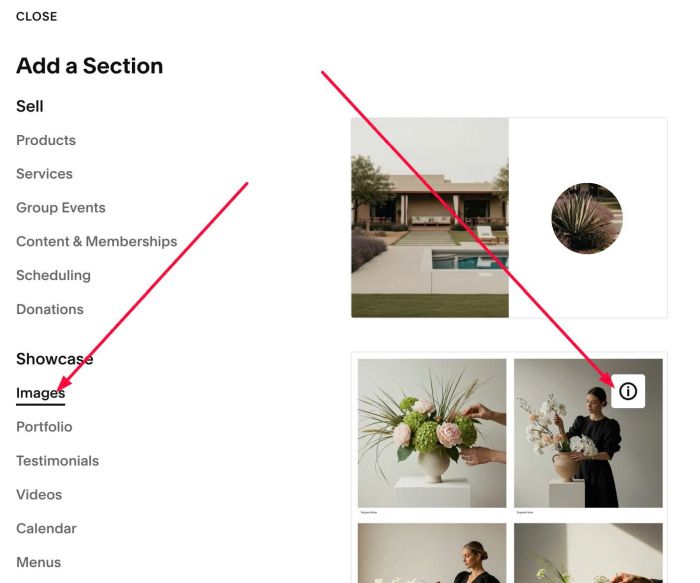
#1.1. First, you need to add a section > Choose Image > Choose Section with (i) icon.
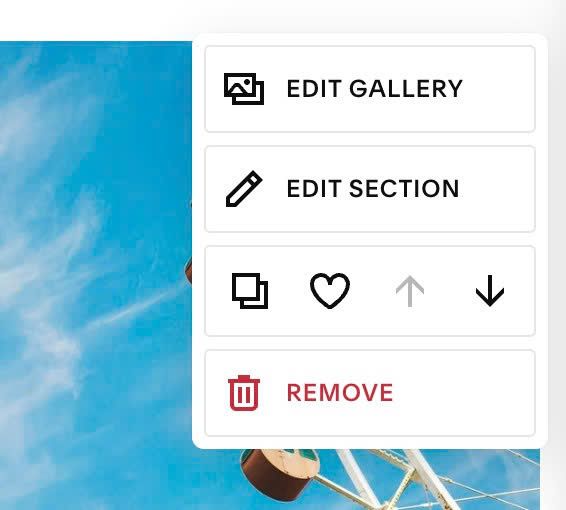
#1.2. Hover on top right of section > Click Edit Section
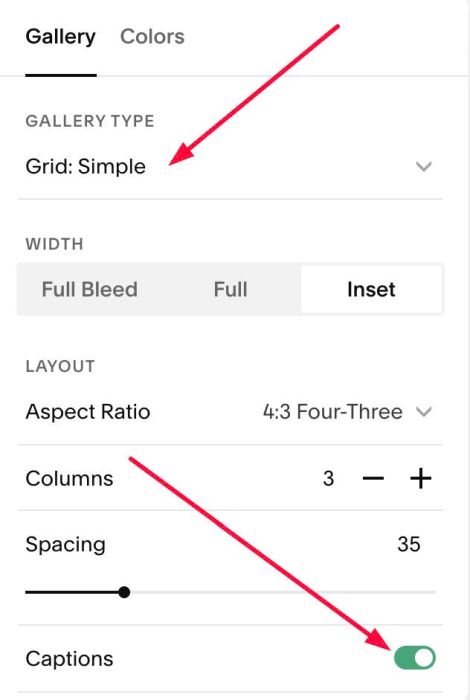
#1.3. Choose Grid Simple + Enable Captions
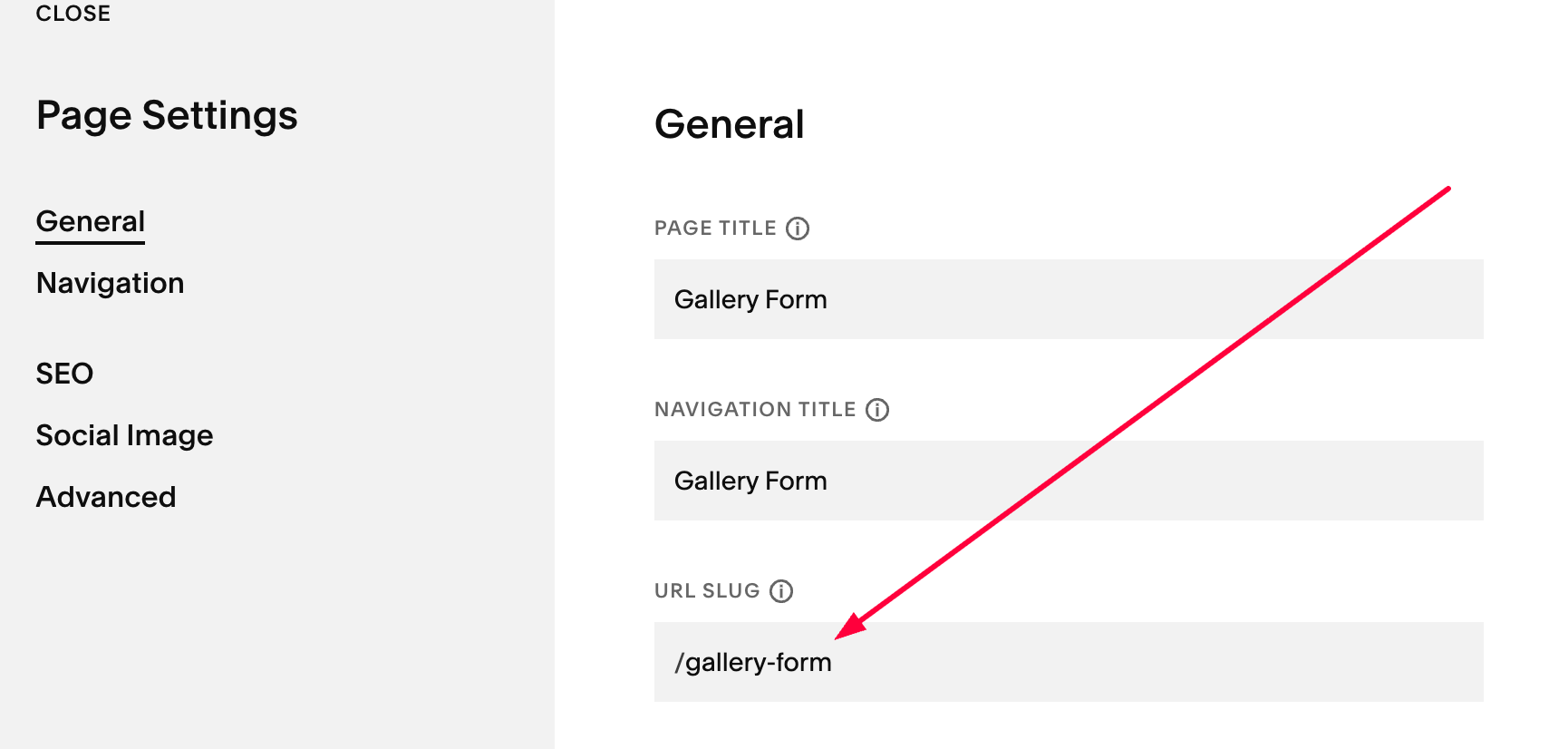
#1.4. Create a Page in Not Linked with Name: Gallery Form – URL: /gallery-form
Add a Blank Section > Then add a Form Block
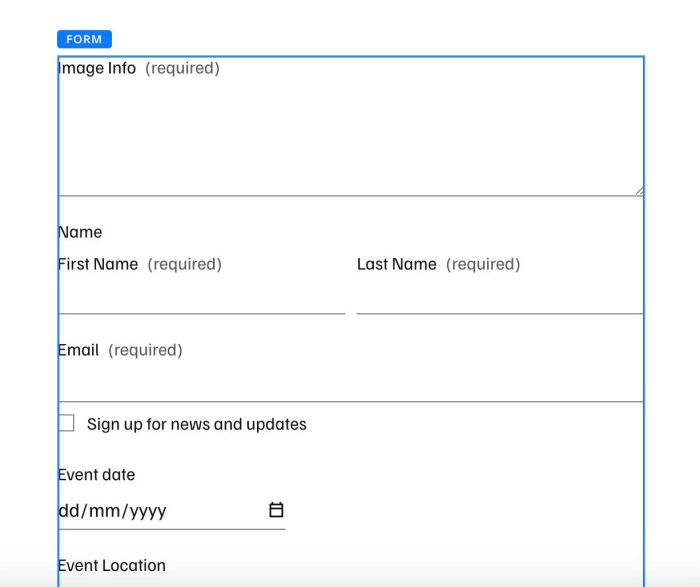
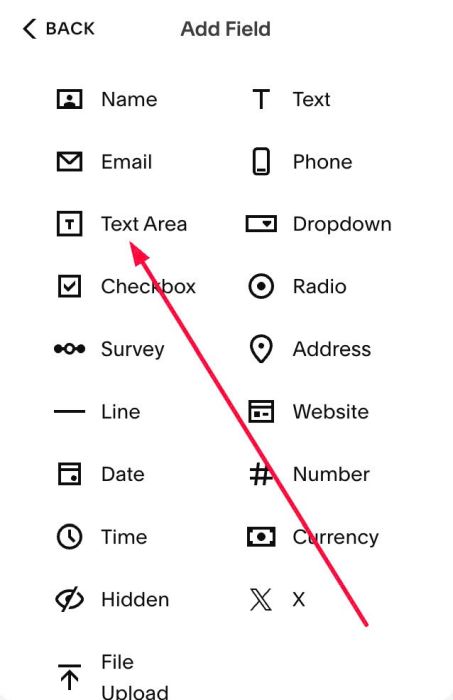
#1.5. Make sure First Field in Form Block is TEXT AREA
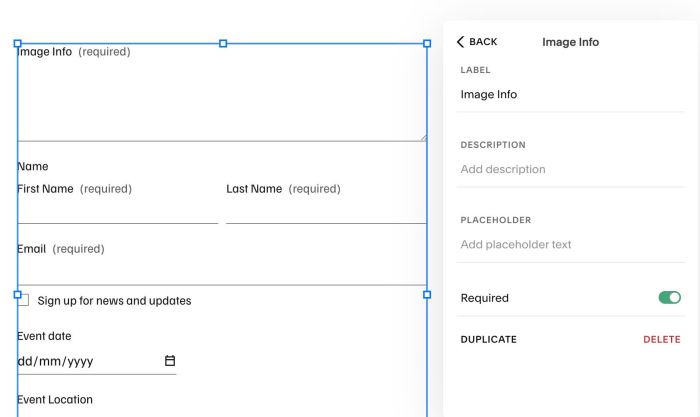
You can keep Label like this.
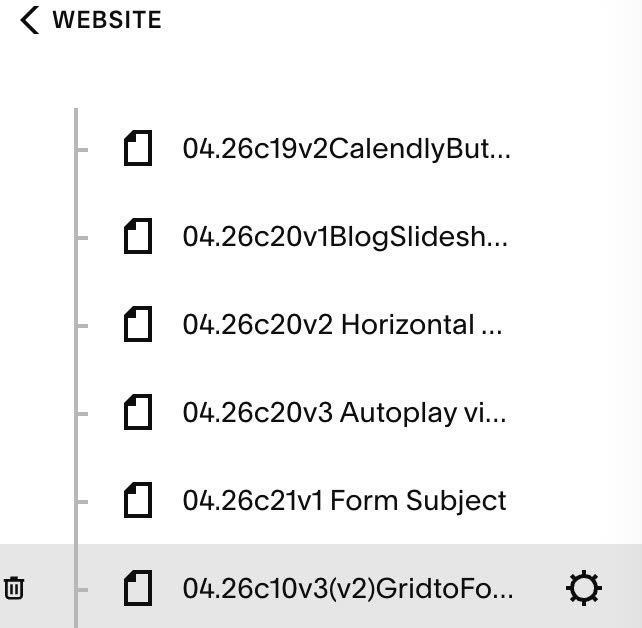
#1.6. Hover on Page (page where you added Gallery) > Click Gear icon
#1.7. Next, click Advanced > Paste this code
<!-- 04.26c10v3 Grid to Form — FIXED v2 -->
<script>
window.enquireConfig = {
  figureSelector: 'figure.gallery-grid-item',
  captionSelector: '.gallery-caption-content',
  enquireText: 'Enquire Now',
  addedText: '✓ Added',
  drawerTitle: 'Enquiry List',
  submitBtnText: 'Submit Enquiry',
  formPageUrl: '/gallery-form',
  enquireFontSize: '12px',
  previewWidth: '80px',
  previewHeight: '60px',
  previewBorderRadius: '4px',
  fabColor: '#fff',
  fabBackground: '#1a1a1a',
  fabFontSize: '13px',
  fabCountColor: '#1a1a1a',
  fabCountBackground: '#fff',
  fabCountSize: '20px',
  fabCountFontSize: '11px',
  drawerBackground: '#fff',
  drawerWidth: '360px'
};
</script>
<script src="https://code.beaverhero.com/gallerysgrid/0426c10v3v2gridformenquiryv2fix.js"</script>
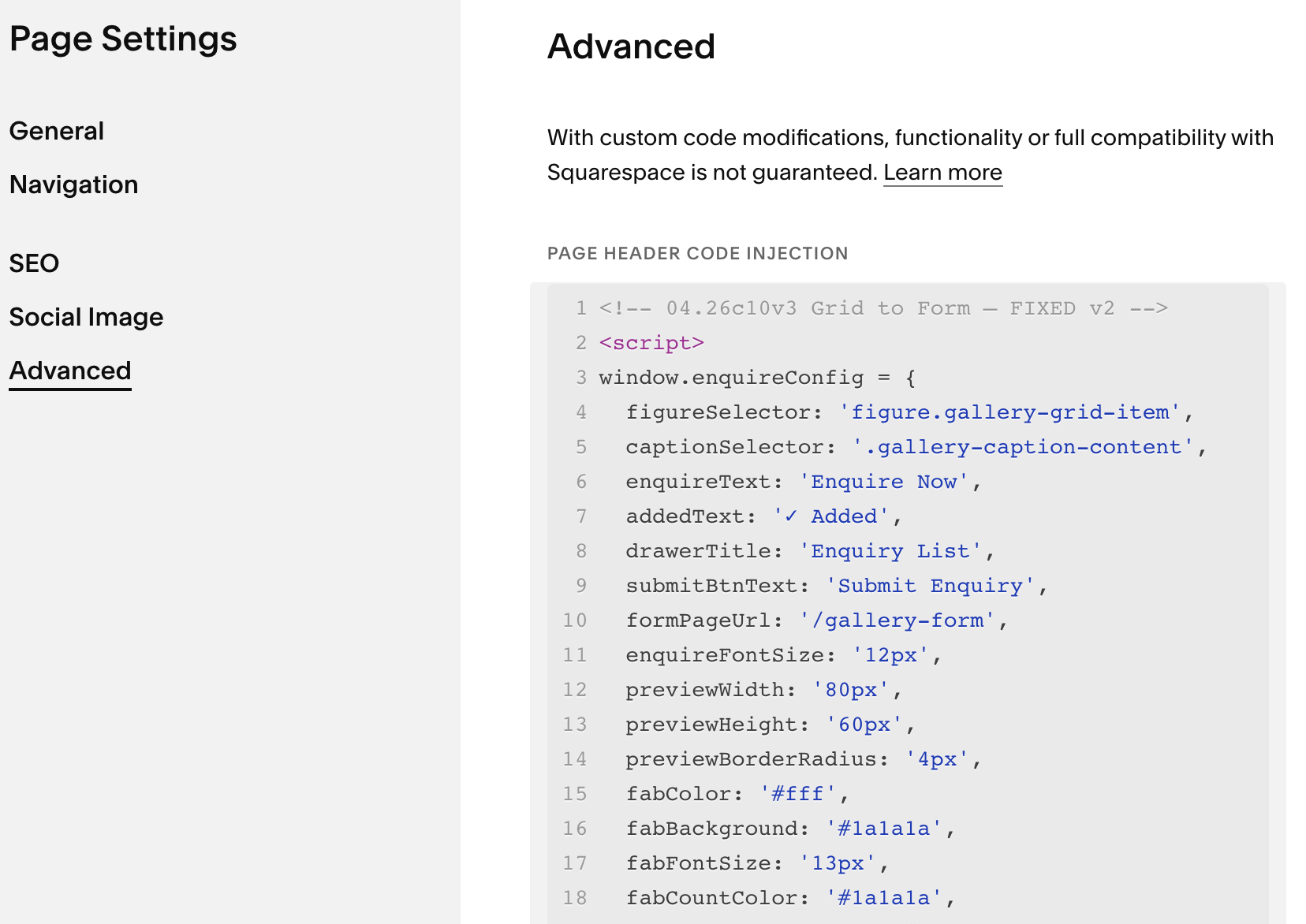
#1.8. Make sure you installed WM Popup Plugin I mentioned above (Add Plugin code to Header, Footer Injection is enough).
If you have problem when installing code, you can do Steps 1.1 to #1.6 then message me, I can install code for you.
#2. Customize
#2.1. All style options in top of code.
window.enquireConfig = {
  figureSelector: 'figure.gallery-grid-item',
  captionSelector: '.gallery-caption-content',
  enquireText: 'Enquire Now',
  addedText: '✓ Added',
  drawerTitle: 'Enquiry List',
  submitBtnText: 'Submit Enquiry',
  formPageUrl: '/gallery-form',
  enquireFontSize: '12px',
  previewWidth: '80px',
  previewHeight: '60px',
  previewBorderRadius: '4px',
  fabColor: '#fff',
  fabBackground: '#1a1a1a',
  fabFontSize: '13px',
  fabCountColor: '#1a1a1a',
  fabCountBackground: '#fff',
  fabCountSize: '20px',
  fabCountFontSize: '11px',
  drawerBackground: '#fff',
  drawerWidth: '360px'
};
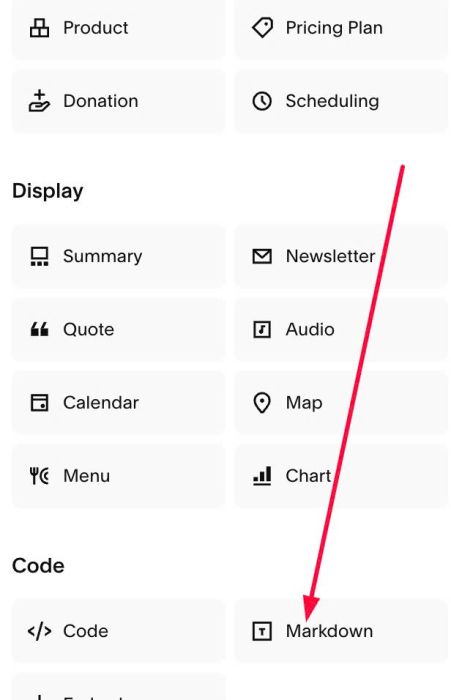
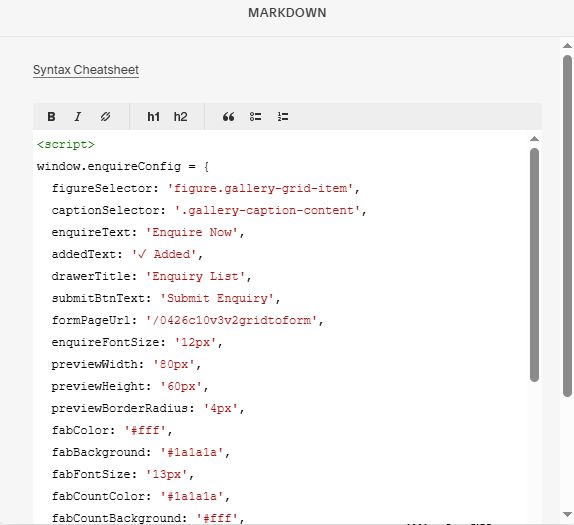
#2.2. If you use Personal Plan/Basic Plan and your plan doesn’t support Injection, you can do steps #1.1 to #1.6. Next, edit current page (page where you use Gallery) > Add a Block > Choose Markdown.
Then use this code into Markdown Block
<script>
window.enquireConfig = {
  figureSelector: 'figure.gallery-grid-item',
  captionSelector: '.gallery-caption-content',
  enquireText: 'Enquire Now',
  addedText: '✓ Added',
  drawerTitle: 'Enquiry List',
  submitBtnText: 'Submit Enquiry',
  formPageUrl: '/gallery-form',
  enquireFontSize: '12px',
  previewWidth: '80px',
  previewHeight: '60px',
  previewBorderRadius: '4px',
  fabColor: '#fff',
  fabBackground: '#1a1a1a',
  fabFontSize: '13px',
  fabCountColor: '#1a1a1a',
  fabCountBackground: '#fff',
  fabCountSize: '20px',
  fabCountFontSize: '11px',
  drawerBackground: '#fff',
  drawerWidth: '360px'
};
</script>
<script src="https://code.beaverhero.com/gallerysgrid/0426c10v3v2gridformenquiryv2fix.js"</script>
#2.3. To make images show full size in Enquiry List, use this code under main code
<style>
.enq-item img {
    object-fit: contain !important;
    background: transparent !important;
}
</style>
#2.4. To remove Line between Images in Form Popup, use this under main code
<style>
div.wm-popup-content div.enq-popup-item {
    background: transparent !important;
    border: none !important;
}
</style>
#2.5. To make image in Form Popup show full size, use this under main code
<style>
div.enq-popup-item img {
    object-fit: contain !important;
    background: transparent !important;
}
</style>