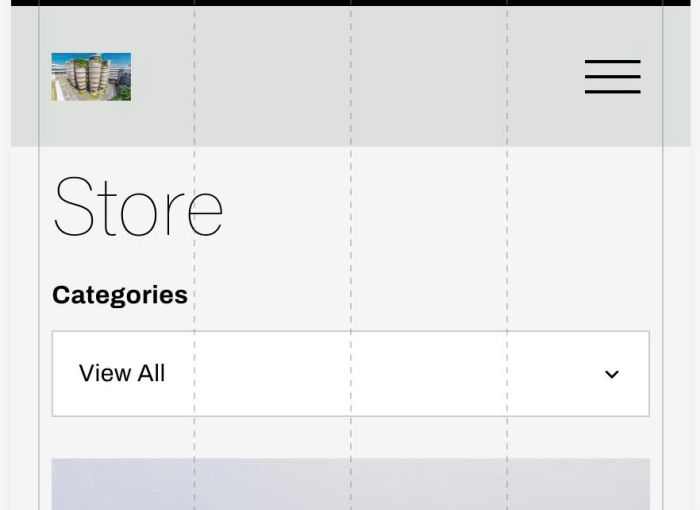
Description
- turn default Filter button to Category Dropdown on Mobile
- buy me a coffee
#1. Install code
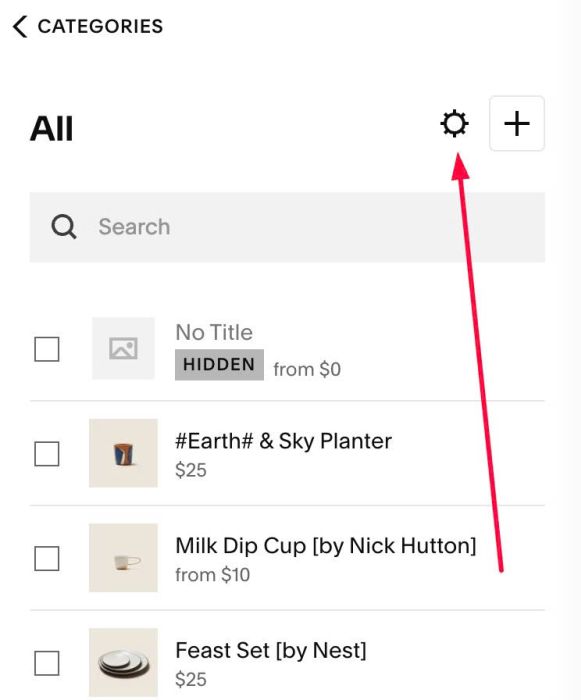
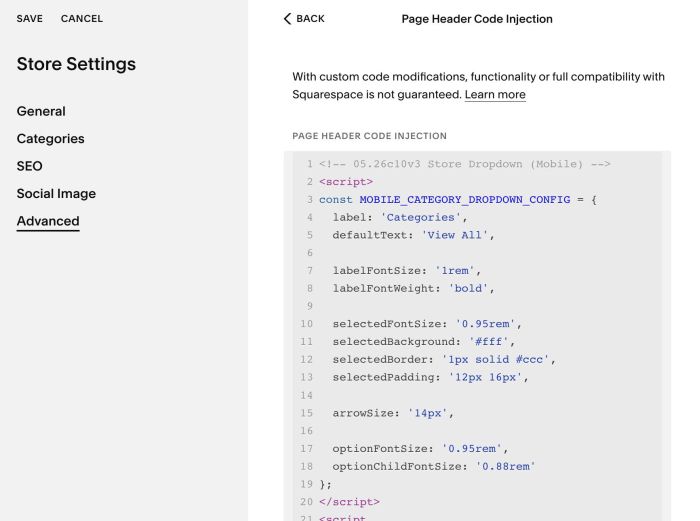
#1.1. Click Gear icon on Store Page
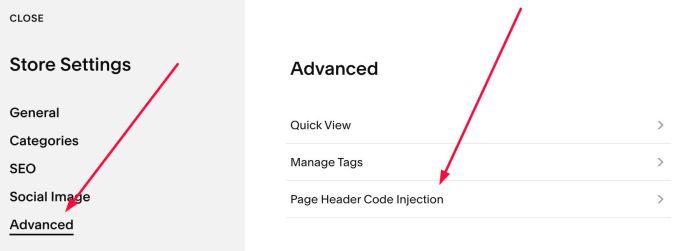
Click Advanced > Page Header Code Injection
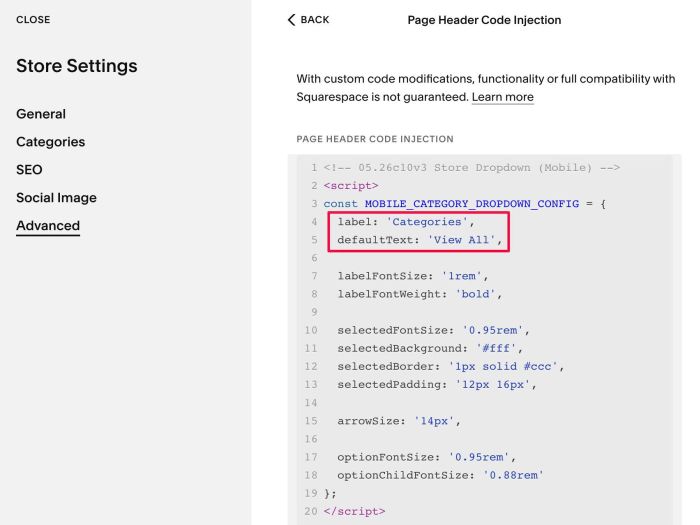
#1.2. Paste this code
If you use Personal/Basic Plan and your plan doesn’t support Injection, you can see #2.1.
<!-- 05.26c10v3 Store Dropdown (Mobile) -->
<script>
const MOBILE_CATEGORY_DROPDOWN_CONFIG = {
  label: 'Categories',
  defaultText: 'View All',

  labelFontSize: '1rem',
  labelFontWeight: 'bold',

  selectedFontSize: '0.95rem',
  selectedBackground: '#fff',
  selectedBorder: '1px solid #ccc',
  selectedPadding: '12px 16px',

  arrowSize: '14px',

  optionFontSize: '0.95rem',
  optionChildFontSize: '0.88rem'
};
</script>
<script src="https://code.beaverhero.com/store/0526c10v3storedropdown.js"></script>
#2. Customize
#2.1. If you use Personal/Basic Plan and your plan doesn’t support Injection, you can edit Site Footer
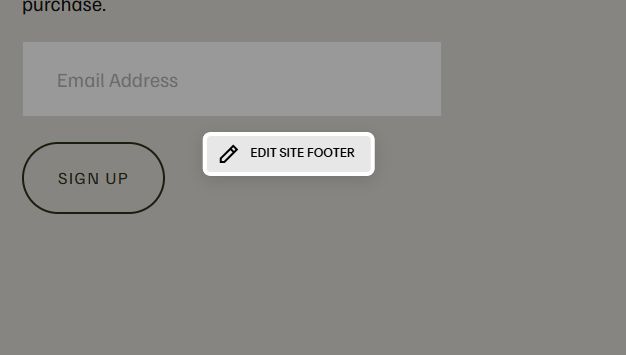
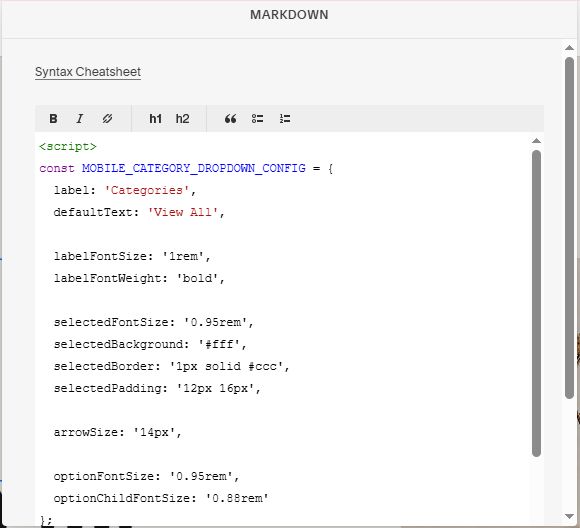
Add a Block > Choose Markdown

Then add this code into Markdown.
<script>
const MOBILE_CATEGORY_DROPDOWN_CONFIG = {
  label: 'Categories',
  defaultText: 'View All',

  labelFontSize: '1rem',
  labelFontWeight: 'bold',

  selectedFontSize: '0.95rem',
  selectedBackground: '#fff',
  selectedBorder: '1px solid #ccc',
  selectedPadding: '12px 16px',

  arrowSize: '14px',

  optionFontSize: '0.95rem',
  optionChildFontSize: '0.88rem'
};
</script>
<script src="https://code.beaverhero.com/store/0526c10v3storedropdown.js"></script>
#2.2. If you see Filter button appears then disappears, you can use this code to Custom CSS box to hide it.
@media (max-width: 767px) {
  .product-list-filters-drawer-open-button-container,
  .product-list-filter-button-container {
    display: none !important;
  }
}
#2.3. To change text “Categories” above Dropdown and text “View All”, change this option
label: 'Categories',
  defaultText: 'View All',