Description
- adding restaurant menu carousel with Auto Layout section (Team/List section)
- view demo – password: abc
- buy me a coffee
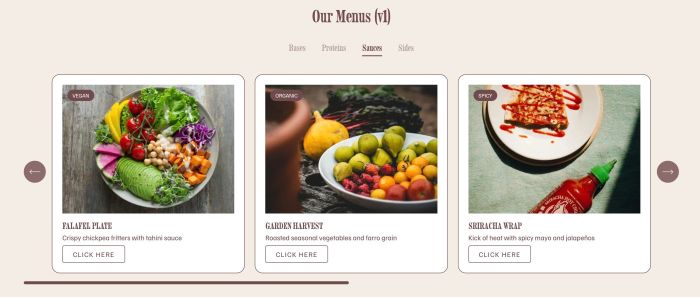
#1. Install code
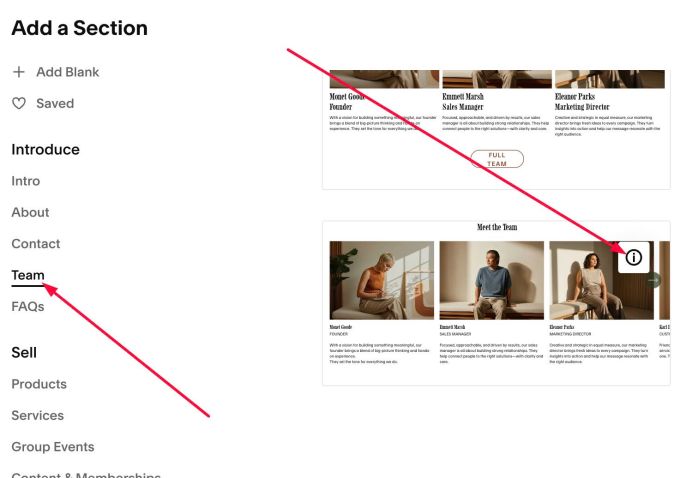
#1.1. First, add a Section > Choose Team > Choose section with (i) icon
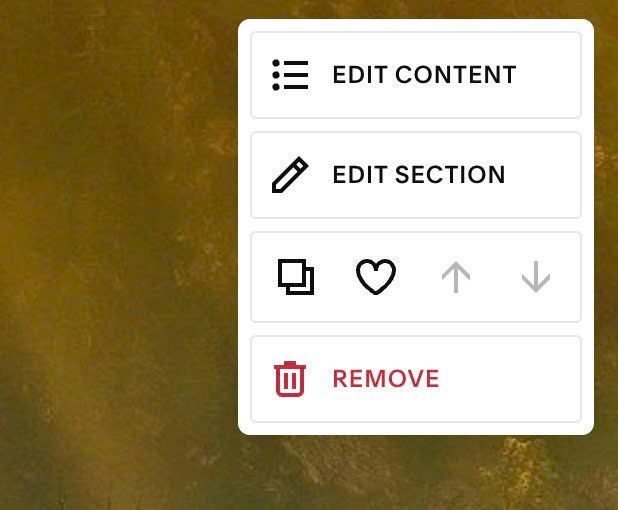
#1.2. Hover on top right of section > Click EDIT CONTENT
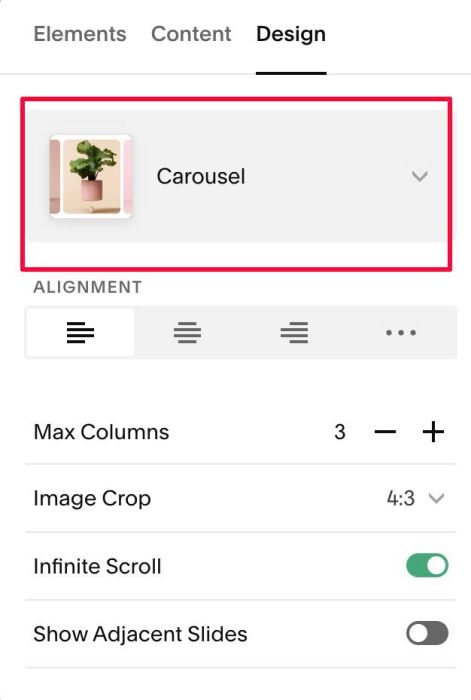
#1.3. At Design, choose Carousel
#1.4. at Elements > Enable these options
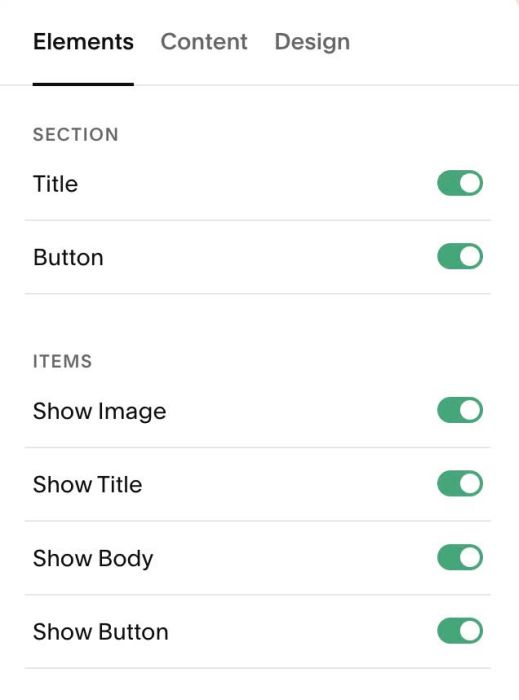
Note: You can disable Section Title, Section button if you don’t need them.
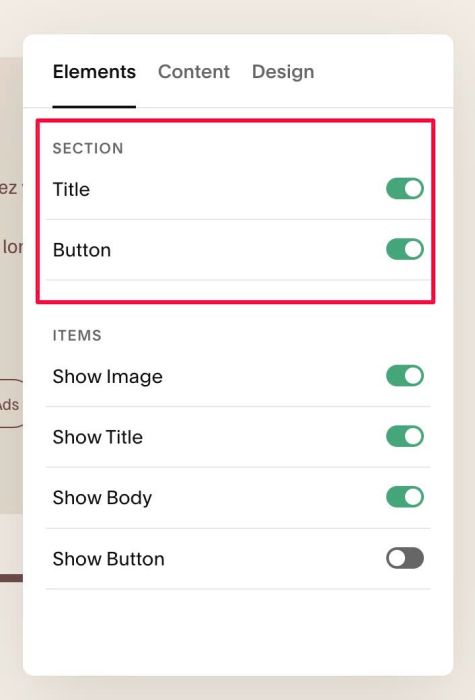
#1.5. at Content > Add your desired image/text
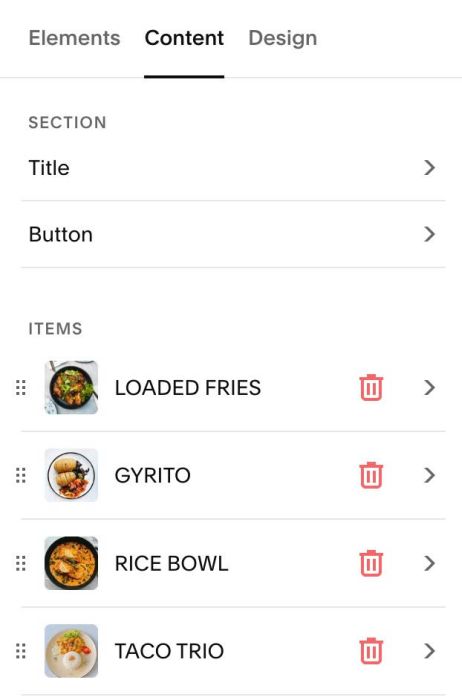
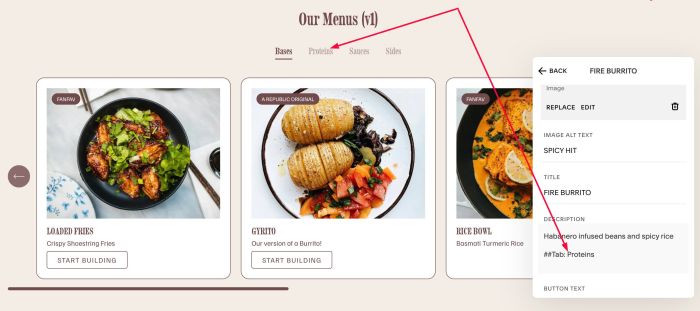
#1.5-2. To add Tab text, we will use format: ##Tab: name – For example: ##Tab: Bases
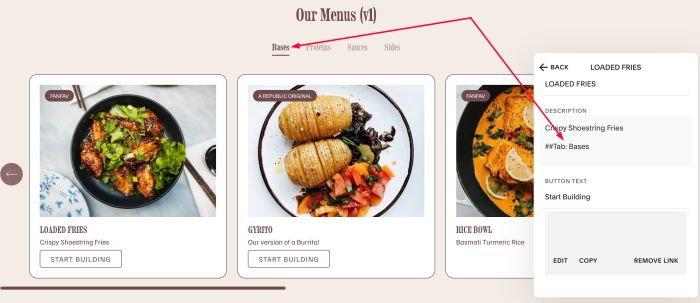
or this ##Tab: Proteins
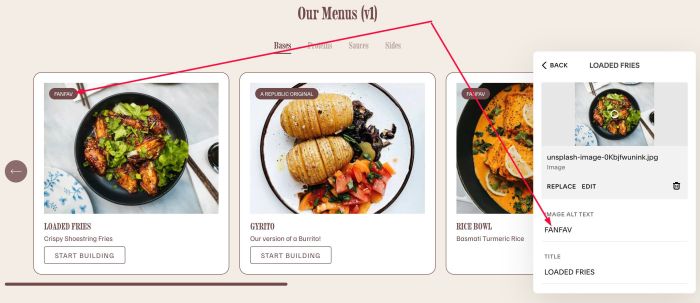
#1.5-3. To add Label, you can enter text in IMAGE ALT TEXT
#1.6. Hover on top right of section > Click EDIT SECTION
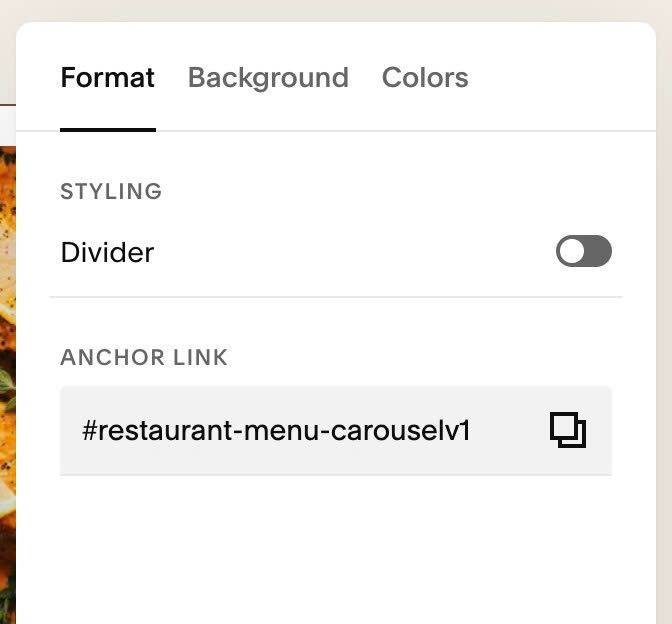
#1.7. at Format > Anchor Link, enter word: restaurant-menu-carouselv1
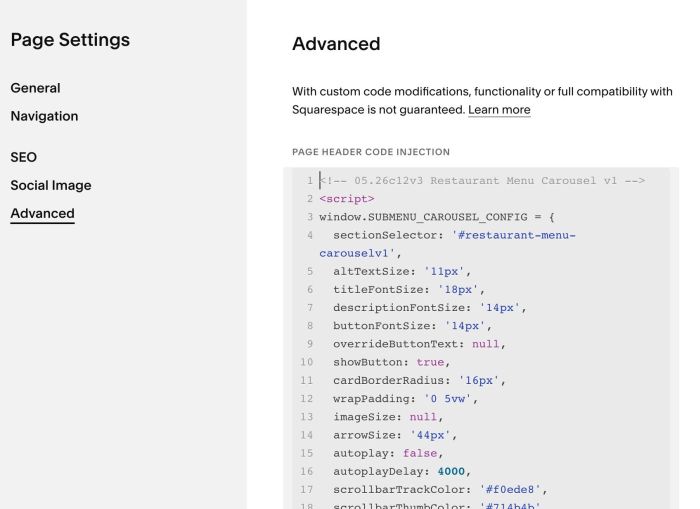
#1.8. Hover on Page where you added Team/List Carousel > click Gear icon.
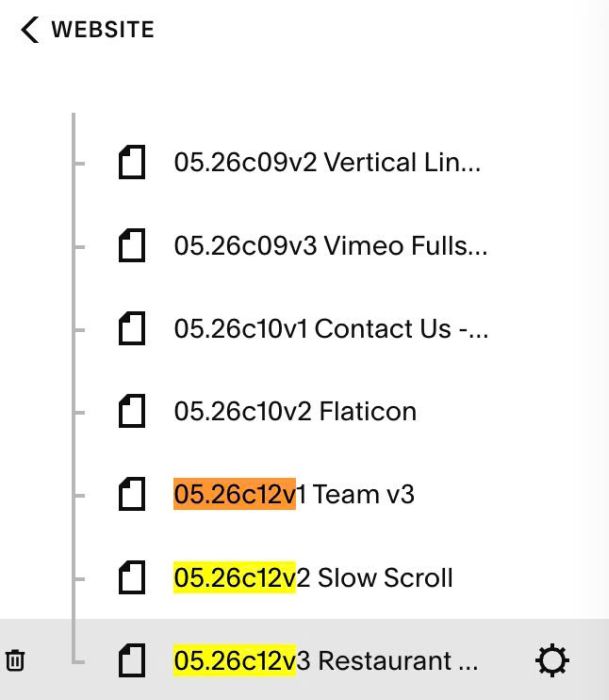
Click Advanced > Paste this code.
- But if you use Personal/Basic Plan and your plan doesn’t support Injection, see step #3.1
<!-- 05.26c12v3 Restaurant Menu Carousel v1 -->
<script>
window.SUBMENU_CAROUSEL_CONFIG = {
  sectionSelector: '#restaurant-menu-carouselv1',
  altTextSize: '11px',
  titleFontSize: '18px',
  descriptionFontSize: '14px',
  buttonFontSize: '14px',
  overrideButtonText: null,
  showButton: true,
  cardBorderRadius: '16px',
  wrapPadding: '0 5vw',
  imageSize: null,
  arrowSize: '44px',
  autoplay: false,
  autoplayDelay: 4000,
  scrollbarTrackColor: '#f0ede8',
  scrollbarThumbColor: '#714b4b',
  mobileColumns: 1.2,

  onInit: function (ctx) {},
  onTabChange: function (ctx) {},
  onCardRender: function (ctx) {},
};
</script>
<script src="https://code.beaverhero.com/list/0526c12v3restaurantmenucarouselv1.js"></script>
#2. Customize
#2.1. To add border around each menu item, use this code to CUSTOM CSS
  article.tp-card {
    border: 1px solid #714b4b;
}
#2.2. To add round corners for images, use this code to CUSTOM CSS
#tp-hiagg-root .tp-media-wrap img {
    border-radius: 16px;
}
#2.3. If you see some arrows appears then disappear, use this code to Custom CSS
section[id*="restaurant-menu-carouselv1"] .user-items-list-carousel {
  opacity: 0 !important;
}
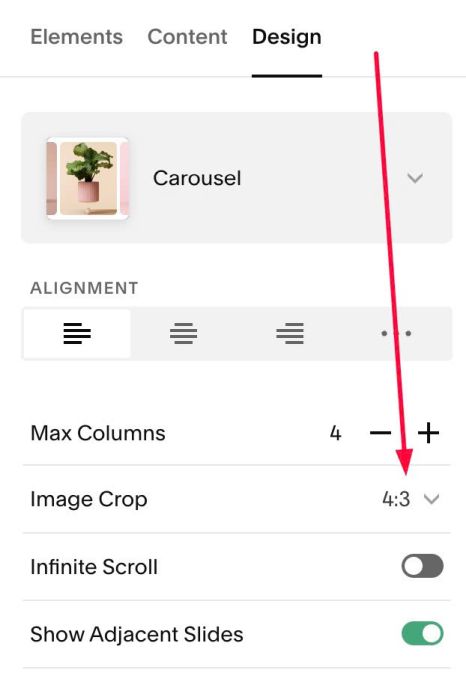
#2.4. To change Image size, you can change this option
#2.5. To change Title, Description, Button, Label text size, change these lines in top of code
altTextSize: '11px',
  titleFontSize: '18px',
  descriptionFontSize: '14px',
  buttonFontSize: '14px',
#2.6. To change Scroll Bar style, change lines
scrollbarTrackColor: '#f0ede8',
  scrollbarThumbColor: '#714b4b',
#2.7. To change text of all buttons, change this line
overrideButtonText: null,
to something like this
overrideButtonText: 'Order Now',
#3. Other
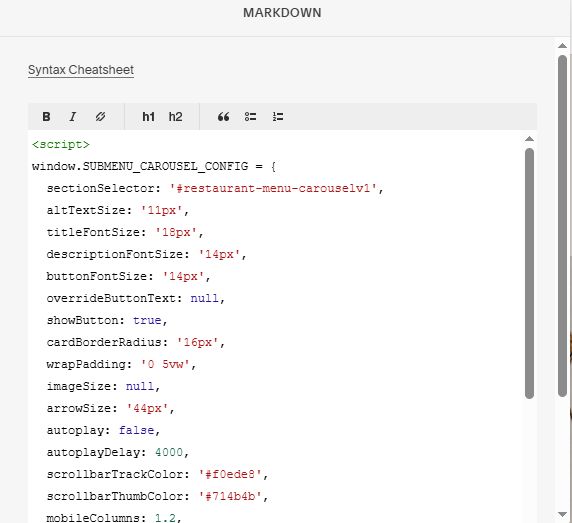
#3.1. if you use Personal/Basic Plan and your plan doesn’t support Injection. You can edit current page > Add a Block > Choose Markdown.

Then add this code into Markdown.
<script>
window.SUBMENU_CAROUSEL_CONFIG = {
  sectionSelector: '#restaurant-menu-carouselv1',
  altTextSize: '11px',
  titleFontSize: '18px',
  descriptionFontSize: '14px',
  buttonFontSize: '14px',
  overrideButtonText: null,
  showButton: true,
  cardBorderRadius: '16px',
  wrapPadding: '0 5vw',
  imageSize: null,
  arrowSize: '44px',
  autoplay: false,
  autoplayDelay: 4000,
  scrollbarTrackColor: '#f0ede8',
  scrollbarThumbColor: '#714b4b',
  mobileColumns: 1.2,

  onInit: function (ctx) {},
  onTabChange: function (ctx) {},
  onCardRender: function (ctx) {},
};
</script>
<script src="https://code.beaverhero.com/list/0526c12v3restaurantmenucarouselv1.js"></script>
#3.2. Hooks & HTML structure
Hooks and Examples
onInit(ctx)
onInit: function (ctx) {
  var note = document.createElement('p');
  note.textContent = 'Build your own meal — pick a base to start.';
  note.style.cssText = 'font-size:13px;margin-bottom:12px;opacity:.6;';
  ctx.section.querySelector('#' + ctx.uid + '-root') // not yet in DOM here
  // better: store uid for use in onCardRender
  window._myCarouselUid = ctx.uid;
}
onTabChange(ctx)
onTabChange: function (ctx) {
  var heading = document.querySelector('#menu-heading');
  if (heading) heading.textContent = ctx.tabName;
}
onCardRender(ctx)
onCardRender: function (ctx) {
  var desc = ctx.item.description || '';
  var match = desc.match(/##Cal:\s*(\d+)/i);
  if (!match) return;
  var label = document.createElement('p');
  label.textContent = match[1] + ' kcal';
  label.style.cssText = 'font-size:11px;opacity:.5;margin-top:auto;';
  ctx.card.appendChild(label);
}
HTML Structure
<div id="tp-restaurant-menu-carouselv1-root">
  <div id="tp-restaurant-menu-carouselv1-tabs">
    <span class="tp-tab active"></span>
    <span class="tp-tab"></span>
    <span class="tp-tab"></span>
  </div>
  <div id="tp-restaurant-menu-carouselv1-panels">
    <div class="tp-panel active">
      <div class="tp-track-row">
        <button class="tp-arrow" aria-label="Previous">
          <svg viewBox="0 0 44 18" xmlns="http://www.w3.org/2000/svg">
            <path d="M9.90649 16.96L2.1221 9.17556L9.9065 1.39116"/>
            <path d="M42.8633 9.18125L3.37868 9.18125"/>
          </svg>
        </button>
        <div class="tp-track-wrap">
          <div class="tp-track">
            <article class="tp-card">
              <div class="tp-media-wrap">
                <img src="" alt="" loading="lazy">
                <span class="tp-badge"></span>
              </div>
              <p class="tp-title"></p>
              <div class="tp-body"></div>
              <div class="tp-btn-wrap">
                <a class="tp-btn" href=""></a>
              </div>
            </article>
          </div>
        </div>
        <button class="tp-arrow" aria-label="Next">
          <svg viewBox="0 0 44 18" xmlns="http://www.w3.org/2000/svg">
            <path d="M34.1477 1.39111L41.9321 9.17551L34.1477 16.9599"/>
            <path d="M1.19088 9.16982H40.6755"/>
          </svg>
        </button>
      </div>
      <div class="tp-bar-wrap">
        <div class="tp-bar-thumb"></div>
      </div>
    </div>
  </div>
</div>
#3.3. How to use AI to tweak code?
You can use Robo-Will or Claude to tweak the code. You can use Prompt like this.
I use this plugin, it has html like this (paste html structure/or take a screenshot of html structure in step #3.2). I want [describe your need here]. Please give me CSS code.
In case the AI says this requires using JavaScript code, you can add this extra prompt.
Here is plugin code [paste code from step #1.8 here] and plugin gives me some hooks like these [take a screenshot or copy 3 hooks + examples and paste here]