Description
- adding fullscreen slideshow to Cover Page
- view demo – password: abc
- buy me a coffee
#1. Install Code
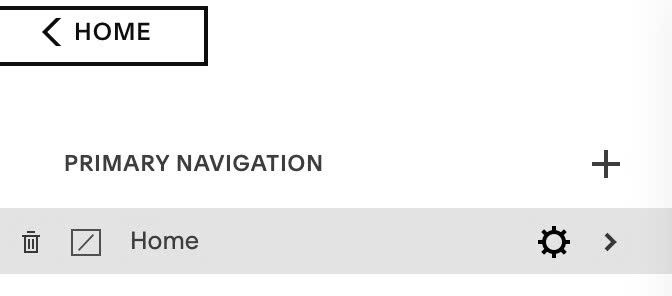
#1.1. First, hover on Cover Page > Click Gear icon
#1.2. Click Advanced > Paste this code
- If you use Personal/Basic Plan and your plan doesn’t support Injection, you can see #3.1
<div class="slideshow-wrapper"></div>
<script>
window.SLIDESHOW_CONFIG = {
  images: [
    'https://images.squarespace-cdn.com/content/v1/67e3b2e4cd573b229af279fd/1778643874385-88M8HLTH8RS5FZPUA124/unsplash-image-bqgsO--tTN4.jpg?format=2500w',
    'https://images.squarespace-cdn.com/content/v1/67e3b2e4cd573b229af279fd/fbce49d2-1b87-4ecd-b8ce-c692bd4c0435/trees-9554109_1280.webp?format=1000w',
    'https://images.squarespace-cdn.com/content/v1/67e3b2e4cd573b229af279fd/0890e793-e906-4c5b-81aa-554a53f8b9cb/%E1%BA%A3nh+2.jpg'
  ],
  autoplay: true,
  autoplayTime: 3000,
  arrows: true,
  arrowColor: '#ffffff',
  arrowSize: '2rem',
  arrowStrokeWidth: 2,
  shuffle: true
};
</script>
<script src="https://code.beaverhero.com/other/0526c13v1coverpagefullscreenslidehow.js"></script>
<style>div.sqs-slide-wrapper {display: none;}body {overflow: hidden;}</style>

#1.3. You can update Images here (Line 04 to Line 08)
images: [
  'https://images.squarespace-cdn.com/content/v1/67e3b2e4cd573b229af279fd/1778643874385-88M8HLTH8RS5FZPUA124/unsplash-image-bqgsO--tTN4.jpg?format=2500w',
  'https://images.squarespace-cdn.com/content/v1/67e3b2e4cd573b229af279fd/fbce49d2-1b87-4ecd-b8ce-c692bd4c0435/trees-9554109_1280.webp?format=1000w',
  'https://images.squarespace-cdn.com/content/v1/67e3b2e4cd573b229af279fd/0890e793-e906-4c5b-81aa-554a53f8b9cb/%E1%BA%A3nh+2.jpg'
],
Format here will be
  images: [
    'image url 01',
    'image url 02',
    'image url 03',
'image url 04',
'image url 05',
'image url 06',
'image url 07
  ],
You can follow this guide to find Image URL (follow #1)
#2. Customize
#2.1. To enable/disable autoscroll, adjust these lines: Line 09, Line 10
autoplay: true,
autoplayTime: 3000,
to disable autoscroll, change true to false
autoplay: false,
  autoplayTime: 3000,
#2.2. To disable Left/Right Arrows, change this option to false Line 11
arrows: false,
#2.3. To change arrows size, color, change these lines: Line 12, Line 13
arrowColor: '#ffffff',
arrowSize: '2rem',
#3. Other
#3.1. If you use Personal/Basic Plan and your plan doesn’t support Injection, you will need to create new page + add it as homepage + use code to remove header/footer + use Fullscreen Slideshow code follow these steps.
First, edit Page > Add a Block > Choose Markdown.

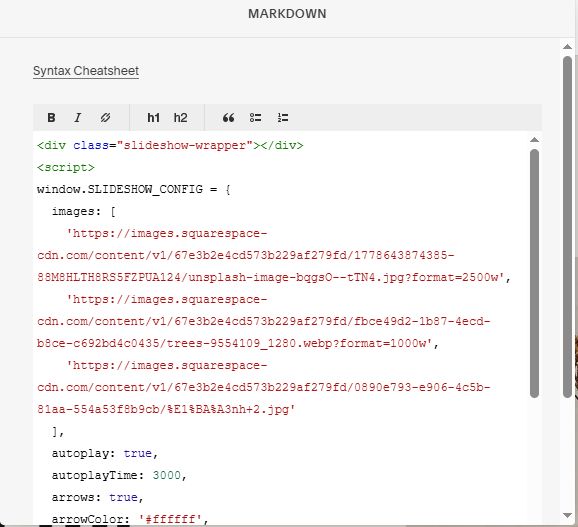
Next, add this code into Markdown.
<div class="slideshow-wrapper"></div>
<script>
window.SLIDESHOW_CONFIG = {
  images: [
    'https://images.squarespace-cdn.com/content/v1/67e3b2e4cd573b229af279fd/1778643874385-88M8HLTH8RS5FZPUA124/unsplash-image-bqgsO--tTN4.jpg?format=2500w',
    'https://images.squarespace-cdn.com/content/v1/67e3b2e4cd573b229af279fd/fbce49d2-1b87-4ecd-b8ce-c692bd4c0435/trees-9554109_1280.webp?format=1000w',
    'https://images.squarespace-cdn.com/content/v1/67e3b2e4cd573b229af279fd/0890e793-e906-4c5b-81aa-554a53f8b9cb/%E1%BA%A3nh+2.jpg'
  ],
  autoplay: true,
  autoplayTime: 3000,
  arrows: true,
  arrowColor: '#ffffff',
  arrowSize: '2rem',
  arrowStrokeWidth: 2,
  shuffle: true
};
</script>
<script src="https://code.beaverhero.com/other/0526c13v1coverpagefullscreenslidehow.js"></script>
<style>div.sqs-slide-wrapper {display: none;}body {overflow: hidden;}</style>