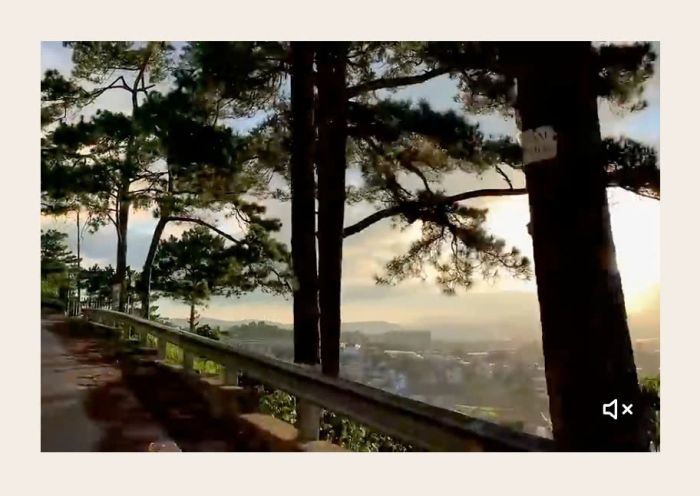
Description
- play video on image hover
- view demo – password: abc
- buy me a coffee
#1. Install Code
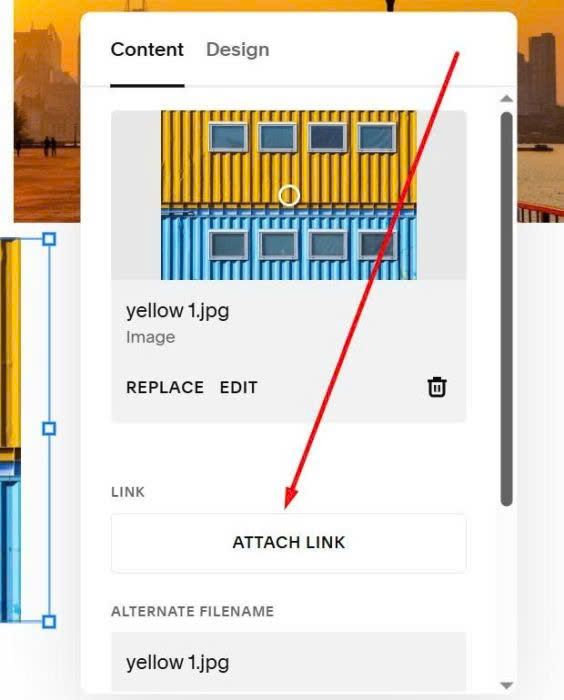
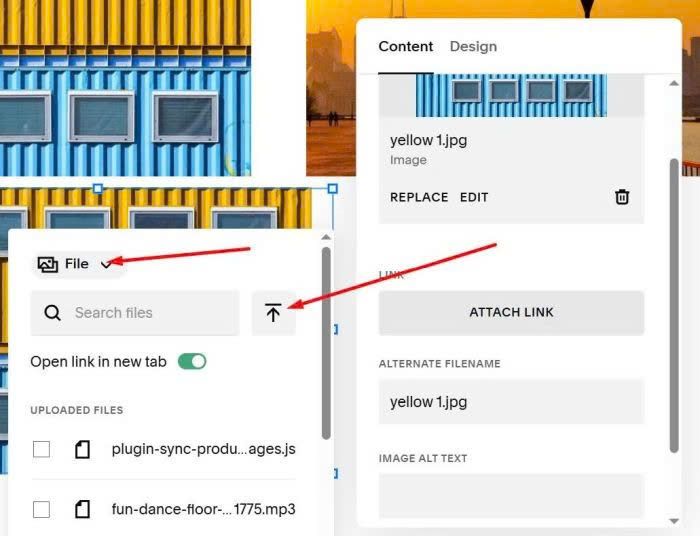
#1.1. First, you need to edit Image Block > Click Attach Link
#1.2. At URL > Choose File
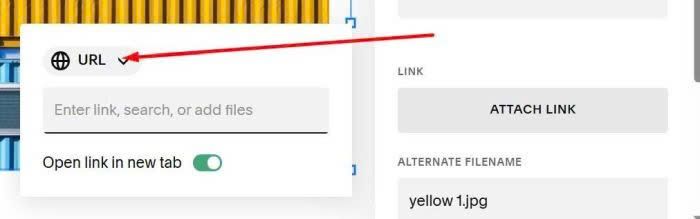
#1.3. Upload Video file (mp4)
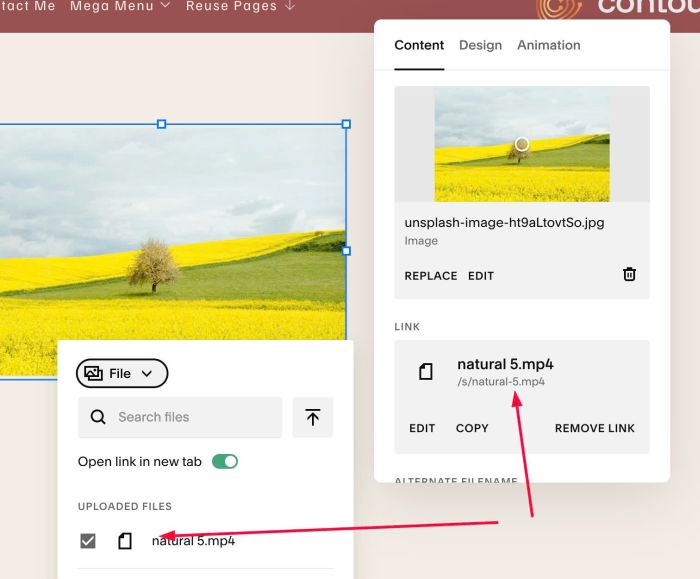
Result something like this
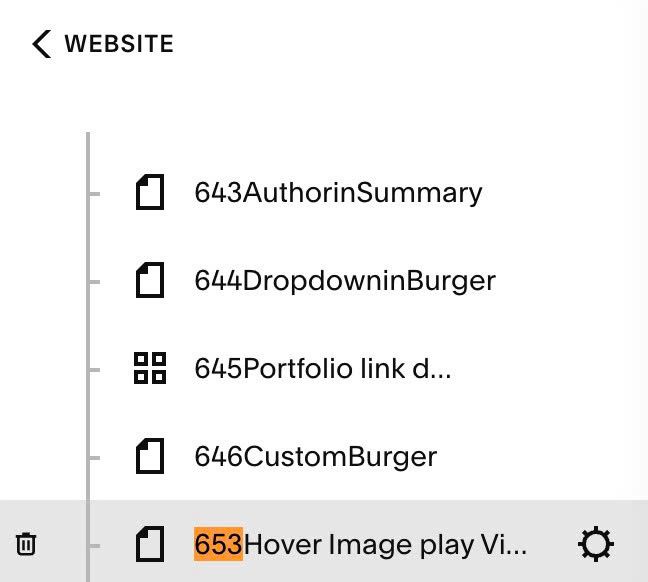
#1.4. Hover on Page where you added Image Blocks > Click Gear icon
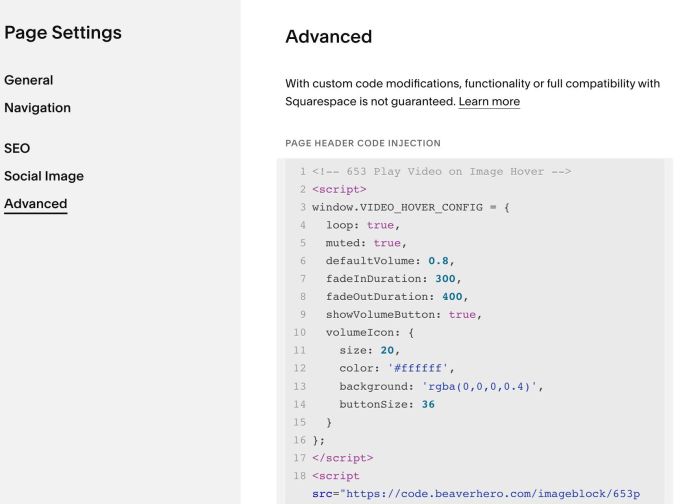
Click Advanced > Paste this code
- If you use Personal/Basic Plan and your plan doesn’t support Injection, you can see #3.1
<!-- 653 Play Video on Image Hover -->
<script>
window.VIDEO_HOVER_CONFIG = {
  loop: true,
  muted: true,
  defaultVolume: 0.8,
  fadeInDuration: 300,
  fadeOutDuration: 400,
  showVolumeButton: true,
  volumeIcon: {
    size: 20,
    color: '#ffffff',
    background: 'rgba(0,0,0,0.4)',
    buttonSize: 36
  }
};
</script>
<script src="https://code.beaverhero.com/imageblock/653playvideoonimghover.js"></script>
#2. Customize
#2.1. To hide volume icon, you can change line 09
showVolumeButton: true,
to this
showVolumeButton: false,
#2.2. To change volume icon style, you can change lines: 10 – 15
volumeIcon: {
  size: 20,
  color: '#ffffff',
  background: 'rgba(0,0,0,0.4)',
  buttonSize: 36
}
#3. Other
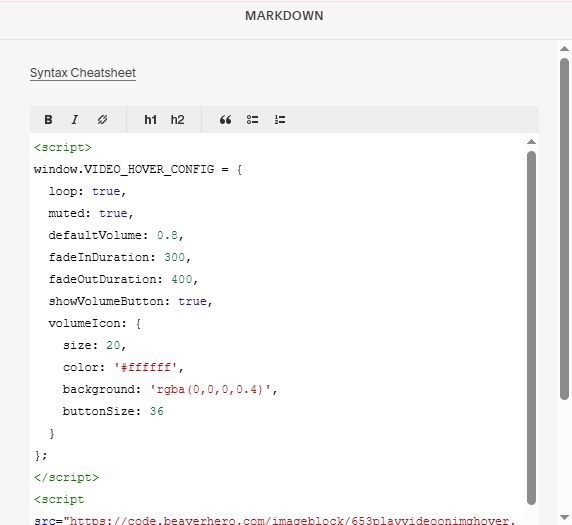
#3.1. If you use Personal/Basic Plan and your plan doesn’t support Injection, you can add a Block under Image

Choose Markdown

Then paste this code into Markdown
<script>
window.VIDEO_HOVER_CONFIG = {
  loop: true,
  muted: true,
  defaultVolume: 0.8,
  fadeInDuration: 300,
  fadeOutDuration: 400,
  showVolumeButton: true,
  volumeIcon: {
    size: 20,
    color: '#ffffff',
    background: 'rgba(0,0,0,0.4)',
    buttonSize: 36
  }
};
</script>
<script src="https://code.beaverhero.com/imageblock/653playvideoonimghover.js"></script>