Description
- flip effect on Image Block, this is update version of this effect
- view demo – password: abc
- buy me a coffee

#1. Install Code
#1.1. First, add text to ALT
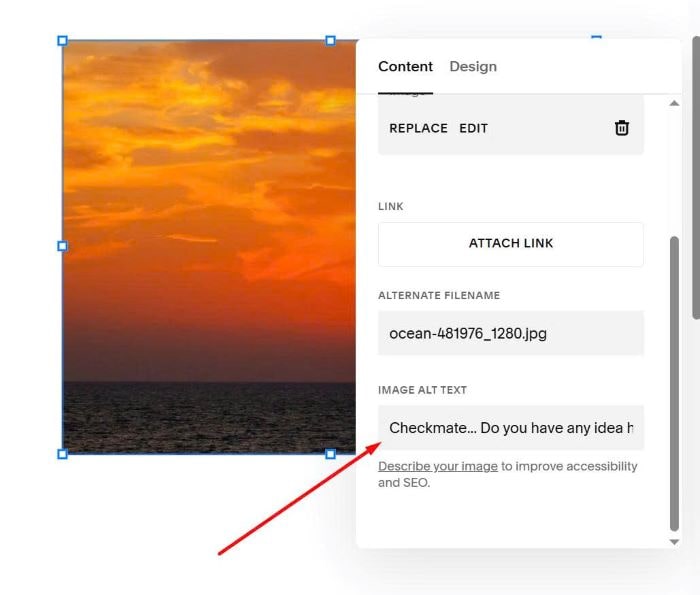
#1.2. Add ## symbol
- Text before ## = Title
- Text after ## = Description
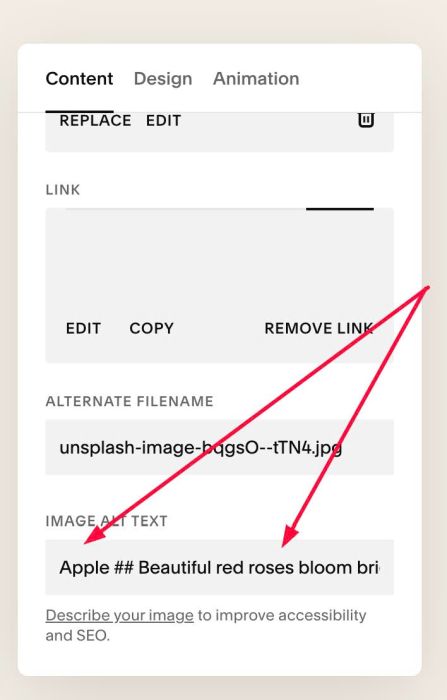
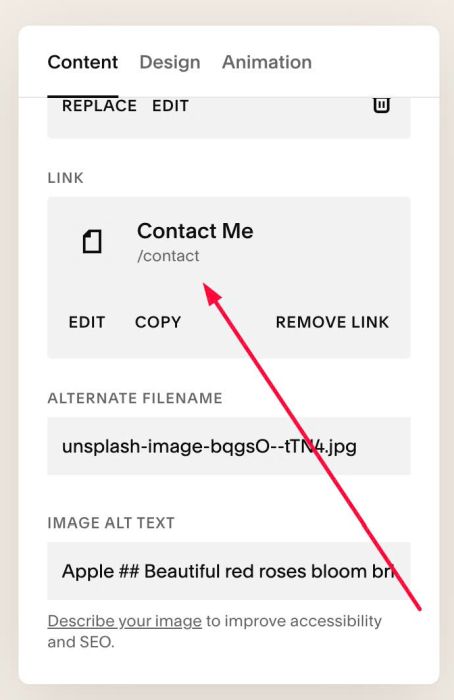
#1.3. You can add URL to Image
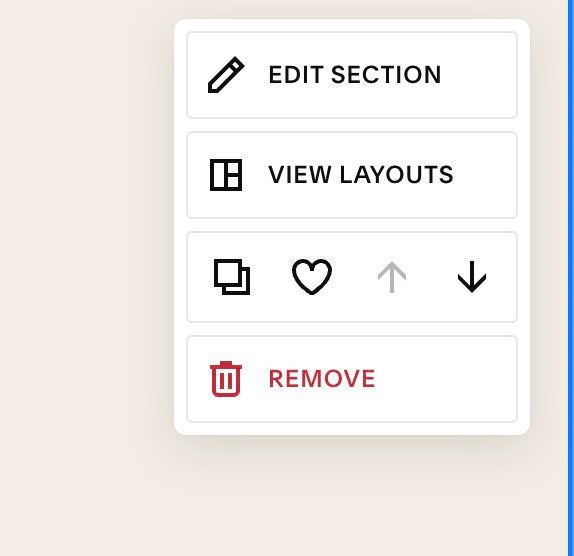
#1.4. Hover on top right of section > Click Edit Section
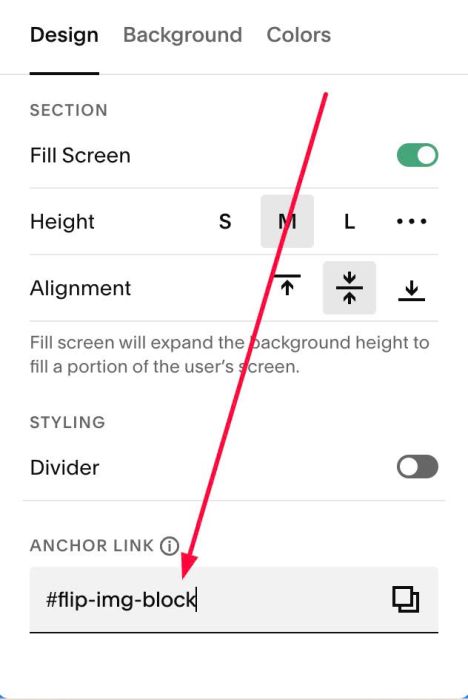
at Design > Anchor Link > Enter word: flip-img-block
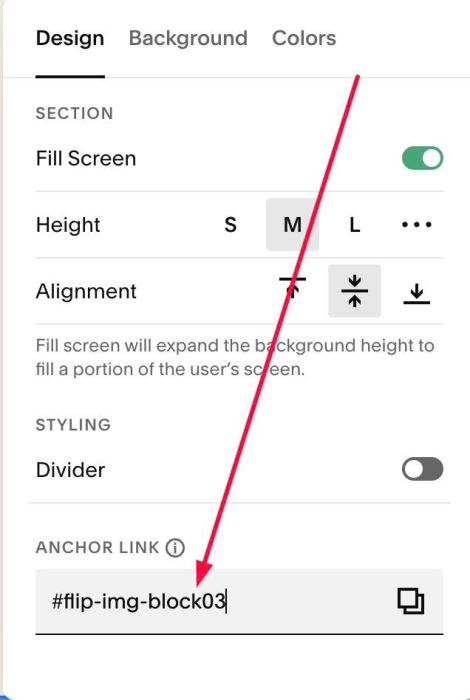
if you have multiple sections and you want to add Flip effect, just enter anchor link: flip-img-block02, flip-img-block03…
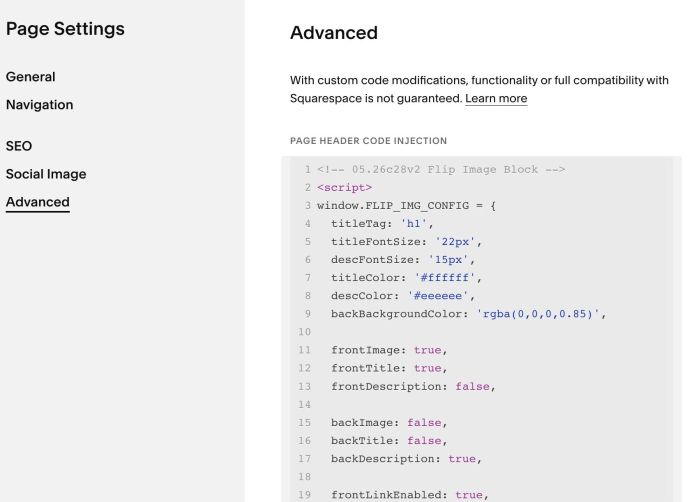
#1.5. Hover on Page where you use Image Blocks > Click Gear icon
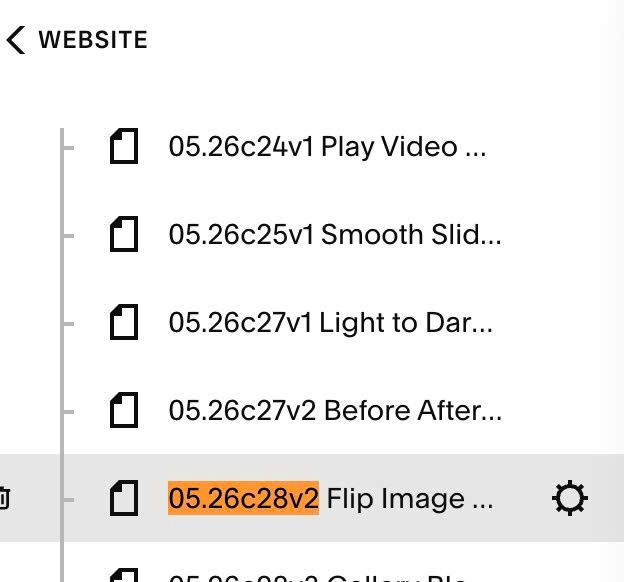
Click Advanced > Paste this code
- If you use Personal/Basic Plan and your plan doesn’t support Injection, you can see #3.1
<!-- 05.26c28v2 Flip Image Block -->
<script>
window.FLIP_IMG_CONFIG = {
  titleTag: 'h1',
  titleFontSize: '22px',
  descFontSize: '15px',
  titleColor: '#ffffff',
  descColor: '#eeeeee',
  backBackgroundColor: 'rgba(0,0,0,0.85)',

  frontImage: true,
  frontTitle: true,
  frontDescription: false,

  backImage: false,
  backTitle: false,
  backDescription: true,

  frontLinkEnabled: true,
  backLinkEnabled: true,

  mobileTapDelay: 5000,
};
</script>
<script src="https://code.beaverhero.com/imageblock/0526c28v2flipimgblockv2.js">
</script>
#2. Customize
#2.1. To enable/disable Title/Description in Front
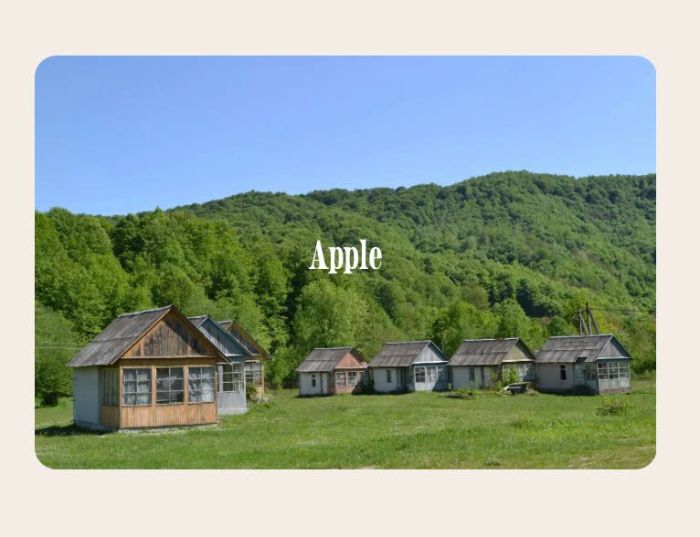
You can adjust these line 11, line 12, line 13
- true = enable
- false = disable
frontImage: true,
frontTitle: true,
frontDescription: false,
#2.2. To enable/disable Title/Description/Image in Back (Flip)
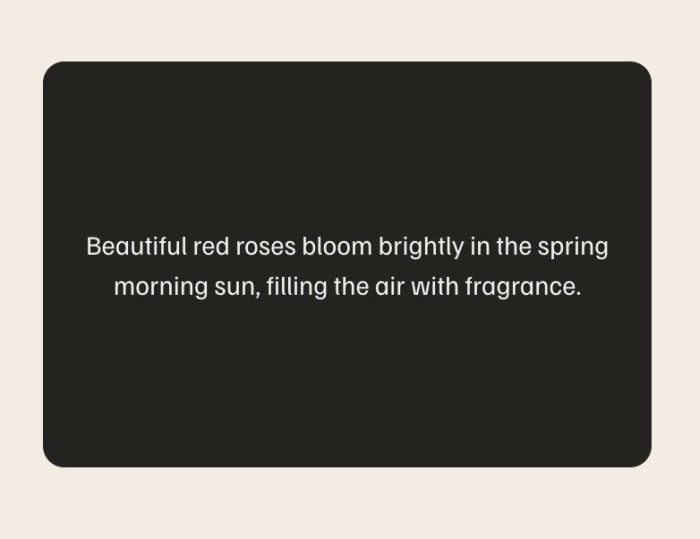
You can adjust Line 15, 16, 17
- true = enable
- false = disable
backImage: false,
backTitle: false,
backDescription: true,
#2.3. To enable click on Front or Back (Flip), you can adjust Line 19, Line 20
frontLinkEnabled: true,
backLinkEnabled: true,
#2.4. To change Title Tag (by default it is Heading 1 [H1]), you can change this line 04
titleTag: 'h1',
#2.5. By default, on mobile, tap > flip > open new page after 5 seconds, you can adjust number 5 with Line 22
mobileTapDelay: 5000,
#2.6. To change Title, Description size, color, you can adjust Line 05, 06, 07, 08
titleFontSize: '22px',
descFontSize: '15px',
titleColor: '#ffffff',
descColor: '#eeeeee',
#2.7. To change Back (Flip) Background Color
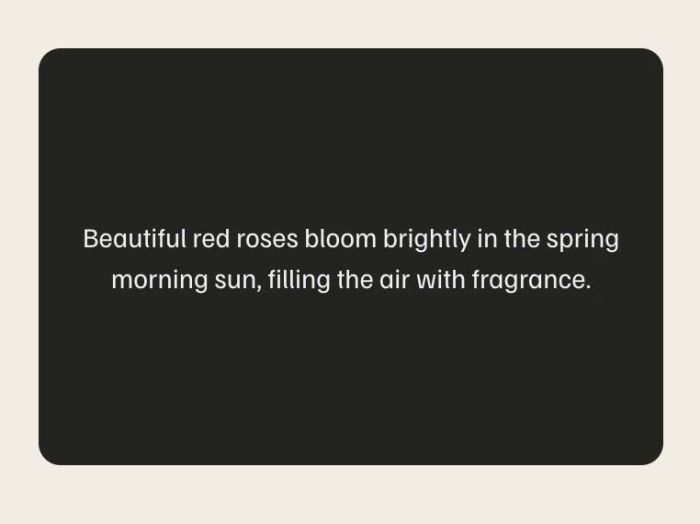
You can change Line 09
backBackgroundColor: 'rgba(0,0,0,0.85)',
#2.8. To change border radius of Flip item, you can use this code to Custom CSS
div.tp-inner>div {
    border-radius: 30px;
}
#2.9. To change Flip behavior from Hover to Click, you can add this line
flipTrigger: 'click',
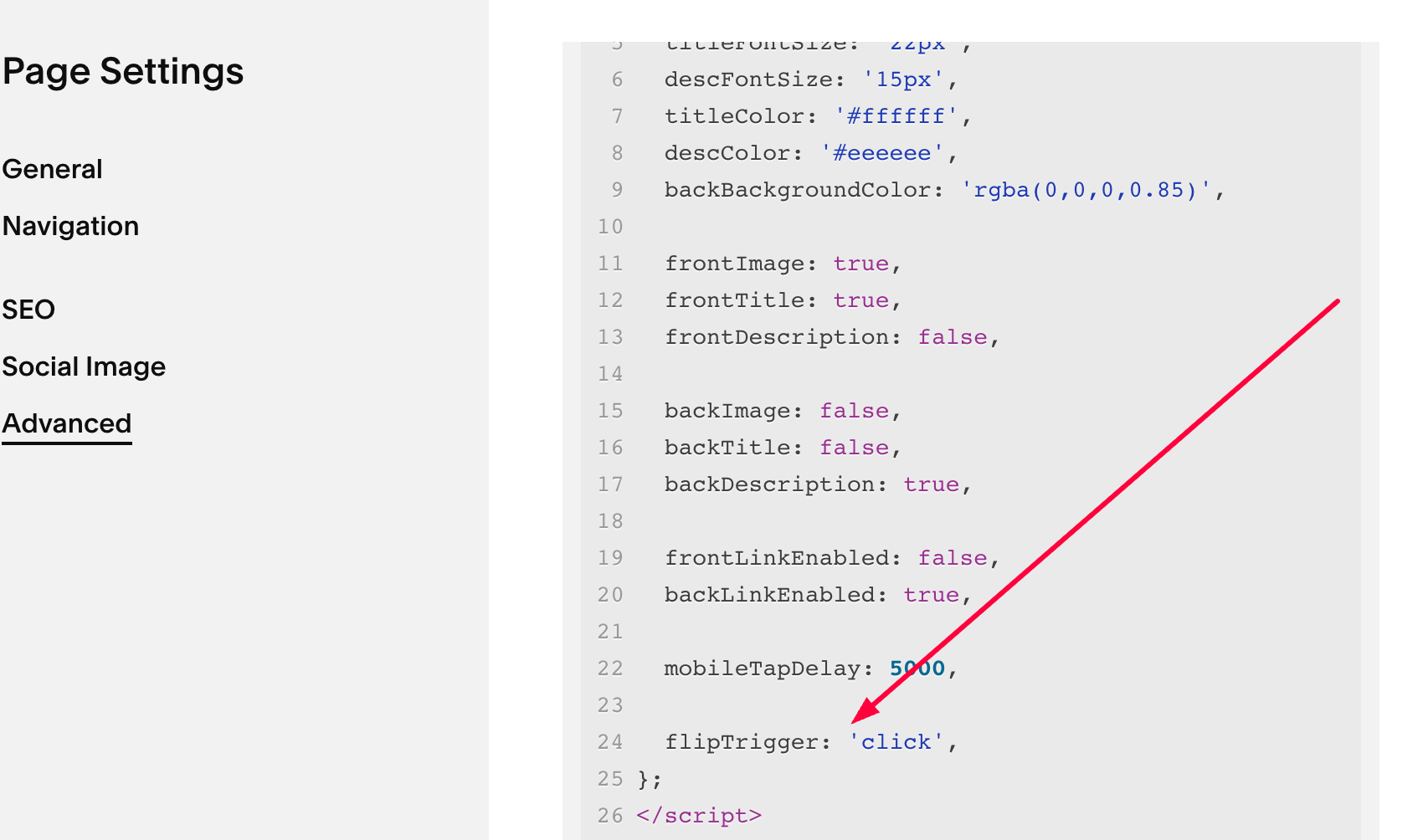
However, make sure option (Line 19)
frontLinkEnabled: true,
should be false
frontLinkEnabled: false,
#2.10. Fix bug on Safari
Add this under main code
<style>@media screen and (max-width:767px) {
    .tp-inner{-webkit-transform-style:preserve-3d}
.tp-card.tp-flipped .tp-inner{-webkit-transform:rotateY(180deg)}
.tp-front,.tp-back{-webkit-backface-visibility:hidden}
.tp-front{-webkit-transform:translateZ(0);transform:translateZ(0)}
.tp-back{-webkit-transform:rotateY(180deg)}
}
</style>
#3. Other
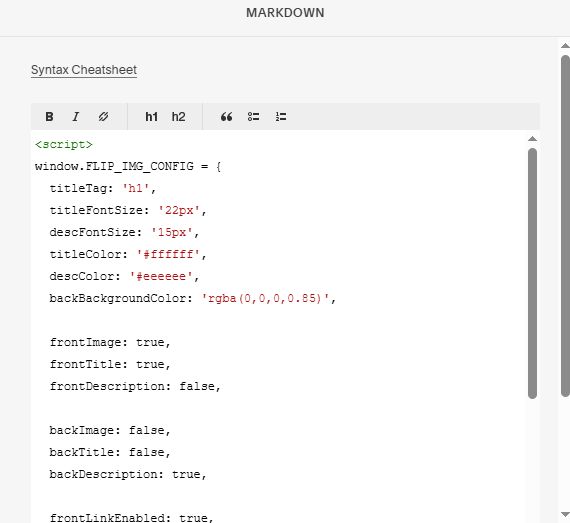
#3.1. If you use Personal/Basic Plan and your plan does’t support Injection, you can add a Block in current page.

Choose Markdown Block

Then paste this code
<script>
window.FLIP_IMG_CONFIG = {
  titleTag: 'h1',
  titleFontSize: '22px',
  descFontSize: '15px',
  titleColor: '#ffffff',
  descColor: '#eeeeee',
  backBackgroundColor: 'rgba(0,0,0,0.85)',

  frontImage: true,
  frontTitle: true,
  frontDescription: false,

  backImage: false,
  backTitle: false,
  backDescription: true,

  frontLinkEnabled: true,
  backLinkEnabled: true,

  mobileTapDelay: 5000,
};
</script>
<script src="https://code.beaverhero.com/imageblock/0526c28v2flipimgblockv2.js">
</script>