Description
- Video lightbox popup on button click (supports Youtube, Vimeo, Uploaded video)
- view demo – password: abc
- buy me a coffee
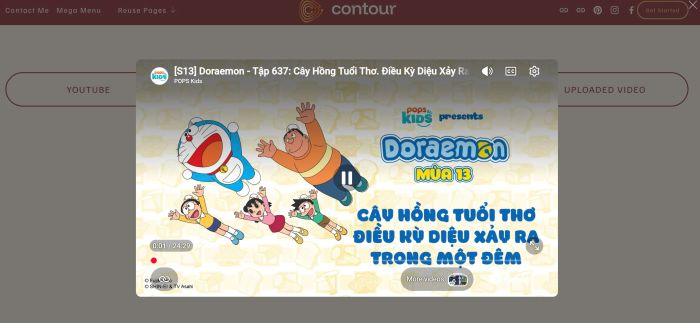
#1. Install Code
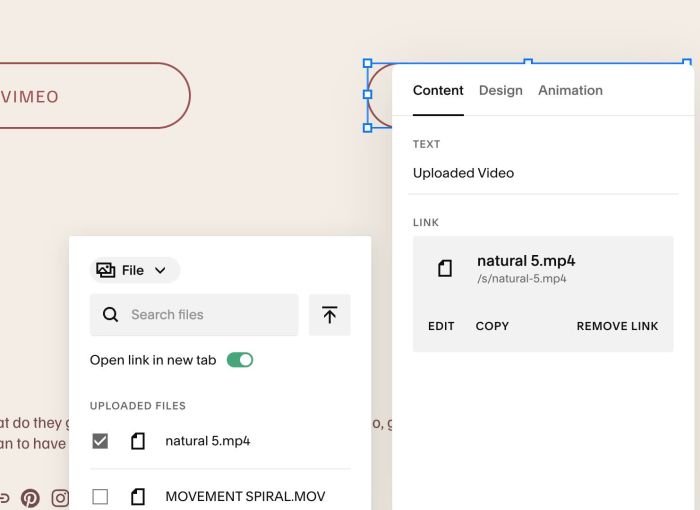
#1.1. Make sure you added Youtube to Button Block
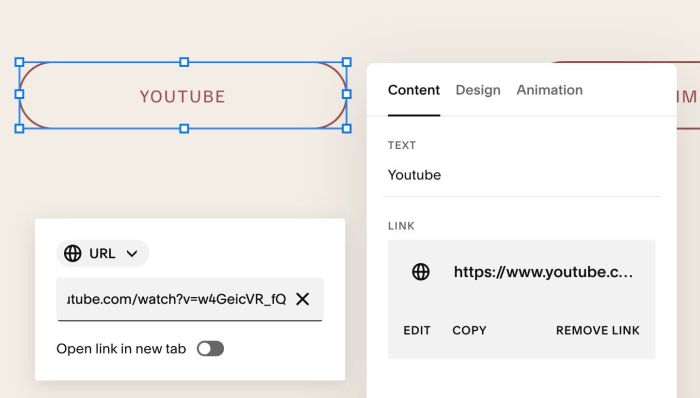
or Vimeo URL
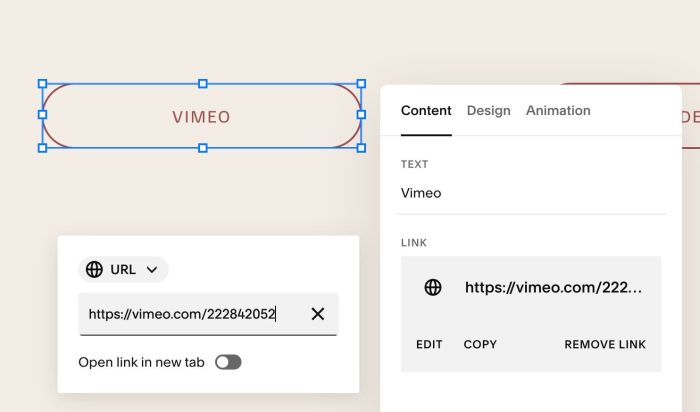
or Uploaded your video
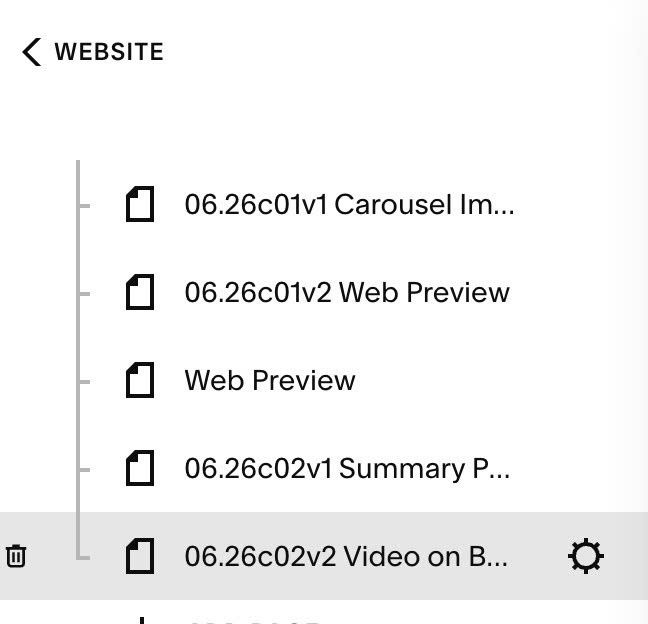
#1.2. Hover on Page where you use Button Blocks > Click Gear icon
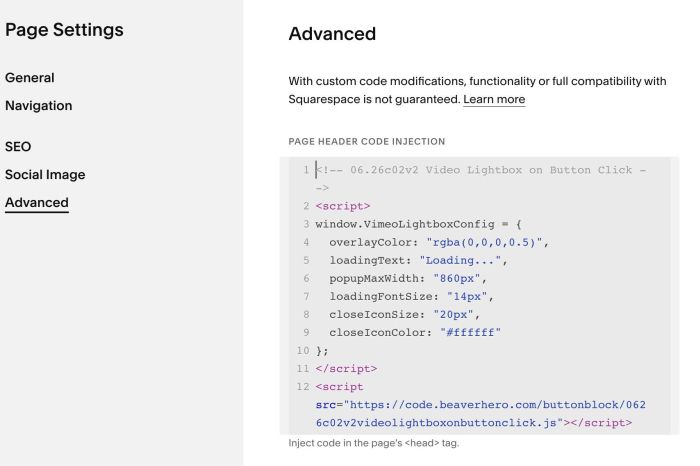
Click Advanced > Paste this code
- If you use Personal/Basic Plan and your plan doesn’t support Injection, you can see #3.1.
<!-- 06.26c02v2 Video Lightbox on Button Click -->
<script>
window.VimeoLightboxConfig = {
  overlayColor: "rgba(0,0,0,0.5)",
  loadingText: "Loading...",
  popupMaxWidth: "860px",
  loadingFontSize: "14px",
  closeIconSize: "20px",
  closeIconColor: "#ffffff"
};
</script>
<script src="https://code.beaverhero.com/buttonblock/0626c02v2videolightboxonbuttonclick.js"></script>
#2. Customize
#2.1. To change overlay background color behind video, you can change this line 04
overlayColor: "rgba(0,0,0,0.5)",
you can use color name, like this
overlayColor: "black",
or hex color, like this
overlayColor: "#000",
#2.2. To change “Loading…” text, change line 05
loadingText: "Loading...",
#3. Other
#3.1. If you use Personal/Basic Plan and your plan doesn’t support Injection, you can edit Current Page (page where you use Button Block) > Add a Block
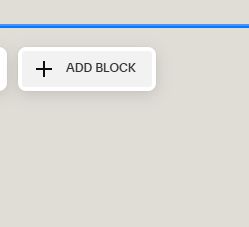
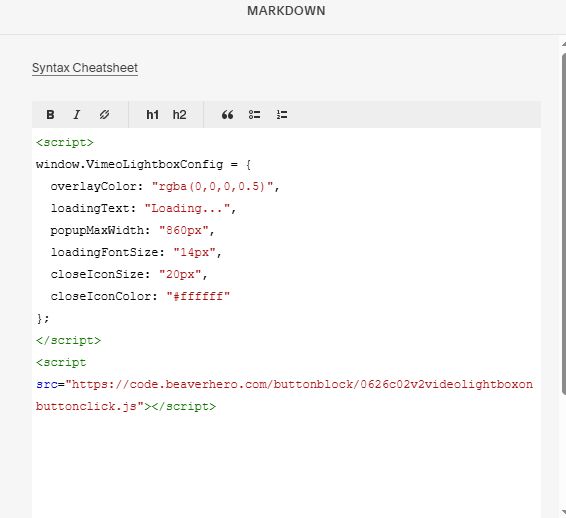
Choose Markdown
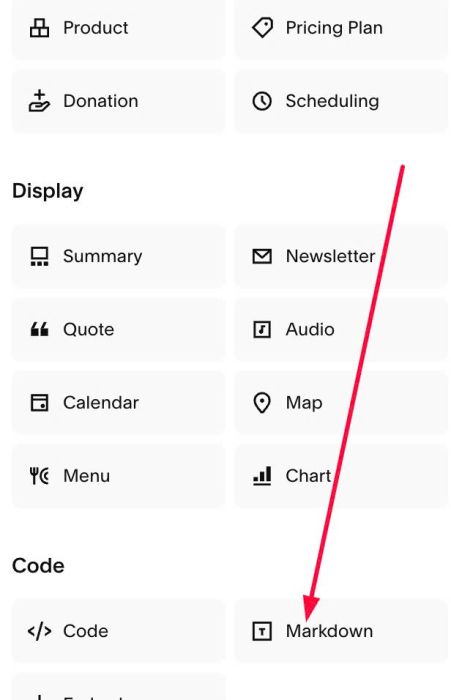
Add this code into Markdown
<script>
window.VimeoLightboxConfig = {
  overlayColor: "rgba(0,0,0,0.5)",
  loadingText: "Loading...",
  popupMaxWidth: "860px",
  loadingFontSize: "14px",
  closeIconSize: "20px",
  closeIconColor: "#ffffff"
};
</script>
<script src="https://code.beaverhero.com/buttonblock/0626c02v2videolightboxonbuttonclick.js"></script>