Description
- preview external website on your page
- view demo – password: abc
- buy me a coffee
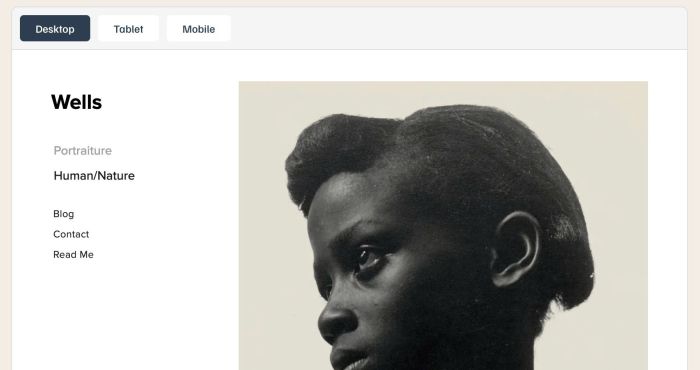
#1. Install Code
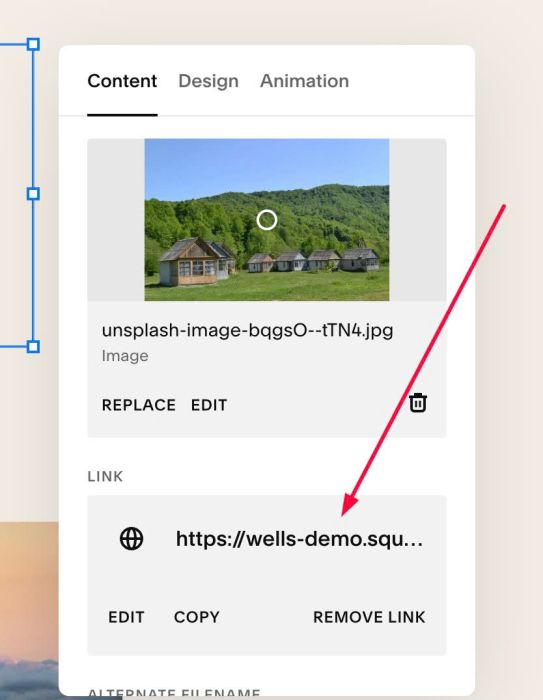
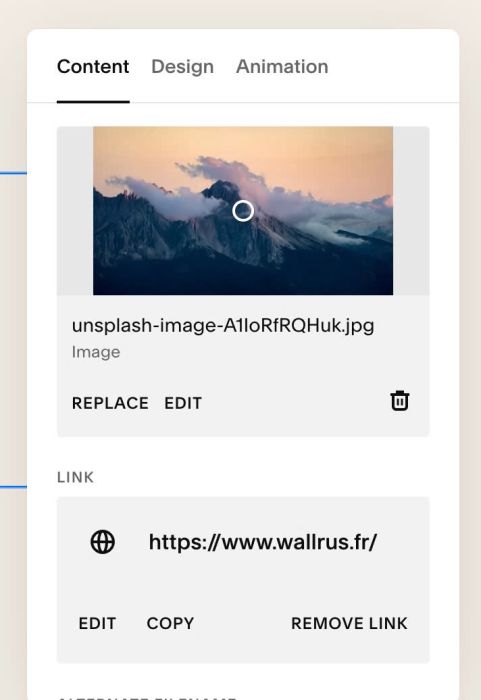
#1.1. First, you can add some Image Blocks with external site url, like this
or this
#1.2. Add text: web-preview to ALT

#1.3. Hover on Page where you added Image Blocks > Click Gear icon

Click Advanced > Paste this code
- If you use Personal/Basic Plan and your plan doesn’t support Injection, you can see #3.1
<!-- 06.26c01v2 Web Preview -->
<script>
window.WEB_PREVIEW_CONFIG = {
  altMatch: 'web-preview',
  previewHeight: '600px',
  devices: [
    { name: 'Desktop', width: '100%', enabled: true },
    { name: 'Tablet', width: '768px', enabled: true },
    { name: 'Mobile', width: '375px', enabled: true }
  ],
  barBackground: '#f5f5f5',
  borderColor: '#dddddd',
  borderRadius: '8px',
  gap: '10px',
  padding: '10px',
  buttonBackground: '#ffffff',
  buttonTextColor: '#2c3e50',
  buttonActiveBackground: '#2c3e50',
  buttonActiveTextColor: '#ffffff',
  buttonBorderRadius: '5px',
  buttonTextSize: '14px'
};
</script>
<script src="https://code.beaverhero.com/imageblock/0626c01v2webpreview.js"></script>

#2. Customize
#2.1. Fix Bug:
If you see error “…refuse to connect”, make sure you disabled this option in external site.
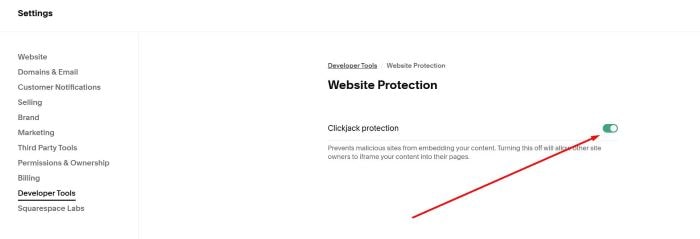
#2.2. To change Height of Web Preview section, you can change Line 05
previewHeight: '600px',
#2.3. To rename text “Desktop”, “Tablet”, “Mobile”, you can change Line 07, 08, 09
{ name: 'Desktop', width: '100%', enabled: true },
{ name: 'Tablet', width: '768px', enabled: true },
{ name: 'Mobile', width: '375px', enabled: true }
#2.4. To change switcher bar style

You can change Line 11, 12, 13
barBackground: '#f5f5f5',
borderColor: '#dddddd',
borderRadius: '8px',
#2.5. To change gap between buttons Desktop – Tablet – Mobile, change Line 14
gap: '10px',
#2.6. To change button style (Desktop, Tablet, Mobile), change Line 16 to 21
buttonBackground: '#ffffff',
buttonTextColor: '#2c3e50',
buttonActiveBackground: '#2c3e50',
buttonActiveTextColor: '#ffffff',
buttonBorderRadius: '5px',
buttonTextSize: '14px'
#3. Other
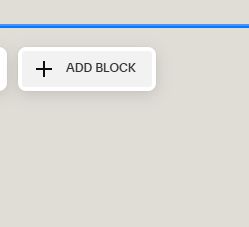
#3.1. If you use Personal/Basic Plan and your plan doesn’t support Injection, you can edit current page > Add a Block
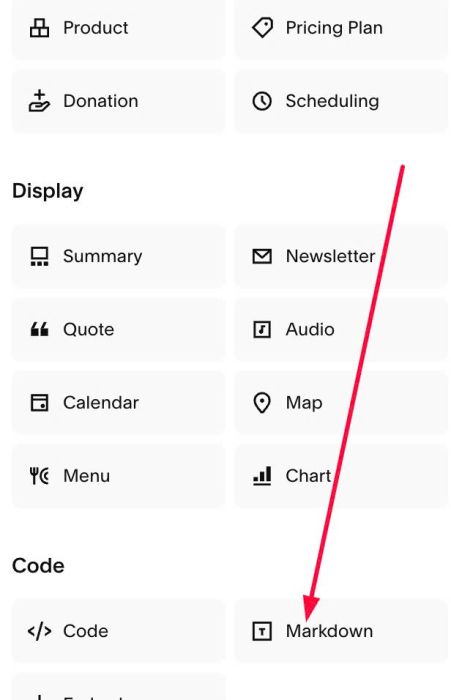
Choose Markdown
Add this code into Markdown
<script>
window.WEB_PREVIEW_CONFIG = {
  altMatch: 'web-preview',
  previewHeight: '600px',
  devices: [
    { name: 'Desktop', width: '100%', enabled: true },
    { name: 'Tablet', width: '768px', enabled: true },
    { name: 'Mobile', width: '375px', enabled: true }
  ],
  barBackground: '#f5f5f5',
  borderColor: '#dddddd',
  borderRadius: '8px',
  gap: '10px',
  padding: '10px',
  buttonBackground: '#ffffff',
  buttonTextColor: '#2c3e50',
  buttonActiveBackground: '#2c3e50',
  buttonActiveTextColor: '#ffffff',
  buttonBorderRadius: '5px',
  buttonTextSize: '14px'
};
</script>
<script src="https://code.beaverhero.com/imageblock/0626c01v2webpreview.js"></script>
