Description
- adding image/icon to Scrolling Block
- view demo – password: abc
- buy me a coffee

#1. Install Code
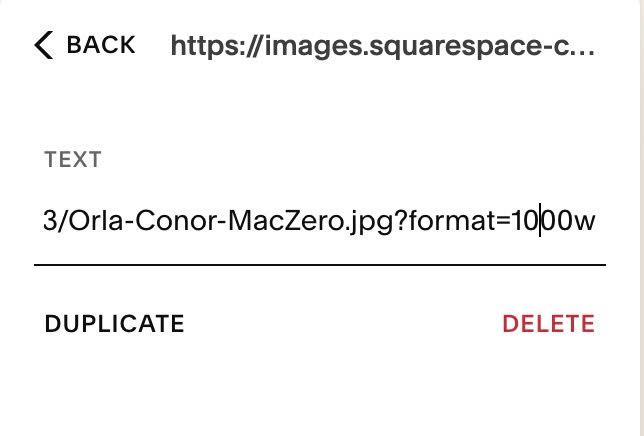
#1.1. First, you need to find Image URL
Follow this guide.
#1.2. Add icon/image url to Scrolling Block
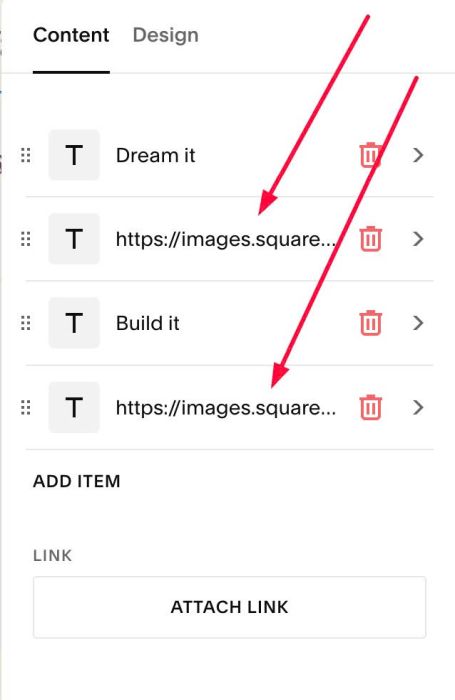
Something like this
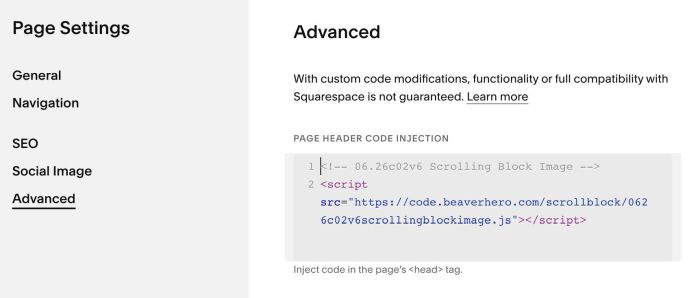
#1.3. Hover on Page where you use Scrolling Block > Click Gear icon
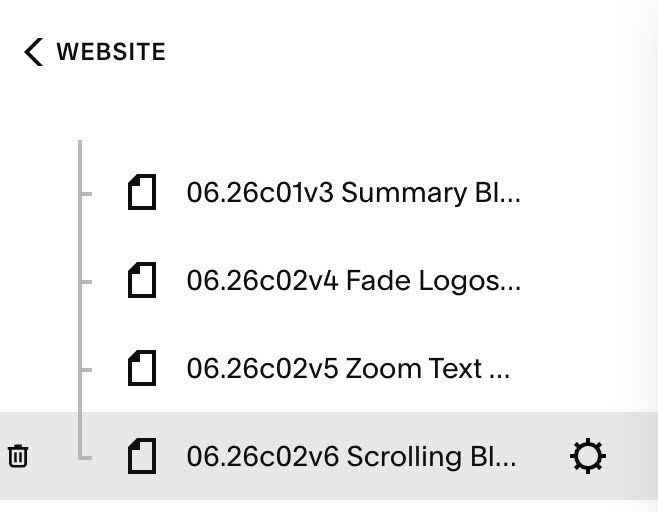
Click Advanced > Paste this code
- If you use Personal/Basic Plan and your plan doesn’t support Injection, see #3.1.
<!-- 06.26c02v6 Scrolling Block Image -->
<script src="https://code.beaverhero.com/scrollblock/0626c02v6scrollingblockimage.js"></script>
#2. Customize
#3. Other
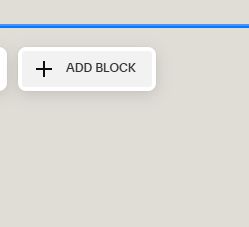
#3.1. If you use Personal/Basic Plan and your plan doesn’t support Injection, you can add a Block under Scrolling Block
Choose Markdown
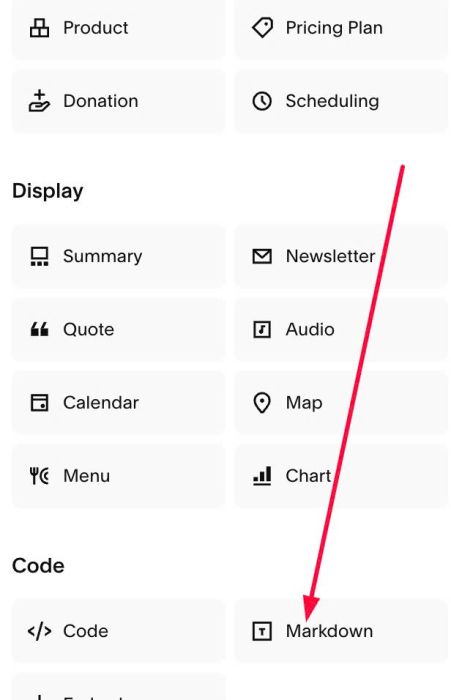
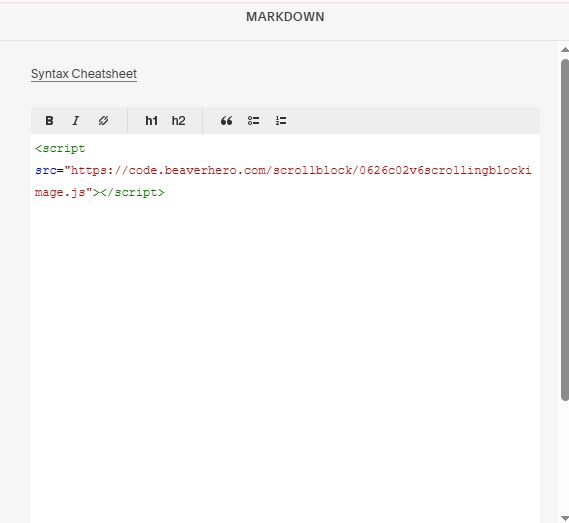
Add this code into Markdown
<script src="https://code.beaverhero.com/scrollblock/0626c02v6scrollingblockimage.js"></script>