Description
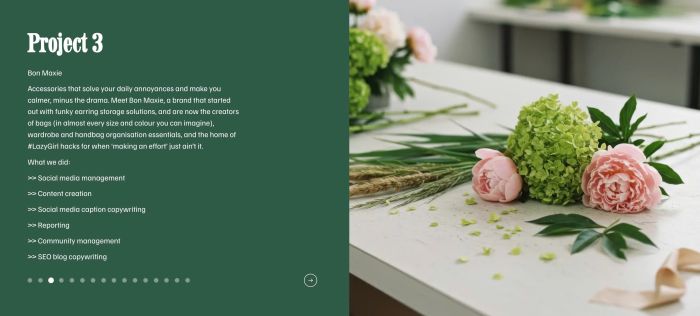
- custom Portfolio Page with two panels, left is text, right is image, bottom is dots/arrow pagination
- view demo – password: abc
- buy me a coffee
#1. Install Code
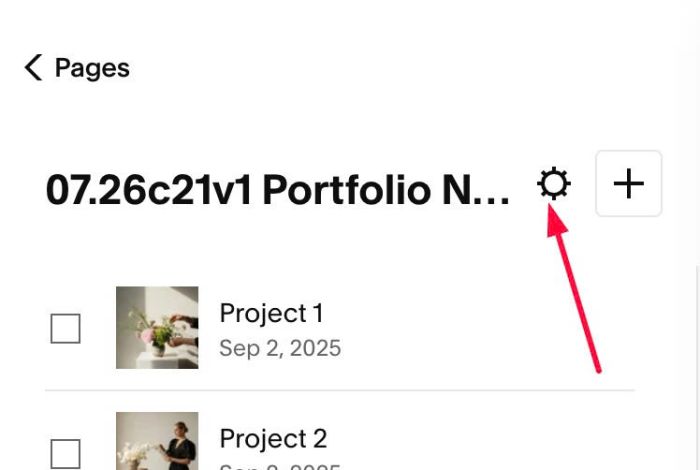
#1.1. Click Gear icon on Portfolio Page
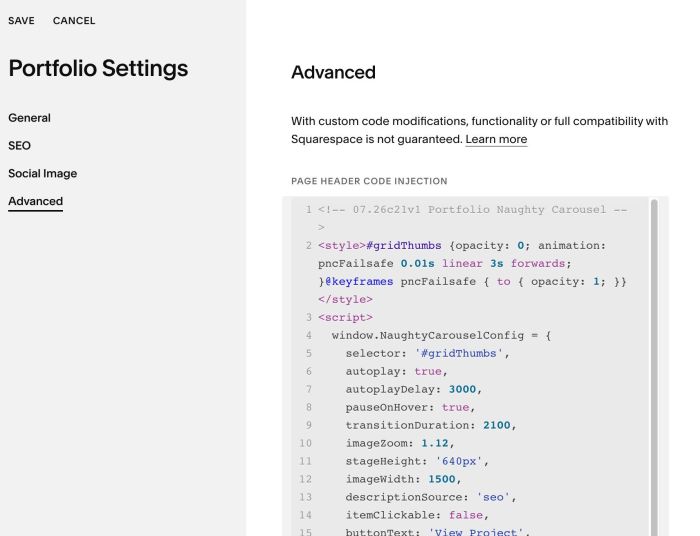
#1.2. Click Advanced > Paste this code
- If you use Personal/Basic Plan and your plan doesn’t support Injection, see #3.1
<!-- 07.26c21v1 Portfolio Naughty Carousel -->
<style>#gridThumbs {opacity: 0; animation: pncFailsafe 0.01s linear 3s forwards; }@keyframes pncFailsafe { to { opacity: 1; }}</style>
<script>
  window.NaughtyCarouselConfig = {
    selector: '#gridThumbs',
    autoplay: true,
    autoplayDelay: 3000,
    pauseOnHover: true,
    transitionDuration: 2100,
    imageZoom: 1.12,
    stageHeight: '640px',
    imageWidth: 1500,
    descriptionSource: 'textblock',
    itemClickable: false,
    buttonText: 'View Project',
    buttonSpaceTop: '1.75rem',
    buttonTextSize: '',
    loop: true,
    backgroundColors: [
      '#F0562B', '#1C1C22', '#2E5A46', '#3A3A82',
      '#B23A48', '#1F6E8C', '#C6551F', '#4A3F6B'
    ],
    overlayColor: '',
    textColor: '#FFFFFF',
    stripFirstDescLine: false
  };
</script>
<script src="https://code.beaverhero.com/portfolio/0726c21v1portfolionaughtycarousel.js"></script>
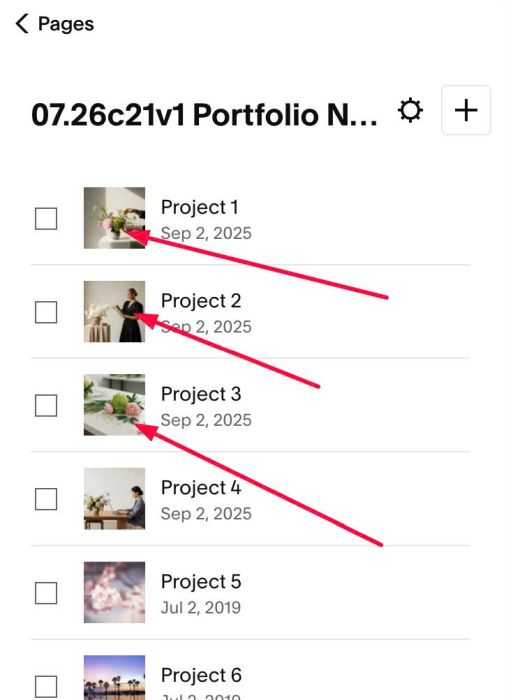
#1.3. To change Right Image, change this thumbnail image
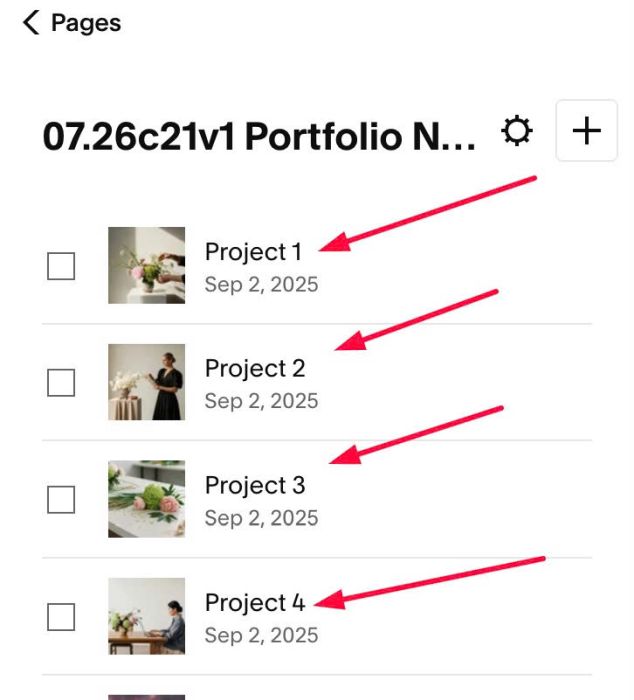
#1.3-2. To change Left Text, you can change Portfolio Item Title
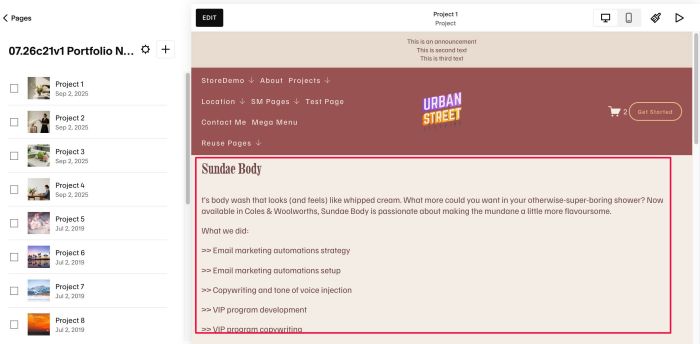
and change Text Block in Top Section
#1.3-3. To change Overlay color behind text/overlay color over image, change line 19 to line 22
backgroundColors: [
      '#F0562B', '#1C1C22', '#2E5A46', '#3A3A82',
      '#B23A48', '#1F6E8C', '#C6551F', '#4A3F6B'
    ],
#2. Customize
#2.1. To change height of Carousel, change line 11
stageHeight: '640px',
#2.2. To disable autoscroll, change line 06
autoplay: true,
to
autoplay: false,
#2.3. To change autoscroll speed, change line 07
autoplayDelay: 3000,
#2.4. To enable Button, like this
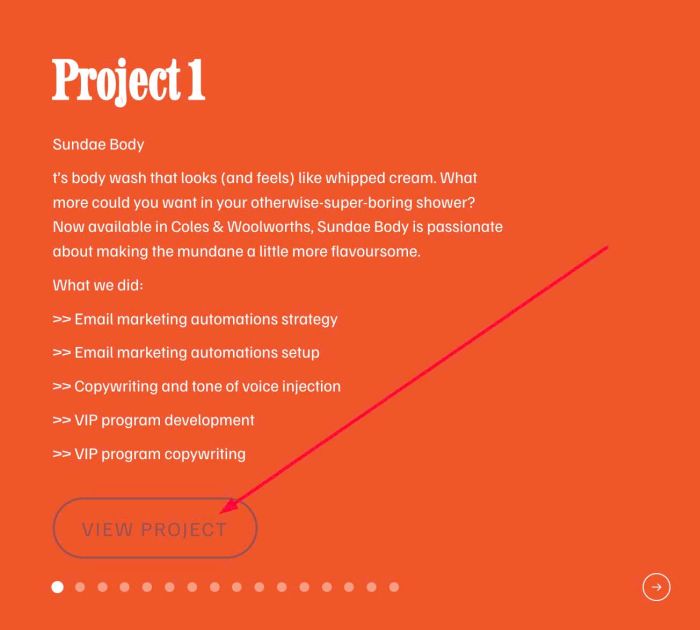
You can change line 14
itemClickable: false,
to
itemClickable: true,
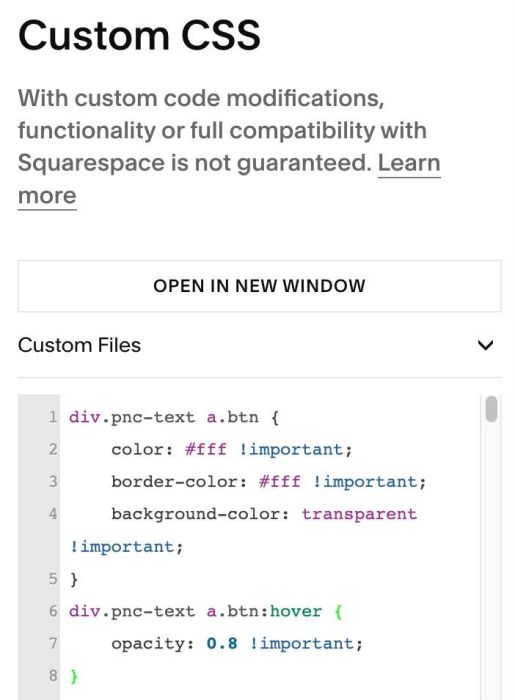
Note: button inherit Primary Button Style so you can change it in Site Styles, or use this code to Custom CSS box
div.pnc-text a.btn {
    color: #fff !important;
    border-color: #fff !important;
    background-color: transparent !important;
}
div.pnc-text a.btn:hover {
    opacity: 0.8 !important;
}
#2.5. To change Title, Description color, you change line 24
textColor: '#FFFFFF',
#3. Other
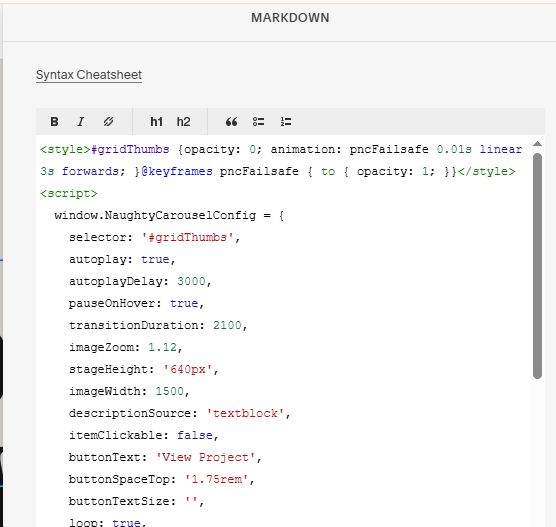
#3.1. If you use Personal/Basic Plan and your plan doesn’t support Injection, you can edit Site Footer
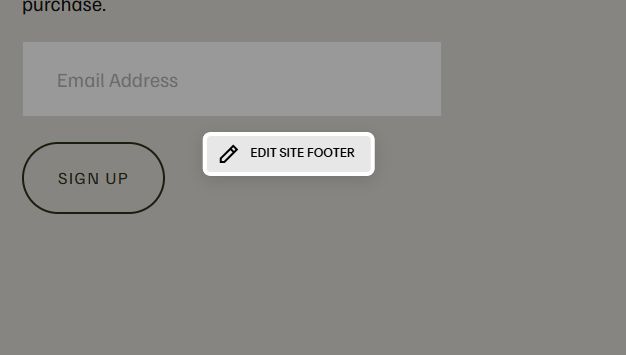
Add a Markdown Block

Add this code into Markdown
<style>#gridThumbs {opacity: 0; animation: pncFailsafe 0.01s linear 3s forwards; }@keyframes pncFailsafe { to { opacity: 1; }}</style>
<script>
  window.NaughtyCarouselConfig = {
    selector: '#gridThumbs',
    autoplay: true,
    autoplayDelay: 3000,
    pauseOnHover: true,
    transitionDuration: 2100,
    imageZoom: 1.12,
    stageHeight: '640px',
    imageWidth: 1500,
    descriptionSource: 'textblock',
    itemClickable: false,
    buttonText: 'View Project',
    buttonSpaceTop: '1.75rem',
    buttonTextSize: '',
    loop: true,
    backgroundColors: [
      '#F0562B', '#1C1C22', '#2E5A46', '#3A3A82',
      '#B23A48', '#1F6E8C', '#C6551F', '#4A3F6B'
    ],
    overlayColor: '',
    textColor: '#FFFFFF',
    stripFirstDescLine: false
  };
</script>
<script src="https://code.beaverhero.com/portfolio/0726c21v1portfolionaughtycarousel.js"></script>