Description
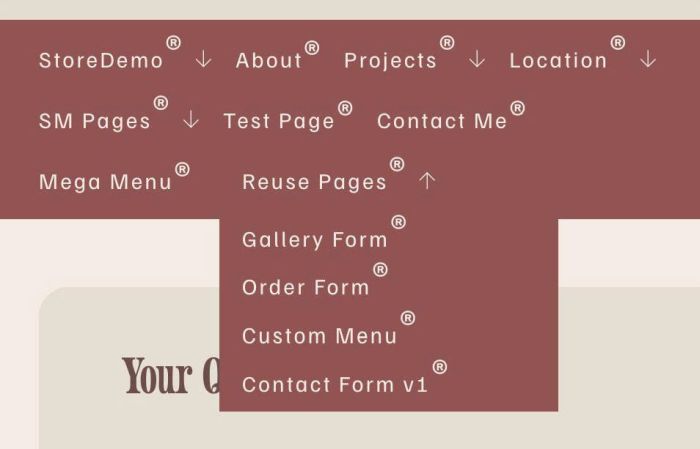
- adding superscript trademark symbol to navigation, dropdown, text
- view demo – password: abc
- buy me a coffee

#1. Install Code
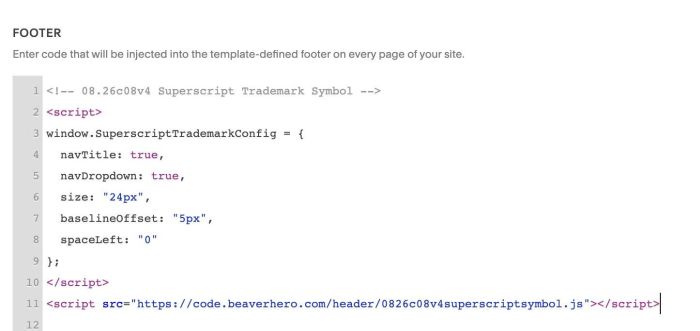
#1.1. You can use this code to Code Injection > Footer
- If you use Personal/Basic Plan and your plan doesn’t support Injection, you can see #3.1
<!-- 08.26c08v4 Superscript Trademark Symbol -->
<script>
window.SuperscriptTrademarkConfig = {
  navTitle: true,
  navDropdown: true,
  size: "24px",
  baselineOffset: "5px",
  spaceLeft: "0"
};
</script>
<script src="https://code.beaverhero.com/header/0826c08v4superscriptsymbol.js"></script>
#2. Customize
#2.1. To change superscript size/space (between superscript – bottom of text), change line 06, line 07
size: "24px",
 baselineOffset: "5px",
#2.2. If you need to tweak more you can use this AI Assistant (designed for Squarespace sites)
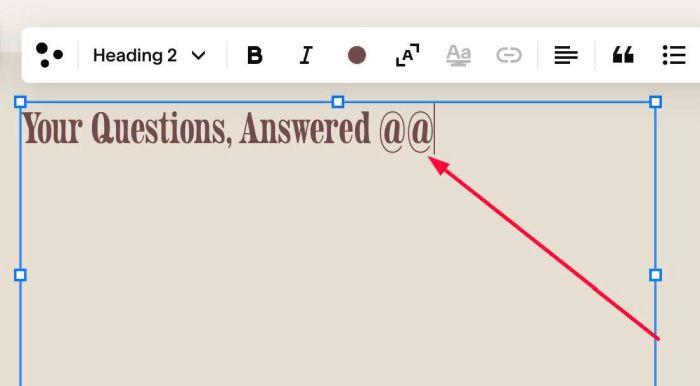
#2.3. To add superscript to text, you can enter symbol @@ like this
#3. Other
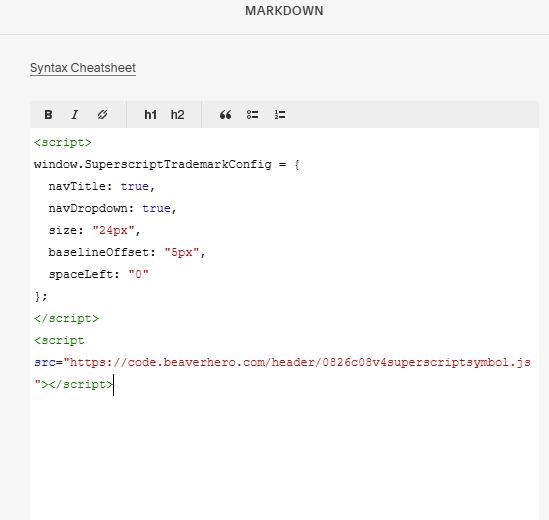
#3.1. If you use Personal/Basic Plan and your plan doesn’t support Injection, you can edit Site Footer > Add a Markdown Block

Add this code into Markdown
<script>
window.SuperscriptTrademarkConfig = {
  navTitle: true,
  navDropdown: true,
  size: "24px",
  baselineOffset: "5px",
  spaceLeft: "0"
};
</script>
<script src="https://code.beaverhero.com/header/0826c08v4superscriptsymbol.js"></script>