Description
- autoscroll carousel with different image width, use Gallery Grid
- text appears on hover image
- view demo – password: abc
- buy me a coffee

#1. Install Code
First you need to add a Gallery Section (Image Section)

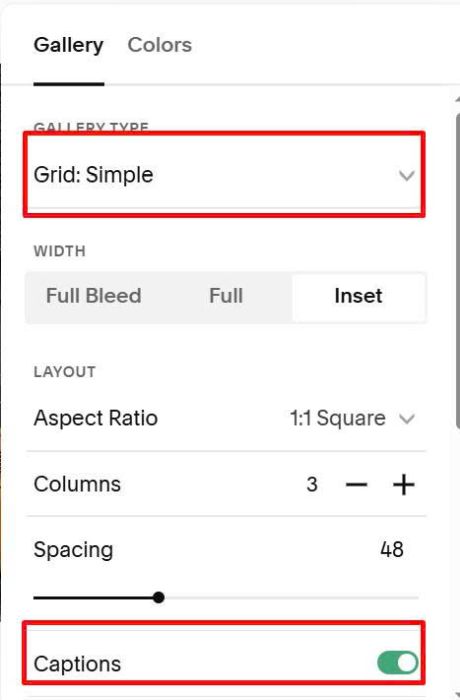
Next, choose Grid: Simple + enable Captions
Next, hover on top right of Gallery > Click Edit Gallery

Upload your desired images/text/url

Next, hover on top right of Gallery > Click Edit Section
At Anchor Links, enter word: drag-slider

Next, hover on page where you use Gallery > Click Gear icon

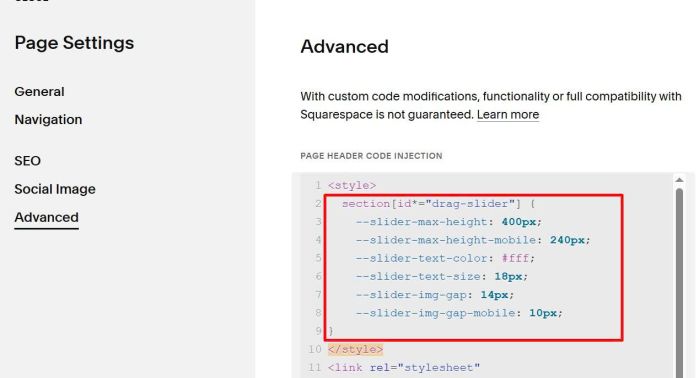
Click Advanced > Paste this code
<style>
  section[id*="drag-slider"] {
    --slider-max-height: 400px;
    --slider-max-height-mobile: 240px;
    --slider-text-color: #fff;
    --slider-text-size: 18px;
    --slider-img-gap: 14px;
    --slider-img-gap-mobile: 10px;
}
</style>
<link rel="stylesheet" href="https://code.beaverhero.com/gallerysgrid/0126c09v3autoscroll.css"/>
<script src="https://code.beaverhero.com/gallerysgrid/0126c09v3autoscroll.js"></script>

#2. Customize
All style options here: Line 02 to Line 09
#2.1. To set different height, like this

You can use this code to Custom CSS
section[id*="drag-slider"] .tp-img {
    --slider-max-height: 100% !important;
    max-width: 300px !important;
}
@media screen and (max-width:767px) {
    section[id*="drag-slider"] .tp-img {
        max-width: 150px !important;
    }
}

#2.2. To change caption text style, use this to Custom CSS
div.tp-caption * {
    color: #000 !important;
    font-size: 20px !important;
    font-family: monospace;
}