- View Demo – Password: abc
- Email: [email protected] if you need support or free install
- Buy me a coffee if it is helpful
- See full version here
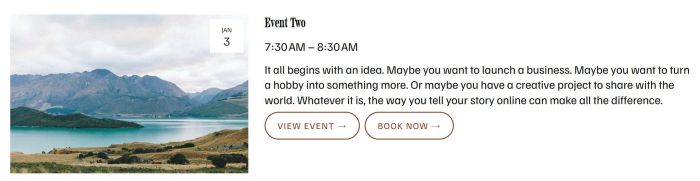
Description: adding second custom button next to view event button in Event Overview Page
#1. Install code
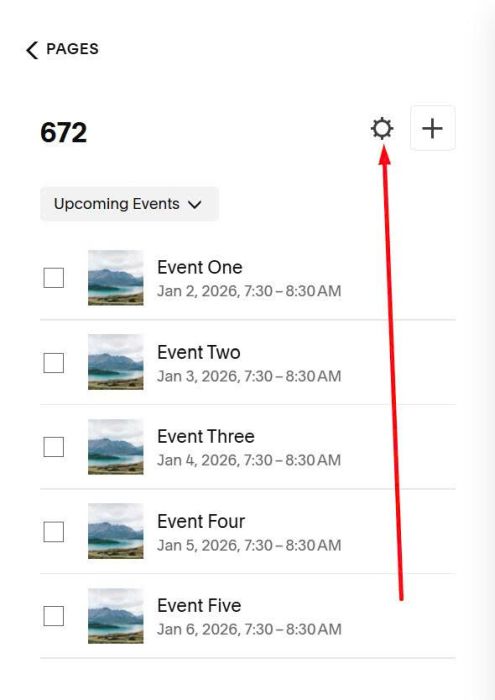
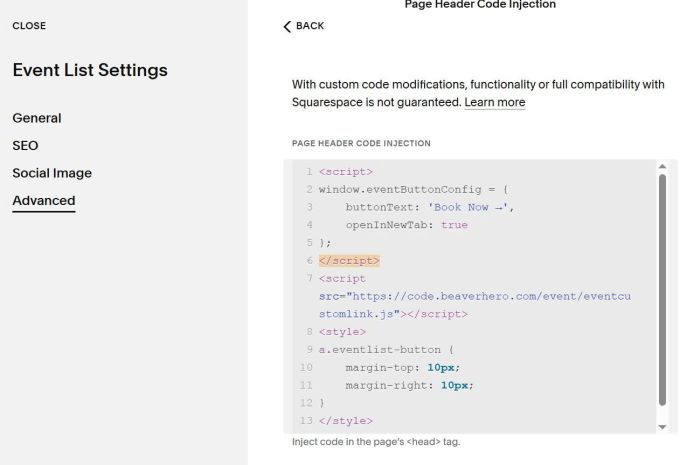
Click Gear icon on Event Page
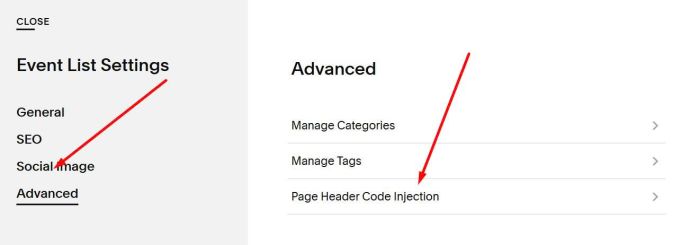
Next, click Advanced > Page Header Code Injection
Paste this code
<script>
window.eventButtonConfig = {
    buttonText: 'Book Now →',
    openInNewTab: true
};
</script>
<script src="https://code.beaverhero.com/event/eventcustomlink.js"></script>
<style>
a.eventlist-button {
    margin-top: 10px;
    margin-right: 10px;
}
</style>
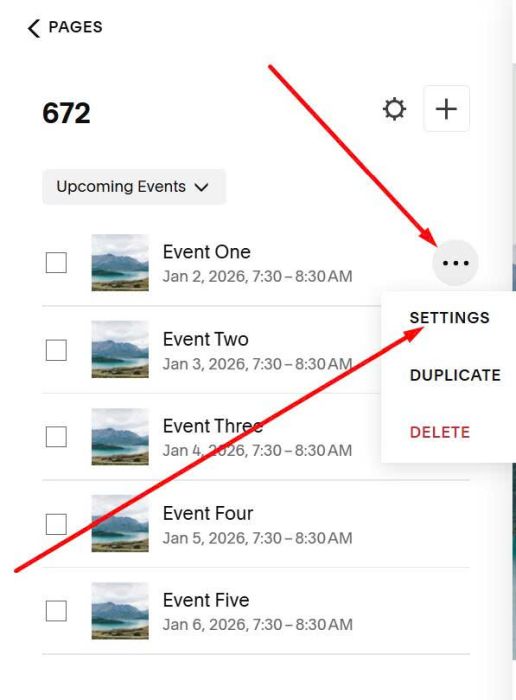
#2. Usage
Click on each event item > Click Settings
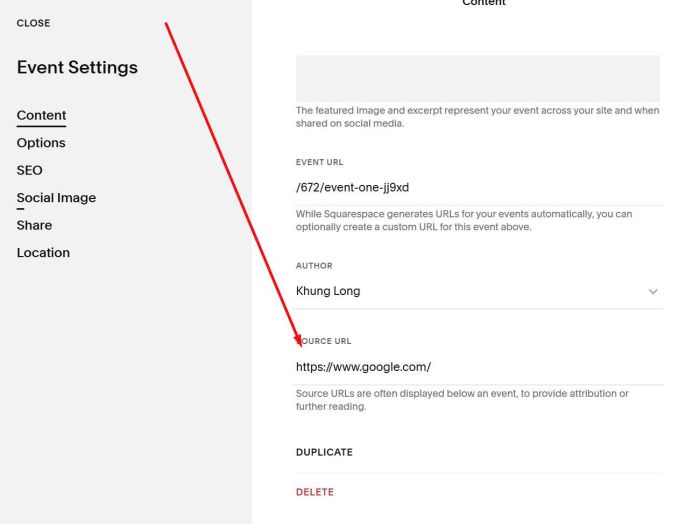
Enter desired url in Source URL
#3. Customize
#3.1. To change button text, you can change this line.
buttonText: 'Book Now →',
#3.2. To make button open in same tab, you can change this line, from true to false
openInNewTab: true
#3.3. To change button style to solid color, like this.
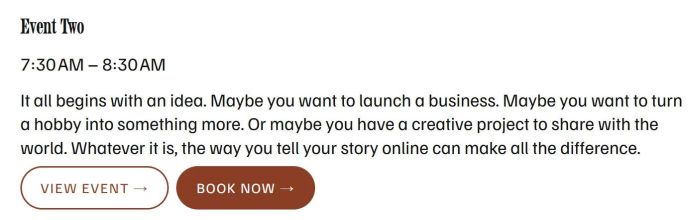
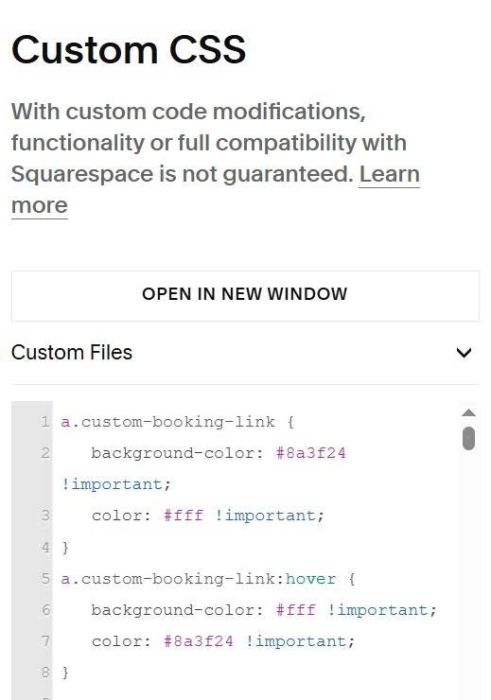
You can use this code to Custom CSS.
a.custom-booking-link {
   background-color: #8a3f24 !important;
   color: #fff !important;
}
a.custom-booking-link:hover {
   background-color: #fff !important;
   color: #8a3f24 !important;
}