Description
- hover/click thumbnails will slide image (similar click left/right arrow)
- thumbnails on left/right of image
- view demo – password: abc
- my friend code this, you can send her a coffee
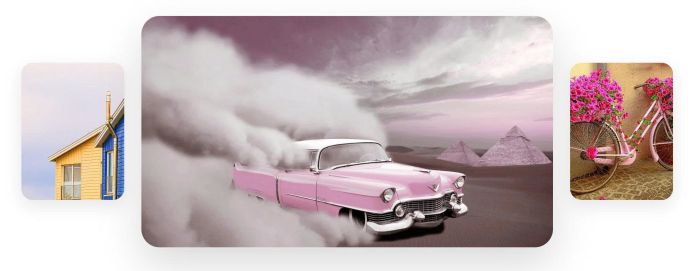
#1. Install Code
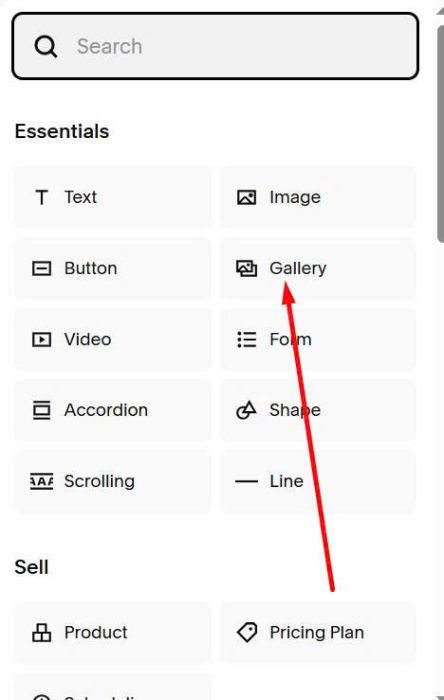
#1.1. First you need to add a Gallery Block
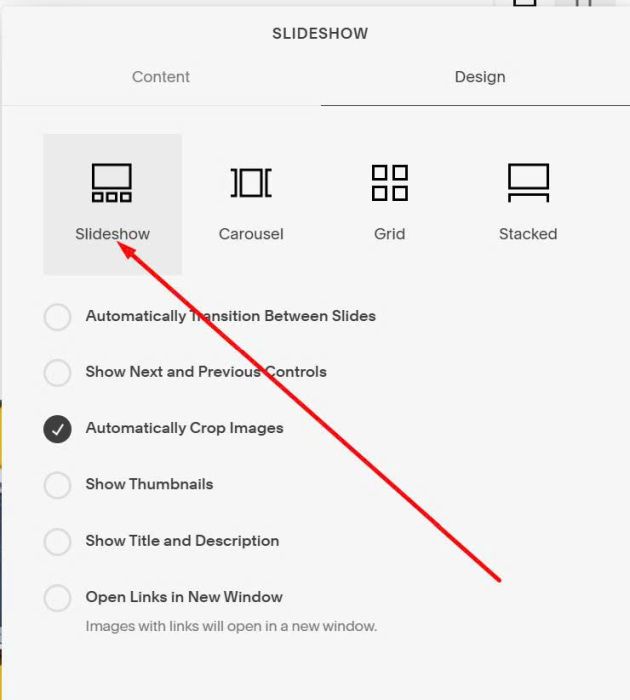
Choose Slideshow
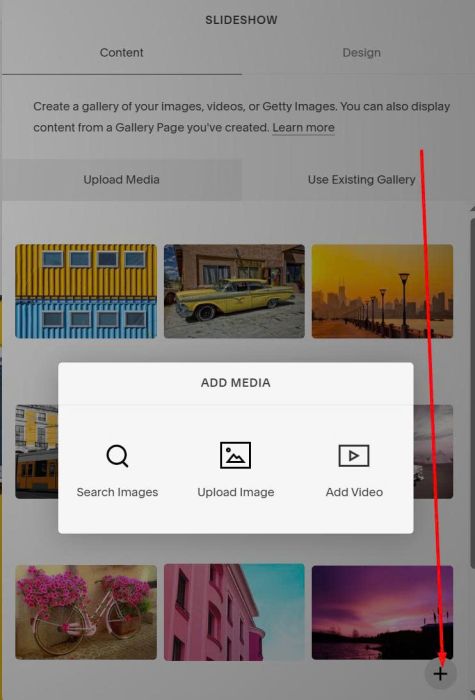
#1.2. Upload your desired images
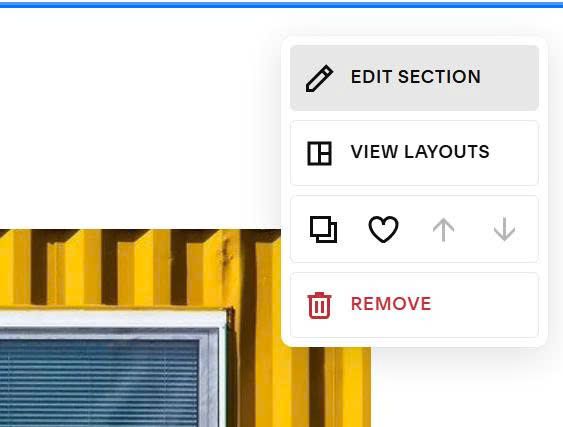
#1.3. Hover on top right of section > Click Edit Section
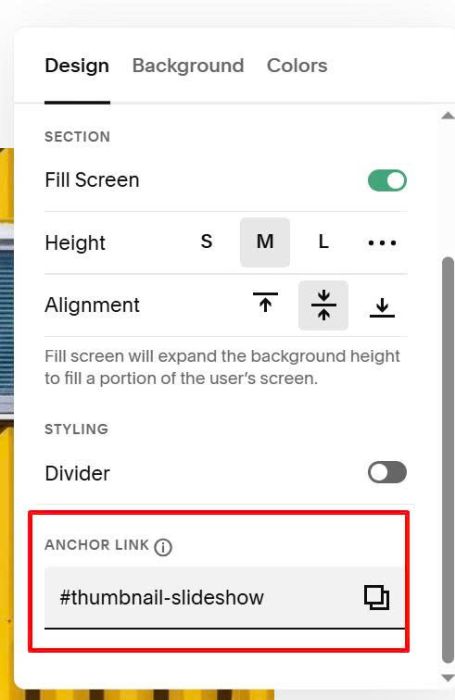
at Anchor Link, enter word: thumbnail-slideshow
thumbnail-slideshow
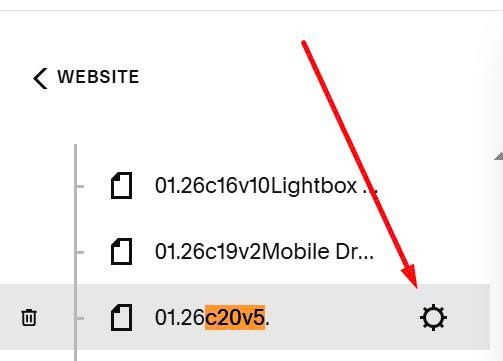
#1.4. Hover on page where you use Gallery Block Slideshow > Click Gear icon
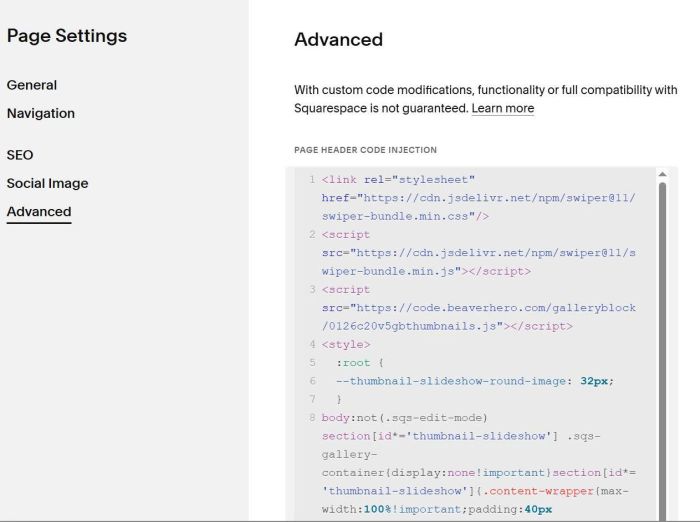
Click Advanced > Paste this code
<link rel="stylesheet" href="https://cdn.jsdelivr.net/npm/swiper@11/swiper-bundle.min.css"/>
<script src="https://cdn.jsdelivr.net/npm/swiper@11/swiper-bundle.min.js"></script>
<script src="https://code.beaverhero.com/galleryblock/0126c20v5gbthumbnails.js"></script>
<style>
  :root {
  --thumbnail-slideshow-round-image: 32px;
  }
body:not(.sqs-edit-mode) section[id*='thumbnail-slideshow'] .sqs-gallery-container{display:none!important}section[id*='thumbnail-slideshow']{.content-wrapper{max-width:100%!important;padding:40px 0!important}.tp-thumbsync{width:95%;max-width:1400px;margin:0 auto;display:block!important}.tp-stage{display:grid;grid-template-columns:minmax(80px,1fr) minmax(300px,4fr) minmax(80px,1fr);align-items:center;gap:30px}.tp-main{width:100%;border-radius:var(--thumbnail-slideshow-round-image);overflow:hidden;aspect-ratio:16/9}.tp-main .swiper-slide img{width:100%;height:100%;object-fit:cover}.tp-thumb{border:none;border-radius:var(--thumbnail-slideshow-round-image);padding:0;overflow:hidden;cursor:pointer;transition:all 0.3s ease;aspect-ratio:3/4;position:relative}.tp-thumb img{width:100%;height:100%;object-fit:cover}.tp-thumb:hover{transform:scale(1.05);box-shadow:none}@media (max-width:768px){.tp-thumbsync{width:94%;max-width:640px}.tp-stage{grid-template-columns:minmax(56px,72px) minmax(0,1fr) minmax(56px,72px);gap:12px;align-items:center}.tp-main{border-radius:18px;box-shadow:0 18px 50px rgb(0 0 0 / .14);aspect-ratio:16/9}.tp-thumb{border-radius:14px;box-shadow:0 10px 26px rgb(0 0 0 / .12);aspect-ratio:3/4}.tp-thumb:hover{transform:none}}@media (max-width:420px){.tp-stage{grid-template-columns:56px minmax(0,1fr) 56px;gap:10px}}}
</style>
#2. Customize
#2.1. To change border radius of image, change this line
--thumbnail-slideshow-round-image: 32px;
#2.2. To change ratio of thumbnails, use this under main code
<style>
.tp-thumb {
    aspect-ratio: 1 / 2 !important;
}
</style>
#2.3. To change ratio of thumbnails on mobile, use this under main code
<style>
@media screen and (max-width:768px) {
.tp-thumb {
    aspect-ratio: 1 / 2 !important;
}
}
</style>
#2.4. To move thumbnails under image on mobile, use this under main code
<style>
@media screen and (max-width:767px) {
    .tp-stage>div:nth-child(2) {
  grid-column: 1 / 4;
  grid-row: 1;
}
.tp-stage>div:nth-child(1) {
  grid-column: 1;
  grid-row: 2;
  width: 70px;
}
.tp-stage>div:nth-child(3) {
  grid-column: 2;
  grid-row: 2;
  width: 70px;
  position: relative;
  right: -20px;
}}
</style>