Description
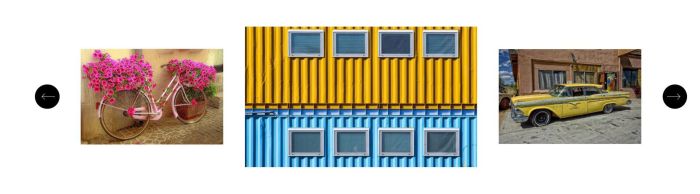
- turn gallery block to custom carousel, scale middle image
- view demo – password: abc
- buy a coffee
#1. Install Code
#1.1. You need to add a Gallery Block Grid
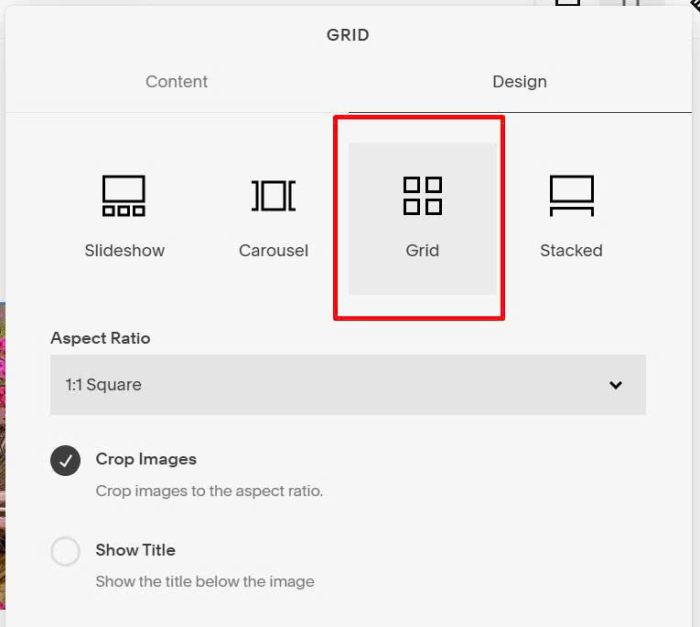
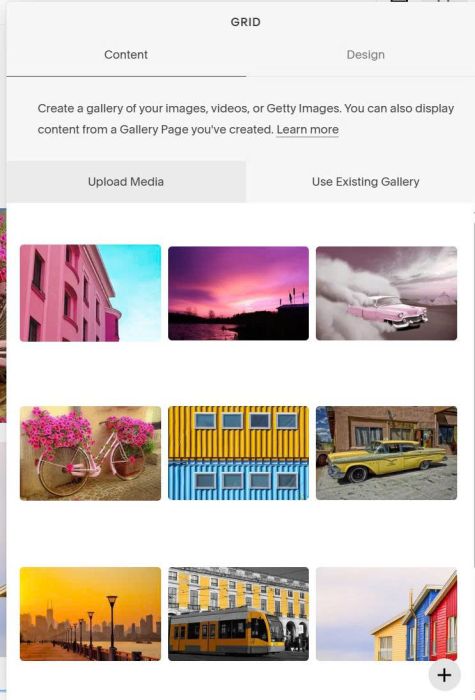
Next, add images to Gallery Block Grid
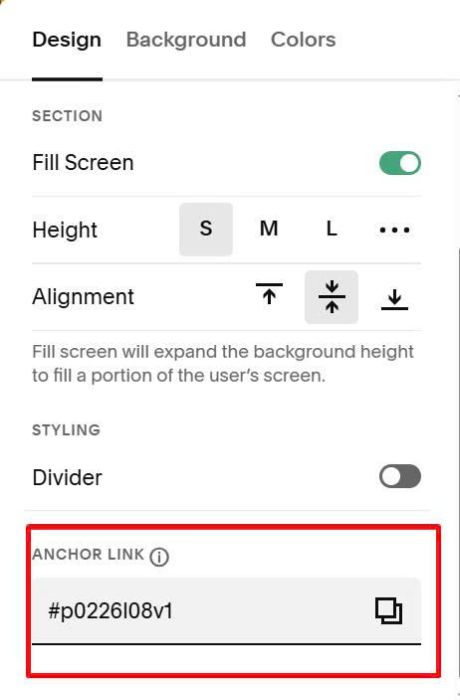
#1.2. Next hover on top right of section > Click Edit Section
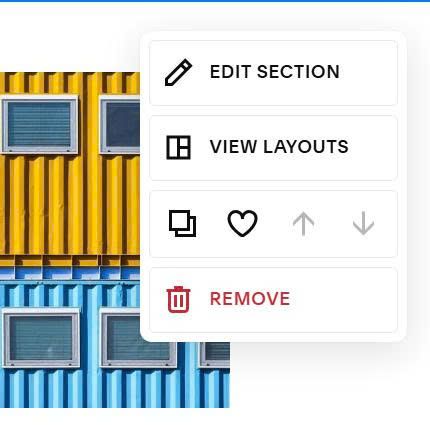
at Anchor Link, enter word: p0226l08v1
p0226l08v1
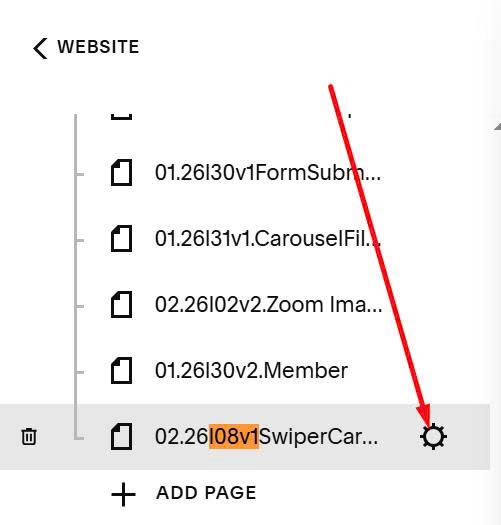
#1.3. Hover on page where you use Gallery Block > Click Gear icon
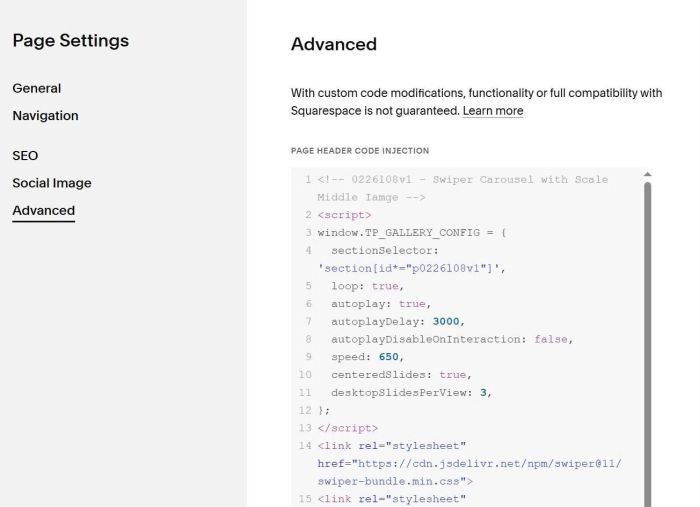
Click Advanced > Paste this code
<!-- 0226l08v1 - Swiper Carousel with Scale Middle Iamge -->
<script>
window.TP_GALLERY_CONFIG = {
  sectionSelector: 'section[id*="p0226l08v1"]',
  loop: true,
  autoplay: true,
  autoplayDelay: 3000,
  autoplayDisableOnInteraction: false,
  speed: 650,
  centeredSlides: true,
  desktopSlidesPerView: 3,
};
</script>
<link rel="stylesheet" href="https://cdn.jsdelivr.net/npm/swiper@11/swiper-bundle.min.css">
<link rel="stylesheet" href="https://code.beaverhero.com/galleryblock/0226l08v1swipercarouselscalemiddle.css"/>
<script src="https://cdn.jsdelivr.net/npm/swiper@11/swiper-bundle.min.js"></script>
<script src="https://code.beaverhero.com/galleryblock/0226l08v1swipercarouselscalemiddle.js"></script>
#2. Customize
#2.1. To change size of left/right images – middle image, use this to Custom CSS
/* images size */
.swiper-slide {
    transform: scale(0.5) !important;
}
.swiper-slide.swiper-slide-active {
    transform: scale(1.3) !important;
}
#2.2 To disable/enable autoscroll, change this line (line 06, line 07)
autoplay: true,
autoplayDelay: 3000,
#2.3. If you see Gallery Block appears about 1 second then disappear and Carousel appear, you can use this to Custom CSS to fix it.
#p0226l08v1 .sqs-gallery-container {
    display: none;
}