- Support: [email protected]
- Extra fee if you need more customize/install
- View Demo – Password: abc
Description
- Keep Image Caption in Lightbox View
- Keep Caption format in Lightbox View
- Option to hide Captions from Gallery View
- Works with Gallery Section Grid only
- Works with Personal/Basic Plan
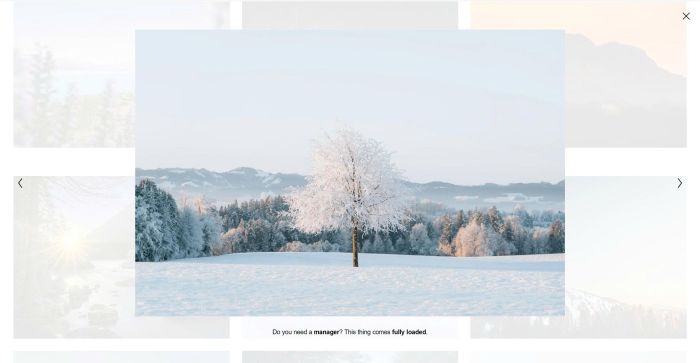
#1. Install Code
#1.1. Business Plan/higher
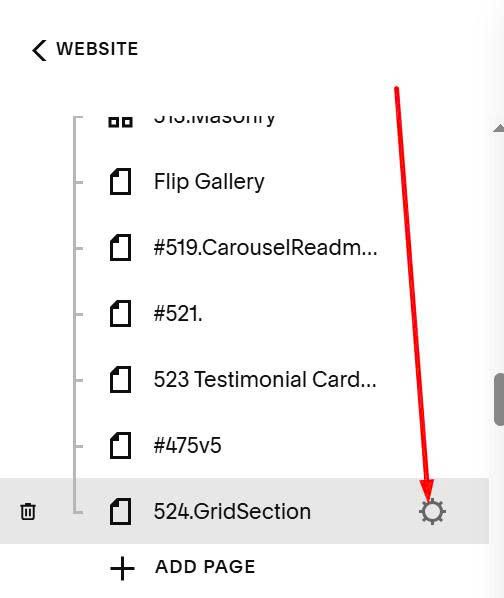
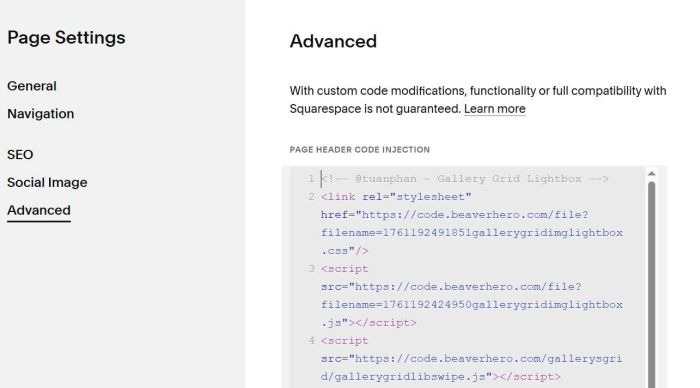
Hover on page where you use Gallery Grid > Click Gear icon
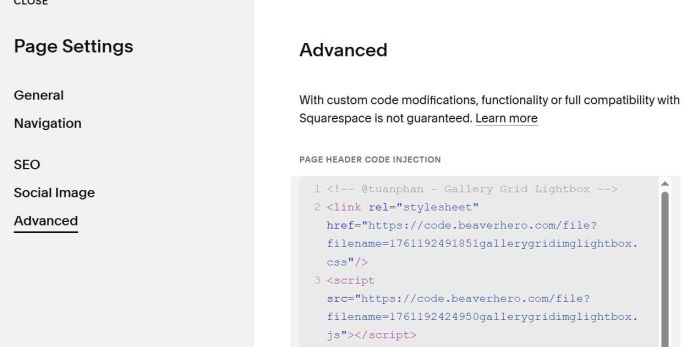
Click Advanced > Paste this code
<!-- @tuanphan - Gallery Grid Lightbox -->
<link rel="stylesheet" href="https://code.beaverhero.com/file?filename=1761192491851gallerygridimglightbox.css"/>
<script src="https://code.beaverhero.com/file?filename=1761192424950gallerygridimglightbox.js"></script>
#1.2. Personal/Basic Plan
First, edit Site Footer > Add a Section (if you already have a section, skip this step)
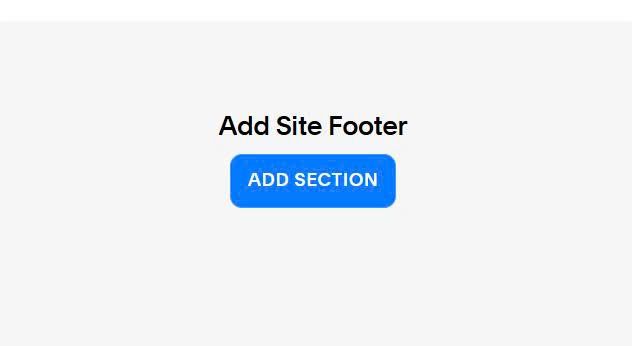
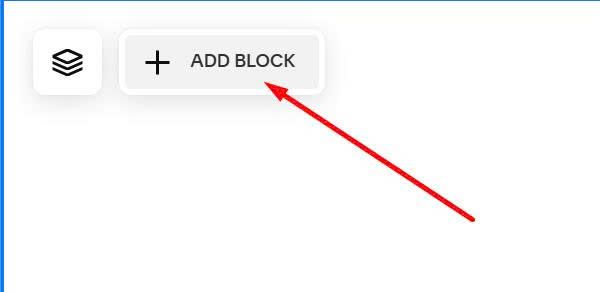
Hover on top left of Footer > Click Add Block
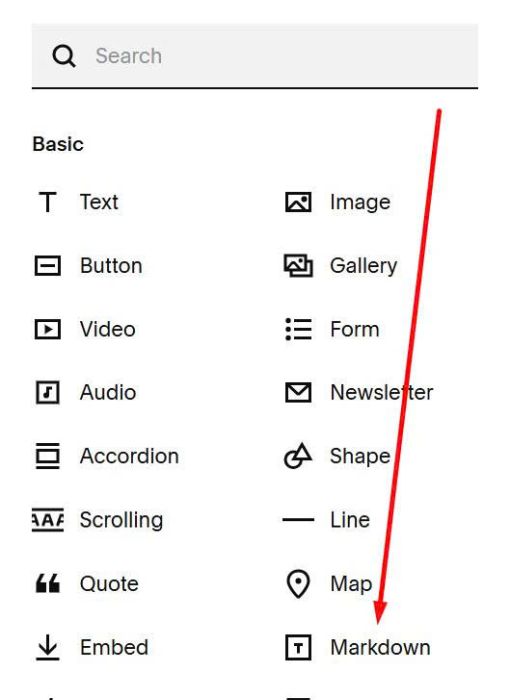
Choose Markdown
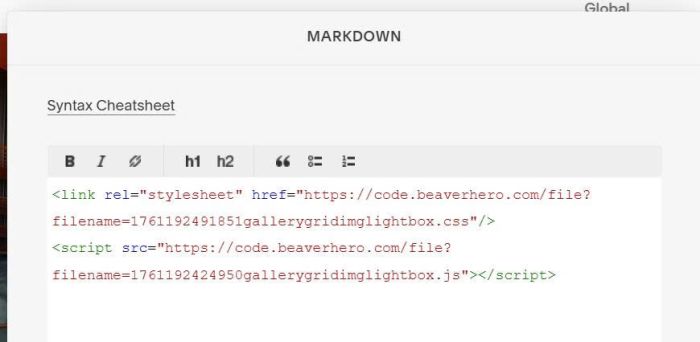
Paste this code into Markdown
<link rel="stylesheet" href="https://code.beaverhero.com/file?filename=1761192491851gallerygridimglightbox.css"/>
<script src="https://code.beaverhero.com/file?filename=1761192424950gallerygridimglightbox.js"></script>
#2. Usage
First, make sure you use Gallery Grid
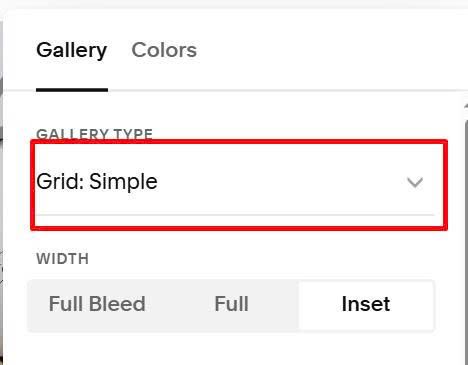
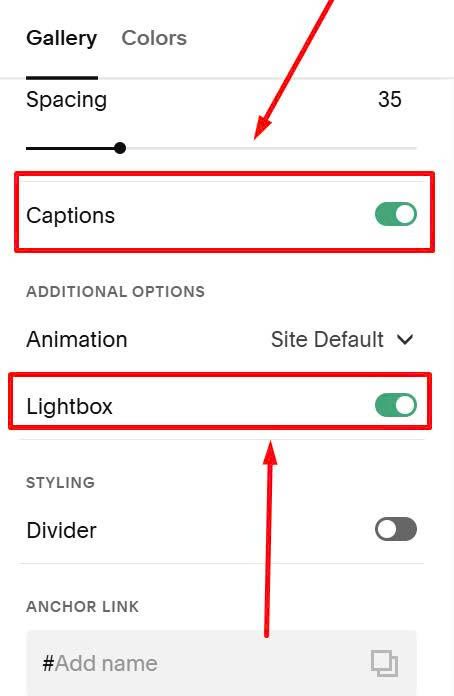
Next, make sure you enabled Captions + Lightbox
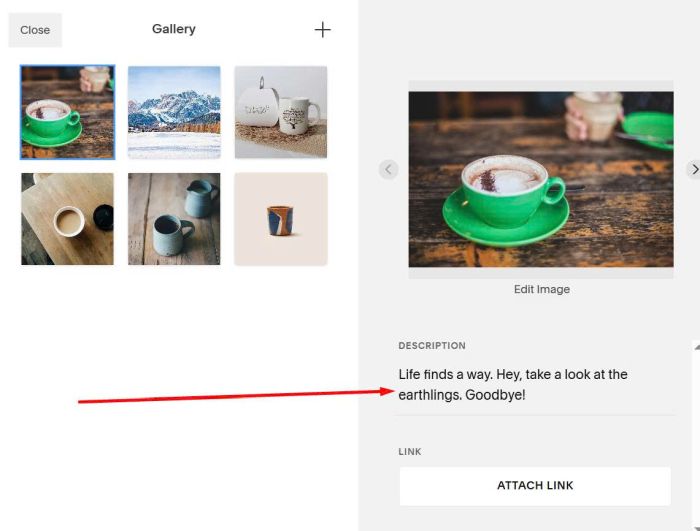
Next, make sure you added text to Image Description
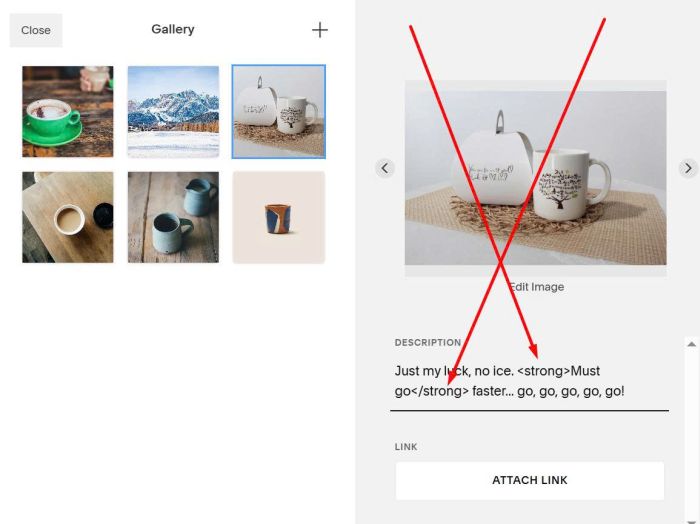
If you want to make text italic, wrap it in <em> tag

to make bold, use <strong> tag
#3. Customize
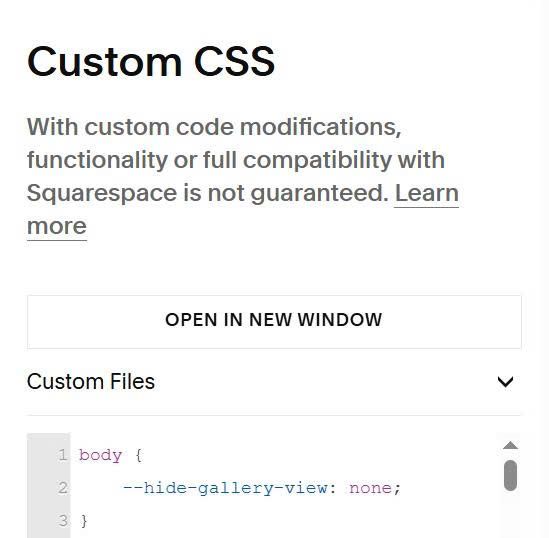
To make text disappear from Gallery View, you can use this code to Custom CSS.
body {
    --hide-gallery-view: none;
}
#3.1. To add swipe features on mobile, use this code under plugin code
(If Personal/Basic Plan, you can add it under code in Markdown Block)
<script src="https://code.beaverhero.com/gallerysgrid/gallerygridlibswipe.js"></script>
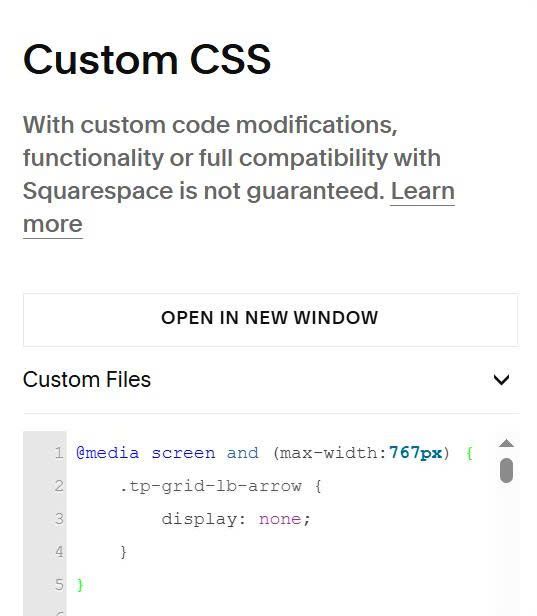
If you want to hide both arrows on mobile, use this to Custom CSS
@media screen and (max-width:767px) {
    .tp-grid-lb-arrow {
        display: none;
    }
}
#3.2. To change overlay color to black and arrows/close to white, like this
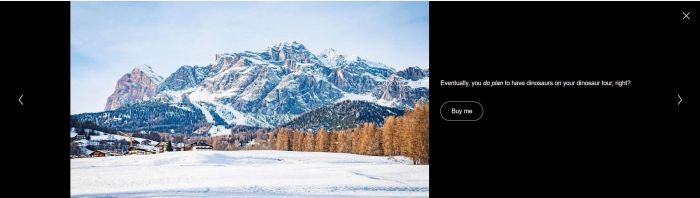
You can use this code to Custom CSS
/* Overlay color */
.tp-grid-lb-overlay {
    background-color: #000;
}
/* close */
button.tp-grid-lb-close path {
    stroke: #fff;
}
/* arrows */
button.tp-grid-lb-arrow * {
    stroke: #fff !important;
}
/* text color */
.tp-grid-lb-caption {
    --lightbox-caption-color: #fff;
}