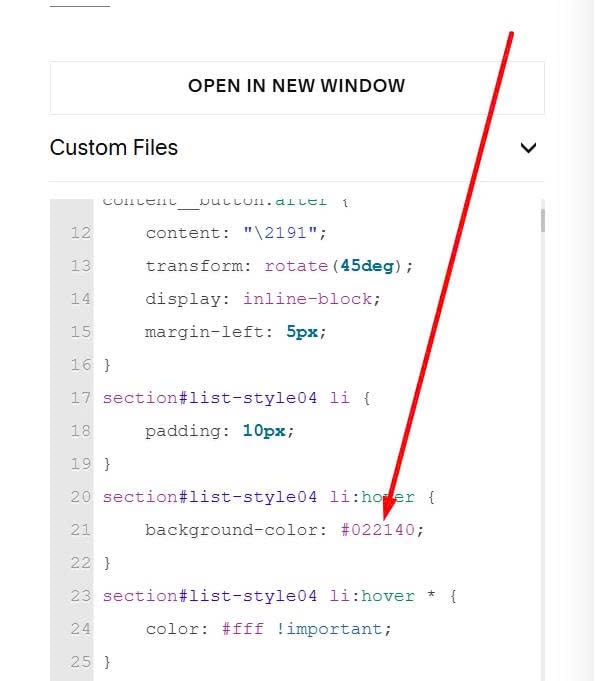
To change List color on hover, like this.

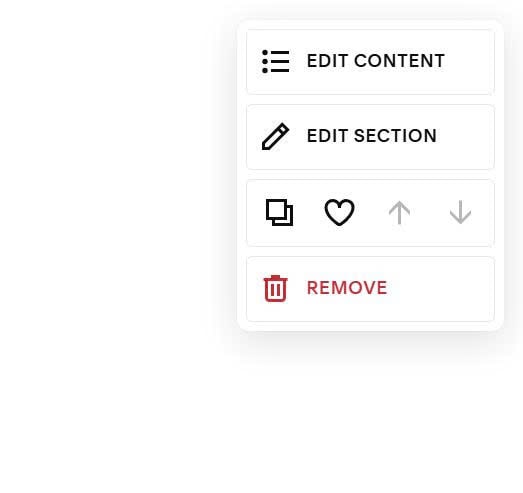
#1. First, hover on top right of list > Click Edit Section
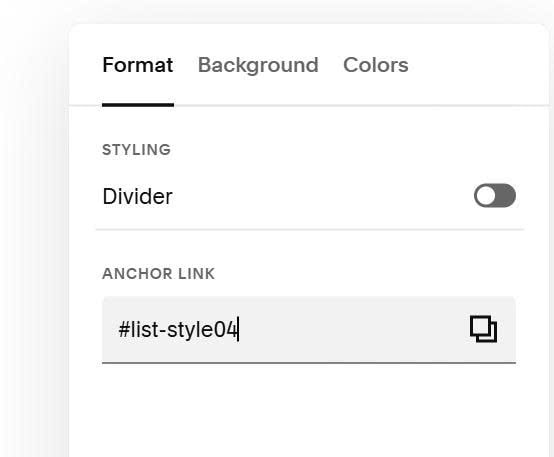
#2. Next, enter word: list-style04 to Anchor Link option
list-style04
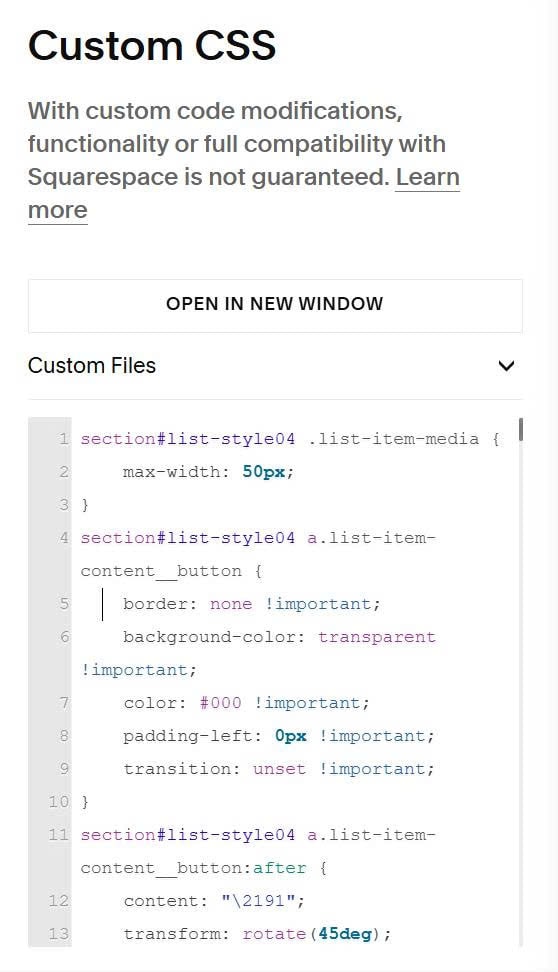
#3. Next, use this code to Custom CSS
section#list-style04 .list-item-media {
    max-width: 50px;
}
section#list-style04 a.list-item-content__button {
    border: none !important;
    background-color: transparent !important;
    color: #000 !important;
    padding-left: 0px !important;
    transition: unset !important;
}
section#list-style04 a.list-item-content__button:after {
    content: "\2191";
    transform: rotate(45deg);
    display: inline-block;
    margin-left: 5px;
}
section#list-style04 li {
    padding: 10px;
}
section#list-style04 li:hover {
    background-color: #022140;
}
section#list-style04 li:hover * {
    color: #fff !important;
}
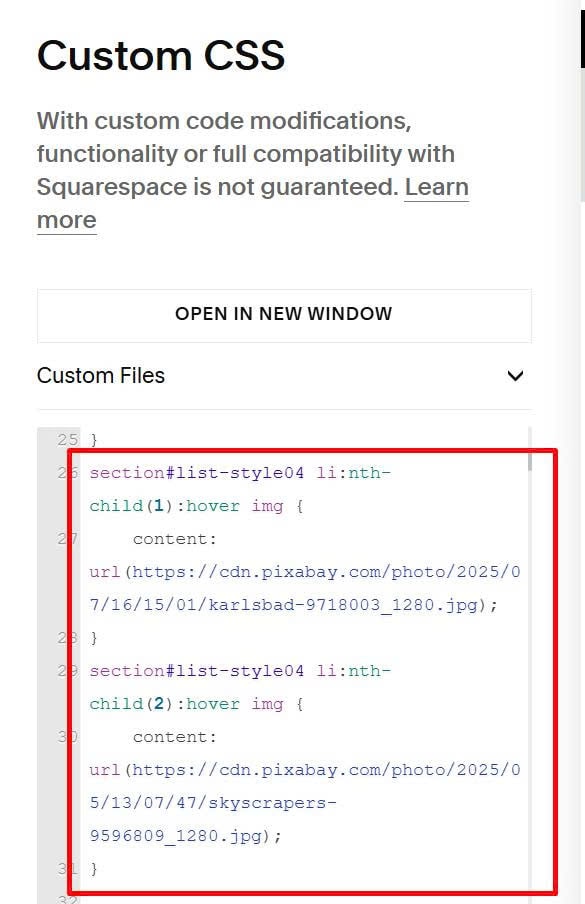
section#list-style04 li:nth-child(1):hover img {
    content: url(https://cdn.pixabay.com/photo/2025/07/16/15/01/karlsbad-9718003_1280.jpg);
}
section#list-style04 li:nth-child(2):hover img {
    content: url(https://cdn.pixabay.com/photo/2025/05/13/07/47/skyscrapers-9596809_1280.jpg);
}
Update Pixabay with hover icon url
You can remove it if you don’t need change icon hover color.
Change list hover background color here.