I released new code with more better option. You can follow new instruction here.
- View Demo – Password: abc
Demo (initial)

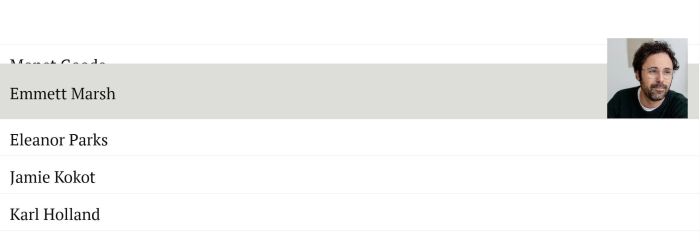
Hover
Mobile

#1. Install Code
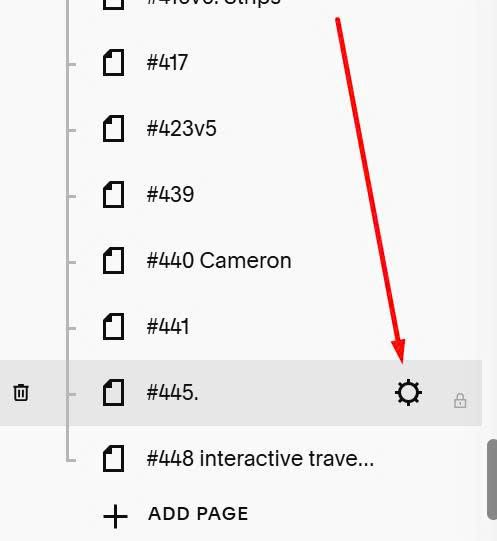
Click Gear icon on page where you use effect
Click Advanced > Paste this code
<!-- @tuanphan - List Style 02 -->
<script>(function(){const e="hover-list2",t=()=>{const n=document.getElementById(e);if(!n||"1"===n.dataset.tpBuilt)return;const a=n.querySelector("ul.user-items-list-item-container");if(!a)return;let i=[];try{const e=a.getAttribute("data-current-context");if(e){const t=JSON.parse(e);Array.isArray(t.userItems)&&(i=t.userItems.map(e=>({title:e.title||"",href:e.button&&e.button.buttonLink||"#",img:e.image&&e.image.assetUrl||""})))}}catch(e){}i.length||(i=[...n.querySelectorAll("li.list-item")].map(e=>{const t=e.querySelector(".list-item-content__title")?.textContent?.trim()||"",n=e.querySelector(".list-item-content__button")?.getAttribute("href")||"#",a=e.querySelector(".list-image")?.getAttribute("src")||"";return{title:t,href:n,img:a}}).filter(e=>e.title)),a.style.display="none";const r=document.createElement("div");r.className="tp-interactive-list",i.forEach(({title:e,href:t,img:n})=>{const a=document.createElement("a");a.href=t,a.className="tp-list-item",a.innerHTML=`<img src="${n}" class="tp-item-image" alt="${e}"><span class="tp-item-text">${e}</span>`,r.appendChild(a)}),a.insertAdjacentElement("afterend",r),n.dataset.tpBuilt="1"};"loading"===document.readyState?document.addEventListener("DOMContentLoaded",t):t();})();</script>
<style>
#hover-list2 .tp-interactive-list{
  width:100%;
  margin:100px auto;
  position:relative;
}
#hover-list2 .tp-list-item{
  text-decoration:none;
  color:#111;
  display:block;
}
#hover-list2 .tp-item-text{font-weight:500}

@media (min-width:768px){
  #hover-list2 .tp-interactive-list{border-top:1px solid #e0e0e0}
  #hover-list2 .tp-list-item{
    --row-h:70px;
    --expand:38px;
    --hover-bg:#deddd8;
    --img-w:170px;
    --img-h:170px;
    position:relative;
    z-index:1;
    overflow:visible;
    display:flex;
    align-items:center;
    justify-content:space-between;
    height:var(--row-h);
    padding:.5rem 1.5rem 0 1.5rem;
    border-bottom:1px solid #e0e0e0;
    background:transparent;
  }

  #hover-list2 .tp-item-text{
    font-size:34px;
    position:relative;
    z-index:4;
    transition:transform .28s ease;
  }

  #hover-list2 .tp-list-item::after{
    content:"";
    position:absolute;
    left:0;
    right:0;
    top:0;
    bottom:0;
    background:var(--hover-bg);
    opacity:0;
    transition:top .28s ease, bottom .28s ease, opacity .2s ease;
    z-index:1;
  }

  #hover-list2 .tp-item-image{
    position:absolute;
    right:1.5rem;
    bottom:0;
    width:var(--img-w);
    height:0;
    opacity:0;
    object-fit:cover;
    transition:height .28s ease,opacity .2s ease;
    z-index:3;
  }

  #hover-list2 .tp-list-item:hover{
    z-index:10;
    border-bottom-color:var(--hover-bg);
  }
  #hover-list2 .tp-list-item:hover::after{
    opacity:1;
    top:calc(-1 * var(--expand));
    bottom:-1px;
  }
  #hover-list2 .tp-list-item:hover .tp-item-text{
    transform:translateY(calc(-0.5 * var(--expand)));
  }
  #hover-list2 .tp-list-item:hover .tp-item-image{
    height:var(--img-h);
    opacity:1;
  }
}

@media (max-width:767px){
  #hover-list2 .tp-interactive-list{border:none;margin:0}
  #hover-list2 .tp-list-item{
    display:flex;
    flex-direction:column;
    margin-bottom:2.5rem;
    border:none;
    padding:20px;
  }
  #hover-list2 .tp-item-image{
    width:100%;
    height:auto;
    aspect-ratio:4/3;
    object-fit:cover;
    position:static;
    opacity:1;
  }
  #hover-list2 .tp-item-text{
    font-size:30px;
    margin-top:1rem;
  }
}
</style>

#2. Usage
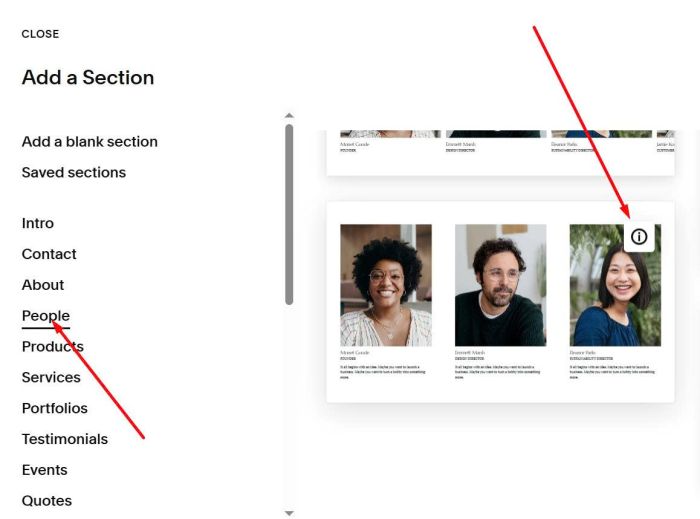
Add a Section > Choose People > Choose section with (i) icon
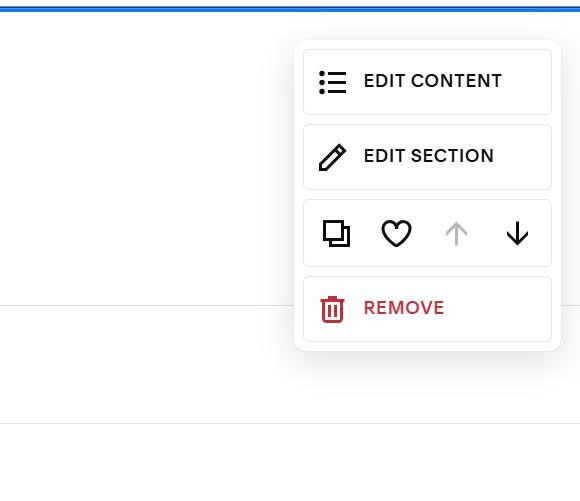
Next, hover on top right of section > Click Edit Content
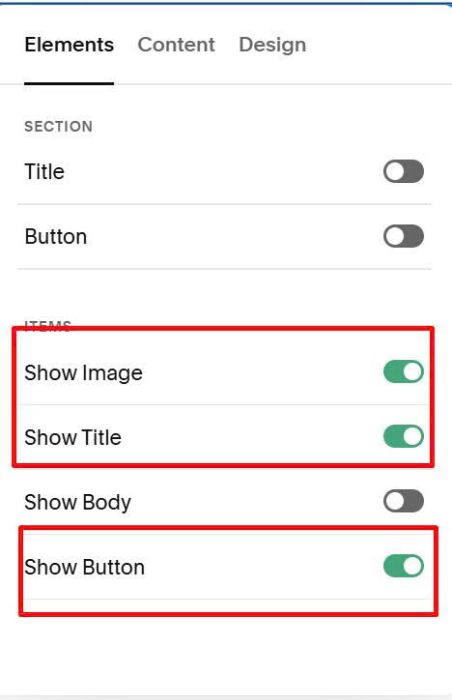
Enable Title, Image, Button
You can add Title, Image, URL here

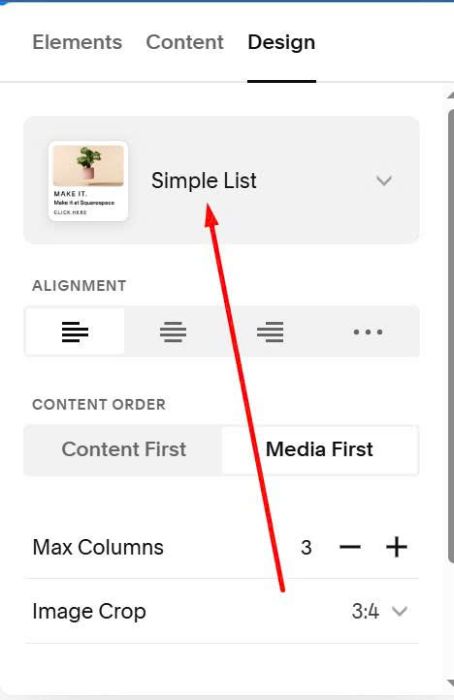
and make sure you choose Simple List
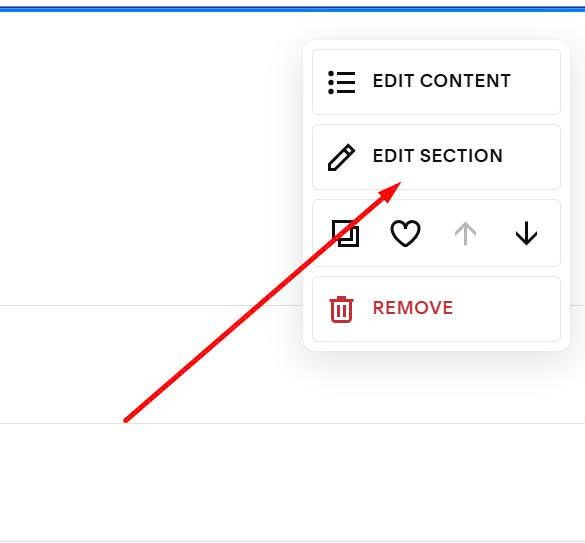
Next, hover on top right of Section > Click Edit Section
Enter hover-list2
hover-list2

#3. Customize
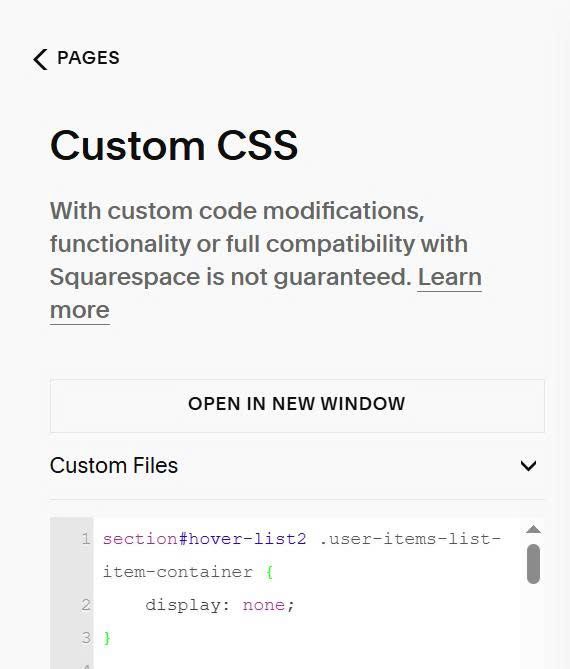
#3.1. If you see People Section flash then disappear, use this code to Custom CSS
section#hover-list2 .user-items-list-item-container {
    display: none;
}
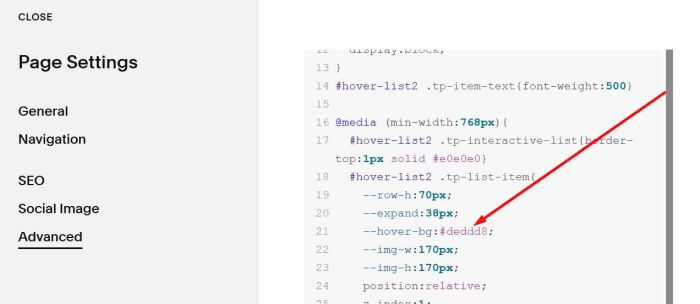
#3.2. To change background color

change this (line 21)
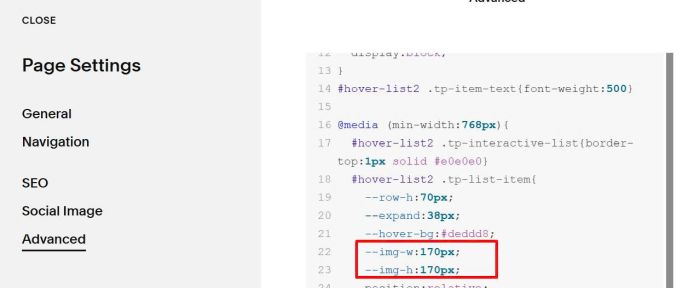
#3.3. To change image size

change this (line 22, 23)
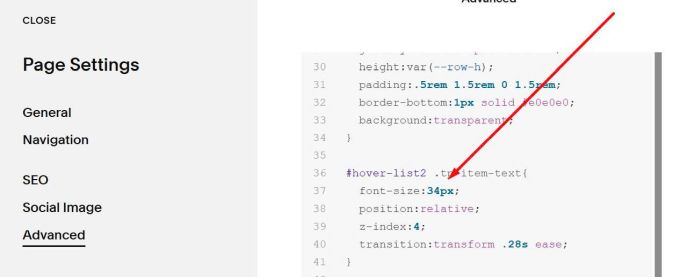
#3.4. To change title size, change this line (line 37)
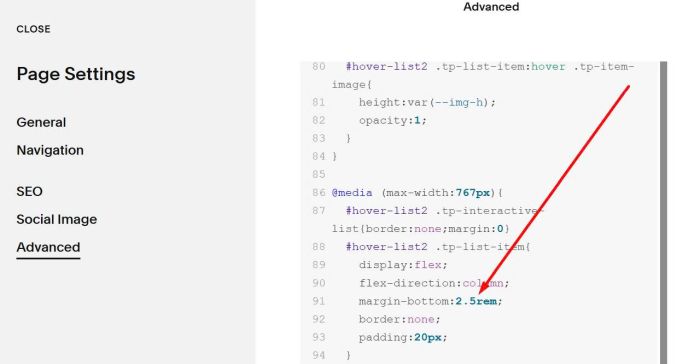
#3.5. To change space on mobile
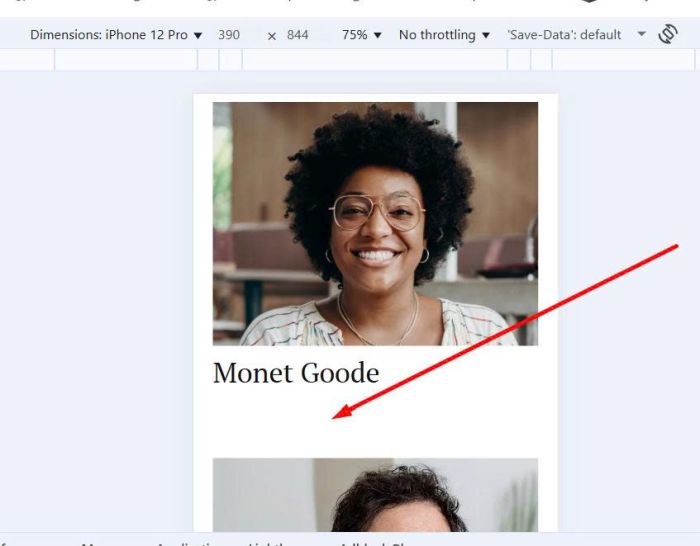
change this (line 91)