To add List Style with stars/subtle borders like this.

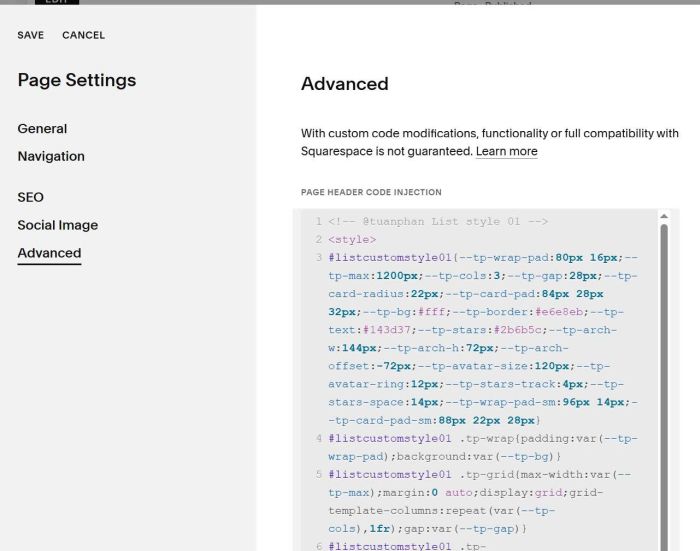
#1. First, use this code to Page Header Injection
<!-- @tuanphan List style 01 -->
<style>
#listcustomstyle01{--tp-wrap-pad:80px 16px;--tp-max:1200px;--tp-cols:3;--tp-gap:28px;--tp-card-radius:22px;--tp-card-pad:84px 28px 32px;--tp-bg:#fff;--tp-border:#e6e8eb;--tp-text:#143d37;--tp-stars:#2b6b5c;--tp-arch-w:144px;--tp-arch-h:72px;--tp-arch-offset:-72px;--tp-avatar-size:120px;--tp-avatar-ring:12px;--tp-stars-track:4px;--tp-stars-space:14px;--tp-wrap-pad-sm:96px 14px;--tp-card-pad-sm:88px 22px 28px}
#listcustomstyle01 .tp-wrap{padding:var(--tp-wrap-pad);background:var(--tp-bg)}
#listcustomstyle01 .tp-grid{max-width:var(--tp-max);margin:0 auto;display:grid;grid-template-columns:repeat(var(--tp-cols),1fr);gap:var(--tp-gap)}
#listcustomstyle01 .tp-card{position:relative;background:var(--tp-bg);border:1px solid var(--tp-border);border-radius:var(--tp-card-radius);padding:var(--tp-card-pad);color:var(--tp-text);text-align:center;overflow:visible}
#listcustomstyle01 .tp-card::before{content:"";position:absolute;left:50%;transform:translateX(-50%);top:var(--tp-arch-offset);width:var(--tp-arch-w);height:var(--tp-arch-h);background:var(--tp-bg);border:1px solid var(--tp-border);border-bottom:0;border-top-left-radius:200px;border-top-right-radius:200px}
#listcustomstyle01 .tp-avatar{position:absolute;left:50%;top:0;transform:translate(-50%,-50%);width:var(--tp-avatar-size);height:var(--tp-avatar-size);border-radius:50%;overflow:hidden;border:var(--tp-avatar-ring) solid #fff;box-shadow:none;z-index:2}
#listcustomstyle01 .tp-avatar img{width:100%;height:100%;object-fit:cover;display:block}
#listcustomstyle01 .tp-stars{letter-spacing:var(--tp-stars-track);color:var(--tp-stars);margin-bottom:var(--tp-stars-space)}
@media (max-width:900px){#listcustomstyle01 .tp-grid{grid-template-columns:1fr 1fr}}
@media (max-width:640px){#listcustomstyle01 .tp-grid{grid-template-columns:1fr}#listcustomstyle01 .tp-wrap{padding:var(--tp-wrap-pad-sm)}#listcustomstyle01 .tp-card{padding:var(--tp-card-pad-sm)}}
</style>
<script>
(function(){
  var once=function(el){if(el.dataset.tpBuilt==="1")return true;el.dataset.tpBuilt="1";return false};
  var collect=function(ul){
    var arr=[];ul.querySelectorAll("li.list-item").forEach(function(li){
      var img=li.querySelector("img.list-image");
      var src=img?(img.getAttribute("src")||img.getAttribute("data-image")||img.getAttribute("data-src")||""):"";
      var tEl=li.querySelector(".list-item-content__title");
      var dEl=li.querySelector(".list-item-content__description");
      arr.push({src:src.trim(),title:tEl?(tEl.textContent||"").trim():"",desc:dEl?(dEl.textContent||"").trim():""});
    });return arr;
  };
  var build=function(sec){
    if(!sec||once(sec))return;
    var ul=sec.querySelector(".user-items-list>ul"); if(!ul) return;
    var items=collect(ul); if(!items.length) return;
    ul.style.display="none";
    var wrap=document.createElement("div"),grid=document.createElement("div");
    wrap.className="tp-wrap";grid.className="tp-grid";wrap.appendChild(grid);
    items.forEach(function(it){
      var card=document.createElement("div");card.className="tp-card";
      var av=document.createElement("div");av.className="tp-avatar";
      var im=document.createElement("img");im.alt="";im.src=it.src;av.appendChild(im);
      var name=document.createElement("div");name.className="tp-name";name.textContent=it.title;
      var stars=document.createElement("div");stars.className="tp-stars";stars.textContent="★★★★★";
      var text=document.createElement("div");text.className="tp-text";text.textContent=it.desc;
      card.appendChild(av);card.appendChild(name);card.appendChild(stars);card.appendChild(text);
      grid.appendChild(card);
    });
    ul.parentNode.insertBefore(wrap,ul.nextSibling);
  };
  var start=function(){
    var sec=document.querySelector("#listcustomstyle01"); if(!sec) return;
    var mo=new MutationObserver(function(){build(sec)});
    mo.observe(sec,{childList:true,subtree:true});
    build(sec);
  };
  if(document.readyState!=="loading") start(); else document.addEventListener("DOMContentLoaded",start);
})();
</script>
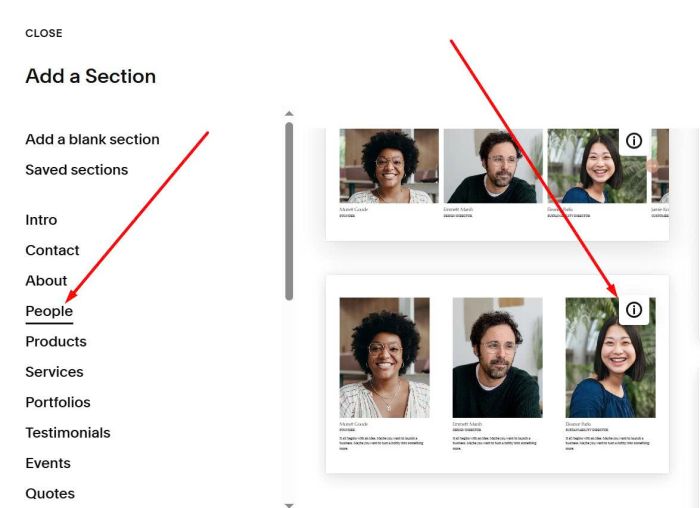
#2. Next, add a People Section > Section with (i) icon
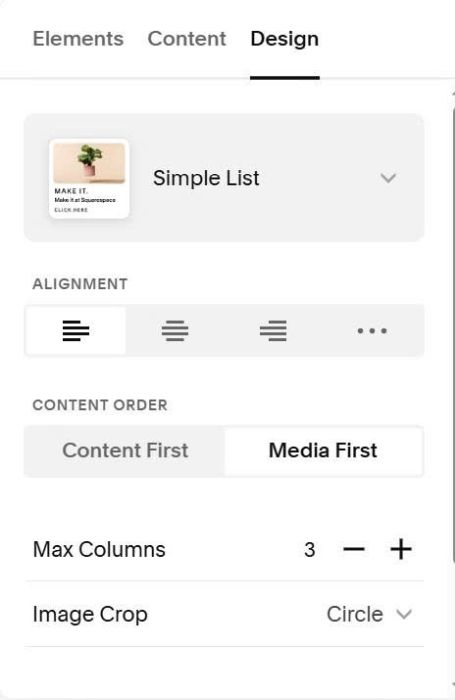
Choose Simple List
#3. Hover on right of Section > Click Edit Section
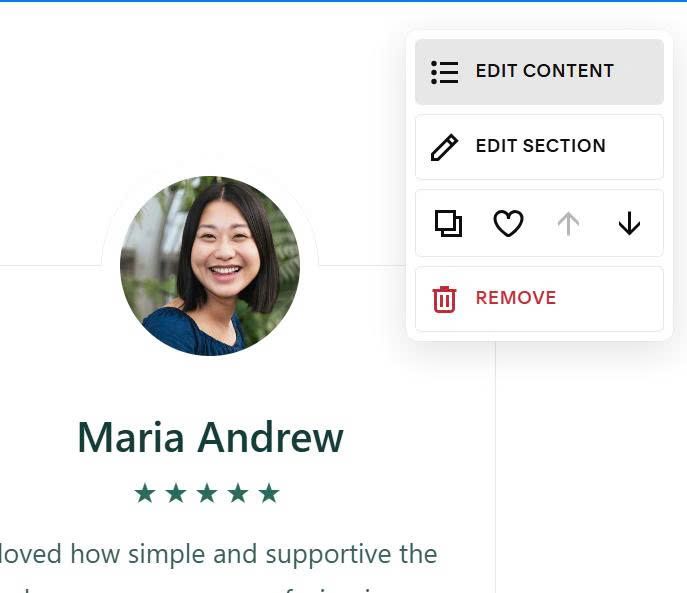
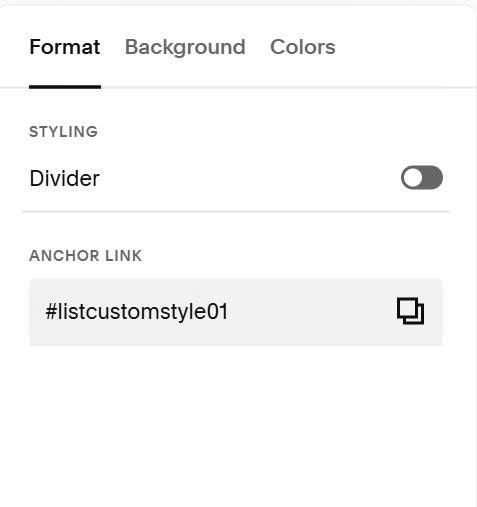
#4. Enter text: listcustomstyle01 to Anchor Link option