Description
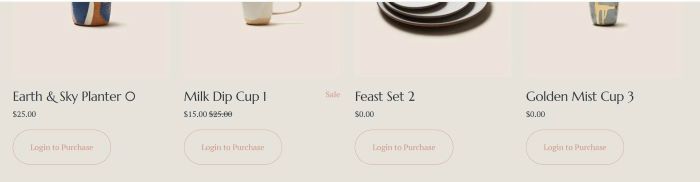
- Replace Add to Cart with Login to Purchase
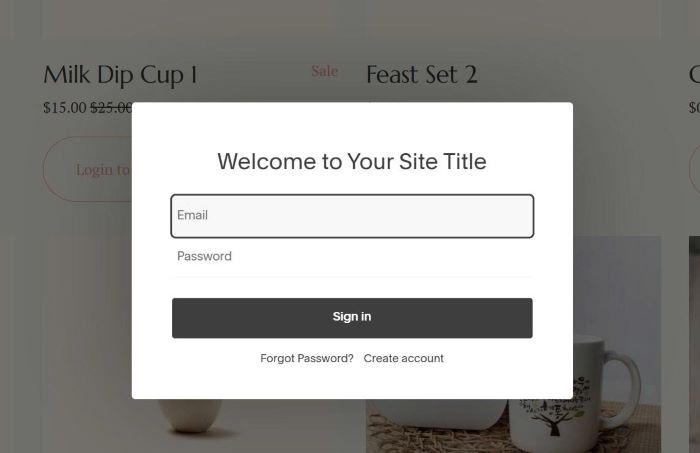
- Click Login to Purchase will show Login Popup
- After login, Add to Cart will appear
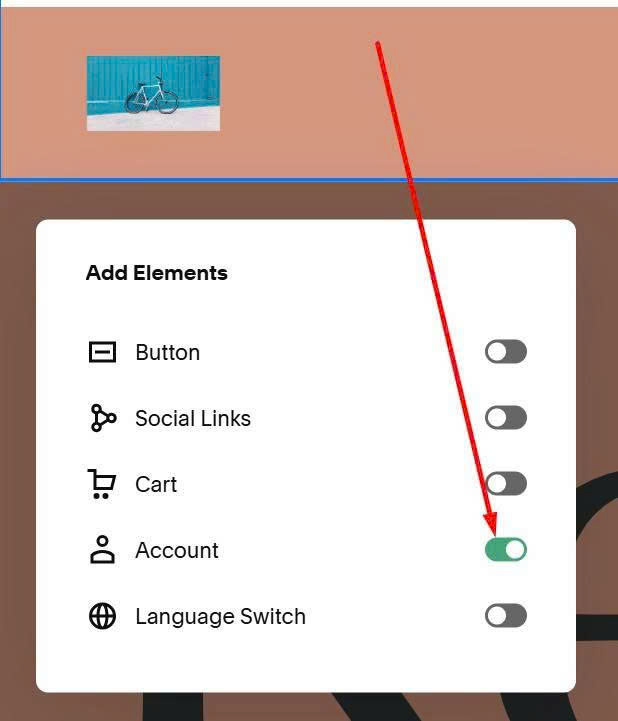
#1. First, you need to edit Site Header > Enable Login
#2. Next, use this code to Custom CSS
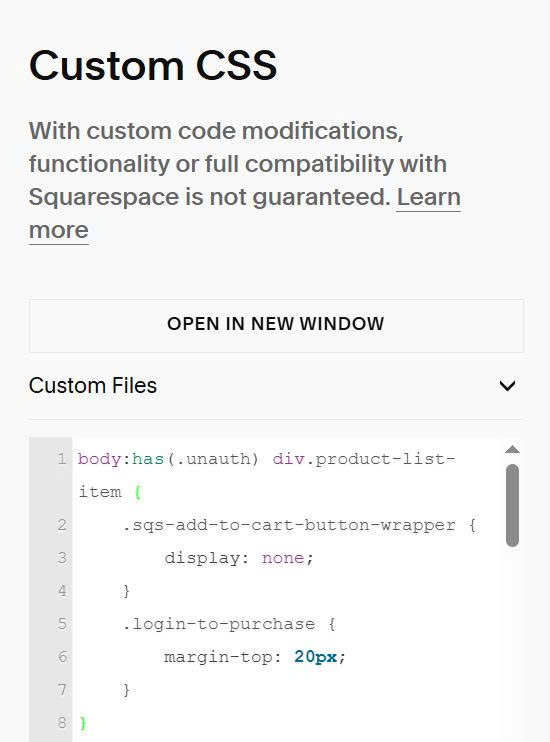
body:has(.unauth) div.product-list-item {
    .sqs-add-to-cart-button-wrapper {
        display: none;
    }
    .login-to-purchase {
        margin-top: 20px;
    }
}
body:has(.auth) .login-to-purchase {
    display: none;
}
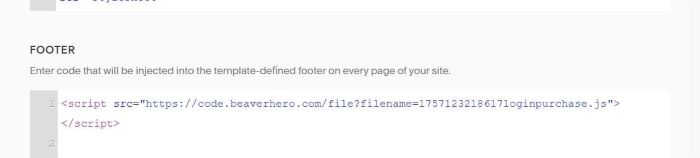
#3. Use this code to Code Injection > Footer
<script src="https://code.beaverhero.com/file?filename=1757123218617loginpurchase.js"></script>
#4. Result
When click Login to Purchase
After Login

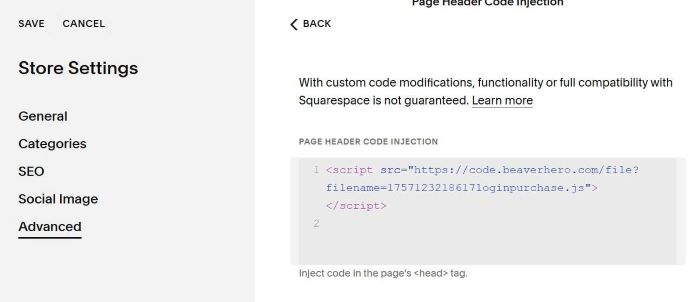
#5. If you want to apply on specific Shop Page, just move code to Shop Page Header Injection
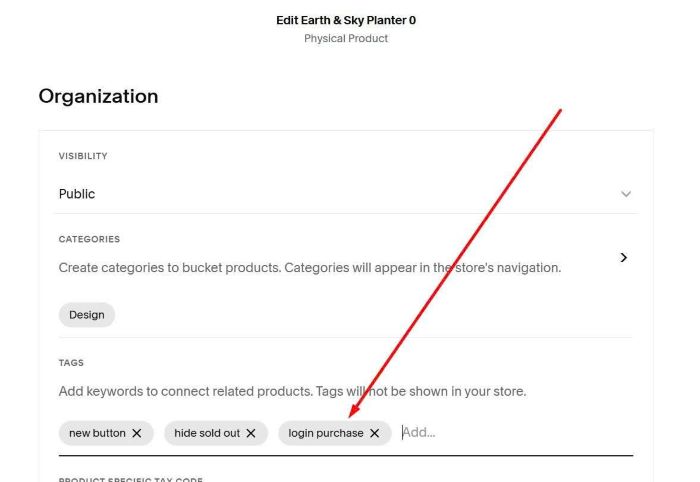
#6. If you want to apply on specific products, you can assign a tag with name: login purchase to these products.
then use this new code
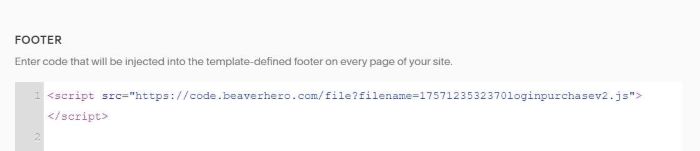
<script src="https://code.beaverhero.com/file?filename=1757123532370loginpurchasev2.js"></script>