Description: On A Wall feature
#A. One Page
Very suitable when you only need to do this for very few pages, moreover because the code is inserted into each page, you can easily change images, sizes… and many separate settings for each page.
#1. First, follow this guide to know how to upload Image and get Image URL
#2. Highlight text On A Wall > Click Link icon > enter url: #onawall

#3. Hover on Page Name > Click Gear icon
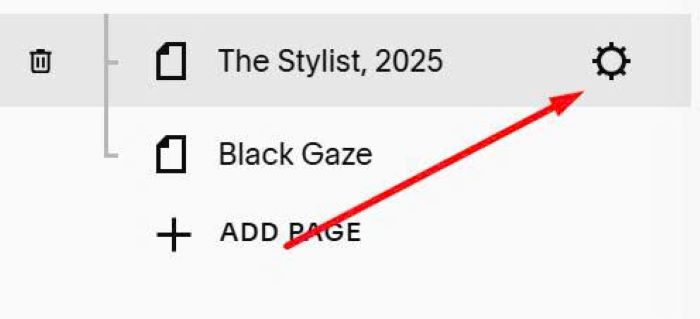
#4. Click Advanced > Paste this code
<!-- On a wall -->
<div id="lightbox" class="lightbox">
<div class="lightbox-content">
<div id="image-container" class="image-container">
<img id="background-image" src="https://static1.squarespace.com/static/68b77330387e9b03aeee831e/t/68cf51c5a458a422712eaf0c/1758417355527/sofa2.jpghttps://static1.squarespace.com/static/68b77330387e9b03aeee831e/t/68cf51c5a458a422712eaf0c/1758417355527/sofa2.jpg" alt="Background">
<img id="animated-image" src="https://images.squarespace-cdn.com/content/v1/68b77330387e9b03aeee831e/e3e94a4b-5138-45fe-a591-1c93ba3dd44b/The+Stylist+16x20+2025.jpeg?format=750w" alt="Animated">
</div>
<div id="zoom-controls" class="zoom-controls">
<button id="zoom-out" class="zoom-btn">-</button>
<div class="zoom-slider-container">
<input type="range" id="zoom-slider" min="100" max="400" value="100">
</div>
<button id="zoom-in" class="zoom-btn">+</button>
</div>
<button id="close-btn" class="close-btn">×</button>
</div>
</div>
<style>
/* Image Size */
#animated-image {
position: absolute;
width: 350px;
height: auto;
top: 70px;
left: 430px;
z-index: 2;
opacity: 0;
transition: opacity 1s ease;
}
/* Image size on Mobile */
@media screen and (max-width:767px) {
#animated-image {
left: 50% !important;
transform: translateX(-50%) !important;
width: 300px !important;
}
}
/* X Close button */
.close-btn {
position: absolute;
top: 20px;
right: 30px;
background: none;
border: none;
font-size: 40px;
color: white;
cursor: pointer;
z-index: 3;
transition: opacity 0.3s ease;
}
/* Zoom Controls */
.zoom-controls {
position: absolute;
bottom: 30px;
left: 50%;
transform: translateX(-50%);
display: flex;
align-items: center;
background: rgba(0, 0, 0, 0.7);
padding: 10px 20px;
border-radius: 25px;
z-index: 4;
opacity: 0;
transition: opacity 0.3s ease;
}
.zoom-controls.show {
opacity: 1;
}
.zoom-btn {
background: none;
border: none;
color: white;
font-size: 20px;
font-weight: bold;
cursor: pointer;
padding: 5px 10px;
border-radius: 50%;
transition: background 0.3s ease;
}
.zoom-btn:hover {
background: rgba(255, 255, 255, 0.2);
}
.zoom-slider-container {
margin: 0 15px;
width: 150px;
}
#zoom-slider {
width: 100%;
height: 4px;
background: rgba(255, 255, 255, 0.3);
border-radius: 2px;
outline: none;
-webkit-appearance: none;
}
#zoom-slider::-webkit-slider-thumb {
-webkit-appearance: none;
width: 16px;
height: 16px;
background: white;
border-radius: 50%;
cursor: pointer;
}
#zoom-slider::-moz-range-thumb {
width: 16px;
height: 16px;
background: white;
border-radius: 50%;
cursor: pointer;
border: none;
}
.close-btn:hover {
opacity: 0.7;
}
p a[href="#onawall"]:before {
content: "\f06e";
font-family: "Font Awesome 6 Free";
font-weight: bold;
margin-right: 10px;
}
p a[href="#onawall"] {
text-decoration: none;
color: gray;
}
.lightbox{display:none;position:fixed;top:0;left:0;width:100%;height:100%;background:rgb(0 0 0 / .9);z-index:1000;opacity:0;transition:opacity 0.3s ease}.lightbox.show{display:block;opacity:1}.lightbox-content{position:relative;width:100%;height:100%;display:flex;align-items:center;justify-content:center}.image-container{position:relative;width:100%;height:100%;transform-origin:center;transition:transform 0.3s ease;cursor:grab}.image-container.dragging{cursor:grabbing;transition:none}#background-image{position:absolute;width:100%;height:100%;object-fit:cover;z-index:1}#animated-image.fade-in{opacity:1}#animated-image.fade-out{opacity:0}.gallery-block{padding-top:0px!important}
</style>
<script>let lightbox,animatedImage,closeBtn,backgroundImage,zoomControls,zoomSlider,zoomInBtn,zoomOutBtn,imageContainer;let currentZoom=100;let isDragging=!1;let dragStart={x:0,y:0};let currentTranslate={x:0,y:0};function updateZoom(){const scale=currentZoom/100;imageContainer.style.transform=`scale(${scale}) translate(${currentTranslate.x}px, ${currentTranslate.y}px)`}
document.addEventListener('DOMContentLoaded',function(){lightbox=document.getElementById('lightbox');animatedImage=document.getElementById('animated-image');closeBtn=document.getElementById('close-btn');backgroundImage=document.getElementById('background-image');zoomControls=document.getElementById('zoom-controls');zoomSlider=document.getElementById('zoom-slider');zoomInBtn=document.getElementById('zoom-in');zoomOutBtn=document.getElementById('zoom-out');imageContainer=document.getElementById('image-container');const wallLink=document.querySelector('p a[href="#onawall"]');if(wallLink){wallLink.addEventListener('click',function(e){e.preventDefault();lightbox.classList.add('show');setTimeout(()=>{animatedImage.classList.add('fade-in');setTimeout(()=>{zoomControls.classList.add('show')},500)},2000)})}
setupEventListeners()});function setupEventListeners(){zoomSlider.addEventListener('input',function(){currentZoom=parseInt(this.value);updateZoom()});zoomInBtn.addEventListener('click',function(){currentZoom=Math.min(400,currentZoom+10);zoomSlider.value=currentZoom;updateZoom()});zoomOutBtn.addEventListener('click',function(){currentZoom=Math.max(100,currentZoom-10);zoomSlider.value=currentZoom;updateZoom()});imageContainer.addEventListener('mousedown',function(e){if(currentZoom>100){isDragging=!0;imageContainer.classList.add('dragging');dragStart.x=e.clientX-currentTranslate.x;dragStart.y=e.clientY-currentTranslate.y;e.preventDefault()}});document.addEventListener('mousemove',function(e){if(isDragging){const newX=e.clientX-dragStart.x;const newY=e.clientY-dragStart.y;const scale=currentZoom/100;if(scale<=1){currentTranslate.x=0;currentTranslate.y=0}else{const maxX=(window.innerWidth*(scale-1))/(2*scale);const maxY=(window.innerHeight*(scale-1))/(2*scale);currentTranslate.x=Math.max(-maxX,Math.min(maxX,newX));currentTranslate.y=Math.max(-maxY,Math.min(maxY,newY))}
updateZoom()}});document.addEventListener('mouseup',function(){if(isDragging){isDragging=!1;imageContainer.classList.remove('dragging')}});closeBtn.addEventListener('click',function(){zoomControls.classList.remove('show');animatedImage.classList.remove('fade-in');animatedImage.classList.add('fade-out');currentZoom=100;currentTranslate={x:0,y:0};zoomSlider.value=100;imageContainer.style.transform='scale(1) translate(0px, 0px)';setTimeout(()=>{lightbox.classList.remove('show');animatedImage.classList.remove('fade-out')},1000)});lightbox.addEventListener('click',function(e){if(e.target===lightbox){closeBtn.click()}})}</script>
<!-- END On A Wall -->
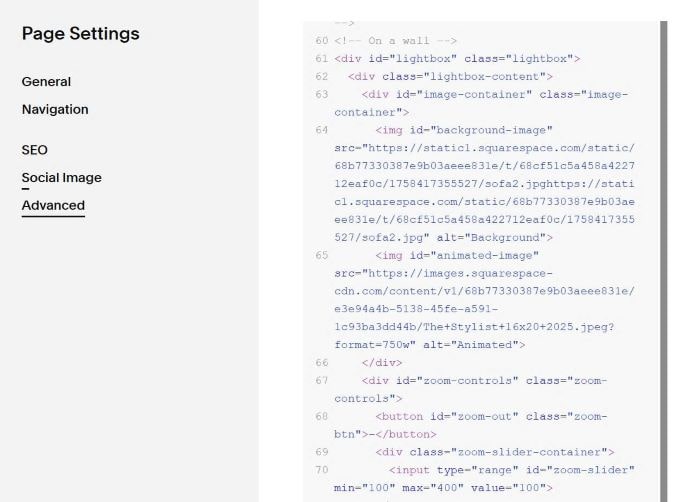
#5. Note
#5.1. This is Wall background image
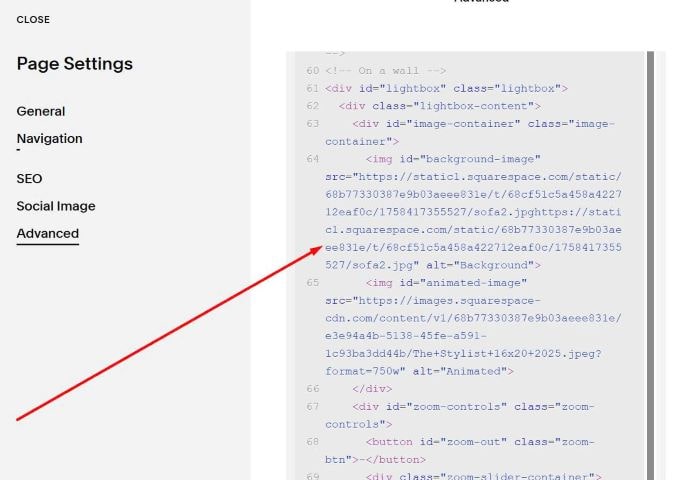
#5.2. This is image that will appear on a wall

#5.3. This is Image Size, Space between Image – Top and Left of Screen
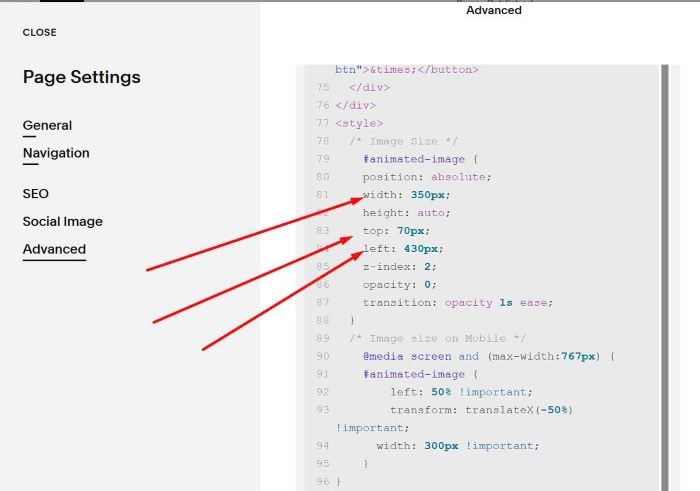
#5.4. This is Image size on Mobile
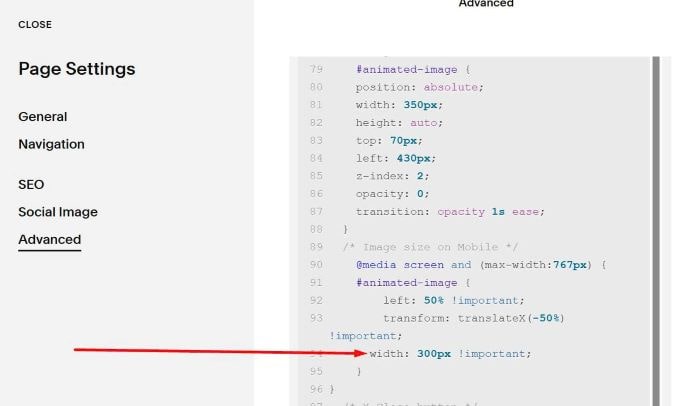
#5.5. This is Close Icon size/space between Close with top/right of screen

#B. Multiple Pages (Same Wall Background Image)
Suitable when you need to install the feature for many pages, and they have similar settings. And you don’t want to waste time inserting code into each page, and every time you need to change a setting, you only need to change it once.
#1. First, follow this guide to know how to upload Image and get Image URL
#2. Highlight text On A Wall > Click Link icon > enter url: #onawall
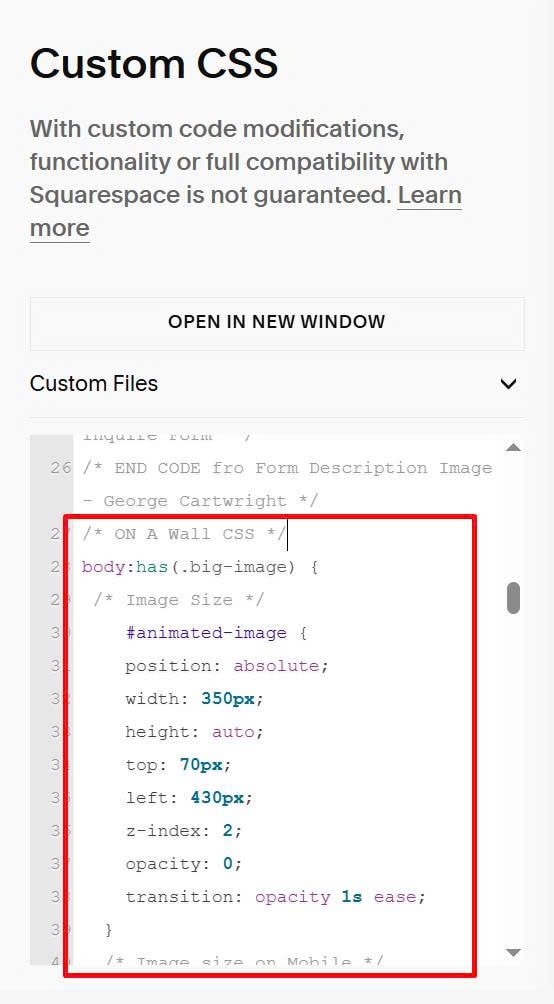
#3. Use this code to Custom CSS box
/* ON A Wall CSS */
body:has(.big-image) {
 /* Image Size */
    #animated-image {
    position: absolute;
    width: 350px;
    height: auto;
    top: 70px;
    left: 430px;
    z-index: 2;
    opacity: 0;
    transition: opacity 1s ease;
  }
  /* Image size on Mobile */
    @media screen and (max-width:767px) {
    #animated-image {
        left: 50% !important;
        transform: translateX(-50%) !important;
      width: 300px !important;
    }
}
  /* X Close button */
    .close-btn {
    position: absolute;
    top: 20px;
    right: 30px;
    background: none;
    border: none;
    font-size: 40px;
    color: white;
    cursor: pointer;
    z-index: 3;
    transition: opacity 0.3s ease;
  }
  /* Zoom Controls */
  .zoom-controls {
    position: absolute;
    bottom: 30px;
    left: 50%;
    transform: translateX(-50%);
    display: flex;
    align-items: center;
    background: rgba(0, 0, 0, 0.7);
    padding: 10px 20px;
    border-radius: 25px;
    z-index: 4;
    opacity: 0;
    transition: opacity 0.3s ease;
  }
  .zoom-controls.show {
    opacity: 1;
  }
  .zoom-btn {
    background: none;
    border: none;
    color: white;
    font-size: 20px;
    font-weight: bold;
    cursor: pointer;
    padding: 5px 10px;
    border-radius: 50%;
    transition: background 0.3s ease;
  }
  .zoom-btn:hover {
    background: rgba(255, 255, 255, 0.2);
  }
  .zoom-slider-container {
    margin: 0 15px;
    width: 150px;
  }
  #zoom-slider {
    width: 100%;
    height: 4px;
    background: rgba(255, 255, 255, 0.3);
    border-radius: 2px;
    outline: none;
    -webkit-appearance: none;
  }
  #zoom-slider::-webkit-slider-thumb {
    -webkit-appearance: none;
    width: 16px;
    height: 16px;
    background: white;
    border-radius: 50%;
    cursor: pointer;
  }
  #zoom-slider::-moz-range-thumb {
    width: 16px;
    height: 16px;
    background: white;
    border-radius: 50%;
    cursor: pointer;
    border: none;
  }

  .close-btn:hover {
    opacity: 0.7;
  }
    p a[href="#onawall"]:before {
    content: "\f06e";
    font-family: "Font Awesome 6 Free";
    font-weight: bold;
    margin-right: 10px;
}
p a[href="#onawall"] {
    text-decoration: none;
    color: gray;
}
  .lightbox{display:none;position:fixed;top:0;left:0;width:100%;height:100%;background:rgb(0 0 0 / .9);z-index:1000;opacity:0;transition:opacity 0.3s ease}.lightbox.show{display:block;opacity:1}.lightbox-content{position:relative;width:100%;height:100%;display:flex;align-items:center;justify-content:center}.image-container{position:relative;width:100%;height:100%;transform-origin:center;transition:transform 0.3s ease;cursor:grab}.image-container.dragging{cursor:grabbing;transition:none}#background-image{position:absolute;width:100%;height:100%;object-fit:cover;z-index:1}#animated-image.fade-in{opacity:1}#animated-image.fade-out{opacity:0}.gallery-block{padding-top:0px!important}
}
/* END - ON A Wall CSS */
#4. Use this code to Code Injection > Footer
<!-- On A Wall -->
<script>
document.addEventListener('DOMContentLoaded', function() {
if (!document.querySelector('.big-image')) return;
let lightbox, animatedImage, closeBtn, backgroundImage, zoomControls, zoomSlider, zoomInBtn, zoomOutBtn, imageContainer;
let currentZoom = 100;
let isDragging = false;
let dragStart = {x: 0, y: 0};
let currentTranslate = {x: 0, y: 0};
const gallerySlide = document.querySelector('.slide img.thumb-image');
const animatedImageSrc = gallerySlide ? gallerySlide.getAttribute('data-src') || gallerySlide.src : '';
const lightboxHTML = `
<div id="lightbox" class="lightbox">
<div class="lightbox-content">
<div id="image-container" class="image-container">
<img id="background-image" src="https://static1.squarespace.com/static/68b77330387e9b03aeee831e/t/68cf51c5a458a422712eaf0c/1758417355527/sofa2.jpghttps://static1.squarespace.com/static/68b77330387e9b03aeee831e/t/68cf51c5a458a422712eaf0c/1758417355527/sofa2.jpg" alt="Background">
<img id="animated-image" src="${animatedImageSrc}" alt="Animated">
</div>
<div id="zoom-controls" class="zoom-controls">
<button id="zoom-out" class="zoom-btn">-</button>
<div class="zoom-slider-container">
<input type="range" id="zoom-slider" min="100" max="400" value="100">
</div>
<button id="zoom-in" class="zoom-btn">+</button>
</div>
<button id="close-btn" class="close-btn">×</button>
</div>
</div>
`;
document.body.insertAdjacentHTML('beforeend', lightboxHTML);
lightbox = document.getElementById('lightbox');
animatedImage = document.getElementById('animated-image');
closeBtn = document.getElementById('close-btn');
backgroundImage = document.getElementById('background-image');
zoomControls = document.getElementById('zoom-controls');
zoomSlider = document.getElementById('zoom-slider');
zoomInBtn = document.getElementById('zoom-in');
zoomOutBtn = document.getElementById('zoom-out');
imageContainer = document.getElementById('image-container');
function updateZoom() {
const scale = currentZoom / 100;
imageContainer.style.transform = `scale(${scale}) translate(${currentTranslate.x}px, ${currentTranslate.y}px)`;
}
const wallLink = document.querySelector('p a[href="#onawall"]');
if (wallLink) {
wallLink.addEventListener('click', function(e) {
e.preventDefault();
lightbox.classList.add('show');
setTimeout(() => {
animatedImage.classList.add('fade-in');
setTimeout(() => {
zoomControls.classList.add('show');
}, 500);
}, 2000);
});
}
zoomSlider.addEventListener('input', function() {
currentZoom = parseInt(this.value);
updateZoom();
});
zoomInBtn.addEventListener('click', function() {
currentZoom = Math.min(400, currentZoom + 10);
zoomSlider.value = currentZoom;
updateZoom();
});
zoomOutBtn.addEventListener('click', function() {
currentZoom = Math.max(100, currentZoom - 10);
zoomSlider.value = currentZoom;
updateZoom();
});
imageContainer.addEventListener('mousedown', function(e) {
if (currentZoom > 100) {
isDragging = true;
imageContainer.classList.add('dragging');
dragStart.x = e.clientX - currentTranslate.x;
dragStart.y = e.clientY - currentTranslate.y;
e.preventDefault();
}
});
document.addEventListener('mousemove', function(e) {
if (isDragging) {
const newX = e.clientX - dragStart.x;
const newY = e.clientY - dragStart.y;
const scale = currentZoom / 100;
if (scale <= 1) {
currentTranslate.x = 0;
currentTranslate.y = 0;
} else {
const maxX = (window.innerWidth * (scale - 1)) / (2 * scale);
const maxY = (window.innerHeight * (scale - 1)) / (2 * scale);
currentTranslate.x = Math.max(-maxX, Math.min(maxX, newX));
currentTranslate.y = Math.max(-maxY, Math.min(maxY, newY));
}
updateZoom();
}
});
document.addEventListener('mouseup', function() {
if (isDragging) {
isDragging = false;
imageContainer.classList.remove('dragging');
}
});
closeBtn.addEventListener('click', function() {
zoomControls.classList.remove('show');
animatedImage.classList.remove('fade-in');
animatedImage.classList.add('fade-out');
currentZoom = 100;
currentTranslate = {x: 0, y: 0};
zoomSlider.value = 100;
imageContainer.style.transform = 'scale(1) translate(0px, 0px)';
setTimeout(() => {
lightbox.classList.remove('show');
animatedImage.classList.remove('fade-out');
}, 1000);
});
lightbox.addEventListener('click', function(e) {
if (e.target === lightbox) {
closeBtn.click();
}
});
});
</script>
<!-- END On A Wall -->
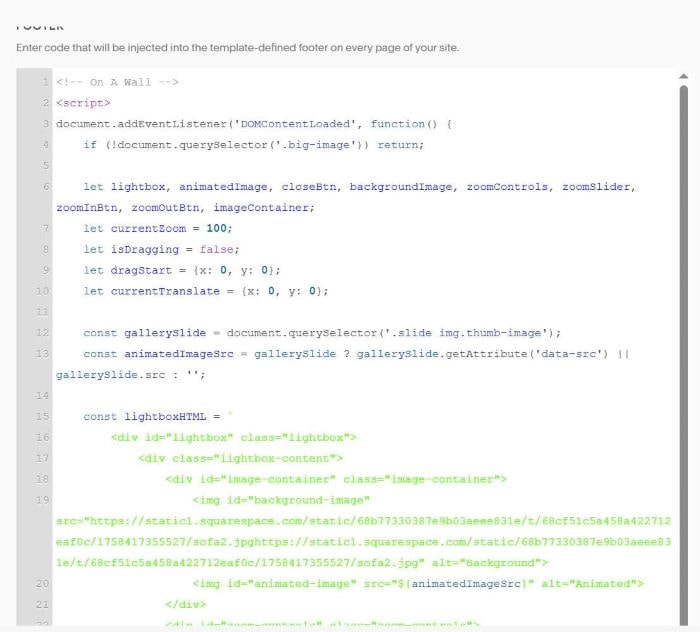
#5. You can change Wall Background Image here

#6. With Image appears on Wall Background, code will get First image in Gallery Block Grid

#C. Multiple Pages (Different Wall background Image)
Same as #B, however add this code to Individual Page Header Injection to change Wall Background Image on that page
<style>
#background-image {
    content: url(https://cdn.pixabay.com/photo/2024/09/19/21/07/night-sky-9059825_1280.jpg) !important;
}
</style>
