I released new code with better options, you can follow new instruction here.
Description: Open PDF in Lightbox Popup on Click.
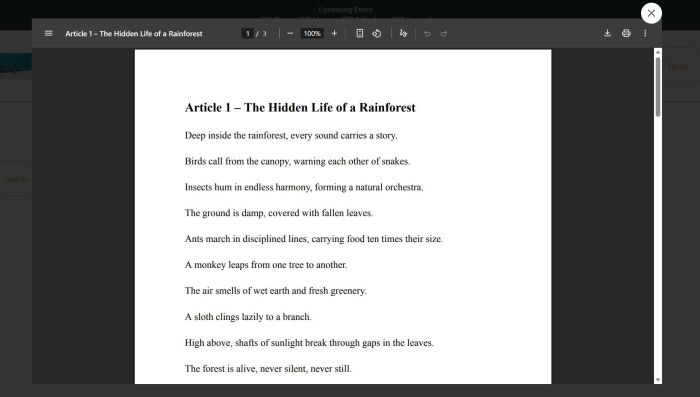
#1. Install Code
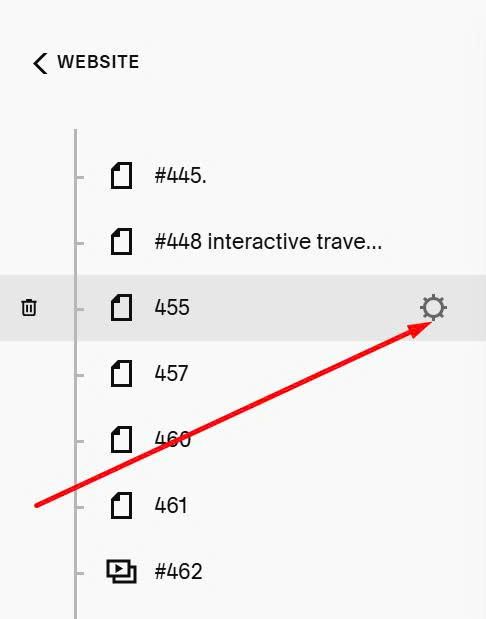
First, click Gear icon on Page where you want to apply PDF Lightbox Popup
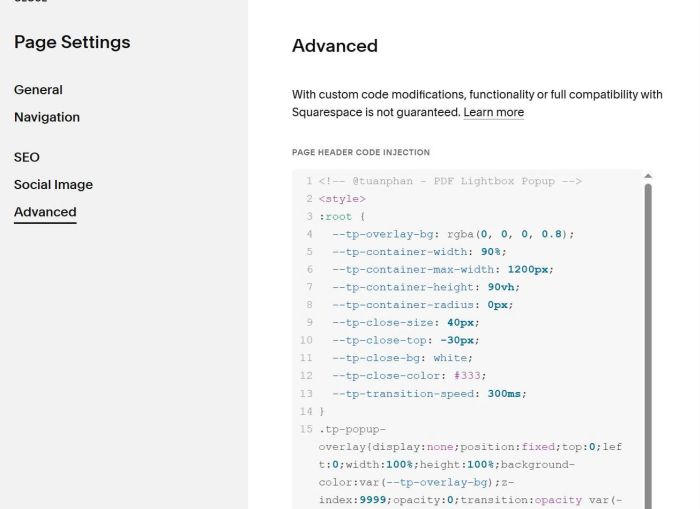
Paste this code
<!-- @tuanphan - PDF Lightbox Popup -->
<style>
:root {
  --tp-overlay-bg: rgba(0, 0, 0, 0.8);
  --tp-container-width: 90%;
  --tp-container-max-width: 1200px;
  --tp-container-height: 90vh;
  --tp-container-radius: 0px;
  --tp-close-size: 40px;
  --tp-close-top: -30px;
  --tp-close-bg: white;
  --tp-close-color: #333;
  --tp-transition-speed: 300ms;
}
.tp-popup-overlay{display:none;position:fixed;top:0;left:0;width:100%;height:100%;background-color:var(--tp-overlay-bg);z-index:9999;opacity:0;transition:opacity var(--tp-transition-speed) ease-in-out}.tp-popup-overlay.active{opacity:1}.tp-popup-container{position:fixed;top:50%;left:50%;transform:translate(-50%,-50%);width:var(--tp-container-width);max-width:var(--tp-container-max-width);height:var(--tp-container-height);border-radius:var(--tp-container-radius);z-index:10000;opacity:0;transition:opacity var(--tp-transition-speed) ease-in-out}.tp-popup-overlay.active .tp-popup-container{opacity:1}.tp-popup-close{position:absolute;top:var(--tp-close-top);right:0;background:var(--tp-close-bg);border:none;width:var(--tp-close-size);height:var(--tp-close-size);border-radius:50%;cursor:pointer;display:flex;align-items:center;justify-content:center;transition:transform .2s;z-index:10001}.tp-popup-close:hover{transform:scale(1.1)}.tp-popup-close svg{width:24px;height:24px;stroke:var(--tp-close-color)}.tp-popup-content{width:100%;height:100%;border-radius:var(--tp-container-radius);overflow:hidden}.tp-pdf-iframe-container{width:100%;height:100%}.tp-pdf-iframe-container iframe{width:100%;height:100%;border:none;border-radius:var(--tp-container-radius)}body.tp-popup-open{overflow:hidden}@media(max-width:768px){:root{--tp-container-width:95%;--tp-container-height:85vh;--tp-close-size:36px;--tp-close-top:-40px}}</style>
<script>(function(){function e(){const e=`<div class="tp-popup-overlay" id="tpPdfPopup"><div class="tp-popup-container"><button class="tp-popup-close" id="tpClosePopup"><svg xmlns="http://www.w3.org/2000/svg" fill="none" viewBox="0 0 24 24" stroke-width="1.5" stroke="currentColor"><path stroke-linecap="round" stroke-linejoin="round" d="M6 18 18 6M6 6l12 12"></path></svg></button><div class="tp-popup-content"><div class="tp-pdf-iframe-container"><iframe id="tpPdfIframe" src=""></iframe></div></div></div></div>`;document.body.insertAdjacentHTML("beforeend",e);const t=document.getElementById("tpPdfPopup"),n=document.getElementById("tpPdfIframe"),o=document.getElementById("tpClosePopup");function i(e){n.src=e,t.style.display="block",setTimeout(()=>{t.classList.add("active"),document.body.classList.add("tp-popup-open")},10)}function c(){t.classList.remove("active"),document.body.classList.remove("tp-popup-open"),setTimeout(()=>{t.style.display="none",n.src=""},300)}o.addEventListener("click",c),t.addEventListener("click",e=>{e.target===t&&c()}),document.addEventListener("keydown",e=>{"Escape"===e.key&&t.classList.contains("active")&&c()}),document.addEventListener("click",e=>{const t=e.target.closest('a[href*=".pdf"]');if(t){e.preventDefault();const n=t.getAttribute("href");i(n)}})}"loading"===document.readyState?document.addEventListener("DOMContentLoaded",e):e()})();</script>
#2. Usage
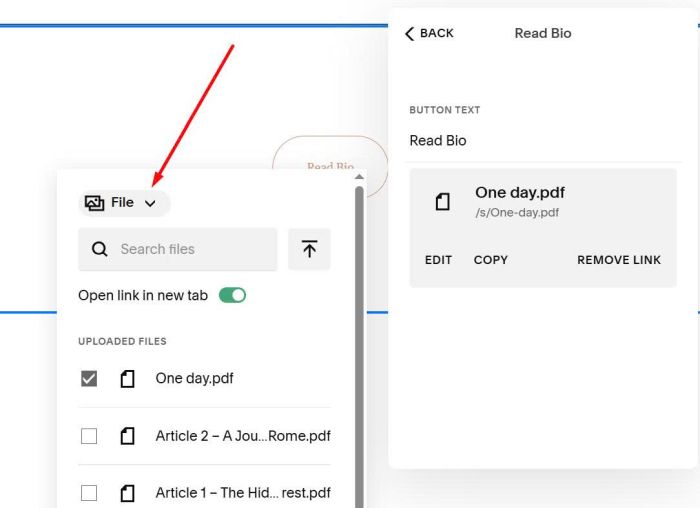
You can add Link to Text, Button, Image… and choose Upload PDF. In my example, I uploaded PDF to List People Section button.
#3. Customize
All style options here.
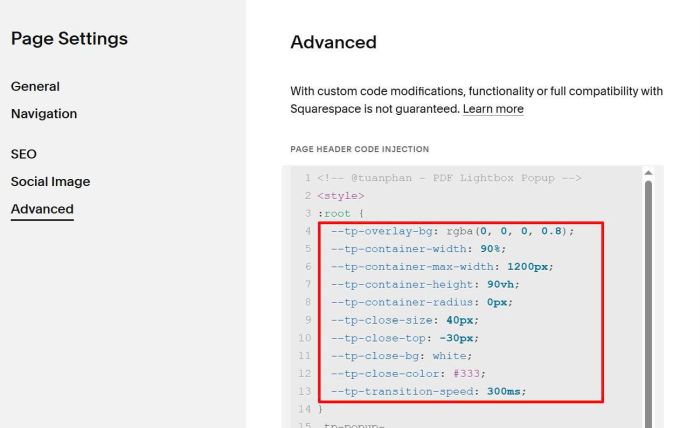
#3.4. To change overlay background behind PDF Lightbox, change this line
--tp-overlay-bg: rgba(0, 0, 0, 0.8);
#3.5. To change Lightbox size, change these
--tp-container-width: 90%;
--tp-container-max-width: 1200px;
--tp-container-height: 90vh;
#3.5. To add round corners of lightbox, adjust this.
--tp-container-radius: 0px;
#3.6. To change Close icon style, update these.
--tp-close-size: 40px;
--tp-close-top: -30px;
--tp-close-bg: white;
--tp-close-color: #333;