Description: Click Read more button in List People Section will open more text, same as Accordion.
Initial
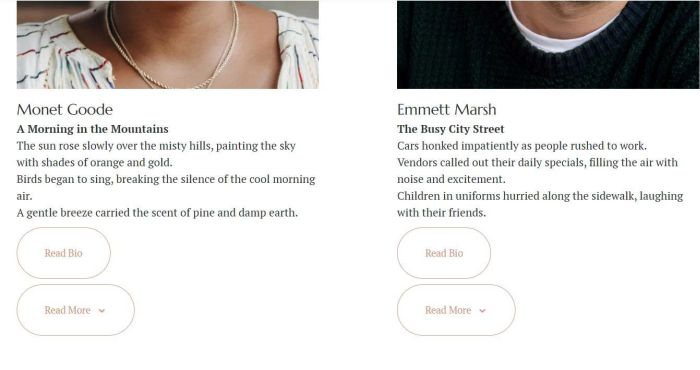
Click Read More
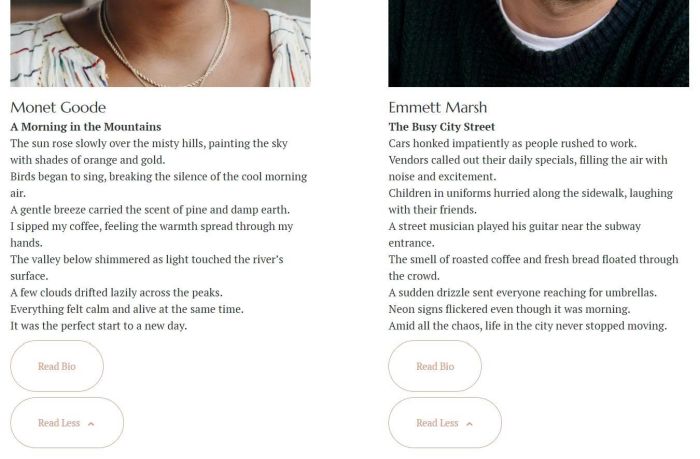
#1. Install code
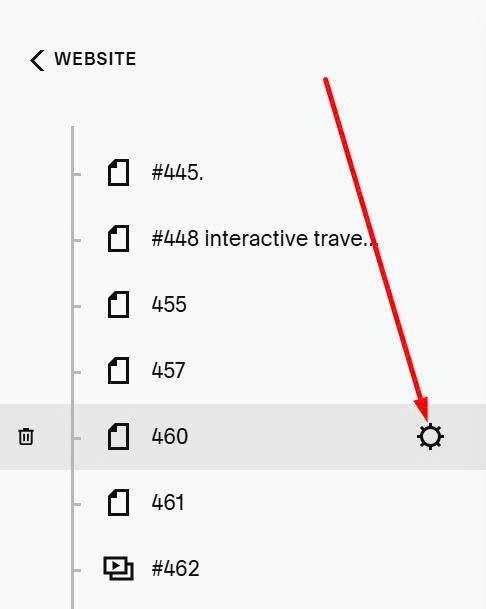
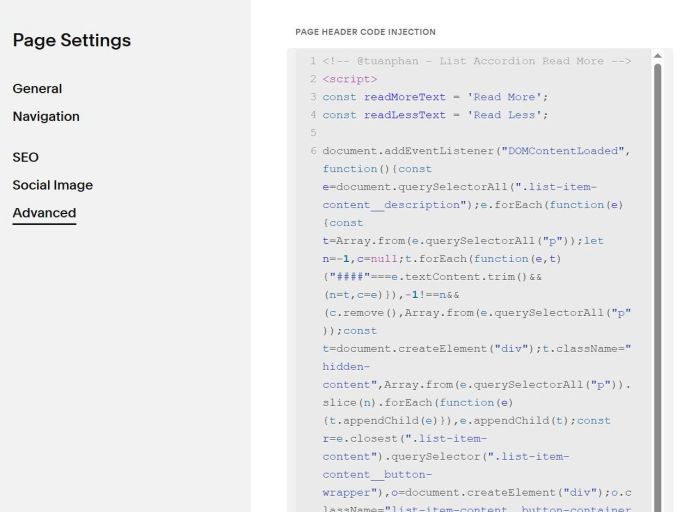
First, click Gear icon on page where you use List Section
Next, click Advanced > Paste this code
<!-- @tuanphan - List Accordion Read More -->
<script>
const readMoreText = 'Read More';
const readLessText = 'Read Less';
document.addEventListener("DOMContentLoaded",function(){document.querySelectorAll(".list-item-content__description").forEach(function(e){const t=Array.from(e.querySelectorAll("p"));let n=-1,c=null;t.forEach(function(e,t){"####"===e.textContent.trim()&&(n=t,c=e)});if(-1!==n){c.remove();const t=Array.from(e.querySelectorAll("p")),r=document.createElement("div");r.className="hidden-content",t.slice(n).forEach(function(e){r.appendChild(e)}),e.appendChild(r);const o=e.closest(".list-item-content").querySelector(".list-item-content__button-wrapper"),a=document.createElement("div");a.className="list-item-content__button-container custom-read-more-btn",a.style.cssText="margin-top:2%;max-width:100%;",a.setAttribute("data-animation-role","button");const d=document.createElement("a");d.className="list-item-content__button sqs-block-button-element btn btn--border theme-btn--primary-inverse sqs-button-element--primary sqs-block-button-element--medium",d.href="#",d.setAttribute("data-action","toggle"),d.textContent=readMoreText,a.appendChild(d),o.appendChild(a),d.addEventListener("click",function(e){e.preventDefault();const t=this.closest(".list-item-content").querySelector(".hidden-content");"none"===t.style.display||!t.style.display?(t.style.display="block",this.childNodes[0].textContent=readLessText,this.setAttribute("data-state","expanded")):(t.style.display="none",this.childNodes[0].textContent=readMoreText,this.setAttribute("data-state","collapsed"))})}})});</script><style>.custom-read-more-btn{text-decoration:none;display:inline-block;margin-top:2%}.custom-read-more-btn a:after{content:"\e009";font-family:'squarespace-ui-font';position:relative;top:2px;margin-left:8px;display:inline-block}[data-state=expanded]:after{transform:rotate(-180deg)}.hidden-content{display:none}</style>
#2. Usage
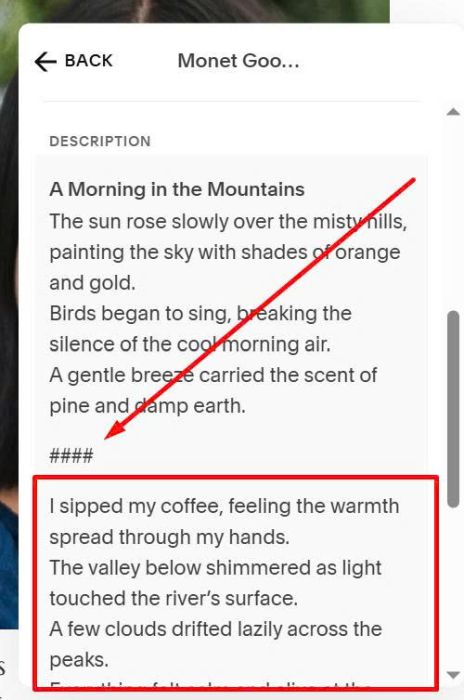
First, you need to edit List Item Content and enter ####
- #1 code will turn #### into Read More/Read Less button
- #1 code will make text under #### into Read More/Read Less content
#3. Customize
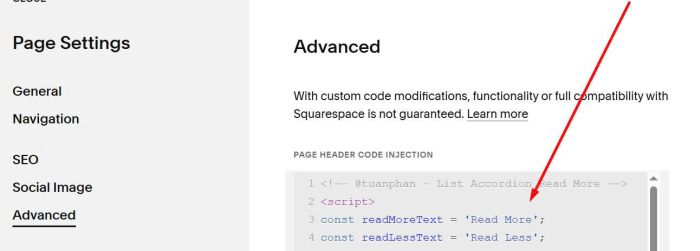
#3.1. To change Read More/Read Less to other text, you can update these lines.
const readMoreText = 'Read More';
const readLessText = 'Read Less';
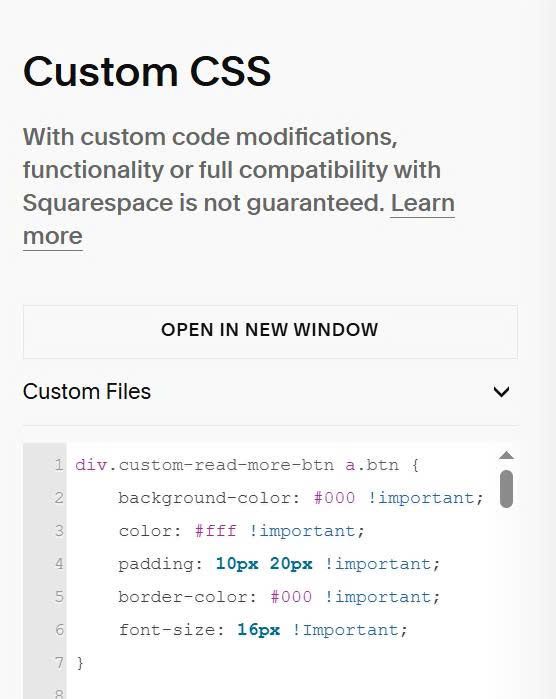
#3.2. If you want to change Read More/Read Less button style (by default it will inherit Primary Button Style), you can use this code to Custom CSS box.
div.custom-read-more-btn a.btn {
    background-color: #000 !important;
    color: #fff !important;
    padding: 10px 20px !important;
    border-color: #000 !important;
    font-size: 16px !Important;
}
#3.3. If you want to change Arrow style, use this to Custom CSS
div.custom-read-more-btn a.btn:after {
    font-size: 20px;
    color: #f1f;
}