Description
- turn Portfolio Page to Masonry layout
- view demo – Password: abc
- buy me a coffee

#1. Install Code
(See Update Version in step #3.2)
- Fixed problem with recently Portfolio Page update from Squarespace
- Fixed problem with Markdown Block update from Squarespace
- Adding option to change order: horizontal or vertical
- Adding option to apply code in Personal/Basic Plan (Markdown Block stop working)
#1.1. Make sure you use Portfolio Grid Simple or Grid Overlay

#1.2. Click Gear icon on Portfolio Page

Click Advanced > Paste this code
- If you use Personal/Basic Plan and your plan doesn’t support Injection, you can see #3.1
<!-- 513 Portfolio Page Masonry -->
<script>
window.PortfolioMasonryConfig = {
  columnsMobile: 2,
  gapMobile: 10,
  titleMargin: 0
}
</script>
<script src="https://code.beaverhero.com/portfolio/513portfoliopagemasonry.js"></script>

#2. Customize
#2.1. To change number of columns/gap between items on Desktop, you can adjust this option
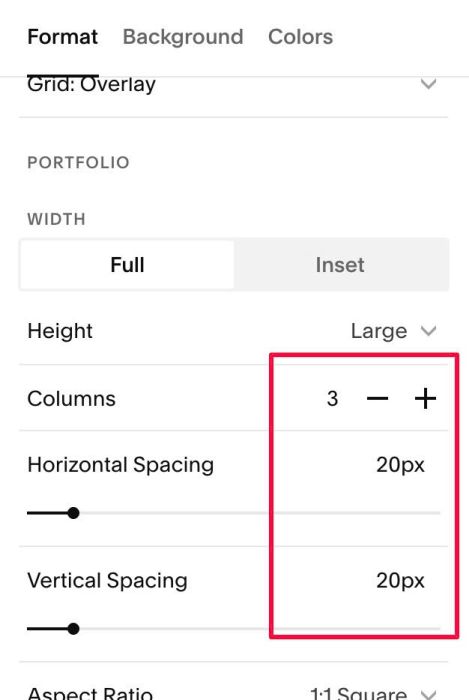
To change number of columns/gap between items on Mobile, you can adjust Line 04, Line 05
columnsMobile: 2,
gapMobile: 10,
#2.2. To make Title appears under Image, use this code under plugin code
<style>
/* Title under image */
.portfolio-masonry .grid-item .portfolio-overlay, .portfolio-masonry .grid-item .portfolio-text {
    position: static !important;
}
.portfolio-masonry .portfolio-text {
    opacity: 1 !important;
}
.portfolio-masonry h3 {
    color: #000 !important;
    margin-top: 10px !important;
}
</style>
If you want to make this appears on Mobile only, use this CSS code
<style>
@media screen and (max-width:767px) {
/* Title under image */
.portfolio-masonry .grid-item .portfolio-overlay, .portfolio-masonry .grid-item .portfolio-text {
    position: static !important;
}
.portfolio-masonry .portfolio-text {
    opacity: 1 !important;
}
.portfolio-masonry h3 {
    color: #000 !important;
    margin-top: 10px !important;
}}
</style>
#3. Other
#3.1. If you use Personal/Basic Plan and your plan doesn’t support Injection, you can edit Portfolio Page > Add a Block

Choose Embed Block
Paste this code into Embed Block > Code Snippet
<script>
window.PortfolioMasonryConfig = {
  columnsMobile: 2,
  gapMobile: 10,
  titleMargin: 0,
  order: 'horizontal'
}
</script>
<script src="https://code.beaverhero.com/portfolio/513portfoliopagemasonryv4.js"></script>
#3.2. You can use this new code
<!-- 513 Portfolio Page Masonry -->
<script>
window.PortfolioMasonryConfig = {
  columnsMobile: 2,
  gapMobile: 10,
  titleMargin: 0,
  order: 'horizontal' // horizontal or vertical
}
</script>
<script src="https://code.beaverhero.com/portfolio/513portfoliopagemasonryv4.js"></script>