Description
- change slideshow duration under 1s
- view demo – password: abc
- buy me a coffee
#1. Install Code
#1.1. Make sure you use this Slideshow format

#1.2. Hover on top right of Slideshow > Click EDIT SECTION

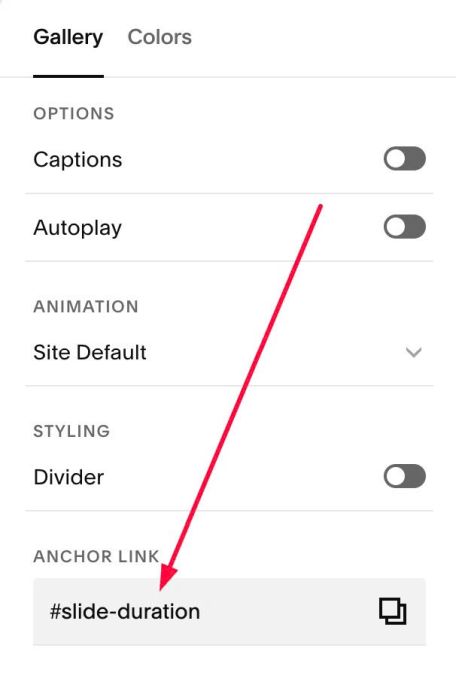
#1.3. at Gallery > Anchor Link > enter word: slide-duration
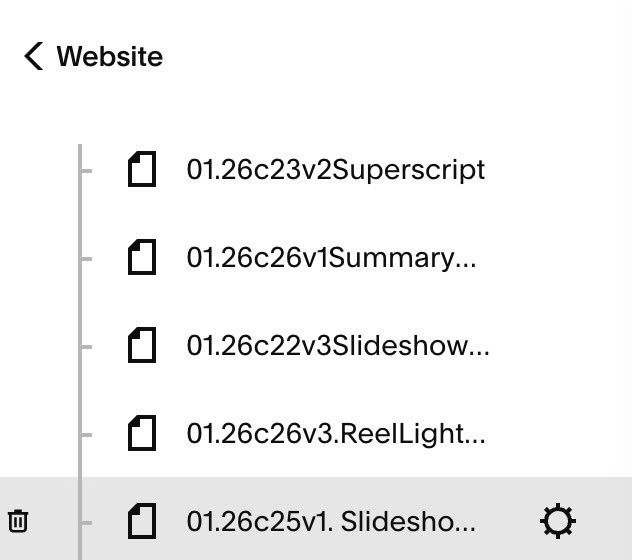
#1.4. Hover on Page where you use Slideshow > Click Gear icon
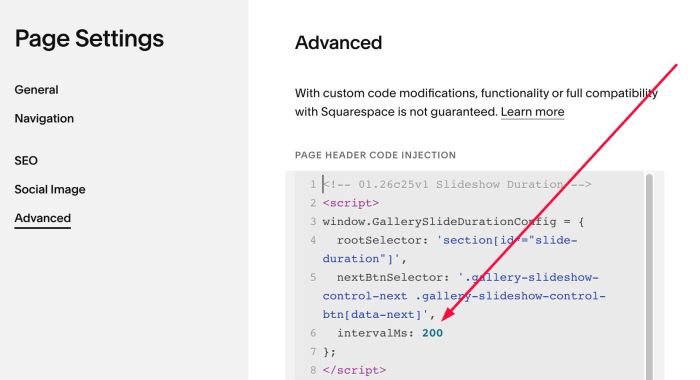
#1.5. Click Advanced > Paste this code
- If you use Personal/Basic Plan and your plan doesn’t support Injection, see #3.1
<!-- 01.26c25v1 Slideshow Duration -->
<script>
window.GallerySlideDurationConfig = {
  rootSelector: 'section[id*="slide-duration"]',
  nextBtnSelector: '.gallery-slideshow-control-next .gallery-slideshow-control-btn[data-next]',
  intervalMs: 200
};
</script>
<script>
(() => {
  "use strict";
  const cfg = window.GallerySlideDurationConfig;
  if (!cfg) return;
  let timer = null;
  let paused = false;
  const canRun = () => !!document.querySelector("body:not(.sqs-edit-mode-active)");
  const getRoot = () => document.querySelector(cfg.rootSelector);
  const getNextBtn = () => {
    const root = getRoot();
    return root ? root.querySelector(cfg.nextBtnSelector) : null;
  };
  const tick = () => {
    if (paused) return;
    if (!canRun()) return;
    const btn = getNextBtn();
    if (!btn) return;
    if (btn.disabled || btn.getAttribute("aria-disabled") === "true") return;
    btn.click();
  };
  const stop = () => {
    if (timer) clearInterval(timer);
    timer = null;
  };
  const start = () => {
    stop();
    paused = false;
    timer = setInterval(tick, cfg.intervalMs);
  };
  const bindPauseEvents = (root) => {
    const pauseOn = () => { paused = true; };
    const resumeOn = () => { paused = false; };
    root.addEventListener("mouseenter", pauseOn, { passive: true });
    root.addEventListener("mouseleave", resumeOn, { passive: true });
    root.addEventListener("touchstart", pauseOn, { passive: true });
    root.addEventListener("touchend", resumeOn, { passive: true });
    root.addEventListener("touchcancel", resumeOn, { passive: true });
  };
  const init = () => {
    const root = getRoot();
    if (!root) return;
    bindPauseEvents(root);
    start();
  };
  const boot = () => {
    init();
    const mo = new MutationObserver(() => {
      const root = getRoot();
      if (!root) return;
      if (!timer) start();
    });
    mo.observe(document.documentElement, { childList: true, subtree: true });
    document.addEventListener("mercury:load", start);
  };
  if (document.readyState === "loading") {
    document.addEventListener("DOMContentLoaded", boot, { once: true });
  } else {
    boot();
  }
})();
</script>
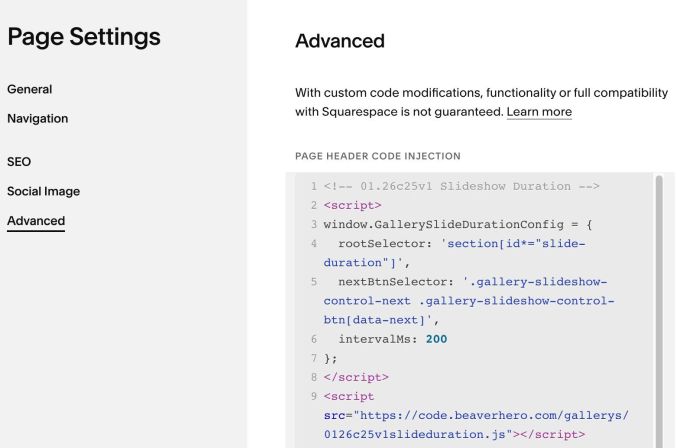
Or you can also use this shorter code
<!-- 01.26c25v1 Slideshow Duration -->
<script>
window.GallerySlideDurationConfig = {
  rootSelector: 'section[id*="slide-duration"]',
  nextBtnSelector: '.gallery-slideshow-control-next .gallery-slideshow-control-btn[data-next]',
  intervalMs: 200
};
</script>
<script src="https://code.beaverhero.com/gallerys/0126c25v1slideduration.js"></script>

#1.6. You can update Duration here (Line 06), 200 = 200 miliseconds
intervalMs: 200
#2. Customize
#2.1. If you aren’t able to edit page after adding code, you can access Safe Mode. For example, if your site url is:
https://tuanphan-demo.squarespace.com/
you can access Safe Mode via URL
https://tuanphan-demo.squarespace.com/config/safe
#3. Other
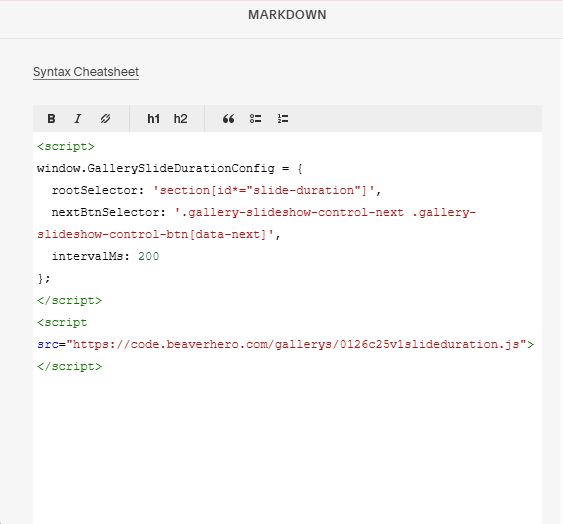
#3.1. If you use Personal/Basic Plan and it doesn’t support Injection, you can edit current page (page where you use Slideshow) > Add a Block > Choose Markdown.

Add this code into Markdown
<script>
window.GallerySlideDurationConfig = {
  rootSelector: 'section[id*="slide-duration"]',
  nextBtnSelector: '.gallery-slideshow-control-next .gallery-slideshow-control-btn[data-next]',
  intervalMs: 200
};
</script>
<script src="https://code.beaverhero.com/gallerys/0126c25v1slideduration.js"></script>