Description
- slideshow with counter number and grid icon, click grid will change to grid view
- view demo – password: abc
- buy me a coffee
(initial view)

(click grid icon)

#1. Install Code
If you use Personal/Basic plan and your plan doesn’t support injection, see step #2.2.
#1.1. First, add an Image Section (section with (i) icon)

#1.2. Hover on top right of Image Section > Click EDIT SECTION

Make sure you use Grid: Simple

#1.3. Make sure you added text: grid-toggle to Anchor Links

If you have 2 or more Image Sections, just use grid-toggle02, grid-toggle03…

#1.4. Hover on page where you added Image Section > Click Gear icon

Click Advanced > Paste this code.
<!-- 04.26c29v4 Slideshow to Grid Toggle -->
<script>
window.GridToggleConfig = {
  autoplay: true,
  autoplayDelay: 3000,
  effect: 'slide',
  showCounter: true,
  counterFontSize: '14px',
  counterColor: '#000',
  iconColor: '#000',
  iconSize: '18px',
  galleryWrapperSelector: '.gallery-grid-wrapper'
};
</script>
<script src="https://code.beaverhero.com/gallerysgrid/0426c29v4slideshowgridtoggle.js"></script>
#2. Customize
#2.1. You can adjust style here
autoplay: true,
 autoplayDelay: 3000,
 effect: 'slide',
 showCounter: true,
 counterFontSize: '14px',
 counterColor: '#000',
 iconColor: '#000',
 iconSize: '18px',
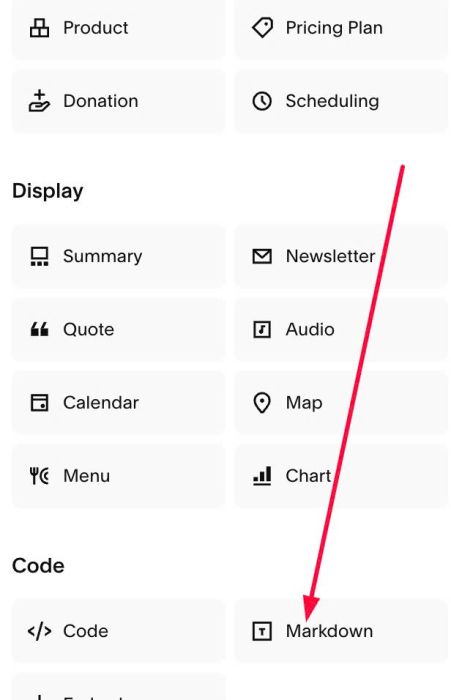
#2.2. If you use Personal/Basic Plan and your plan doesn’t support Injection, you can edit current page (page where you use Image Section) > then add a Block > Choose Markdown.
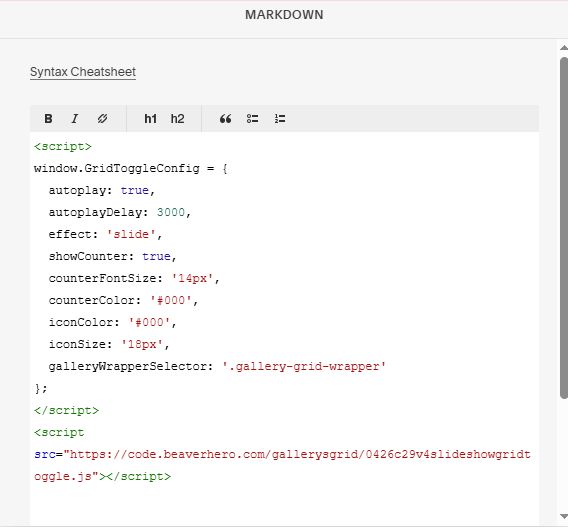
Then paste this code into Markdown.
<script>
window.GridToggleConfig = {
  autoplay: true,
  autoplayDelay: 3000,
  effect: 'slide',
  showCounter: true,
  counterFontSize: '14px',
  counterColor: '#000',
  iconColor: '#000',
  iconSize: '18px',
  galleryWrapperSelector: '.gallery-grid-wrapper'
};
</script>
<script src="https://code.beaverhero.com/gallerysgrid/0426c29v4slideshowgridtoggle.js"></script>