Description
- adding Instagram & Phone to Signup Box
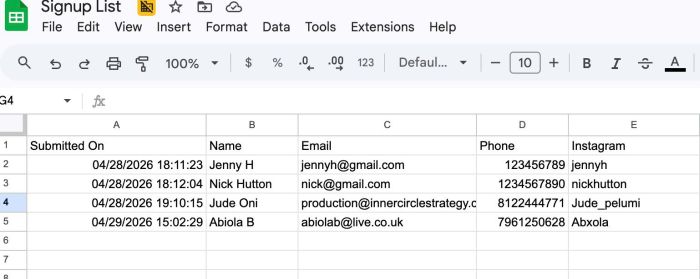
- note: information will be sent to Google Sheets + Your email
- buy me a coffee
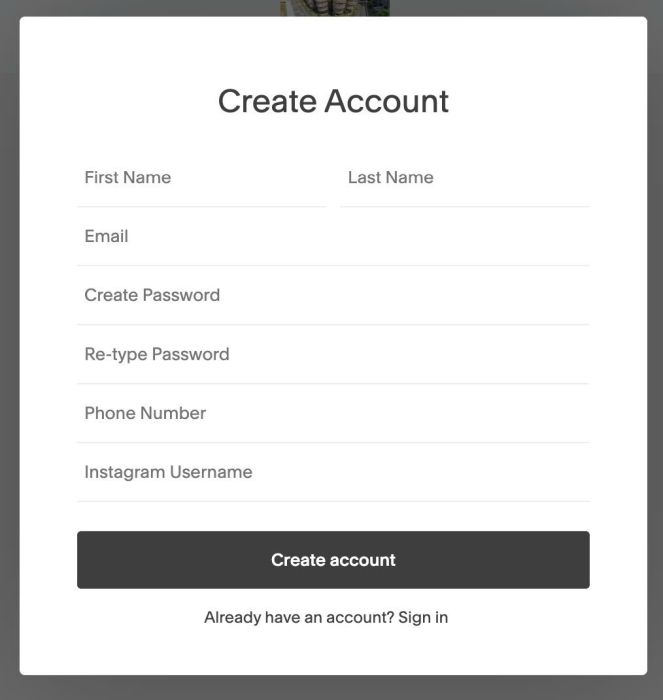
(signup form)
(Google Sheets)
(Email)

#1. Install Code
Before you read on, here’s the idea I came up with, to give you an idea of how I handled this problem.
- We will add custom code to add Instagram/Phone to Signup Box
- We will use a Form Block in Footer (this will sync with Phone & Instagram in Signup), then connect Form Block with Google Drive (Google Sheets)
- When users enter Name, Email, Phone, Instagram and click Create an Account = code will trigger click Form Block Submit button
- so all info will sync to Google Sheets + send to your email (you can change this email)
If you use Personal/Basic Plan and your plan doesn’t support Injection, you can see step #2.1
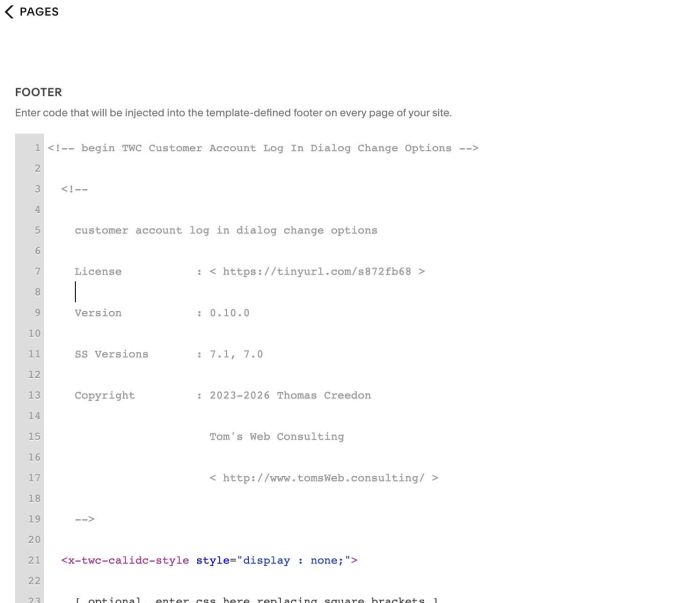
#1.1. First, use a library code from @creedon and add it to Code Injection > Footer (just copy code below and add to Footer Injection, do not change anything)
<!-- begin TWC Customer Account Log In Dialog Change Options -->

  <!--

    customer account log in dialog change options

    License           : < https://tinyurl.com/s872fb68 >

    Version           : 0.10.0

    SS Versions       : 7.1, 7.0

    Copyright         : 2023-2026 Thomas Creedon

                        Tom's Web Consulting

                        < http://www.tomsWeb.consulting/ >

    -->

  <x-twc-calidc-style style="display : none;">

    [ optional, enter css here replacing square brackets ]

    </x-twc-calidc-style>

  <script>

    // initialize twc module

    window.twc =

      ( ( self ) => self )

      ( window.twc || { } );

    // initialize twc calidc sub-module

    twc.calidc = ( ( self ) => {

      const options = {

        title : {

          signIn : '[ optional, enter sign in title text here between single quotes replacing square brackets ]',

          signUp : '[ optional, enter sign up title text here between single quotes replacing square brackets ]',

          pricingPlanNames : {

            /*

              the format of each line is a pricing plan name and a title. you
              can use the following tag in your title to have the pricing plan
              name replace it to save some typing

                [ ppn ]

              following is an example line. copy and paste it after the example
              line. remove the double forward slash space from each new line

              you can repeat the example line for as many plan names you want to
              change. if you want the same title for all pricing plans, leave
              the plan name blank

              */

            // '[ enter pricing plan name here between single quotes replacing square brackets ]' : '[ enter name text here between single quotes replacing square brackets ]',

            },

          passwordReset : '[ optional, enter password reset title text here between single quotes replacing square brackets ]'

          },

        // bypass this effect, value is false or true

        bypass : false,

        // value is false or true

        debug : false

        };

      Object

        .assign (

          self,

          options

          );

      return self;

      } ) ( twc.calidc || { } );

    </script>

  <!-- end TWC Customer Account Log In Dialog Change Options -->
<!-- begin TWC Customer Account Log In Dialog Change -->

  <!-- License < https://github.com/tomsWebConsulting/twcsl/blob/main/LICENSE.txt#L1 > -->

  <script src="https://cdn.jsdelivr.net/gh/tomsWebConsulting/twcsl@2be32c9b41c4d1acc0062f9638fe0518e53f3bd2/Element/Customer%20Account/Log%20In%20Dialog/Customer%20Account%20Log%20In%20Dialog%20Change/customer%20account%20log%20in%20dialog%20change.min.js" type="module"></script>

  <!-- end TWC Customer Account Log In Dialog Change -->
#1.2. Add this code under #1.1. code
<!-- @tuanphan - Add Phone - Instagram to Signup Form -->
<script>
  (function () {
  function setNativeValue(el, value) {
    const setter = Object.getOwnPropertyDescriptor(HTMLInputElement.prototype, 'value').set;
    setter.call(el, value);
    el.dispatchEvent(new Event('input', { bubbles: true }));
  }

  function prefillForm(data) {
    const d = document;
    const nameEl = d.querySelector('input[placeholder="Signup_Name"]');
    const emailEl = d.querySelector('input[placeholder="Signup_Email"]');
    const phoneEl = d.querySelector('input[placeholder="Signup_Phone"]');
    const igEl = d.querySelector('input[placeholder="Signup_Instagram"]');

    if (nameEl && data.name) setNativeValue(nameEl, data.name);
    if (emailEl && data.email) setNativeValue(emailEl, data.email);
    if (phoneEl && data.phone) setNativeValue(phoneEl, data.phone);
    if (igEl && data.instagram) setNativeValue(igEl, data.instagram);
  }

  function submitFormBlock() {
    const btn = document.querySelector('.form-submit-button');
    if (btn) btn.click();
  }

  function injectFields(iframeDoc) {
    if (iframeDoc.getElementById('twc-custom-phone')) return;

    const submitBtn = iframeDoc.querySelector('[data-test="create-account-create-button"]');
    if (!submitBtn) return;

    const phoneHTML = `<div class=""><div class="uvftnH7nBf0VfYII"><input id="twc-custom-phone" aria-label="Phone" type="tel" placeholder="Phone Number" value=""></div></div>`;
    const igHTML = `<div class=""><div class="uvftnH7nBf0VfYII"><input id="twc-custom-instagram" aria-label="Instagram" type="text" placeholder="Instagram Username" value=""></div></div>`;

    submitBtn.insertAdjacentHTML('beforebegin', phoneHTML);
    submitBtn.insertAdjacentHTML('beforebegin', igHTML);

    ['twc-custom-phone', 'twc-custom-instagram'].forEach(id => {
      const input = iframeDoc.getElementById(id);
      const wrapper = input.parentElement;
      input.addEventListener('focus', () => wrapper.classList.add('X9V3Qy6V0TvyNK1s'));
      input.addEventListener('blur', () => wrapper.classList.remove('X9V3Qy6V0TvyNK1s'));
    });

    submitBtn.addEventListener('click', () => {
      const firstName = iframeDoc.getElementById('create-account-first-name')?.value || '';
      const lastName = iframeDoc.getElementById('create-account-last-name')?.value || '';
      const email = iframeDoc.getElementById('create-account-email')?.value || '';
      const phone = iframeDoc.getElementById('twc-custom-phone')?.value || '';
      const instagram = iframeDoc.getElementById('twc-custom-instagram')?.value || '';

      prefillForm({
        name: [firstName, lastName].filter(Boolean).join(' '),
        email,
        phone,
        instagram
      });

      submitFormBlock();
    });
  }

  function setupIframe(iframe) {
    iframe.addEventListener('load', function () {
      const iframeDoc = iframe.contentDocument;
      if (!iframeDoc) return;

      const src = iframe.getAttribute('src') || '';
      if (!src.startsWith('/account/frame')) return;

      const root = iframeDoc.getElementById('user-account-login-root');
      if (!root) return;

      const observer = new MutationObserver(() => injectFields(iframeDoc));
      observer.observe(root, { childList: true, subtree: true });

      injectFields(iframeDoc);
    });
  }

  function init() {
    const existing = document.getElementById('accountFrame');
    if (existing) setupIframe(existing);

    new MutationObserver(mutations => {
      for (const mutation of mutations) {
        for (const node of mutation.addedNodes) {
          if (node.id === 'accountFrame') setupIframe(node);
        }
      }
    }).observe(document.body, { childList: true });
  }

  document.addEventListener('DOMContentLoaded', init);
  document.addEventListener('mercury:load', init);
})();
</script>

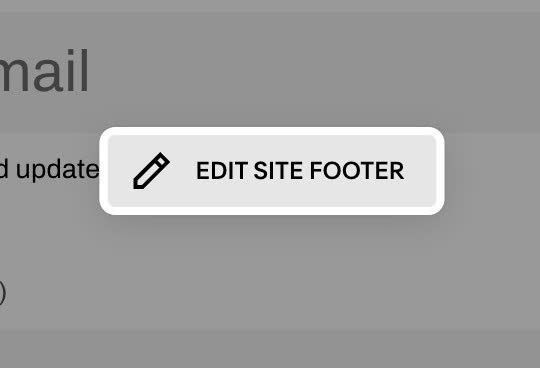
#1.3. Edit Site Footer
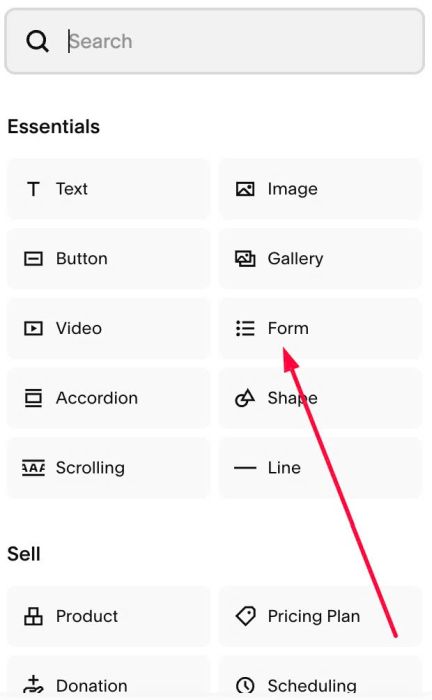
Add a Form Block
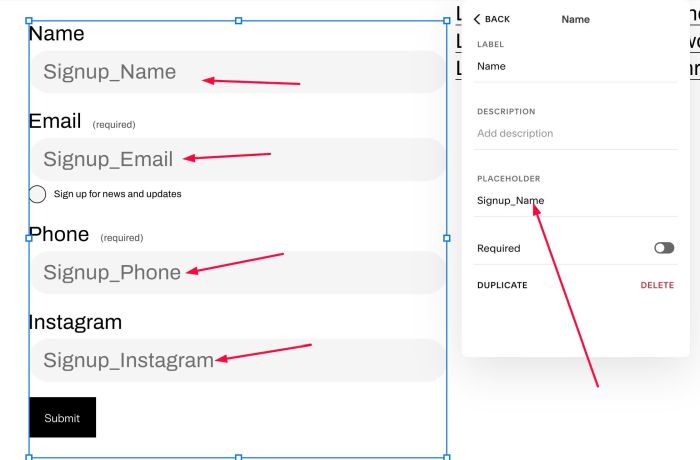
Add 4 Fields to Form Block
- Name (Text field)
- Email (Email field)
- Phone (Text field)
- Instagram (Text field)

set corresponding placeholder
- Name – Placeholder: Signup_Name
- Email – Placeholder: Signup_Email
- Phone – Placeholder: Signup_Phone
- Instagram – Placeholder: Signup_Instagram
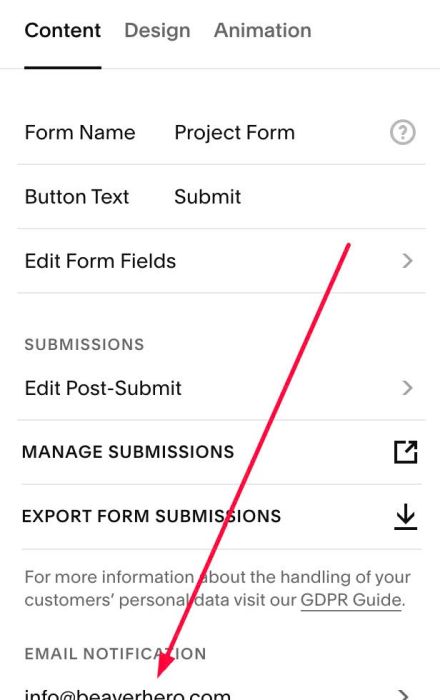
#1.4. Make sure added your desired Email
#1.5. Click Additional Storage
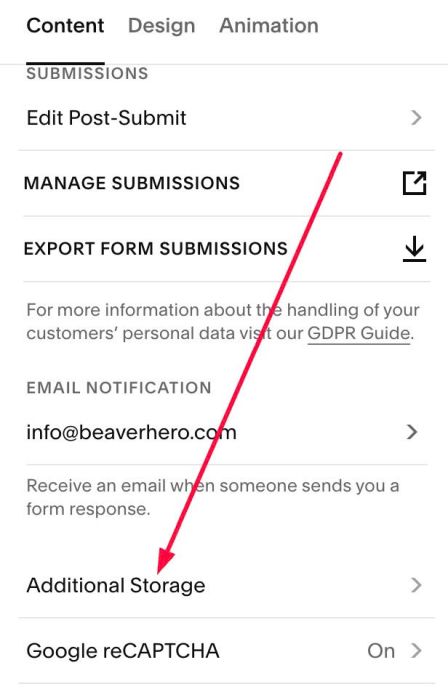
at Google Drive > Click Connect > Then follow steps from Squarespace (you will see them when click Connect)
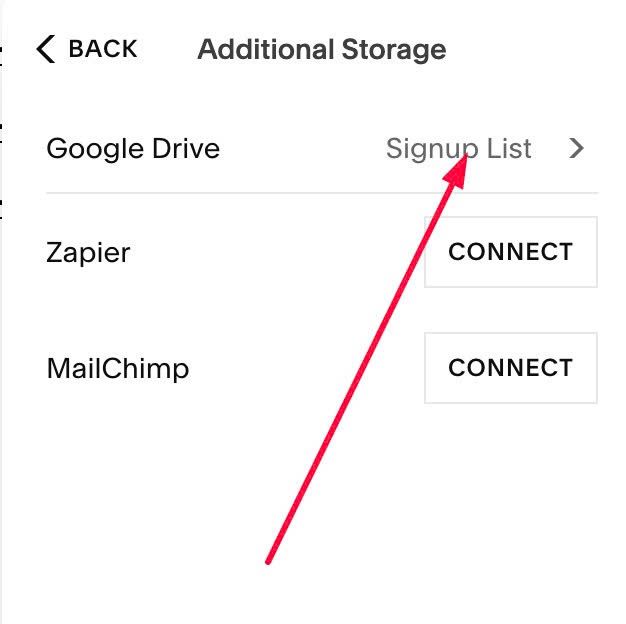
After you enter Spreadsheet Name in last step, a Google Sheet file will appear in Google Drive, something like this.

#2. Customize
#2.1. If you use Personal/Basic Plan, you can message me, I will install for you (difficult to write instructions for these plans)
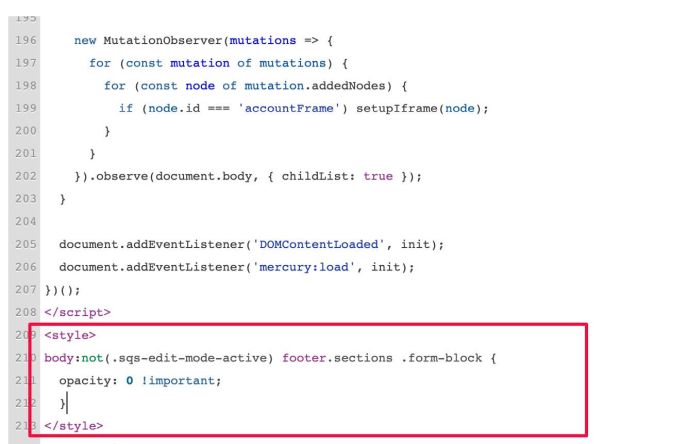
#2.2. To hide Form Block in Footer, use this code under #1.2 code
<style>
body:not(.sqs-edit-mode-active) footer.sections .form-block {
  opacity: 0 !important;
  }
</style>