Description
- hover image show extra text follow cursor
- view demo – password: abc
- buy me a coffee

#1. Install Code
If you use Personal/Basic Plan and your plan doesn’t support Injection, you can see step #2.2
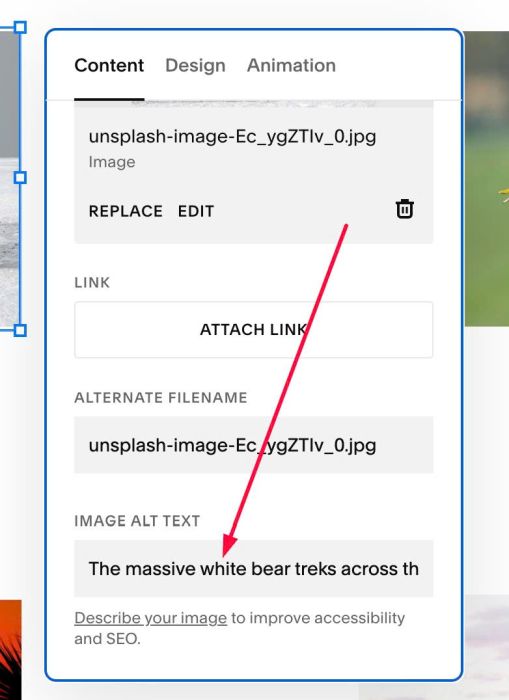
#1.1. First make sure you added Text to ALT
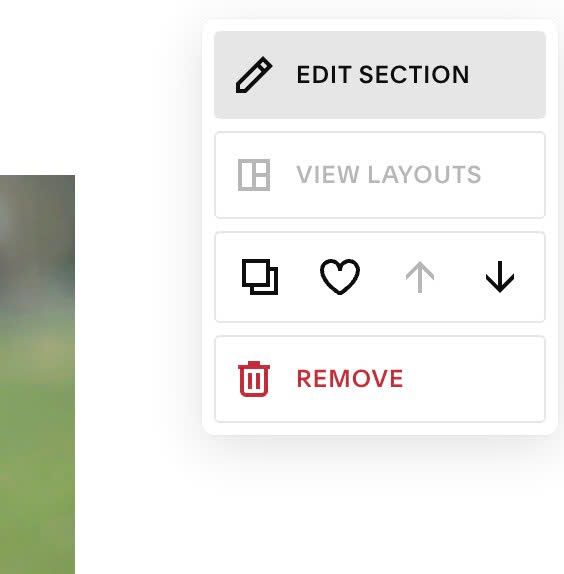
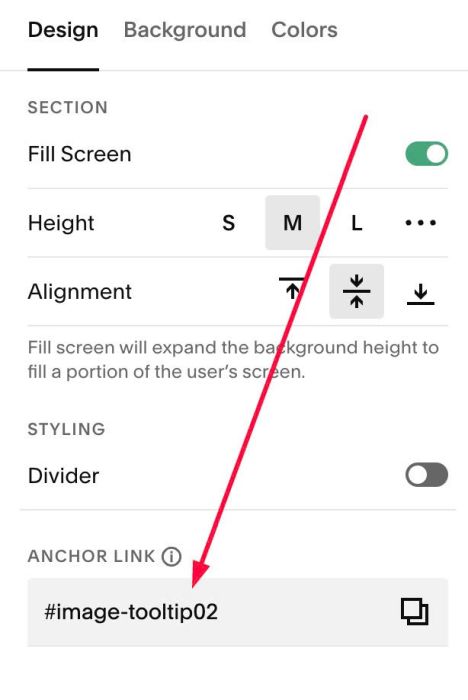
#1.2. Hover on top right of section (section where you have images) > Click EDIT SECTION
at Anchor Link, enter word: image-tooltip
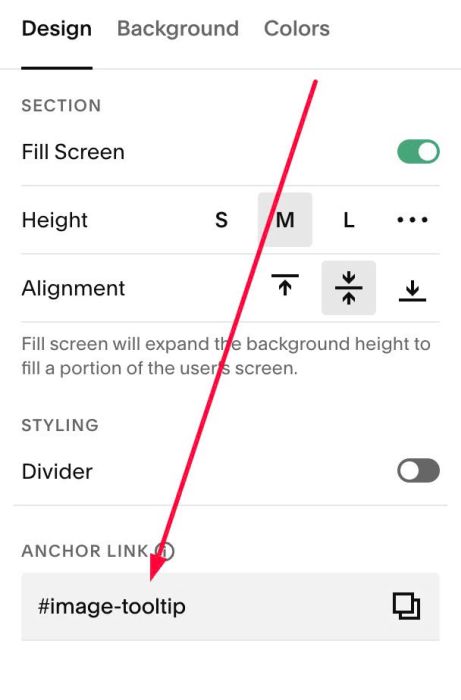
If you have multiple sections, you can use anchor link image-tooltip02, image-tooltip03…
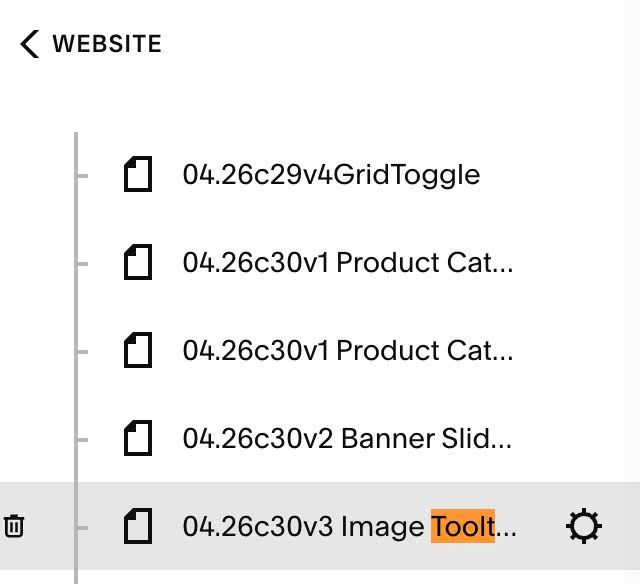
#1.3. Hover on Page where you have Images > Click Gear icon
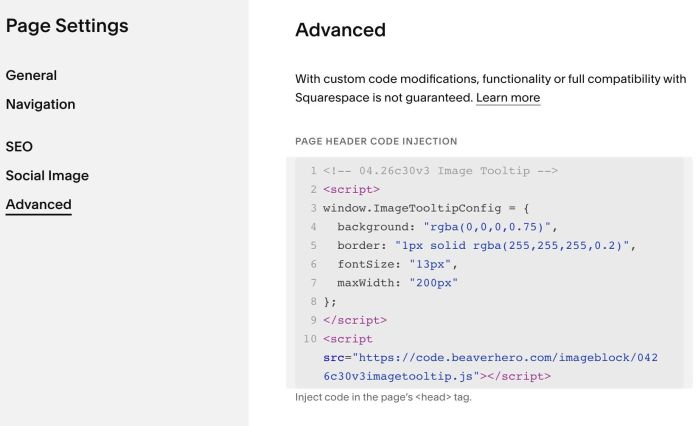
Click Advanced > Paste this code
<!-- 04.26c30v3 Image Tooltip -->
<script>
window.ImageTooltipConfig = {
  background: "rgba(0,0,0,0.75)",
  border: "1px solid rgba(255,255,255,0.2)",
  fontSize: "13px",
  maxWidth: "200px"
};
</script>
<script src="https://code.beaverhero.com/imageblock/0426c30v3imagetooltip.js"></script>
#2. Customize
#2.1. To change style of text box, you can adjust these.
window.ImageTooltipConfig = {
  background: "rgba(0,0,0,0.75)",
  border: "1px solid rgba(255,255,255,0.2)",
  fontSize: "13px",
  maxWidth: "200px"
};
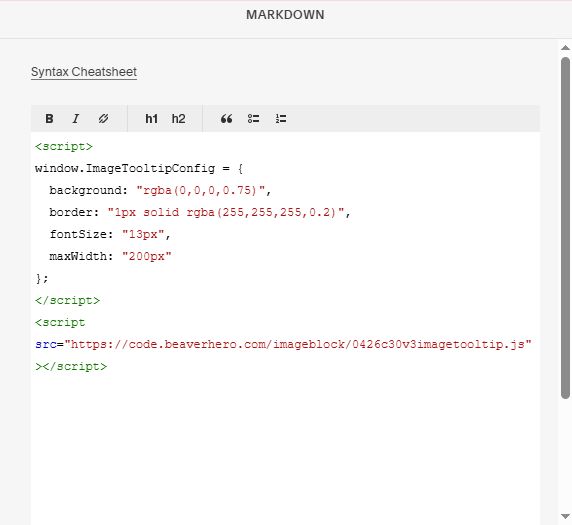
#2.2. If you use Personal/Basic Plan and your plan doesn’t support Injection, you can add a Markdown Block to current page
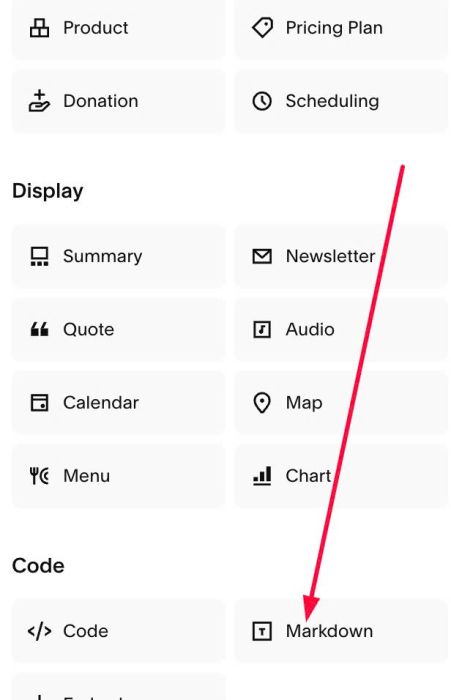
Then use this code into Markdown Block.
<script>
window.ImageTooltipConfig = {
  background: "rgba(0,0,0,0.75)",
  border: "1px solid rgba(255,255,255,0.2)",
  fontSize: "13px",
  maxWidth: "200px"
};
</script>
<script src="https://code.beaverhero.com/imageblock/0426c30v3imagetooltip.js"></script>