Description
- align bottom of images in Masonry Gallery
- view demo – password: abc
- buy me a coffee
(Masonry with 4 columns)

(3 columns)

(2 columns)

#1. Install Code
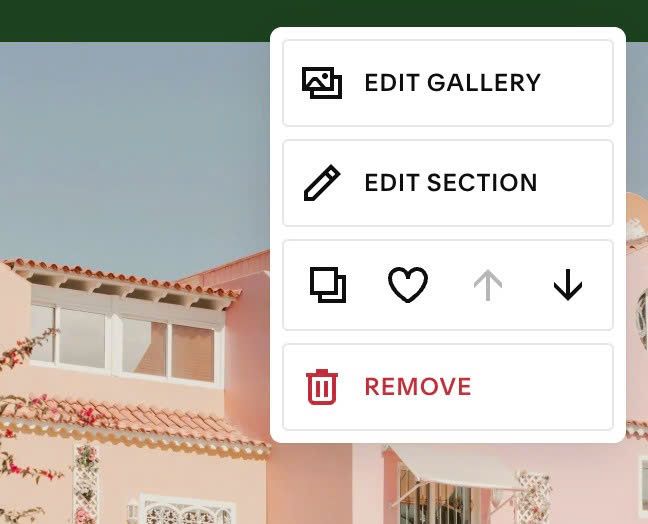
#1.1. Hover on top right of Gallery Masonry > click EDIT SECTION
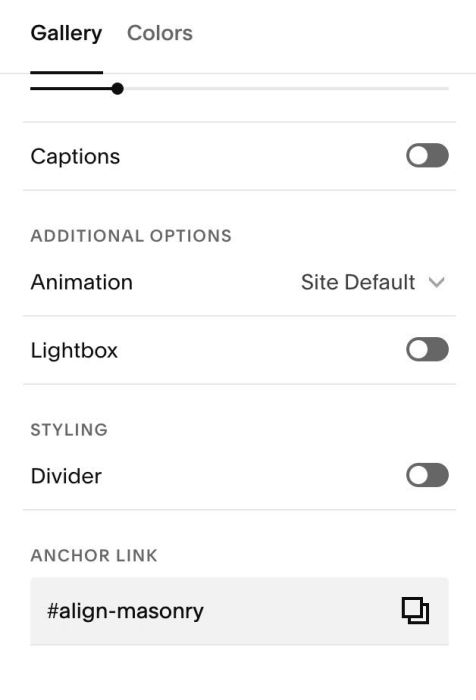
#1.2. at Gallery > Anchor Link > enter word: align-masonry
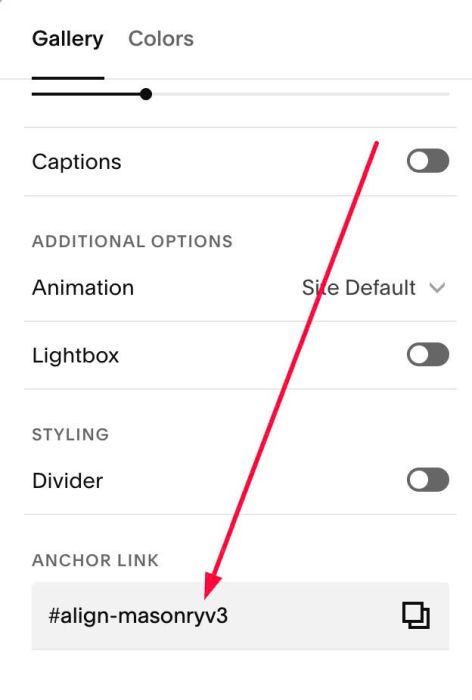
If you have multiple Gallery Masonry on same pages, you can use: align-masonryv2, align-masonryv3….
#1.3. Hover on page where you added Masonry > Click Gear icon
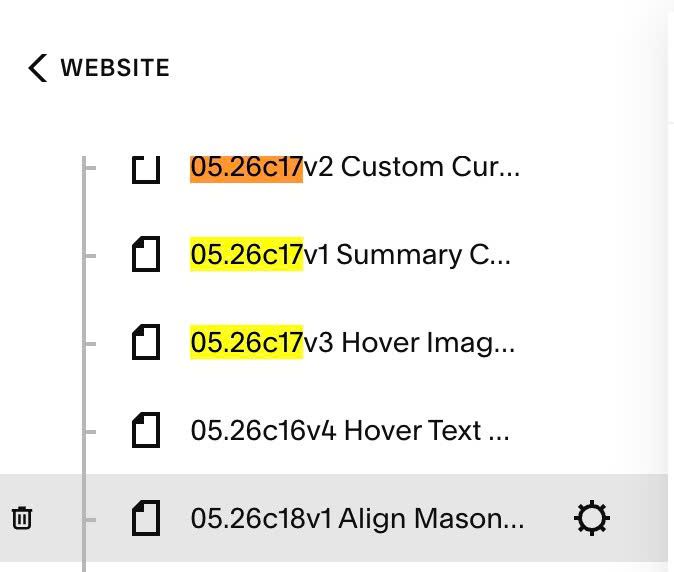
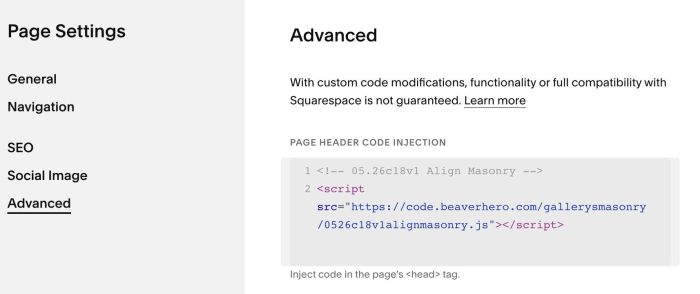
Click Advanced > Paste this code
- If you use Personal/Basic Plan and your plan doesn’t support Injection, see #3.1.
<!-- 05.26c18v1 Align Masonry -->
<script src="https://code.beaverhero.com/gallerysmasonry/0526c18v1alignmasonry.js"></script>
#2. Customize
#2.1. If you see Masonry touch right of screen, like this
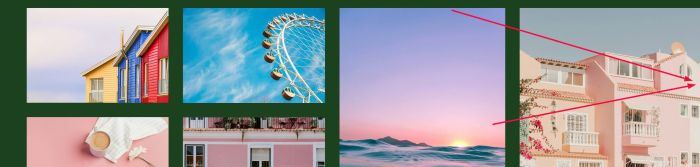
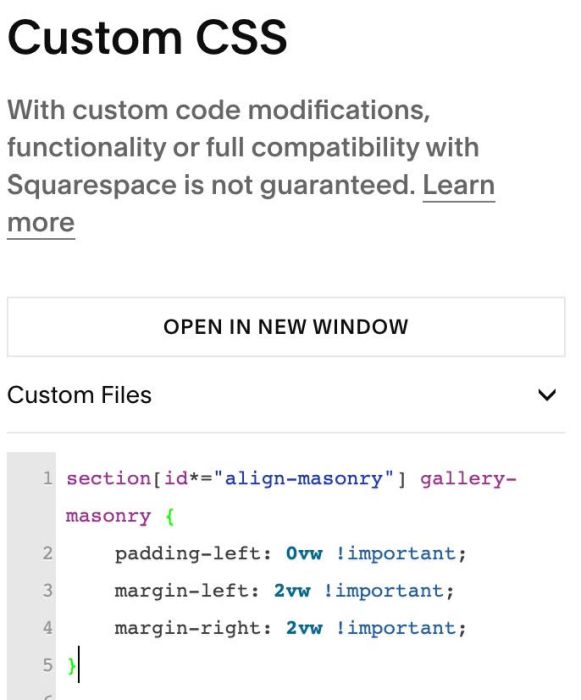
You can use this code to Custom CSS box > Then save & reload the page
section[id*="align-masonry"] .gallery-masonry {
    padding-left: 0vw !important;
    margin-left: 2vw !important;
    margin-right: 2vw !important;
}
#3. Other
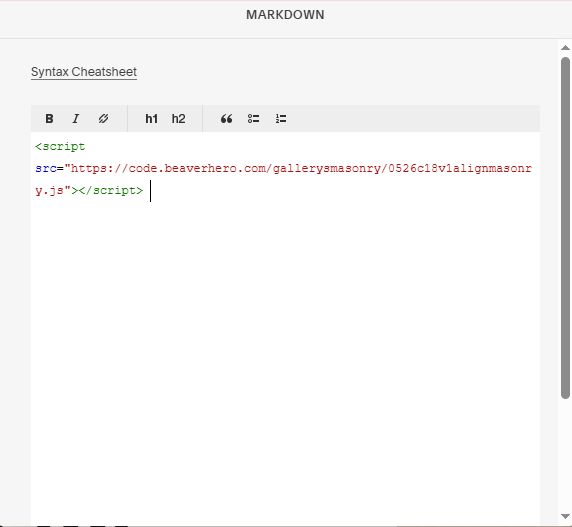
#3.1. If you use Personal/Basic Plan and your plan doesn’t support Injection, you can edit current page (page where you use Masonry) > Add a Block

Choose Markdown

Then add this code into Markdown Block
<script src="https://code.beaverhero.com/gallerysmasonry/0526c18v1alignmasonry.js"></script>