Description
- light to dark carousel
- view demo – password: abc
- buy me a coffee
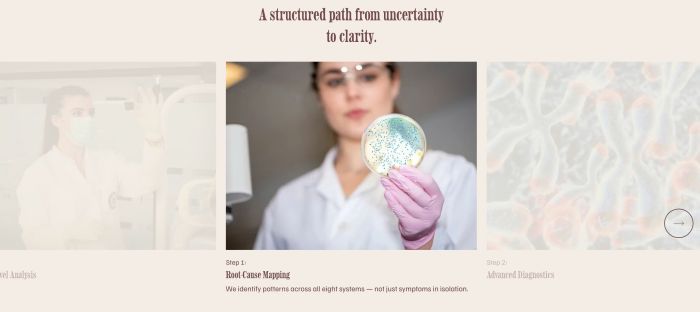
#1. Install Code
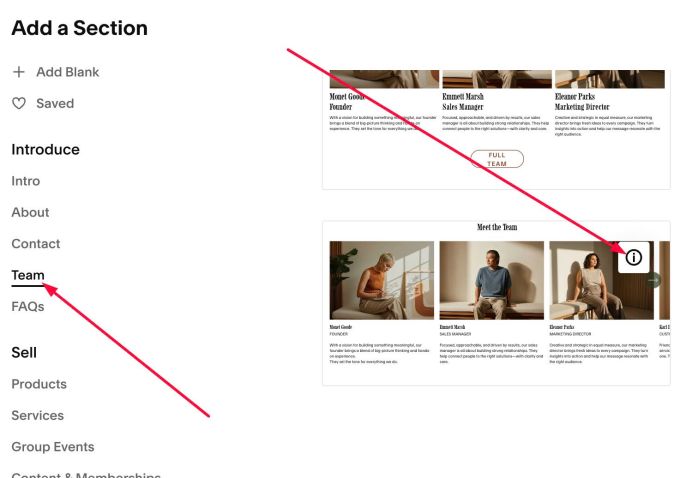
#1.1. First, add a Section > Choose Team > Choose section with (i) icon
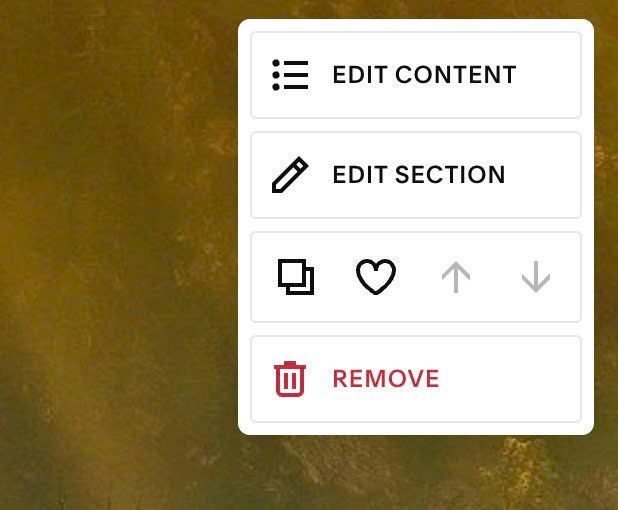
#1.2. Hover on top right of section > Click EDIT CONTENT
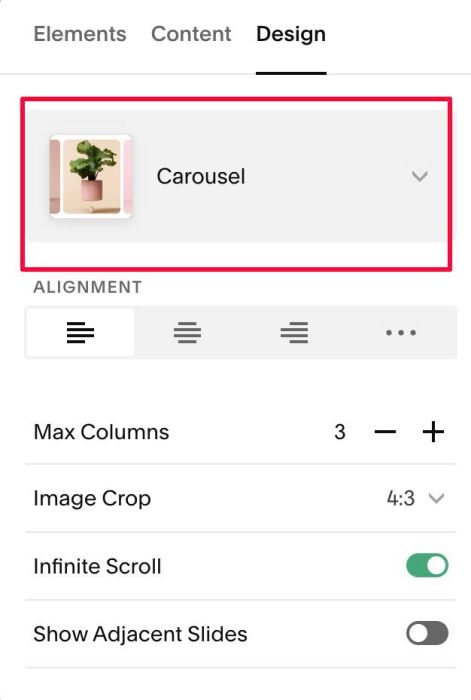
#1.3. At Design, choose Carousel
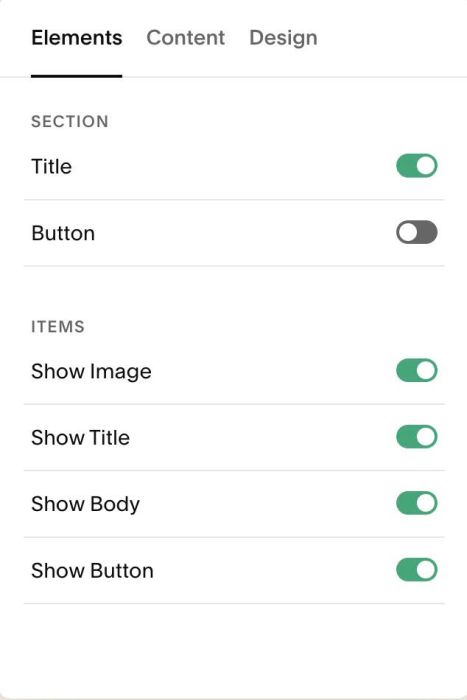
#1.4. at Elements > Enable these options
You can enable/disable Section Title/Button if you want.
You can disable Item button if you don’t want them clickable
#1.5. at Content > Add your desired image/text
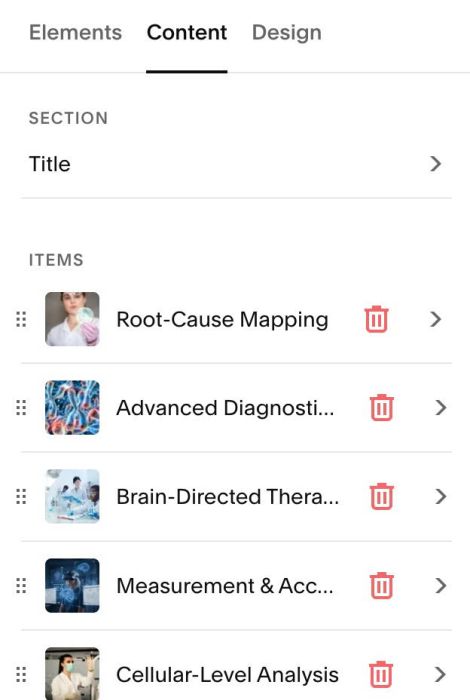
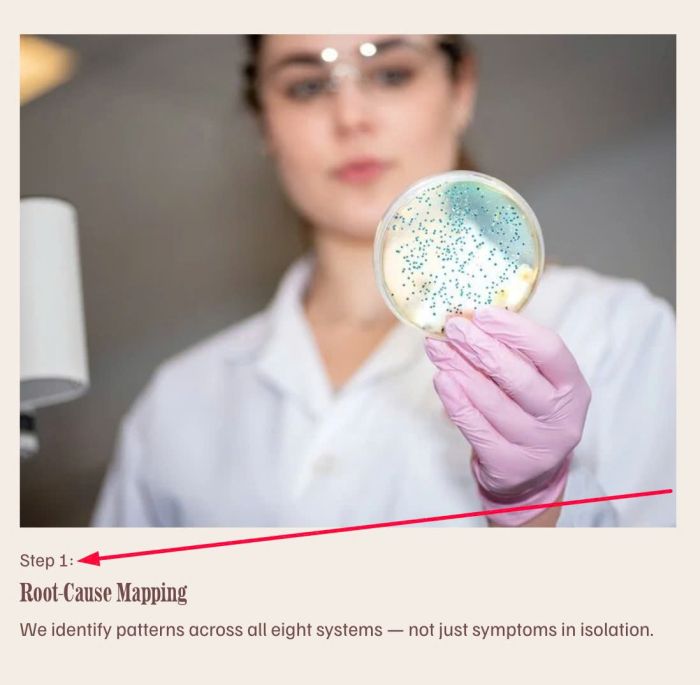
Something like this.

With text “Step” we will use code to add it.
#1.6. Hover on top right of section > Click EDIT SECTION
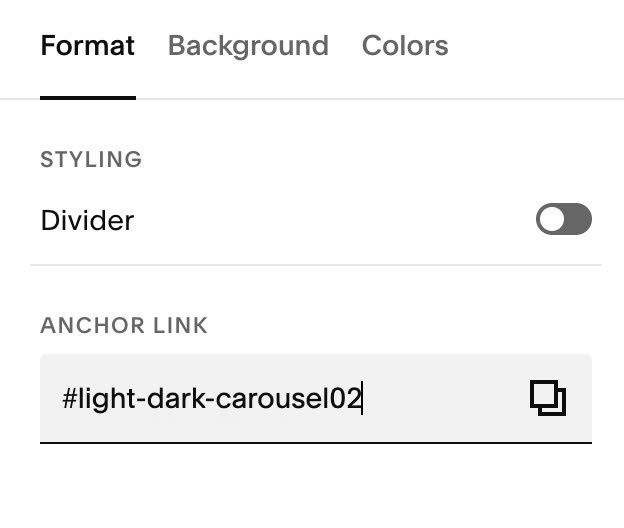
at Format > Anchor Link, enter word: light-dark-carousel
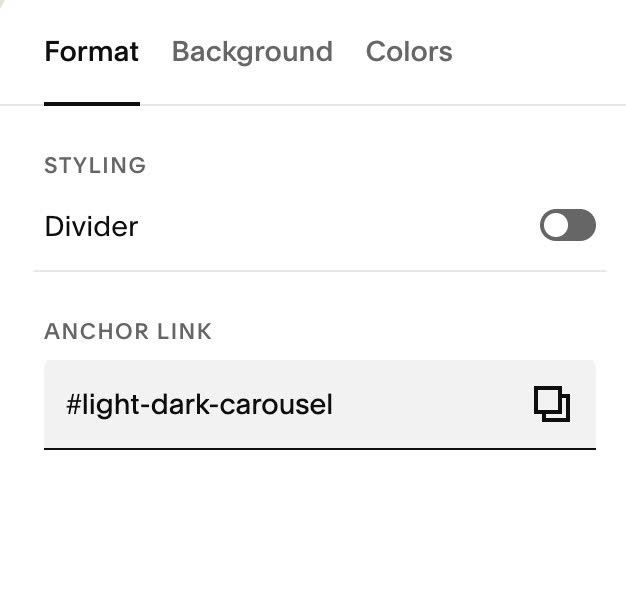
if you want to use this effect on multiple sections on same page, you can add anchor text like this: light-dark-carousel02, light-dark-carousel03…
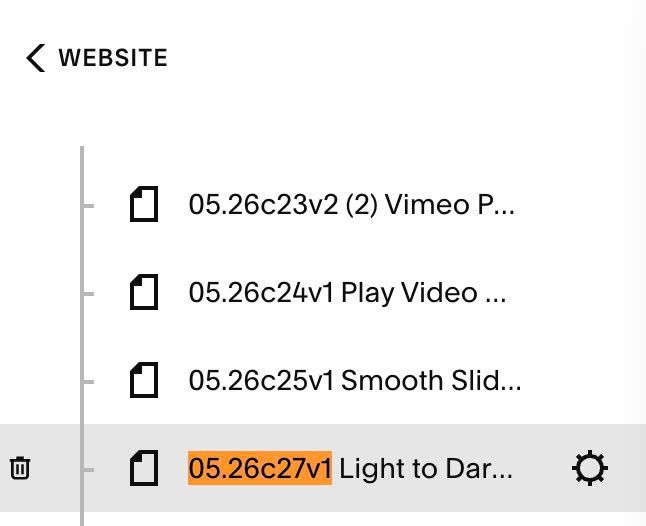
#1.7. Hover on Page where you added Team Carousel > Click Gear icon
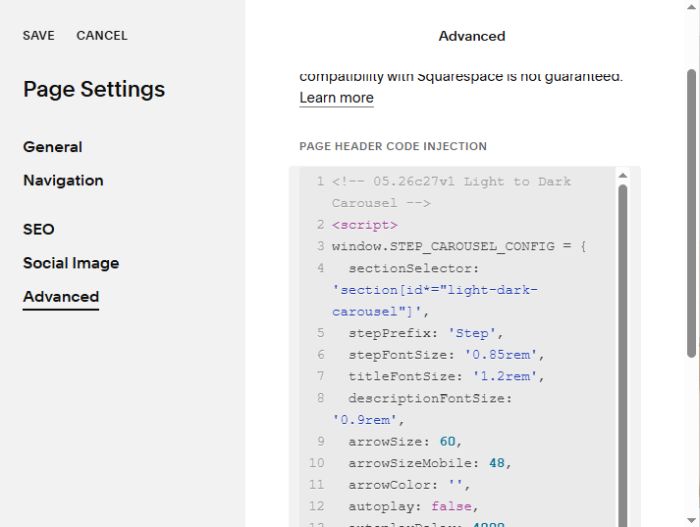
Click Advanced > Paste this code
- If you use Personal/Basic Plan and your plan doesn’t support Injection, see #3.1.
<!-- 05.26c27v1 Light to Dark Carousel -->
<script>
window.STEP_CAROUSEL_CONFIG = {
  sectionSelector: 'section[id*="light-dark-carousel"]',
  stepPrefix: 'Step',
  stepFontSize: '0.85rem',
  titleFontSize: '1.2rem',
  descriptionFontSize: '0.9rem',
  arrowSize: 60,
  arrowSizeMobile: 48,
  arrowColor: '',
  autoplay: false,
  autoplayDelay: 4000,
  titleLink: false,
  imageLink: false,
  wholeLink: false,
  hideOriginalButton: false,
};
</script>
<script src="https://code.beaverhero.com/list/0526c27v1lightdarkcarousel.js"></script>
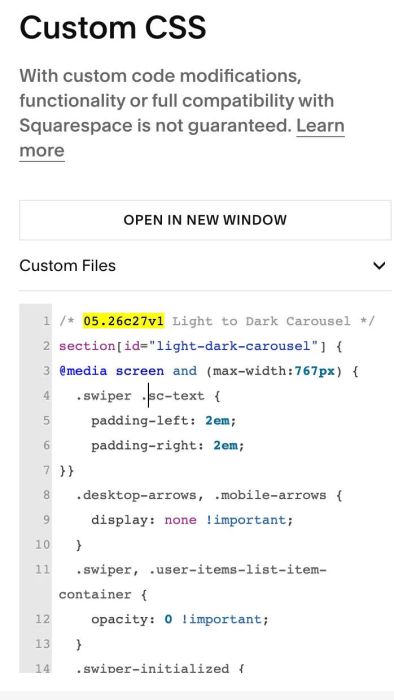
#1.8. Use this code to Custom CSS (if you see problem with arrows, image flash on page load)
/* 05.26c27v1 Light to Dark Carousel */
section[id="light-dark-carousel"] {
@media screen and (max-width:767px) {
  .swiper .sc-text {
    padding-left: 2em;
    padding-right: 2em;
}}
  .desktop-arrows, .mobile-arrows {
  	display: none !important;
  }
  .swiper, .user-items-list-item-container {
    opacity: 0 !important;
  }
  .swiper-initialized {
    opacity: 1 !important;
  }
}
#2. Customize
#2.1. Style
- Title will inherit Heading Style
- Description, Step text will inherit Paragraph Style
- Text Color will inherit Paragraph (Medium) Color
but to change Title, Description, Step text size, you need to change these lines: 06, 07, 08
stepFontSize: '0.85rem',
titleFontSize: '1.2rem',
descriptionFontSize: '0.9rem',
#2.2. To change text “Step” to another text, change Line 05
stepPrefix: 'Step',
#2.3. To change Arrow size, change these lines: 09, 10
arrowSize: 60,
  arrowSizeMobile: 48,
#2.4. To change arrow color, change this line: 11
arrowColor: '',
to something like this
arrowColor: '#f1f',
#2.5. To enable Link on Title or Image, first you need to enable Item Button
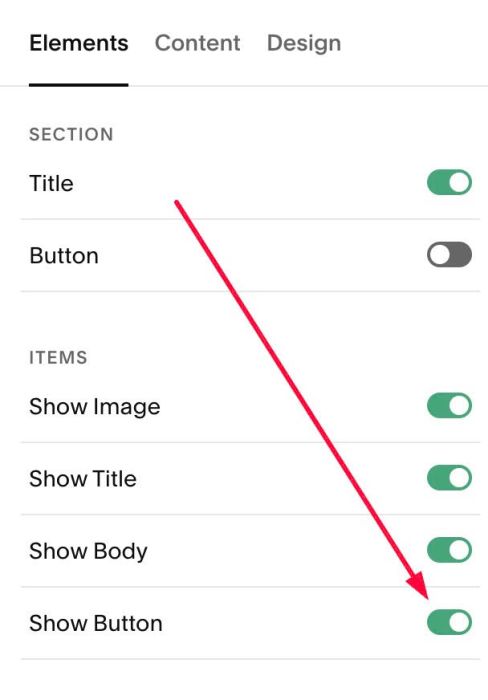
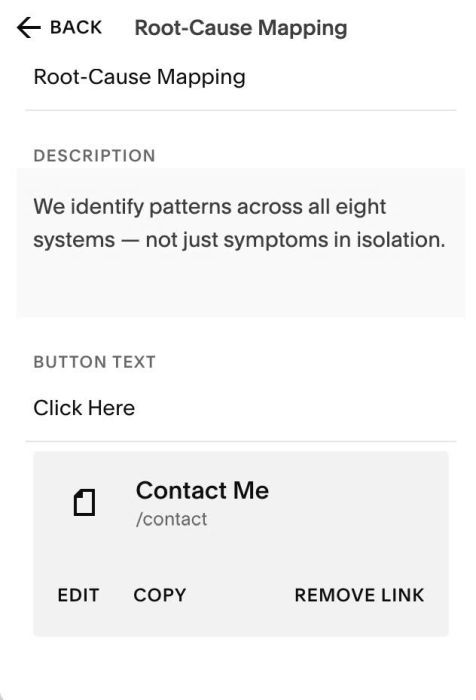
next, add URL to Item button
Next, you can adjust these options: Line 14, Line 15, Line 16
- false = disable
- true = enable
- titleLink = enable clickable on Titles
- imageLink = enable click on Images
- wholeLink = enable click on whole item (Titles, Images, Step text, description)
titleLink: false,
imageLink: false,
wholeLink: false,
#2.6. To change Image Ratio, you can change this option
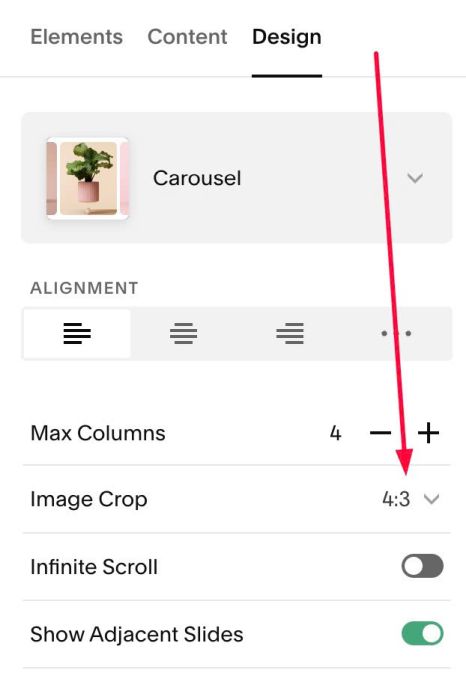
#3. Other
#3.1. If you use Personal/Basic Plan and your plan doesn’t support Injection, you can edit current page > Add a Block.

Choose Markdown

Paste this code into Markdown
<script>
window.STEP_CAROUSEL_CONFIG = {
  sectionSelector: 'section[id*="light-dark-carousel"]',
  stepPrefix: 'Step',
  stepFontSize: '0.85rem',
  titleFontSize: '1.2rem',
  descriptionFontSize: '0.9rem',
  arrowSize: 60,
  arrowSizeMobile: 48,
  arrowColor: '',
  autoplay: false,
  autoplayDelay: 4000,
  titleLink: false,
  imageLink: false,
  wholeLink: false,
  hideOriginalButton: false,
};
</script>
<script src="https://code.beaverhero.com/list/0526c27v1lightdarkcarousel.js"></script>
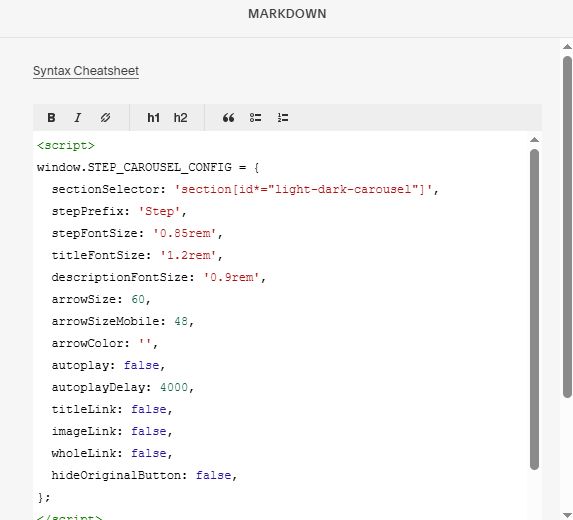
#3.2. To tweak code with AI, you can use prompt like this
With Claude AI
I use Carousel plugin with code like this (paste code in step #1.7 here). I want to [describe your request here]. Please give me CSS or JavaScript to do this.
With Robo-Will Chatbot, it can scan page structure to handle your request, so you can write prompt like this
I want to change color of step text under image (ex: Step 1, Step 2...) in Carousel