Description
- adding Images in Accordion Block
- view demo – password: abc
- buy me a coffee
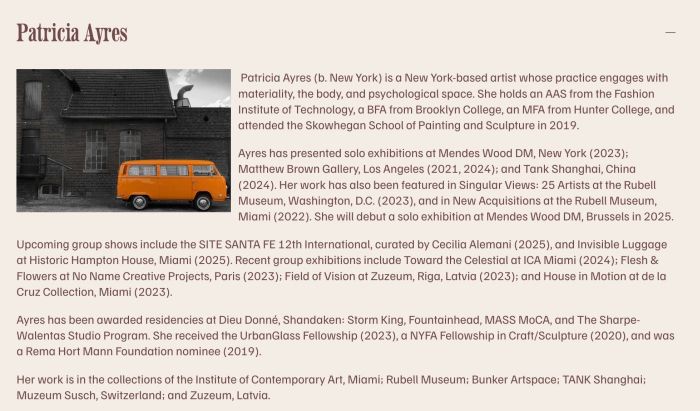
#1. Install Code
#1.1. First add a text with name IMAGE to position where you want to place Image

#1.2. Highlight text “IMAGE” > Click Link icon

#1.3. Choose File > Upload your desired image file

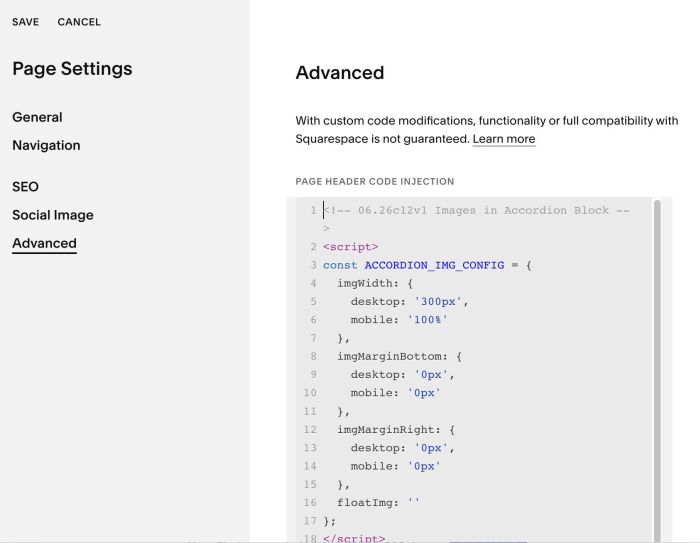
#1.4. Hover on Page where you use Accordion Block > Click Gear icon

Click Advanced > Paste this code
- if you use Personal/Basic Plan and your plan doesn’t support Injection, see #3.1
<!-- 06.26c12v1 Images in Accordion Block -->
<script>
const ACCORDION_IMG_CONFIG = {
  imgWidth: {
    desktop: '300px',
    mobile: '100%'
  },
  imgMarginBottom: {
    desktop: '0px',
    mobile: '0px'
  },
  imgMarginRight: {
    desktop: '0px',
    mobile: '0px'
  },
  floatImg: ''
};
</script>
<script src="https://code.beaverhero.com/accordion/0626c12v1imagesaccordionblock.js"></script>
#2. Customize
#2.1. To change Image size, change Line 05 (Desktop), Line 06 (Mobile)
imgWidth: {
  desktop: '300px',
  mobile: '100%'
},
#2.2. To set space on right or under image, change Line 09, 10, 13, 14
imgMarginBottom: {
  desktop: '0px',
  mobile: '0px'
},
imgMarginRight: {
  desktop: '0px',
  mobile: '0px'
},
#2.3. To make image float on left of text, like this
Change Line 16
floatImg: ''
to
floatImg: 'left'
#3. Other
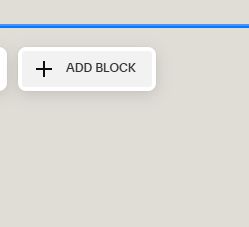
#3.1. If you use Personal/Basic Plan and your plan doesn’t support Injection, you can add a Block under Accordion Block
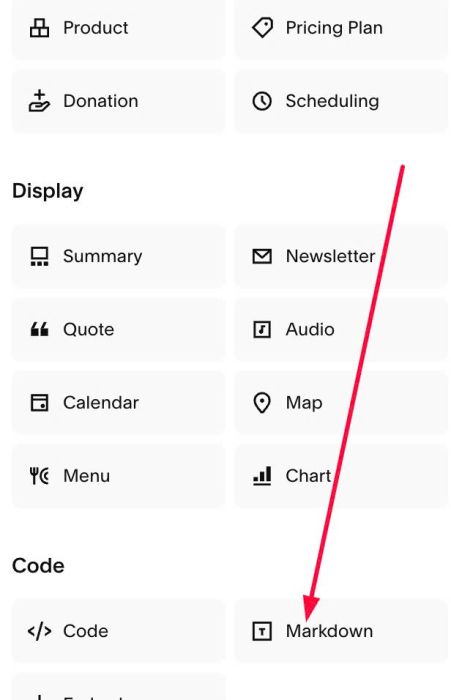
Choose Markdown
Add this code into Markdown
<script>
const ACCORDION_IMG_CONFIG = {
  imgWidth: {
    desktop: '300px',
    mobile: '100%'
  },
  imgMarginBottom: {
    desktop: '0px',
    mobile: '0px'
  },
  imgMarginRight: {
    desktop: '0px',
    mobile: '0px'
  },
  floatImg: ''
};
</script>
<script src="https://code.beaverhero.com/accordion/0626c12v1imagesaccordionblock.js"></script>
