Description
- hover link – change section background image, similar Portfolio Hover: Background layout
- view demo – password: abc
- buy me a coffee

#1. Install Code
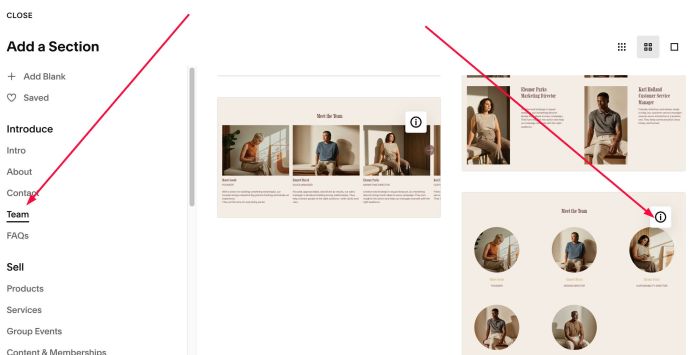
#1.1. First add Section > Choose Team > Choose Section with (i) icon
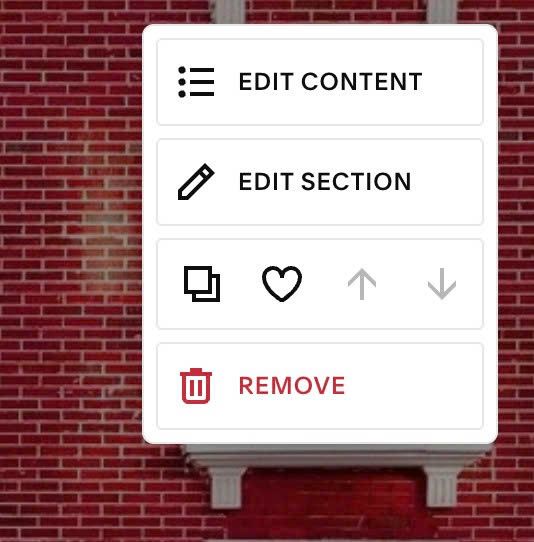
#1.2. Hover on top right of section > Click EDIT CONTENT
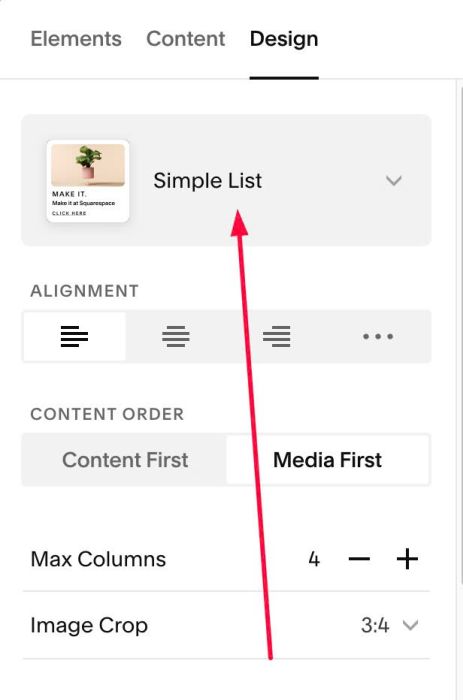
#1.3. at Design > Choose Simple List
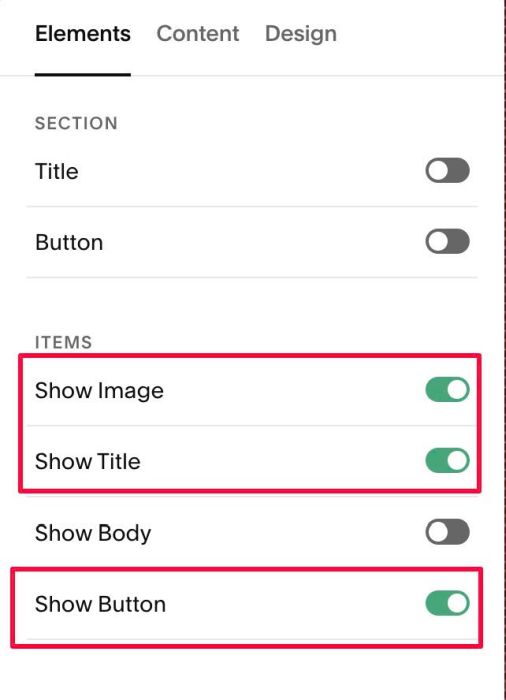
#1.4. at Elements > Enable Image, Title, Button
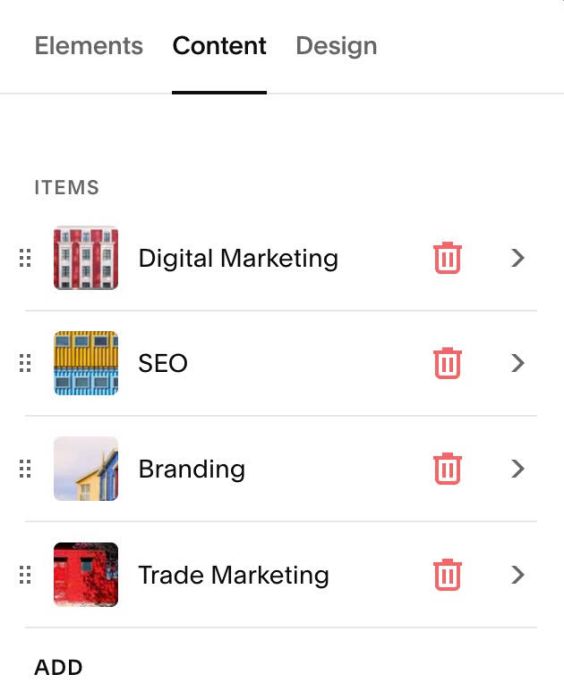
#1.5. at Content > Add your desired title, image, button url
#1.6. Hover on top right of section > Click EDIT SECTION
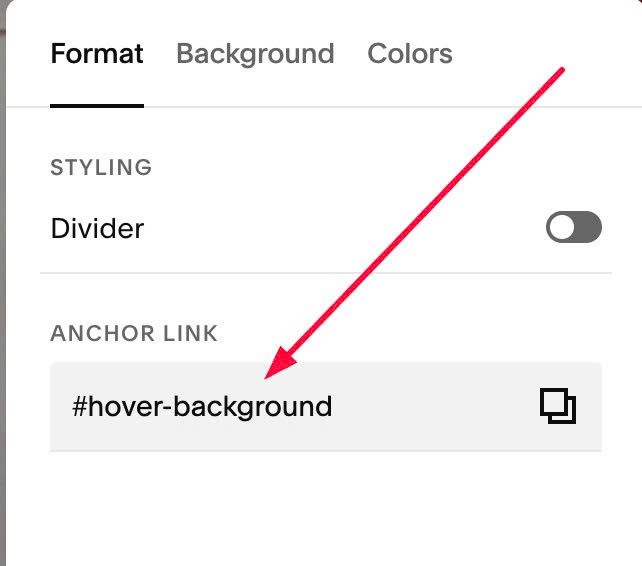
#1.7. at Format > Anchor Link, enter word: hover-background
#1.8. Hover on Page where you use Team section > Click Gear icon
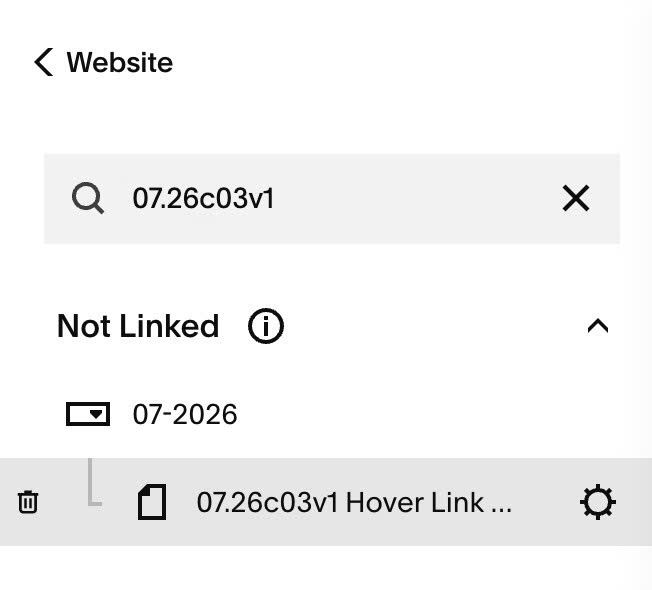
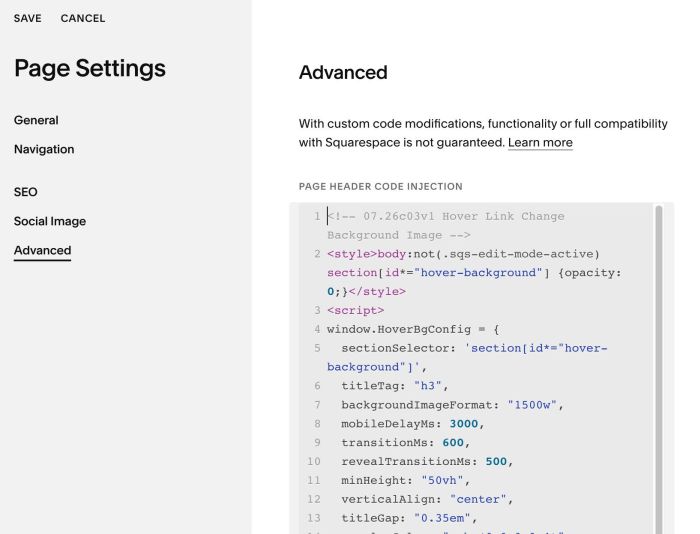
#1.9. Click Advanced > Paste this code
- If you use Personal/Basic Plan and your plan doesn’t support Injection, see #3.1
<!-- 07.26c03v1 Hover Link Change Background Image -->
<style>body:not(.sqs-edit-mode-active) section[id*="hover-background"] {opacity: 0;}</style>
<script>
window.HoverBgConfig = {
  sectionSelector: 'section[id*="hover-background"]',
  titleTag: "h3",
  backgroundImageFormat: "1500w",
  mobileDelayMs: 3000,
  transitionMs: 600,
  revealTransitionMs: 500,
  minHeight: "50vh",
  verticalAlign: "center",
  titleGap: "0.35em",
  overlayColor: "rgba(0,0,0,0.4)",
  sectionTitleColor: "#ffffff",
  titleColor: "#ffffff",
  titleColorActive: "#ffffff",
  inactiveOpacity: 0.55,
  activateFirstOnLoad: true
};
</script>
<script src="https://code.beaverhero.com/list/0726c03v1hoverlinkchangebgimg.js"></script>
#2. Customize
#2.1. To change Links from H3 to another tag, change Line 06
titleTag: "h3",
#2.2. To change section image height, change Line 11
minHeight: "50vh",
#2.3. To change overlay color over image, change Line 14
overlayColor: "rgba(0,0,0,0.4)",
#2.4. To change Links Color/Active Link color, change Line 16, Line 17
titleColor: "#ffffff",
 titleColorActive: "#ffffff",
#2.5. To change link style to button, you can use this code to Custom CSS
h3.list-item-content__title.hbg-title {
    background-color: #000;
    padding: 5px 20px;
    border-radius: 50px;
}
#3. Other
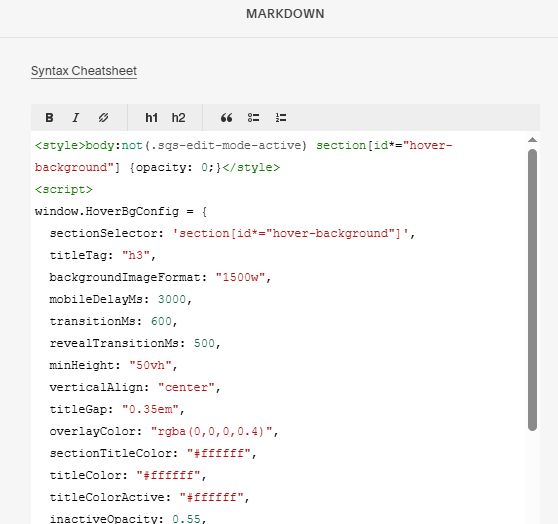
#3.1. If you use Personal/Basic Plan and your plan doesn’t support Injection, you can edit current page (page where you use Team section) > Add a Block

Choose Markdown

Add this code into Markdown
<style>body:not(.sqs-edit-mode-active) section[id*="hover-background"] {opacity: 0;}</style>
<script>
window.HoverBgConfig = {
  sectionSelector: 'section[id*="hover-background"]',
  titleTag: "h3",
  backgroundImageFormat: "1500w",
  mobileDelayMs: 3000,
  transitionMs: 600,
  revealTransitionMs: 500,
  minHeight: "50vh",
  verticalAlign: "center",
  titleGap: "0.35em",
  overlayColor: "rgba(0,0,0,0.4)",
  sectionTitleColor: "#ffffff",
  titleColor: "#ffffff",
  titleColorActive: "#ffffff",
  inactiveOpacity: 0.55,
  activateFirstOnLoad: true
};
</script>
<script src="https://code.beaverhero.com/list/0726c03v1hoverlinkchangebgimg.js"></script>