Description
- cursor follow spotlight glow effect
- view demo – password: abc
- buy me a coffee
#1. Install Code
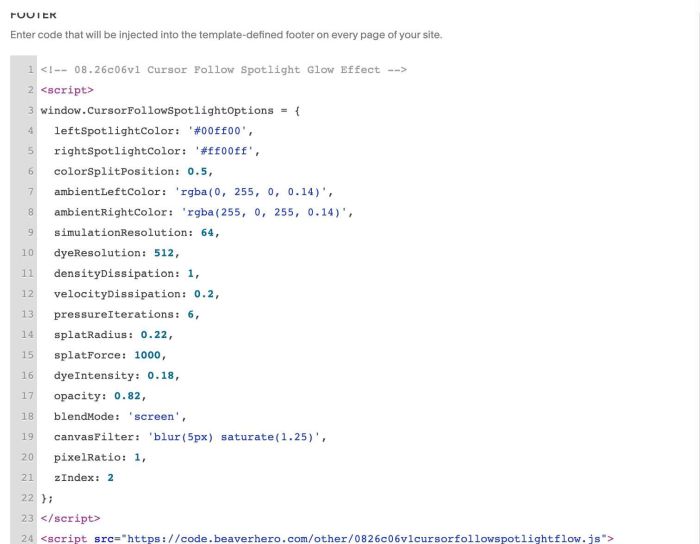
#1.1. You can use this code to Code Injection > Footer
- If you use Personal/Basic Plan and your plan doesn’t support Injection, you can see #3.1
<!-- 08.26c06v1 Cursor Follow Spotlight Glow Effect -->
<script>
window.CursorFollowSpotlightOptions = {
  leftSpotlightColor: '#00ff00',
  rightSpotlightColor: '#ff00ff',
  colorSplitPosition: 0.5,
  ambientLeftColor: 'rgba(0, 255, 0, 0.14)',
  ambientRightColor: 'rgba(255, 0, 255, 0.14)',
  simulationResolution: 64,
  dyeResolution: 512,
  densityDissipation: 1,
  velocityDissipation: 0.2,
  pressureIterations: 6,
  splatRadius: 0.22,
  splatForce: 1000,
  dyeIntensity: 0.18,
  opacity: 0.82,
  blendMode: 'screen',
  canvasFilter: 'blur(5px) saturate(1.25)',
  pixelRatio: 1,
  zIndex: 2
};
</script>
<script src="https://code.beaverhero.com/other/0826c06v1cursorfollowspotlightflow.js"></script>
#1.2. If you need to tweak more you can use this AI Assistant (designed for Squarespace sites)
#2. Customize
nothing now
#3. Other
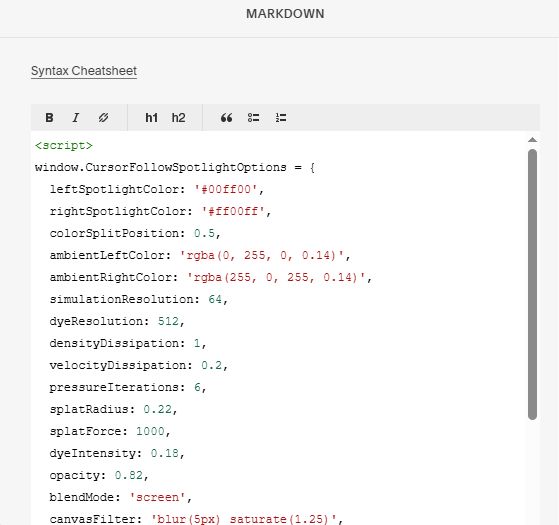
#3.1. If you use Personal/Basic Plan and your plan doesn’t support Injection, you can edit Site Footer > Add a Markdown Block

Add this code into Markdown
<script>
window.CursorFollowSpotlightOptions = {
  leftSpotlightColor: '#00ff00',
  rightSpotlightColor: '#ff00ff',
  colorSplitPosition: 0.5,
  ambientLeftColor: 'rgba(0, 255, 0, 0.14)',
  ambientRightColor: 'rgba(255, 0, 255, 0.14)',
  simulationResolution: 64,
  dyeResolution: 512,
  densityDissipation: 1,
  velocityDissipation: 0.2,
  pressureIterations: 6,
  splatRadius: 0.22,
  splatForce: 1000,
  dyeIntensity: 0.18,
  opacity: 0.82,
  blendMode: 'screen',
  canvasFilter: 'blur(5px) saturate(1.25)',
  pixelRatio: 1,
  zIndex: 2
};
</script>
<script src="https://code.beaverhero.com/other/0826c06v1cursorfollowspotlightflow.js"></script>