Description
- adding image effect to portfolio hover background image
- view demo – password: abc
- buy me a coffee

#1. Install Code
#1.1. First, adding a section under Portfolio > adding Section Background Image

#1.2. Adding Image Effect for this Section Image
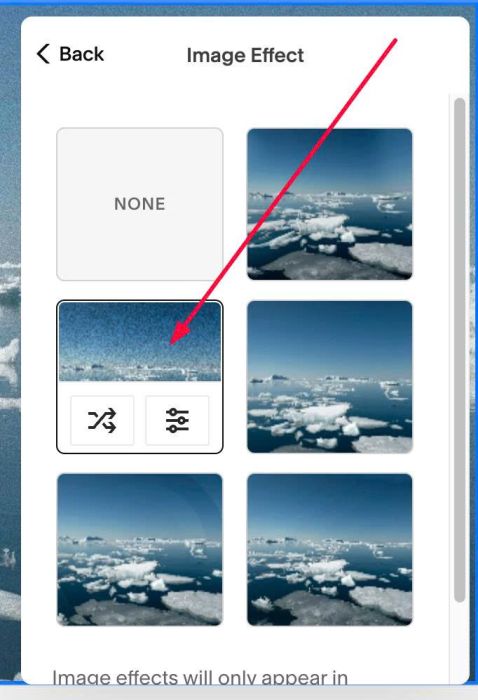
#1.3. Make sure you use Hover: Background design

#1.4. Click Gear icon on Portfolio Page

#1.5. Click Advanced > Paste this code
<!-- 09.26c04v3 Project Background Image Effect -->
<script>
window.ProjectBackgroundImageEffectOptions = {
  hideSourceSection: true
};
</script>
<script src="https://code.beaverhero.com/portfolio/0926c04v3projecthoverbgimgeffect.js"></script>
