Description
- sort Portfolio items by Alphabetical, Date, Custom Order
- view demo – password: abc
- buy me a coffee

#1. Install Code
#1.1. Click Gear icon on Portfolio Page
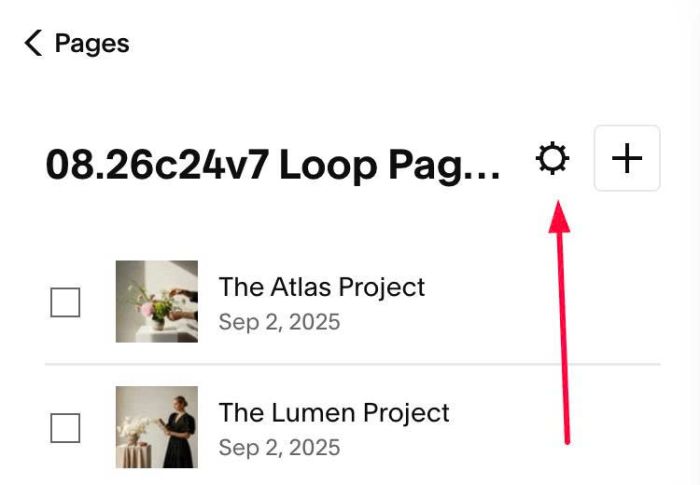
#1.2. Click Advanced > Paste this code
<!-- 09.26c09v3 Sort Portfolio -->
<script>
window.SortPortfolioConfig = {
  gridSelector: '.portfolio-grid-overlay',
  itemSelector: '.grid-item',
  buttonText: 'Sort',
  align: 'right',
  spaceAboveSort: '10px',
  gridSpaceTop: '10px',
  gridSpaceBottom: '10px',
  labels: {
    alpha: 'Alphabetical',
    date: 'Published Date',
    custom: 'Custom Order'
  },
  style: {
    color: '#000000',
    fontSize: '15px',
    background: '#ffffff',
    border: '1px solid #dddddd',
    height: '44px',
    padding: '0 16px',
    width: '180px',
    arrowSize: '7px',
    arrowColor: '#000000'
  }
};
</script>
<script src="https://code.beaverhero.com/portfolio/0926c09v3sortportfolio.js"></script>

#2. Customize
#2.1. To change Sort Dropdown Label/Option label, change these lines
line 06
buttonText: 'Sort',
line 11 – 15
labels: {
  alpha: 'Alphabetical',
  date: 'Published Date',
  custom: 'Custom Order'
},
#2.2. To change dropdown style, change line 16 – 26
style: {
  color: '#000000',
  fontSize: '15px',
  background: '#ffffff',
  border: '1px solid #dddddd',
  height: '44px',
  padding: '0 16px',
  width: '180px',
  arrowSize: '7px',
  arrowColor: '#000000'
}
#2.3. To change space between Sort – Portfolio Items, change line 08
gridSpaceTop: '10px',
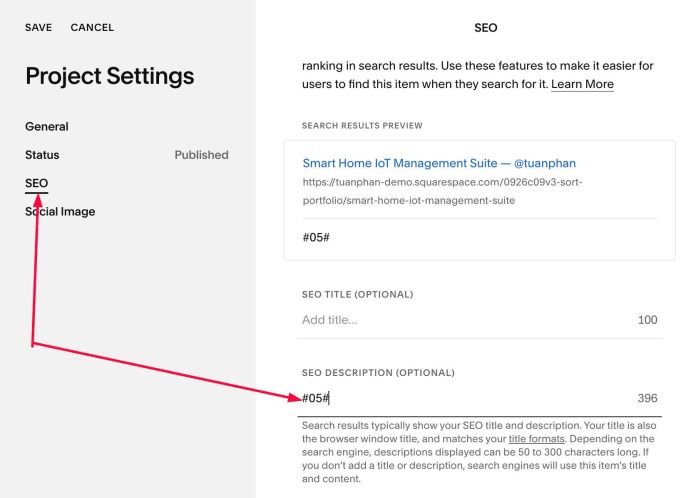
#2.4. Note: Custom Order – It will use Number from Portfolio Item SEO Description
Like this

or this