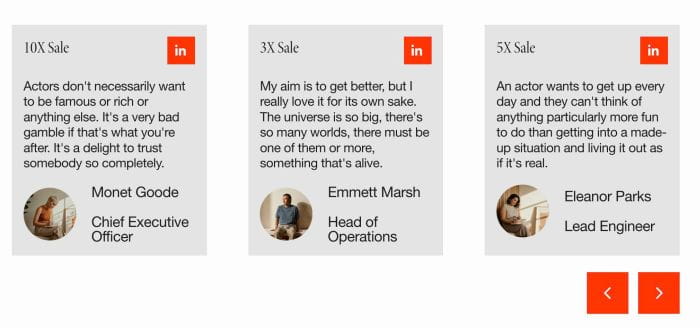
Description
- testimonial slider with avatar image, next, position next to avatar, title, description and linkedin icon, use list section carousel
- view demo – password: abc
- buy me a coffee
1. Install Code
#1.1. First add Section > Choose Team > Choose Section with auto layout icon

#1.2. Hover on top right of section > Click EDIT SECTION

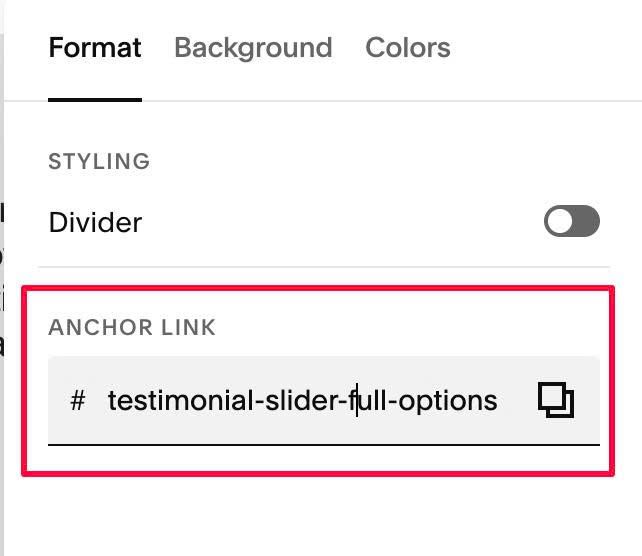
#1.2-2. at Format > Anchor Link > enter word: testimonial-slider-full-options
#1.3. Hover on top right of section > Click EDIT CONTENT
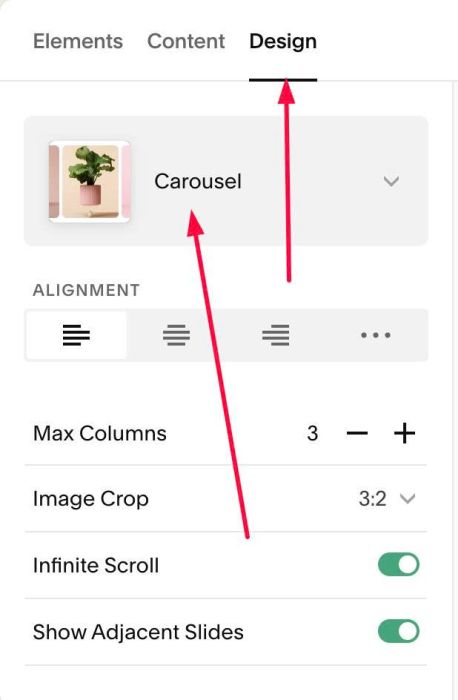
#1.3-2. at Design > Choose Carousel
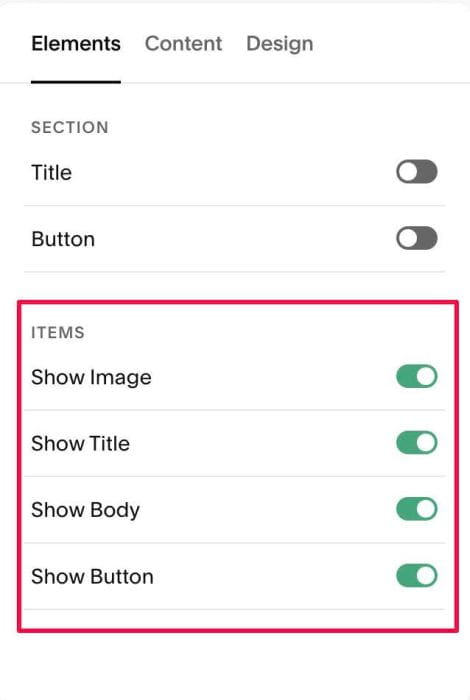
#1.4. at Elements > You need to enable Item Image, Item Title, Item Body, Item Button
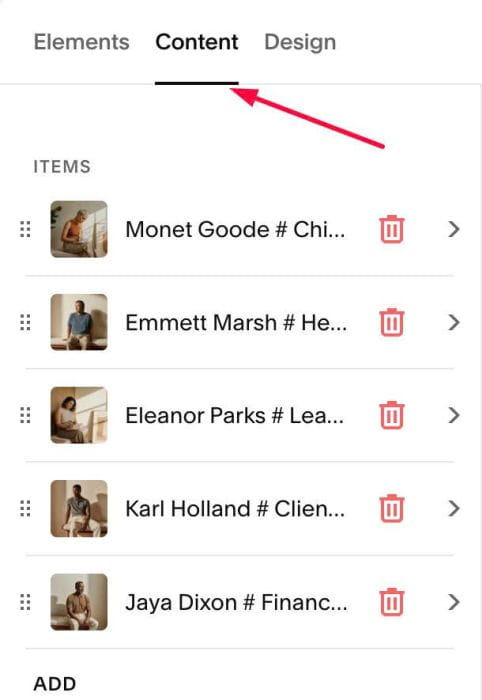
#1.4-2. Click Content to add your desired image, text, linkedin url
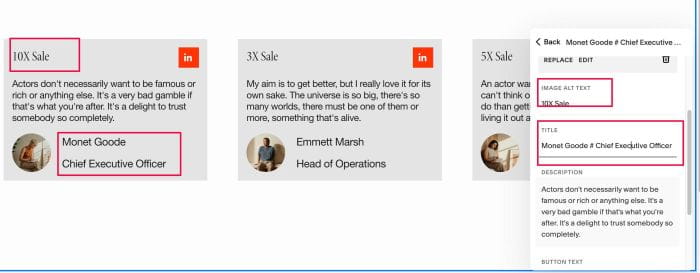
#1.4-3. Note:
- text 10X Sale = Enter text in Image ALT
- Name/Position = Enter text in Title, but add symbol # between both
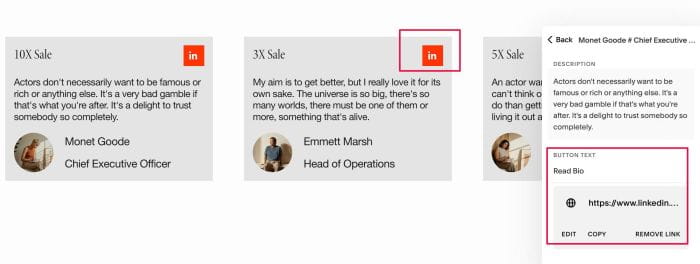
#1.4-4. Note
- Enter LinkedIn URL in Button URL
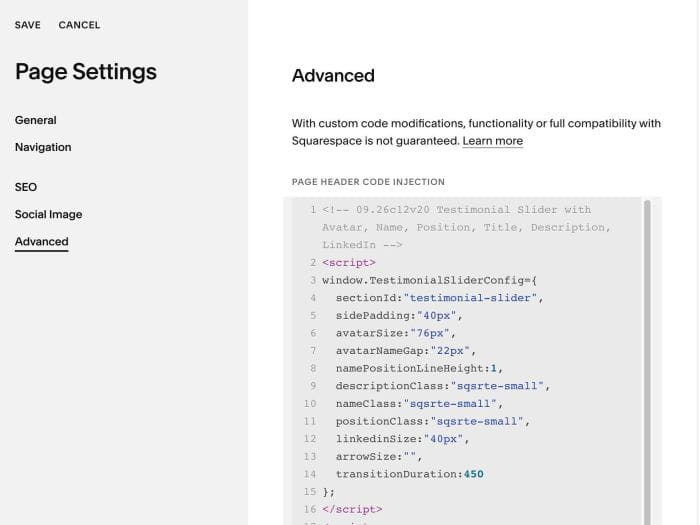
#1.5. Hover on Page where you use Carousel > Click Gear icon

#1.6. Click Advanced > Paste this code
<!-- 09.26c12v20 Testimonial Slider with Avatar, Name, Position, Title, Description, LinkedIn -->
<script>
window.TestimonialSliderConfig={
  sectionId:"testimonial-slider",
  sidePadding:"40px",
  avatarSize:"76px",
  avatarNameGap:"22px",
  namePositionLineHeight:1,
  descriptionClass:"sqsrte-small",
  nameClass:"sqsrte-small",
  positionClass:"sqsrte-small",
  linkedinSize:"40px",
  arrowSize:"",
  transitionDuration:450
};
</script>
<script src="https://code.beaverhero.com/listcarousel/0926c12v20testimonialslideravatarnamepositionlinkedin.js"></script>

#2. Customize
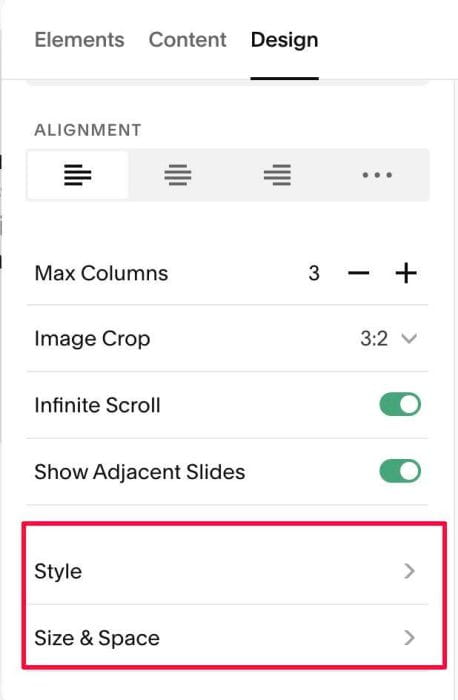
#2.1. To change columns, space between items, item background, text size…you can change in Size & Space, Style
#2.2. To change avatar image size, change line 06, 07
avatarSize:"76px",
  avatarNameGap:"22px",