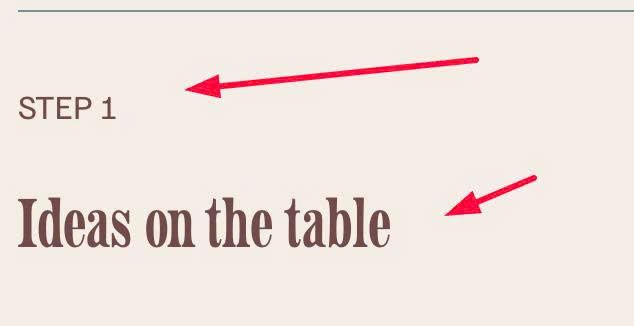
Description
- adding lines between text, break text to 2 lines, float text to left – right side
- view demo – password: abc
- buy me a coffee
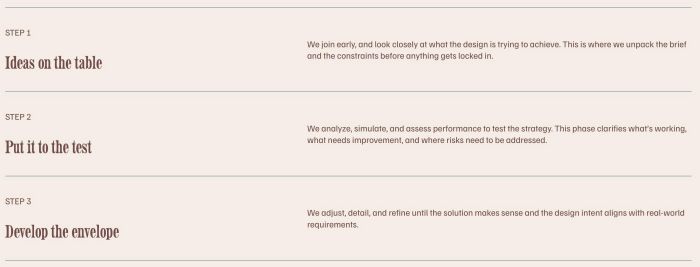
#1. Install Code
#1.1. First, you can add a Text Block with symbol like this
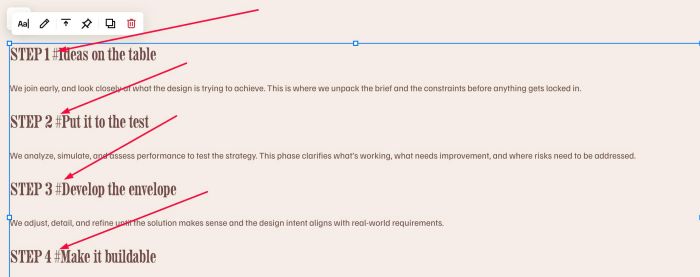
#1.2. Make sure you use Heading 2 or Heading 3 or Heading 4 for First text
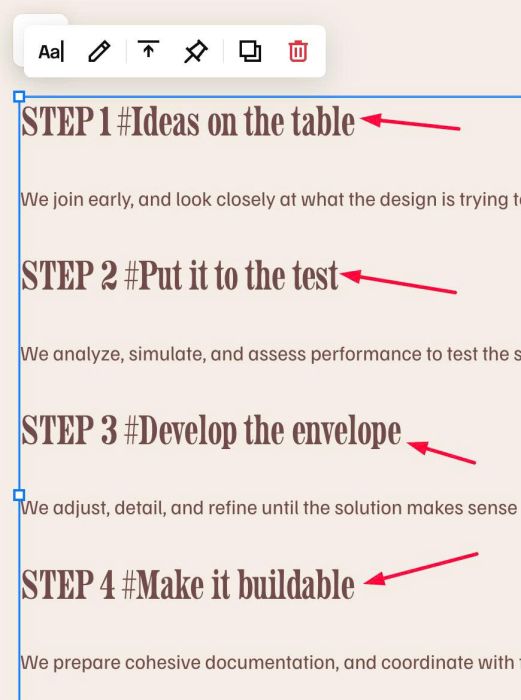
#1.3. Next, add this word into bottom of Text Block: #text-horizontalv2#

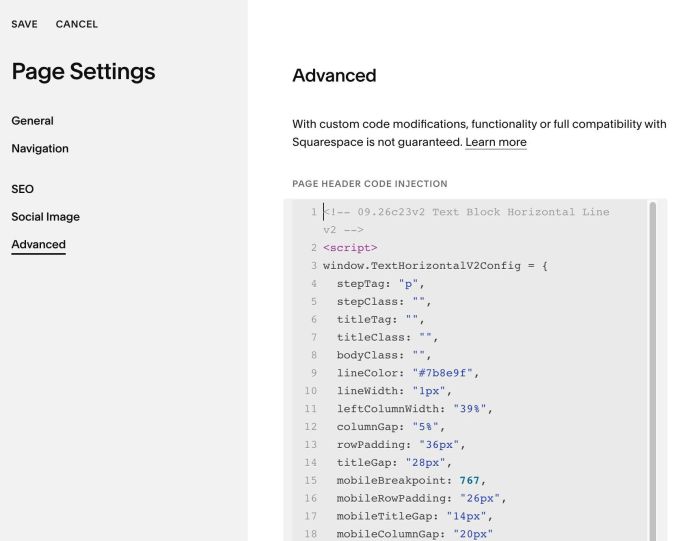
#1.4. Next, hover on Page where you use Text Block > Click Gear icon > Click Advanced > Paste this code
<!-- 09.26c23v2 Text Block Horizontal Line v2 -->
<script>
window.TextHorizontalV2Config = {
  stepTag: "p",
  stepClass: "",
  titleTag: "",
  titleClass: "",
  bodyClass: "",
  lineColor: "#7b8e9f",
  lineWidth: "1px",
  leftColumnWidth: "39%",
  columnGap: "5%",
  rowPadding: "36px",
  titleGap: "28px",
  mobileBreakpoint: 767,
  mobileRowPadding: "26px",
  mobileTitleGap: "14px",
  mobileColumnGap: "20px"
};
</script>
<script src="https://code.beaverhero.com/textblock/0926c23v2texthorizontallinev2.js"></script>
#2. Customize
#2.1. By default, code will turn Step text to Paragraph and Title under step to Heading 4, if you want to change these, adjust line 04 & line 06
stepTag: "p",
titleTag: "",
#2.2. To set Step text Paragraph 1 or Paragraph 3 style, change line 05
stepClass: "",
ex
stepClass: "sqsrte-large", // p1 style
or
stepClass: "sqsrte-small", // p3 style
similar with right text, adjust line 08
bodyClass: "",
#2.3. To change horizontal line style, change line 09, 10
lineColor: "#7b8e9f",
  lineWidth: "1px",
#2.4. To change padding top/bottom (between text – top line/text – bottom line), change line 13
rowPadding: "36px",
and line 16
mobileRowPadding: "26px",
#2.5. To change space between Step – Title, change line 14 & line 17
titleGap: "28px",
mobileTitleGap: "14px",