Description
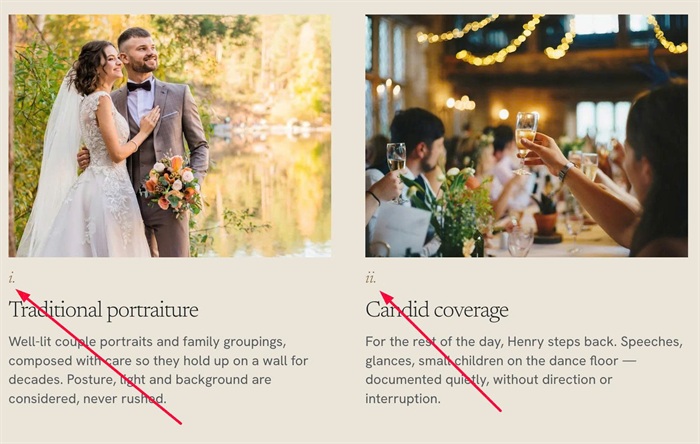
- automatically adds Roman numerals (i., ii., iii.) above each item title in a List Section, so you don’t need to type the numbers manually.
- buy me a coffee
#1. Install Code
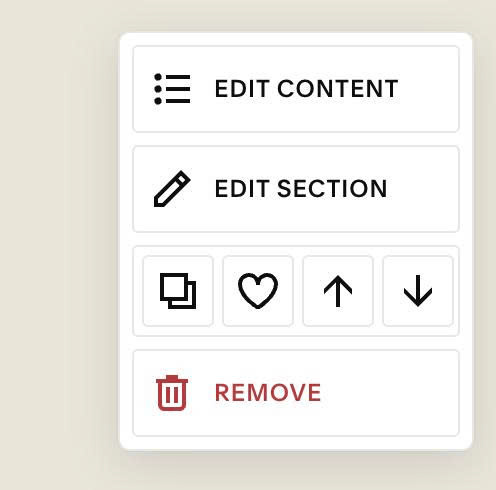
#1.1. First, hover on top right of section > Click EDIT SECTION
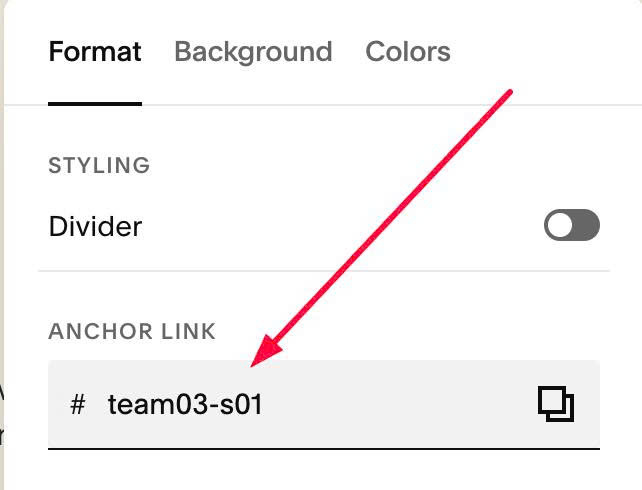
#1.2. at Design > Anchor Link > enter word: team03-s01
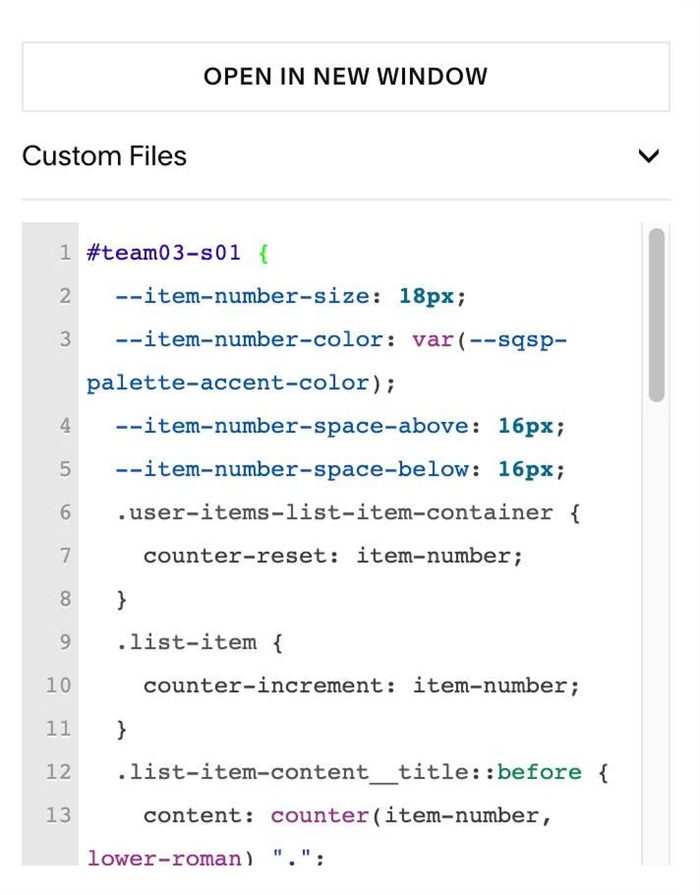
#1.3. Use this code to Custom CSS
#team03-s01 {
  --item-number-size: 18px;
  --item-number-color: var(--sqsp-palette-accent-color);
  --item-number-space-above: 16px;
  --item-number-space-below: 16px;
  .user-items-list-item-container {
    counter-reset: item-number;
  }
  .list-item {
    counter-increment: item-number;
  }
  .list-item-content__title::before {
    content: counter(item-number, lower-roman) ".";
    display: block;
    margin-top: var(--item-number-space-above);
    margin-bottom: var(--item-number-space-below);
    font-family: var(--heading-font-font-family);
    font-size: var(--item-number-size);
    font-weight: var(--heading-font-font-weight);
    font-style: italic;
    line-height: 1.1;
    letter-spacing: 0;
    color: var(--item-number-color);
  }
}
#1.4. Customize
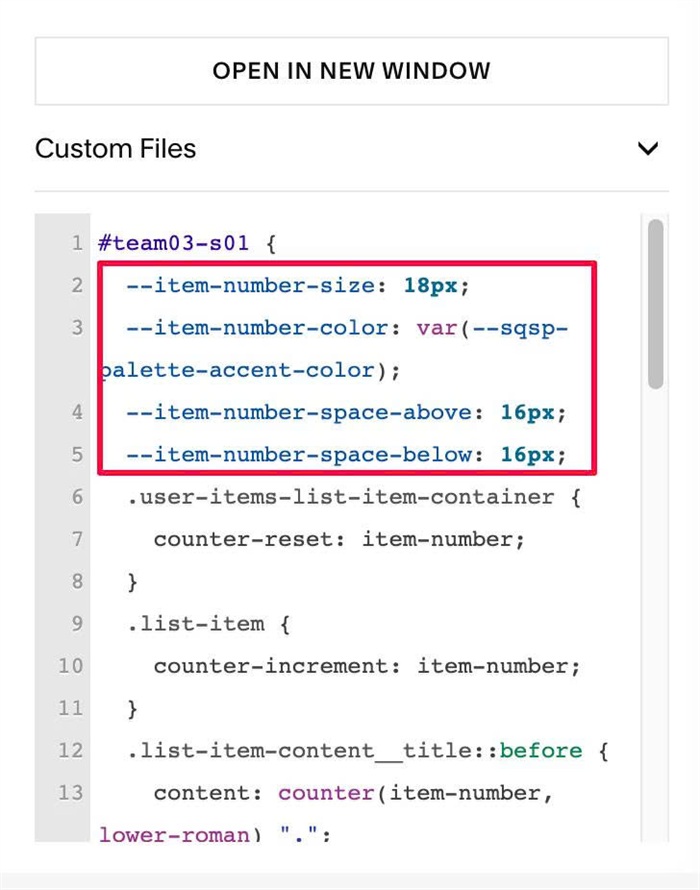
To change size, color, space above/below, you can change these lines
--item-number-size: 18px;
  --item-number-color: var(--sqsp-palette-accent-color);
  --item-number-space-above: 16px;
  --item-number-space-below: 16px;
With Color, you can use hex color, something like this
--item-number-color: #f1f;