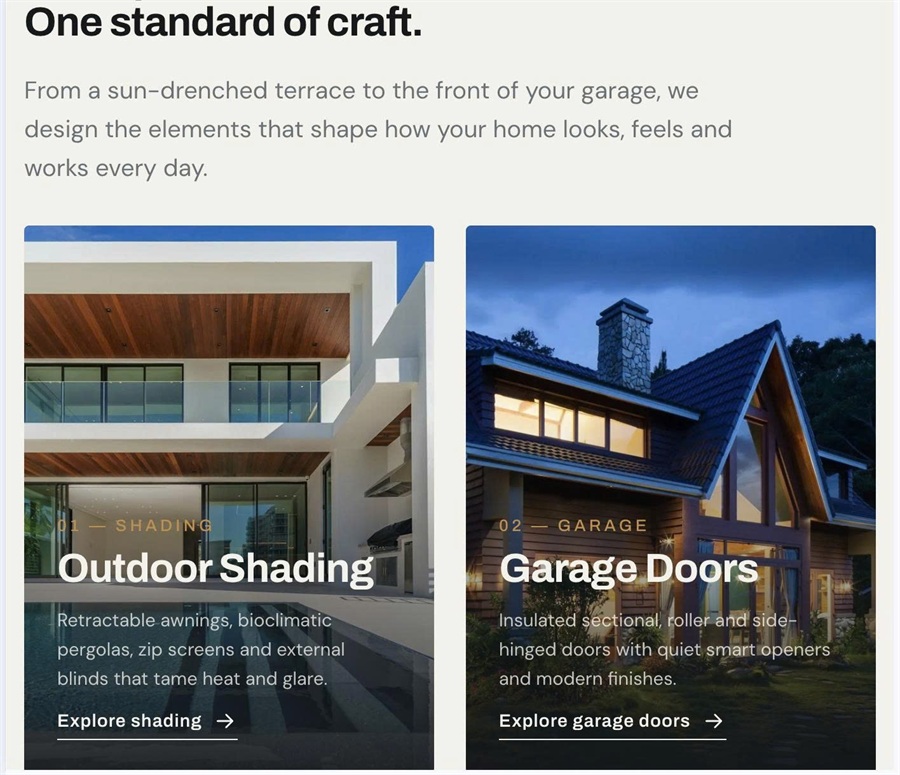
By default, List Section shows text below the image and only the button is clickable. This code puts the text on top of the image with a gradient overlay, turns the button into an arrow link, and makes the whole card clickable.
#1. Install Code
#1.1. First, use List Simple
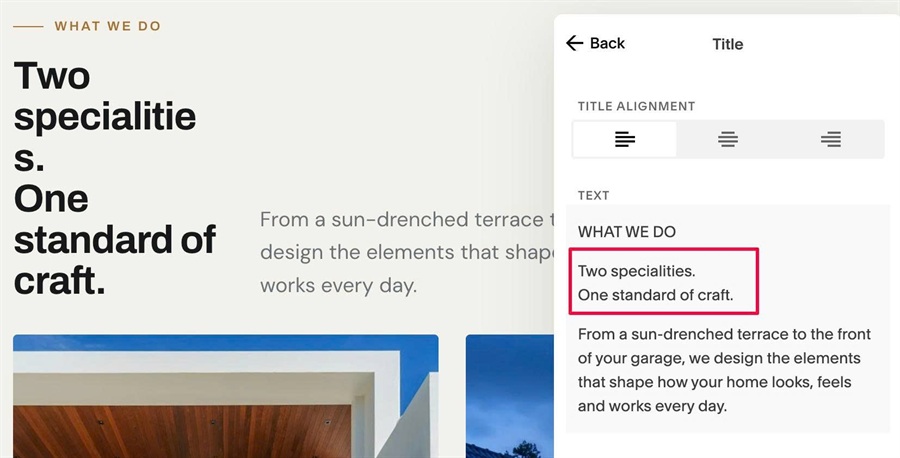
#1.2. Edit Section Title > Enter text. With second paragraph, use Shift Enter or Shift Return to add line break
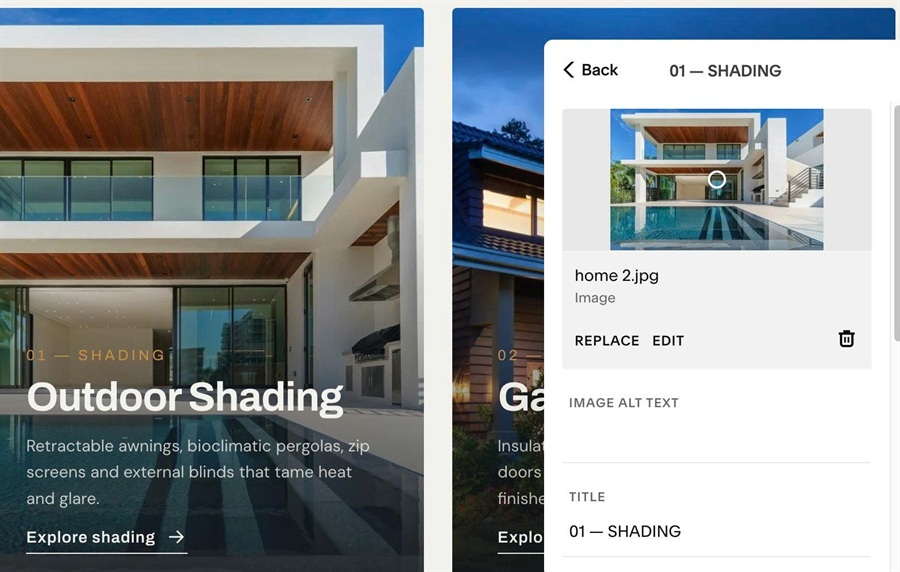
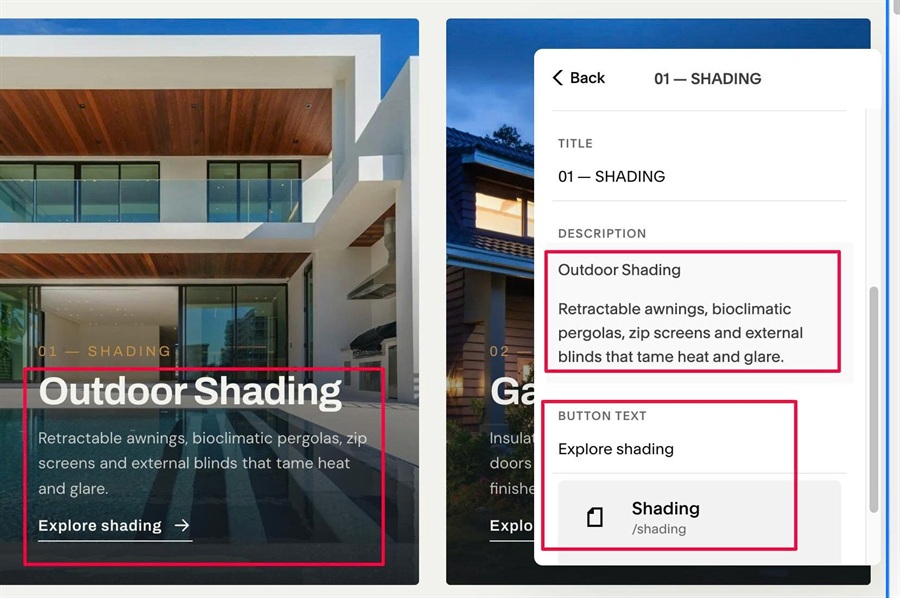
#1.3. Edit each item > Enter this
and this
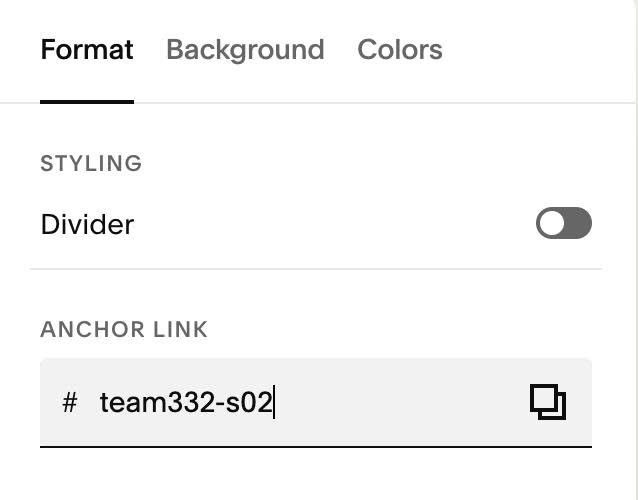
#1.4. Hover on top right of List > Click EDIT SECTION > at Format > Anchor Link > enter word: team332-s02
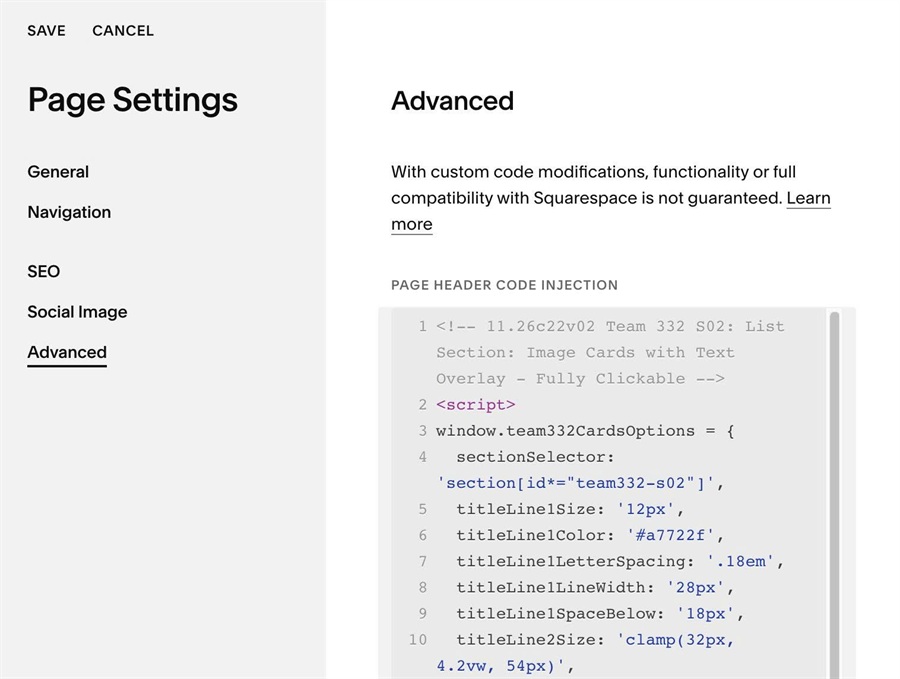
#1.5. Use this code to Page Header Injection
<!-- 11.26c22v02 Team 332 S02: List Section: Image Cards with Text Overlay - Fully Clickable -->
<script>
window.team332CardsOptions = {
  sectionSelector: 'section[id*="team332-s02"]',
  titleLine1Size: '12px',
  titleLine1Color: '#a7722f',
  titleLine1LetterSpacing: '.18em',
  titleLine1LineWidth: '28px',
  titleLine1SpaceBelow: '18px',
  titleLine2Size: 'clamp(32px, 4.2vw, 54px)',
  titleLine3Size: '19px',
  titleLine3Color: '#6c7276',
  titleLine3MaxWidth: '580px',
  cardRadius: '4px',
  cardPadding: '40px',
  cardPaddingMobile: '26px',
  overlayGradient: 'linear-gradient(180deg, transparent 35%, rgba(22,25,27,.88))',
  imageHoverZoom: '1.06',
  itemTitleColor: '#c58d45',
  itemTitleLetterSpacing: '.2em',
  itemLine1Size: 'clamp(32px, 4.2vw, 54px)',
  itemLine1Color: '#f4f1eb',
  itemLine2Color: 'rgba(244,241,235,.78)',
  itemLine2SpaceAbove: '12px',
  buttonColor: '#f4f1eb',
  buttonLineWidth: '1px',
  buttonArrow: true,
  wholeCardClickable: true
};
</script>
<script src="https://code.beaverhero.com/listsimple/1126c22v02team332s02.js"></script>
#1.6. Customize
Any styles not mentioned here can be adjusted under Design > Style, Size & Space, or Site Styles.
To change style of Section Title – First Paragraph + Line, edit this
titleLine1Size: '12px',
  titleLine1Color: '#a7722f',
  titleLine1LetterSpacing: '.18em',
  titleLine1LineWidth: '28px',
  titleLine1SpaceBelow: '18px',

To edit style of Second + Third Paragraphs in Section Title, edit this
titleLine2Size: 'clamp(32px, 4.2vw, 54px)',
  titleLine3Size: '19px',
  titleLine3Color: '#6c7276',
  titleLine3MaxWidth: '580px',

To change overlay color over image + image zoom ratio, edit this
overlayGradient: 'linear-gradient(180deg, transparent 35%, rgba(22,25,27,.88))',
  imageHoverZoom: '1.06',
To change item title style (you can change size in Design > Style), edit this
itemTitleColor: '#c58d45',
  itemTitleLetterSpacing: '.2em',
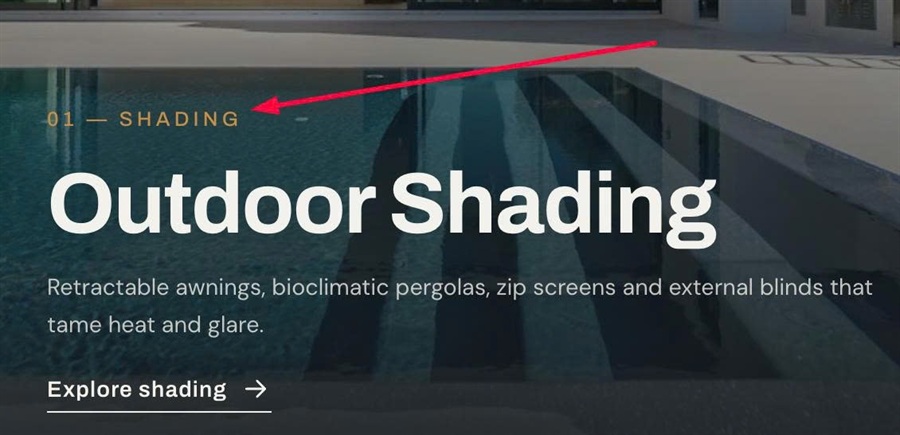
To change style of First – Second Paragraph in Item Description, edit this
itemLine1Size: 'clamp(32px, 4.2vw, 54px)',
  itemLine1Color: '#f4f1eb',
  itemLine2Color: 'rgba(244,241,235,.78)',
  itemLine2SpaceAbove: '12px',
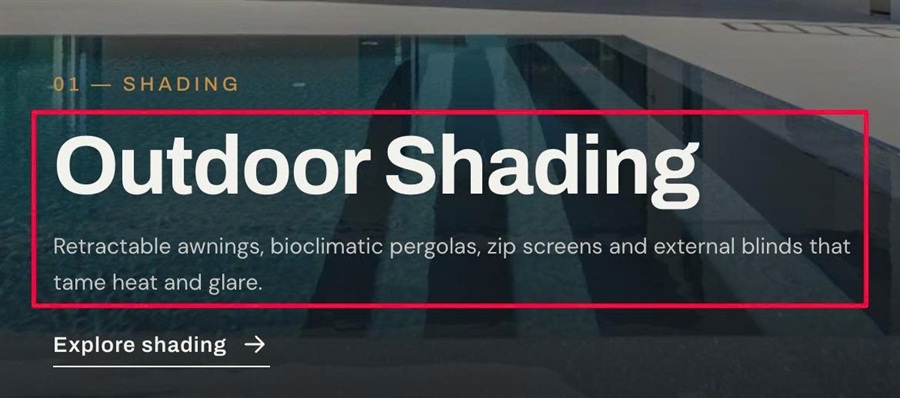
To change button style, edit this
buttonColor: '#f4f1eb',
 buttonLineWidth: '1px',
 buttonArrow: true,