Description
- move gallery block under add to cart, so you can some icon box with text under add to cart
- view demo – password: abc
- buy me a coffee

#1. Install Code
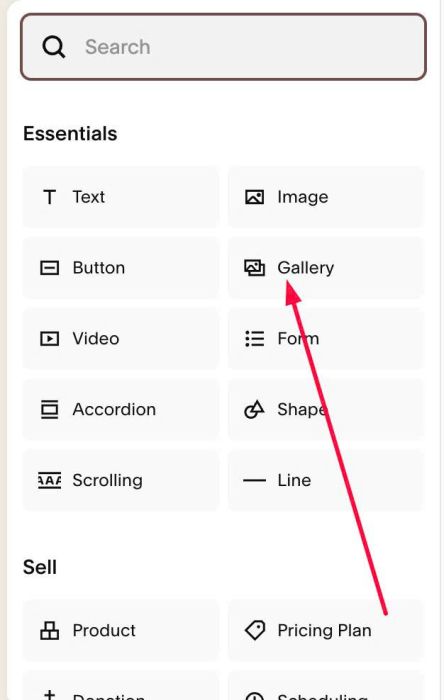
#1.1. First, you can edit Product > Add Section > Add a Gallery Block
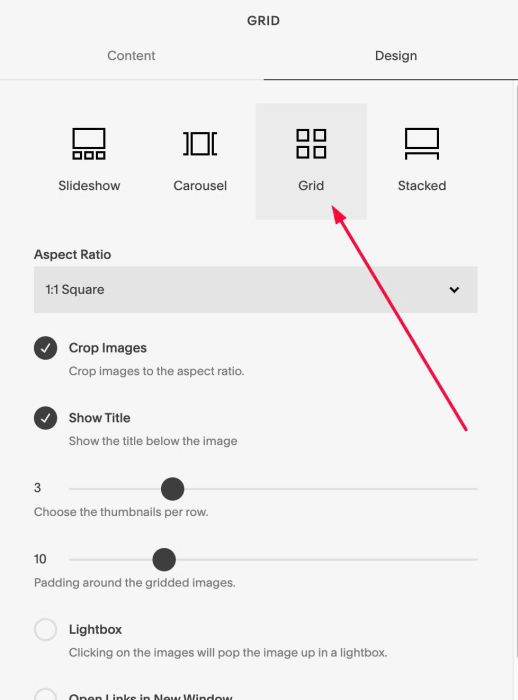
Choose a Grid layout
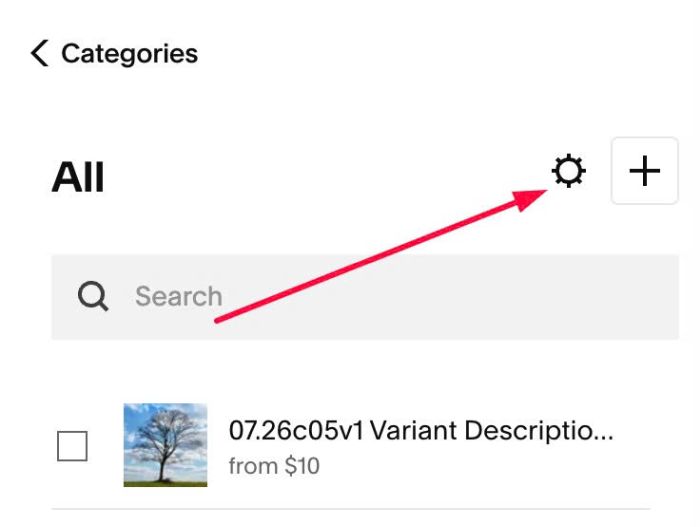
#1.2. Click Gear icon on Store Page
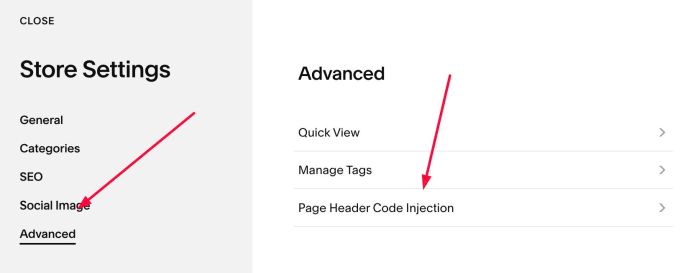
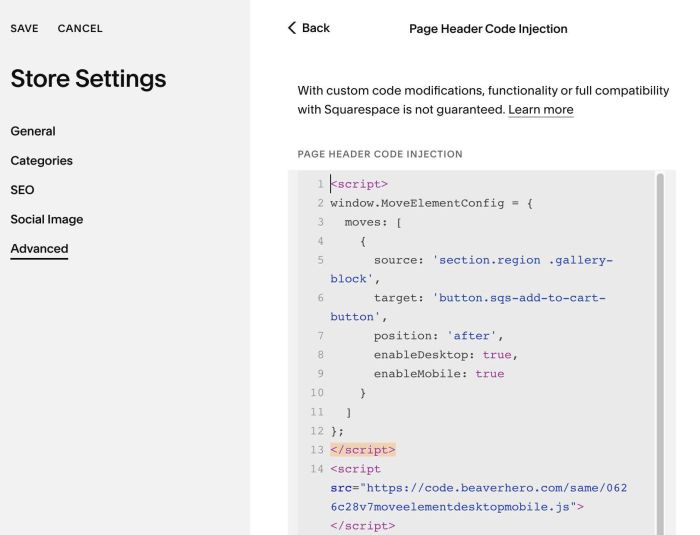
Next, click Advanced > Page Header Code Injection
#1.3. Add this code to right box
<script>
window.MoveElementConfig = {
  moves: [
    {
      source: 'section.region .gallery-block',
      target: 'button.sqs-add-to-cart-button',
      position: 'after',
      enableDesktop: true,
      enableMobile: true
    }
  ]
};
</script>
<script src="https://code.beaverhero.com/same/0626c28v7moveelementdesktopmobile.js"></script>
#2. Customize
#2.1. To make 4 items/row on Mobile, use this under main code
<style>
@media screen and (max-width:767px) {
    .sqs-add-to-cart-button-wrapper.product-add-to-cart-button-wrapper .slide {
    width: 25% !important;
}}
</style>