Description
- adding an arrow (with text) in bottom of section, click it will scroll down to next section, you can set arrow animating or static arrow
- view demo – password: abc
- buy me a coffee

#1. Install Code
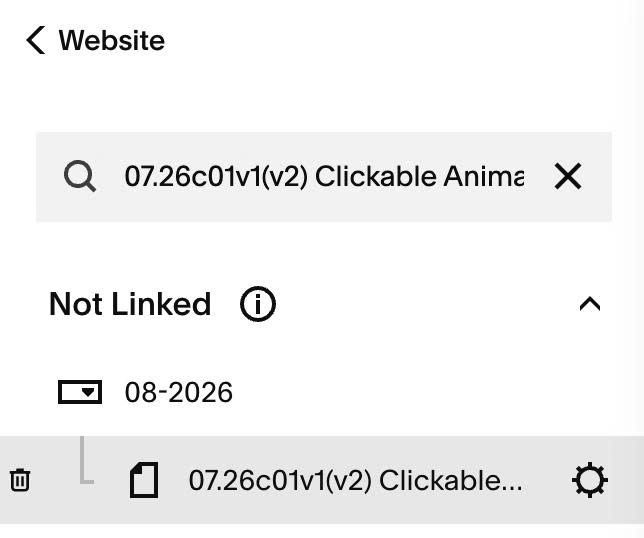
#1.1. Hover on Page where you want to add animated down arrow > Click Gear icon
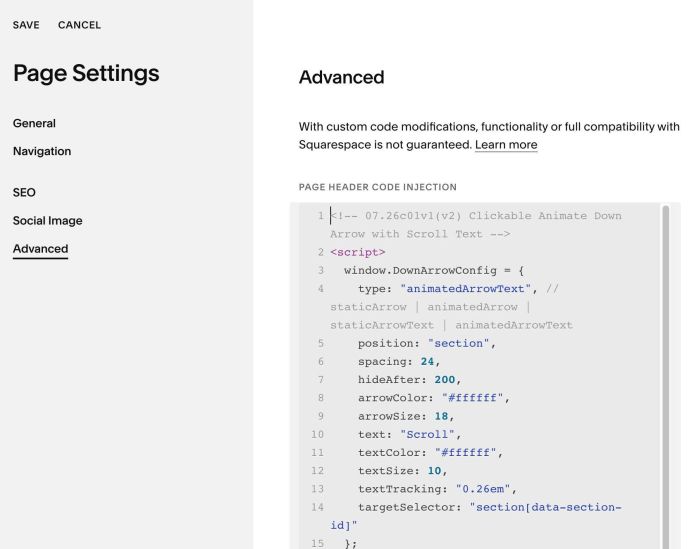
#1.2. Click Advanced > Paste this code
- If you use Personal/Basic Plan and your plan doesn’t support Injection, you can see #3.1
<!-- 07.26c01v1(v2) Clickable Animate Down Arrow with Scroll Text -->
<script>
  window.DownArrowConfig = {
    type: "animatedArrowText", // staticArrow | animatedArrow | staticArrowText | animatedArrowText
    position: "section",
    spacing: 24,
    hideAfter: 200,
    arrowColor: "#ffffff",
    arrowSize: 18,
    text: "Scroll",
    textColor: "#ffffff",
    textSize: 10,
    textTracking: "0.26em",
    targetSelector: "section[data-section-id]"
  };
</script>
 <script src="https://code.beaverhero.com/other/0726c01v1v2clickabledownarrowtext.js"></script>
#2. Customize
#2.1. Code offers 4 type of arrow/text
- staticArrow
- animatedArrow
- staticArrowText
- animatedArrowText
type: "animatedArrowText",
#2.2. To change arrow, text style, change line 08 – line 12
arrowColor: "#ffffff",
    arrowSize: 18,
    text: "Scroll",
    textColor: "#ffffff",
    textSize: 10,
#2.3. To set arrow in bottom of screen instead of bottom of section, change line 05
position: "section",
to
position: "",
#3. Other
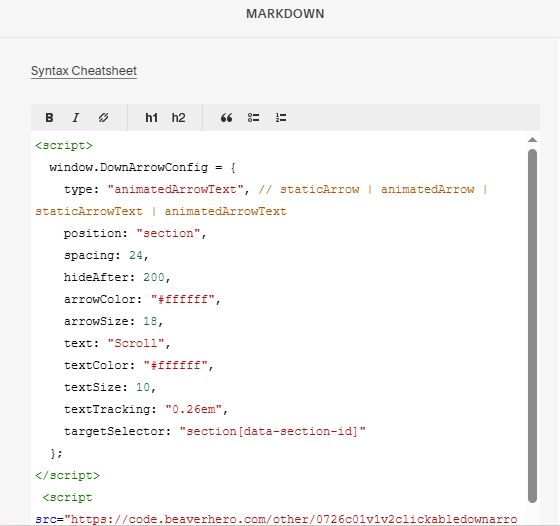
#3.1. If you use Personal/Basic Plan and your plan doesn’t support Code Injection, you can edit current page > Add a Markdown Block.

Use this code into Markdown Block
<script>
  window.DownArrowConfig = {
    type: "animatedArrowText", // staticArrow | animatedArrow | staticArrowText | animatedArrowText
    position: "section",
    spacing: 24,
    hideAfter: 200,
    arrowColor: "#ffffff",
    arrowSize: 18,
    text: "Scroll",
    textColor: "#ffffff",
    textSize: 10,
    textTracking: "0.26em",
    targetSelector: "section[data-section-id]"
  };
</script>
 <script src="https://code.beaverhero.com/other/0726c01v1v2clickabledownarrowtext.js"></script>