Description
- adding category text between portfolio grid
- view demo – password: abc
- buy me a coffee

#1. Install Code
#1.1. Click Gear icon on Portfolio Page
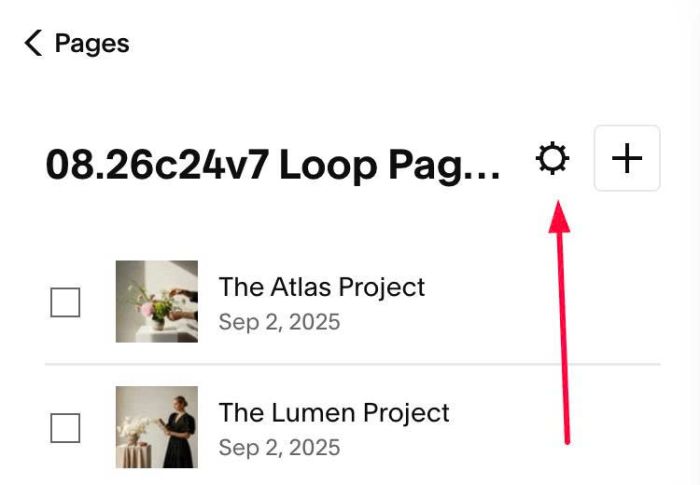
#1.2. Click Advanced > Paste this code
<!-- 09.26c07v9 Portfolio Category-Grid-Category-Grid -->
<script>
window.PortfolioCatGridConfig = {
  headingTag: "h2",
  headingFontSize: "",
  headingColor: "",
  headingAlign: "left",
  spaceAbove: "10px",
  spaceBelow: "6px",
  emptyGroupHeading: ""
};
</script>
<script src="https://code.beaverhero.com/portfolio/0926c07v9portfoliogrid-category-grid.js"></script>

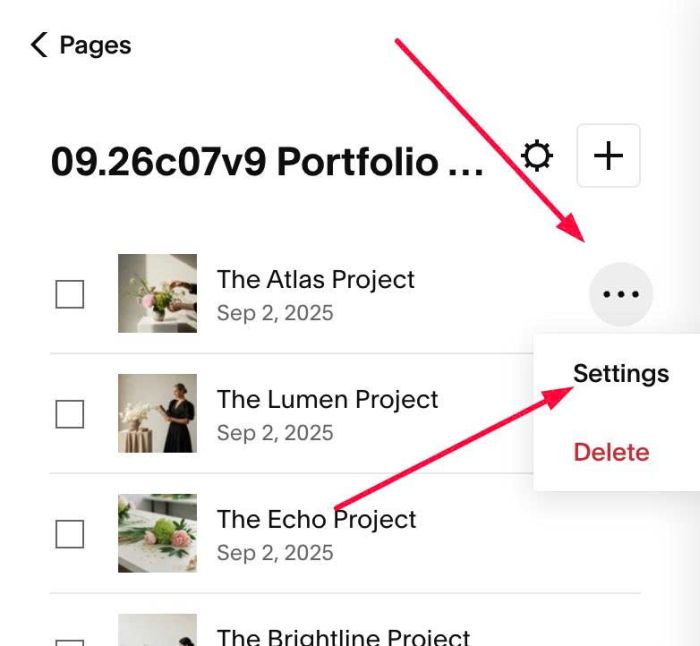
#1.3. Hover on each portfolio item > Click Settings
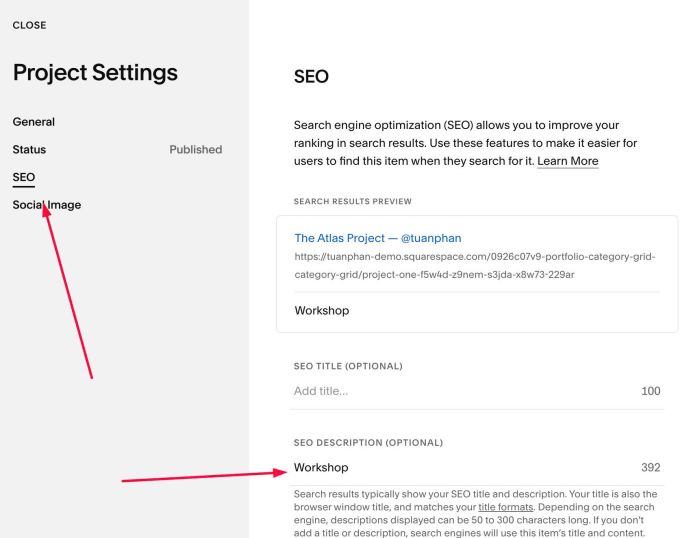
#1.4. Next, click SEO > at SEO Description, enter your desired category text
#2. Customize
#2.1. By default, category text will use Heading 2 (h2), if you want to change it to another tag, change line 04
headingTag: "h2",
#2.2. To change space above/under category, change line 08, 09
spaceAbove: "10px",
 spaceBelow: "6px",