Description
- adding black box with accordion block (left side) – static image (right side)
- view demo – password: abc
- buy me a coffee

1. Install Code
#1.1. First add Section > Choose Team > Choose Section with auto layout icon

#1.2. Hover on top right of section > Click EDIT CONTENT

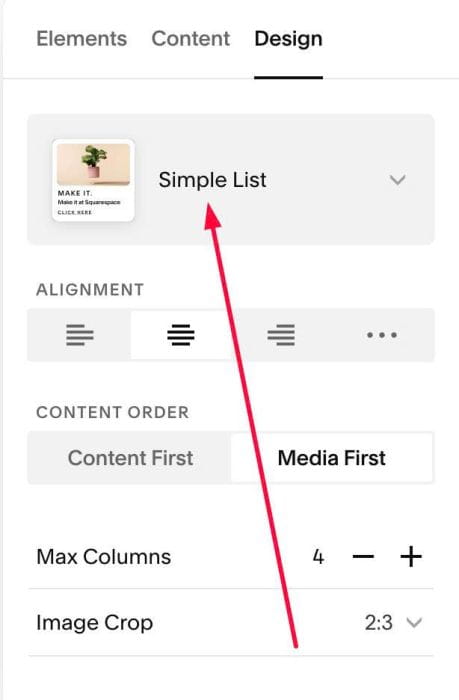
#1.2-2. at Design > Choose Simple List
#1.3. Next, click EDIT SECTION
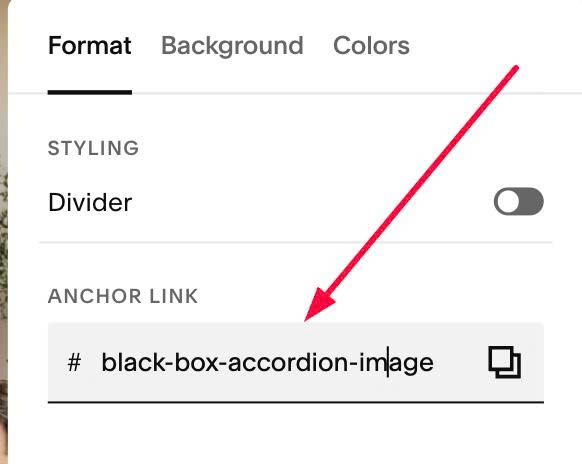
#1.3-2. at Format > Anchor Link > enter word: black-box-accordion-image
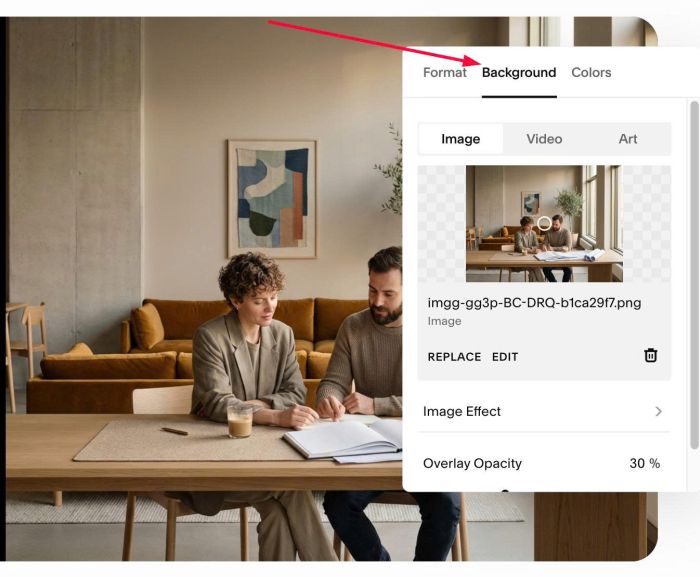
#1.3-3. Next, at Background > Upload your desired image (we will use this image on right side of black box)
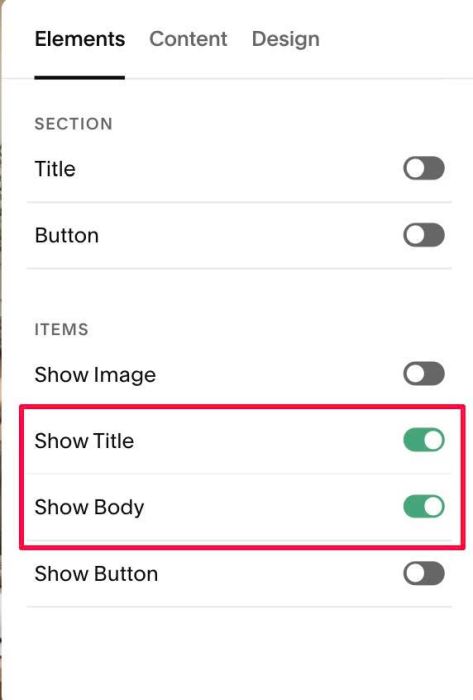
#1.4. at Elements > Enable these
#1.5. at Content, enter your desired image/text

Like this

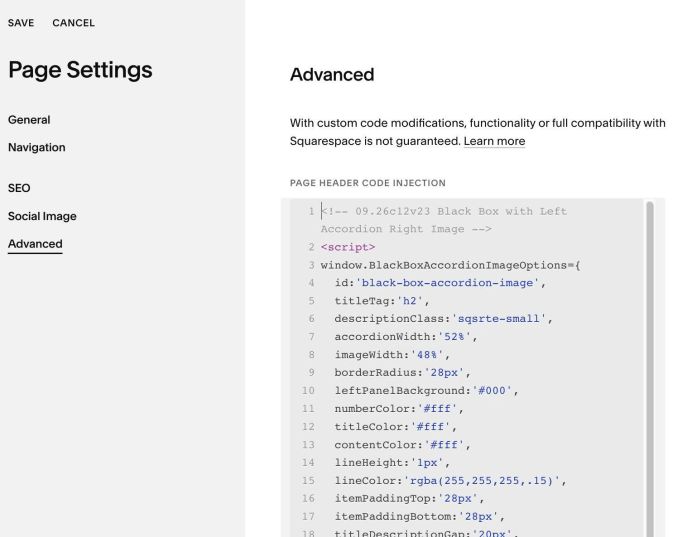
#1.6. Next, hover on Page where you use List > Click Gear icon > Click Advanced > Paste this code
<!-- 09.26c12v23 Black Box with Left Accordion Right Image -->
<script>
window.BlackBoxAccordionImageOptions={
  id:'black-box-accordion-image',
  titleTag:'h2',
  descriptionClass:'sqsrte-small',
  accordionWidth:'52%',
  imageWidth:'48%',
  borderRadius:'28px',
  leftPanelBackground:'#000',
  numberColor:'#fff',
  titleColor:'#fff',
  contentColor:'#fff',
  lineHeight:'1px',
  lineColor:'rgba(255,255,255,.15)',
  itemPaddingTop:'28px',
  itemPaddingBottom:'28px',
  titleDescriptionGap:'20px',
  outerPaddingTop:'0px',
  outerPaddingRight:'',
  outerPaddingBottom:'0px',
  outerPaddingLeft:''
};
</script>
<script src="https://code.beaverhero.com/listsimple/0926c12v23blackboxaccleftimageright.js"></script>
#2. Customize
#2.1. To change black background color, change line 10
leftPanelBackground:'#000',
#2.2. To change left – right panels width, change line 07, 08
accordionWidth:'52%',
imageWidth:'48%',
#2.3. Other options you can find in Line 05 – Line 22
titleTag:'h2',
descriptionClass:'sqsrte-small',
accordionWidth:'52%',
imageWidth:'48%',
borderRadius:'28px',
leftPanelBackground:'#000',
numberColor:'#fff',
titleColor:'#fff',
contentColor:'#fff',
lineHeight:'1px',
lineColor:'rgba(255,255,255,.15)',
itemPaddingTop:'28px',
itemPaddingBottom:'28px',
titleDescriptionGap:'20px',
outerPaddingTop:'0px',
outerPaddingRight:'',
outerPaddingBottom:'0px',
outerPaddingLeft:''