Description
- pricing table with 4 columns, featured column, use list simple
- view demo – password: abc
- buy me a coffee
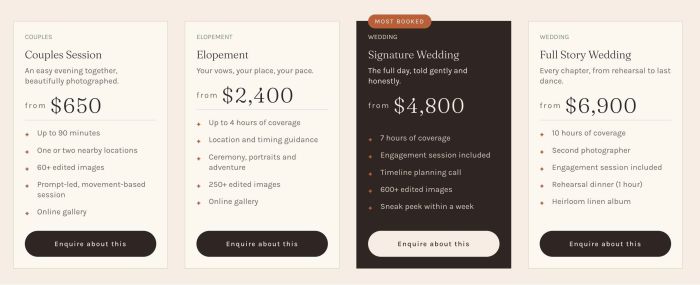
#1. Install Code
#1.1. Make sure you use List Simple
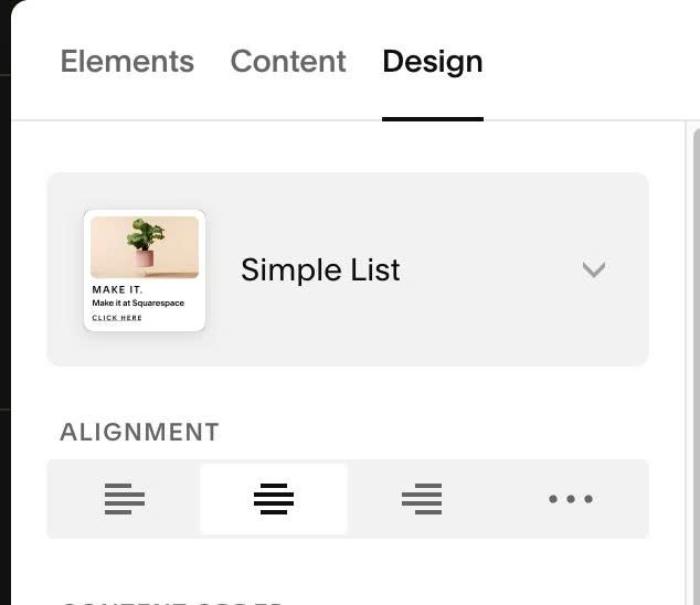
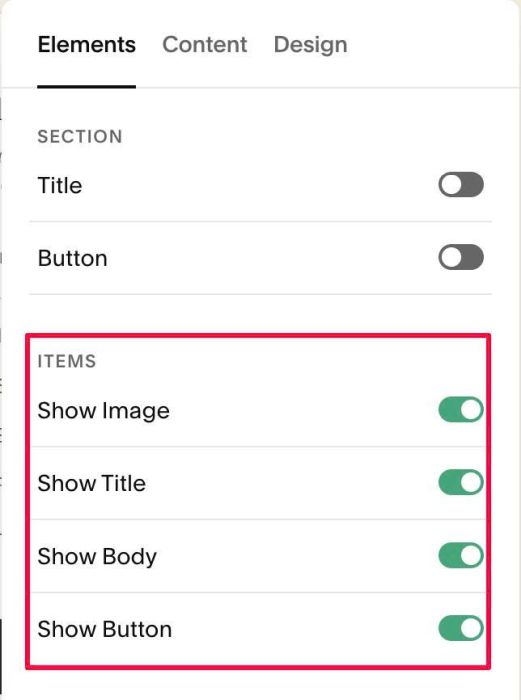
#1.2. Enable these
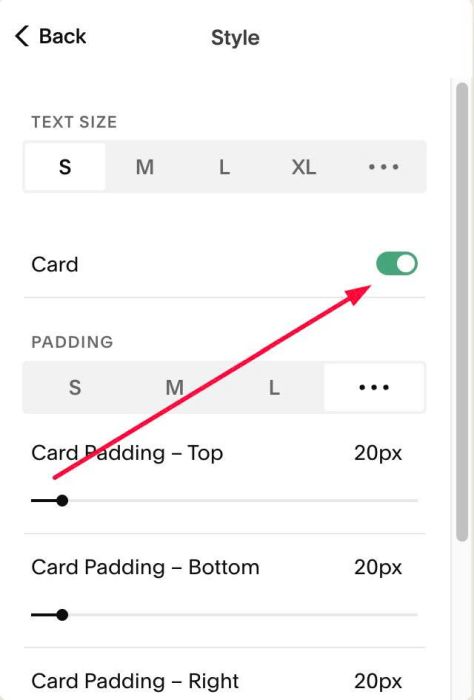
#1.3. at Style > enable option: Card
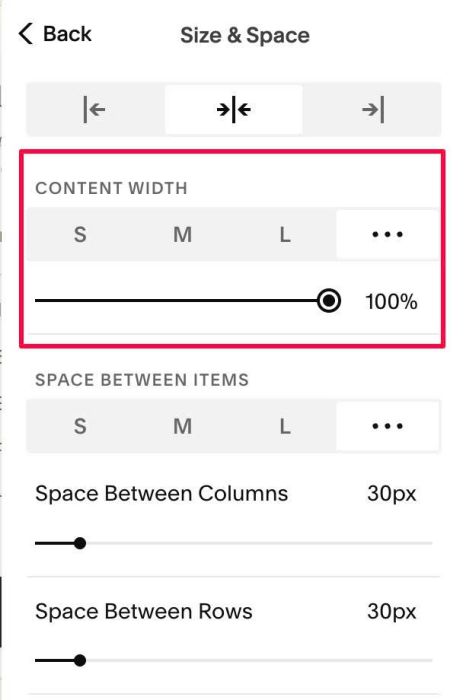
#1.4. at Size & Space > Make Content Width = 100%
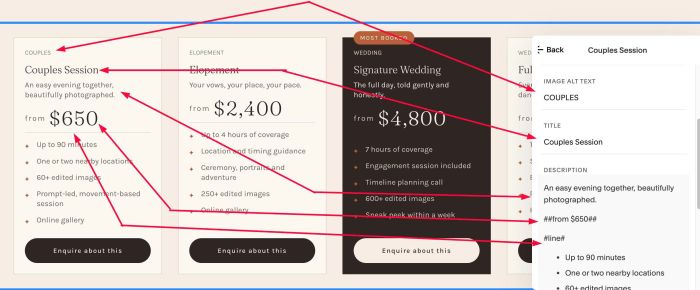
#1.5. Next, edit each item > enter text like this
- use #line# to add underline
- use ##from $650## to have price text/value
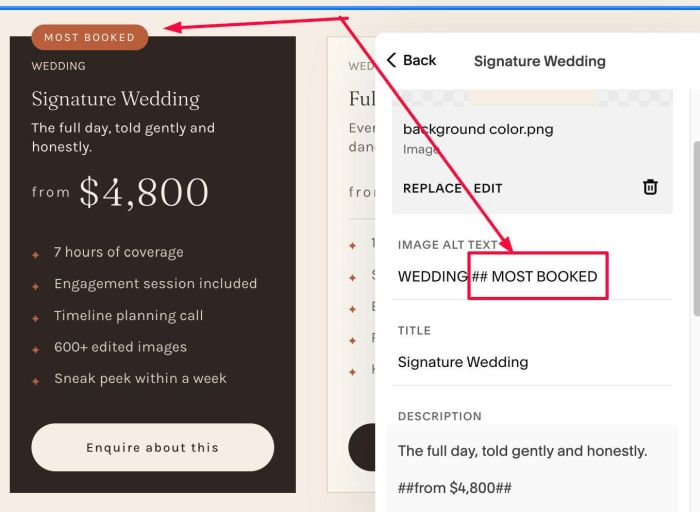
to have Most Booked label, you can enter text in Image ALT, but place ## before
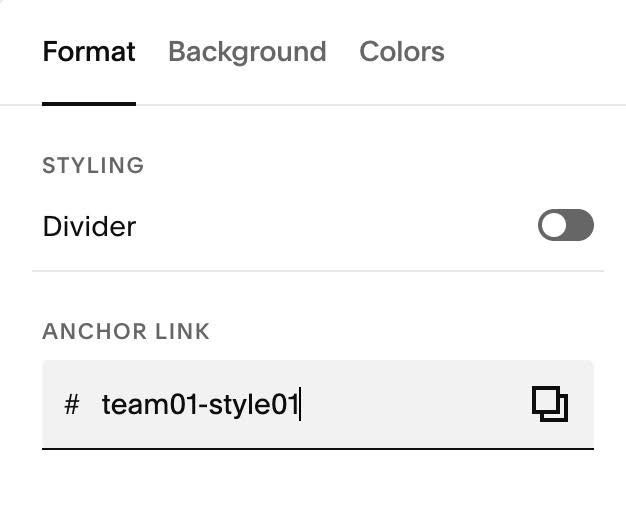
#1.6. Next, hover on top right of section > Click EDIT SECTION > at Format > Anchor Link > enter word: team01-style01
#1.7. Next, use code to Page Header Injection
<!-- 10.26c29v05 Team 01 Style 01: Pricing Table with Featured Column -->
<script>
window.T01s01Config = {
  sectionSelector: 'section[id*="team01-style01"]',

  cardBorderColor: '#E0D3C4',
  contentAlignment: 'left',
  buttonFullWidth: true,

  typeFontSize: '12px',
  typeColor: '#7F8C6E',
  typeSpaceBelow: '14px',

  priceFromFontSize: '',
  priceFromColor: '#6E625A',
  priceAmountFontSize: '2.6em',
  priceAmountColor: '',
  priceGap: '6px',

  lineColor: '#E0D3C4',
  lineThickness: '1px',
  lineSpaceAbove: '22px',
  lineSpaceBelow: '16px',

  bulletSymbol: '✦',
  bulletColor: '#B8613B',
  bulletFontSize: '10px',
  bulletIndent: '22px',
  featureItemSpacing: '6px',

  badgeFontSize: '11px',
  badgeColor: '#FFFFFF',
  badgeBackground: '#B8613B',
  badgePadding: '7px 12px',
  badgeRadius: '999px',
  badgeLetterSpacing: '.14em',

  featuredBackground: '#2E2622',
  featuredText: '#F5EEE4',
  featuredMuted: '#D9CCBF',
  featuredType: '#EBD5C6',
  featuredBorder: '#2E2622',
  featuredLine: 'rgba(245,238,228,.2)',
  featuredBullet: '#B8613B',
  featuredButtonBackground: '#F5EEE4',
  featuredButtonText: '#2E2622'
};
</script>
<script src="https://code.beaverhero.com/listsimple/1026c29v05team01style01pricingfeaturedcolumn.js"></script>
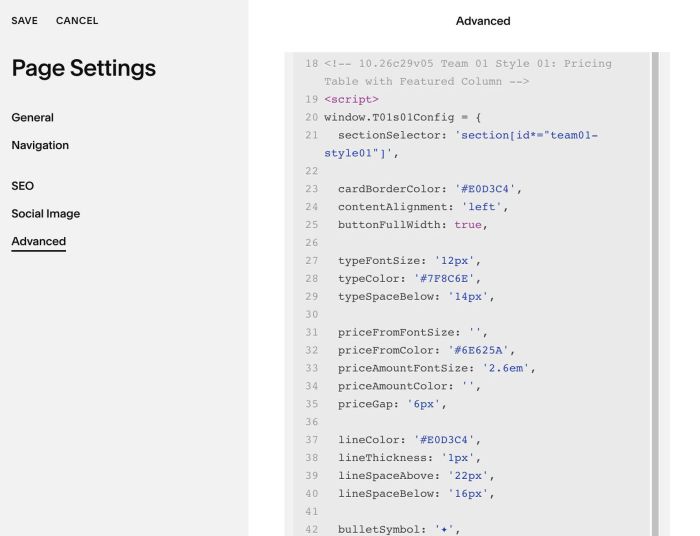
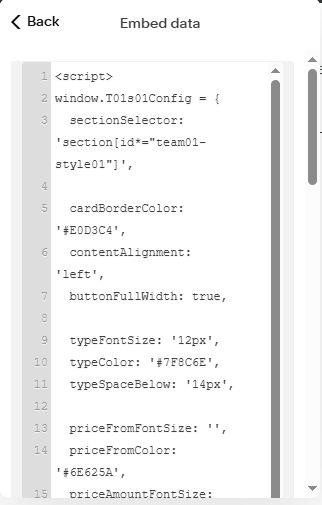
#1.7-2. If you use Personal/Basic Plan and your plan doesn’t support Injection, you can edit current page > Add an Embed Block > Click Code Snippet > Embed Data > Paste the code
<script>
window.T01s01Config = {
  sectionSelector: 'section[id*="team01-style01"]',

  cardBorderColor: '#E0D3C4',
  contentAlignment: 'left',
  buttonFullWidth: true,

  typeFontSize: '12px',
  typeColor: '#7F8C6E',
  typeSpaceBelow: '14px',

  priceFromFontSize: '',
  priceFromColor: '#6E625A',
  priceAmountFontSize: '2.6em',
  priceAmountColor: '',
  priceGap: '6px',

  lineColor: '#E0D3C4',
  lineThickness: '1px',
  lineSpaceAbove: '22px',
  lineSpaceBelow: '16px',

  bulletSymbol: '✦',
  bulletColor: '#B8613B',
  bulletFontSize: '10px',
  bulletIndent: '22px',
  featureItemSpacing: '6px',

  badgeFontSize: '11px',
  badgeColor: '#FFFFFF',
  badgeBackground: '#B8613B',
  badgePadding: '7px 12px',
  badgeRadius: '999px',
  badgeLetterSpacing: '.14em',

  featuredBackground: '#2E2622',
  featuredText: '#F5EEE4',
  featuredMuted: '#D9CCBF',
  featuredType: '#EBD5C6',
  featuredBorder: '#2E2622',
  featuredLine: 'rgba(245,238,228,.2)',
  featuredBullet: '#B8613B',
  featuredButtonBackground: '#F5EEE4',
  featuredButtonText: '#2E2622'
};
</script>
<script src="https://code.beaverhero.com/listsimple/1026c29v05team01style01pricingfeaturedcolumn.js"></script>
#2. Customize
#2.1. To change item border color, change line
cardBorderColor: '#E0D3C4',
#2.2. To change style of First Text (Couples, Elopement,..), change these
typeFontSize: '12px',
  typeColor: '#7F8C6E',
  typeSpaceBelow: '14px',
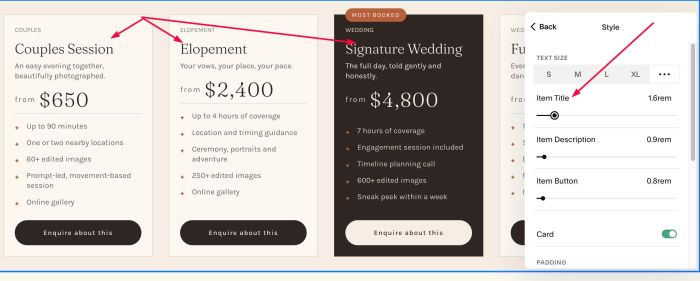
#2.3. To change style of second text (Couples Session,..), it uses Heading 2 Style + Item Title Size
#2.4. To change item description style (above/below Price), you can change in Item Description
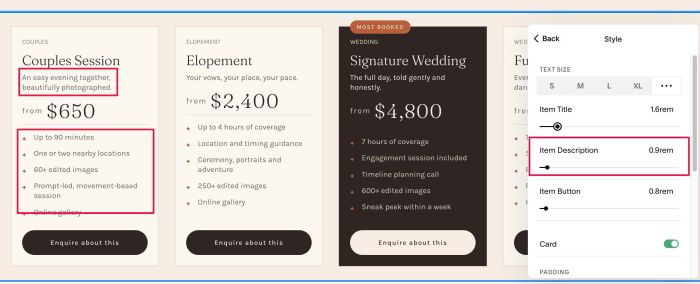
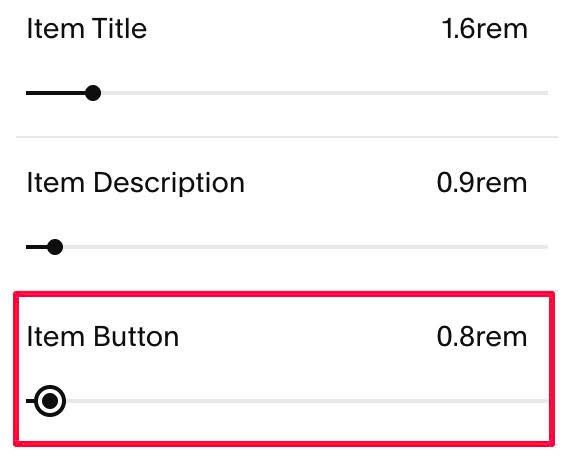
similar with button
#2.5. To change Price style, change these
priceFromFontSize: '',
  priceFromColor: '#6E625A',
  priceAmountFontSize: '2.6em',
  priceAmountColor: '',
  priceGap: '6px',
#2.6. To change line style + bullet icon (before list), change these
lineColor: '#E0D3C4',
 lineThickness: '1px',
 lineSpaceAbove: '22px',
 lineSpaceBelow: '16px',

 bulletSymbol: '✦',
 bulletColor: '#B8613B',
 bulletFontSize: '10px',
 bulletIndent: '22px',
 featureItemSpacing: '6px',
#2.7. To change Most Booked label style, change these
badgeFontSize: '11px',
  badgeColor: '#FFFFFF',
  badgeBackground: '#B8613B',
  badgePadding: '7px 12px',
  badgeRadius: '999px',
  badgeLetterSpacing: '.14em',
#2.8. To change Featured Column style, change these
featuredBackground: '#2E2622',
  featuredText: '#F5EEE4',
  featuredMuted: '#D9CCBF',
  featuredType: '#EBD5C6',
  featuredBorder: '#2E2622',
  featuredLine: 'rgba(245,238,228,.2)',
  featuredBullet: '#B8613B',
  featuredButtonBackground: '#F5EEE4',
  featuredButtonText: '#2E2622'